



For molecular modelers, effectively exploring variations of a molecule can be a time-consuming and intricate process. This is particularly crucial when considering substitutions to optimize interactions with a target or when preparing molecules for further analysis, such as docking. Fortunately, SAMSON’s SMILES Manager enables a streamlined workflow for generating analogue series based on positional analogue scanning and SMARTS pattern substitution. Let’s dive into how this can make your work more efficient!
Why SMARTS Patterns Matter?
Easily identifying and modifying specific parts of a molecule through well-defined patterns is a powerful asset in molecular modeling. SMARTS (SMILES Arbitrary Target Specification) codes act like search patterns for molecular structures. These patterns help you locate certain atoms or groups within a molecule, enabling precise chemical modifications.
Finding and Defining Your Pattern
Within the SMILES Manager extension in SAMSON, you can define your starting molecule either by inputting its SMILES code or selecting it from your SAMSON workspace. The next step is to define the pattern you wish to substitute or augment. For example, let’s consider aromatic carbon atoms. By entering the SMARTS code [cH], the software highlights all aromatic carbons in the starting molecule.
You can see this process in action in the gif below:
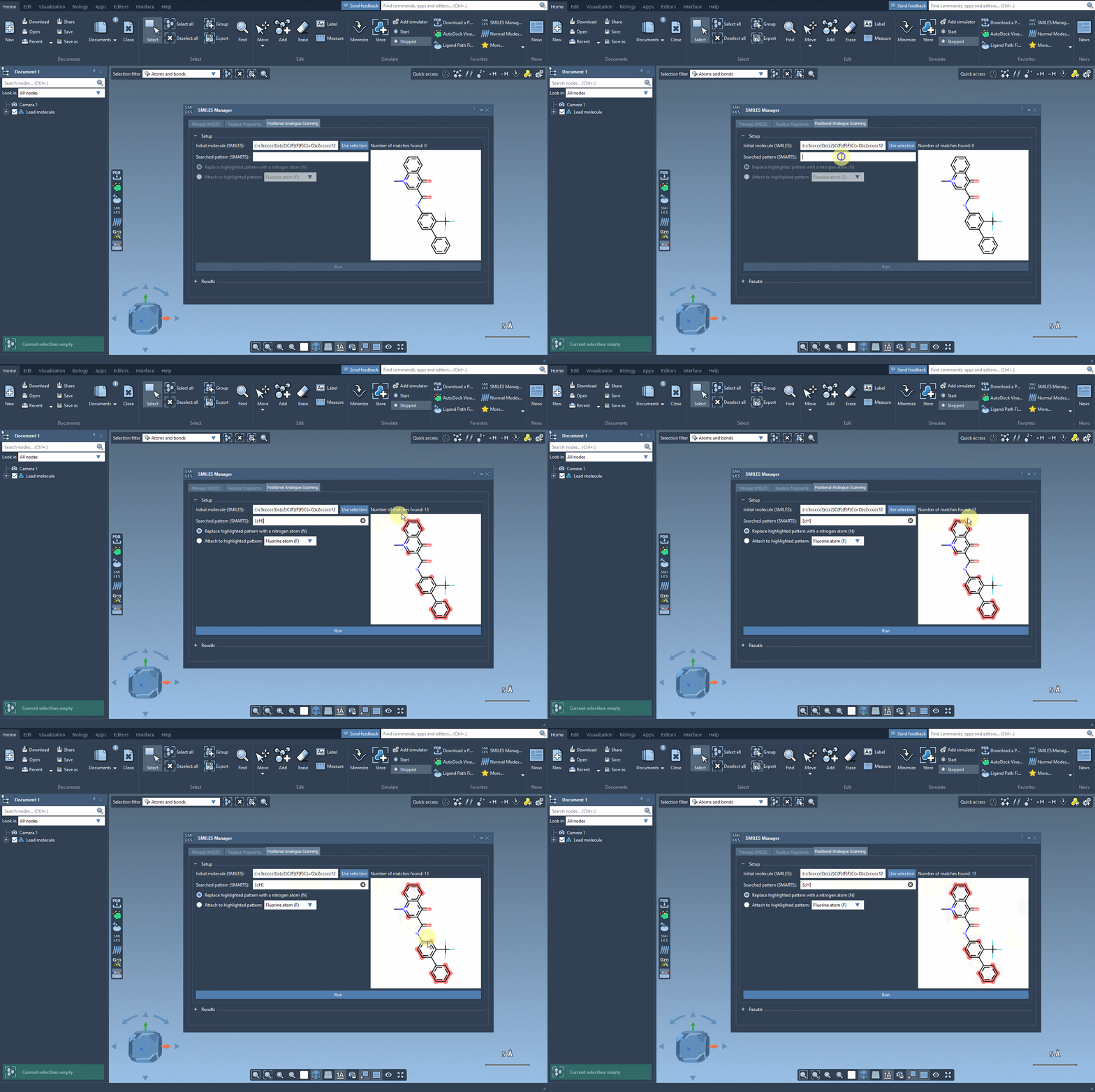
This step makes it easy to see exactly which parts of your molecule are targeted for substitutions, giving you full control over the design and analysis process.
Substituting or Adding to Patterns
Once your desired pattern is highlighted, the next step is substitution (or attachment). For instance, you might replace an aromatic carbon with a nitrogen atom (N) or add a fluorine group (F). Upon setting the modification options, simply click ‘Run.’ The analogues are automatically generated and displayed in the results section.
What’s more, the process is quick—not only generating the SMILES codes but also producing 2D depictions of your generated analogues, which makes reviewing your results very easy.
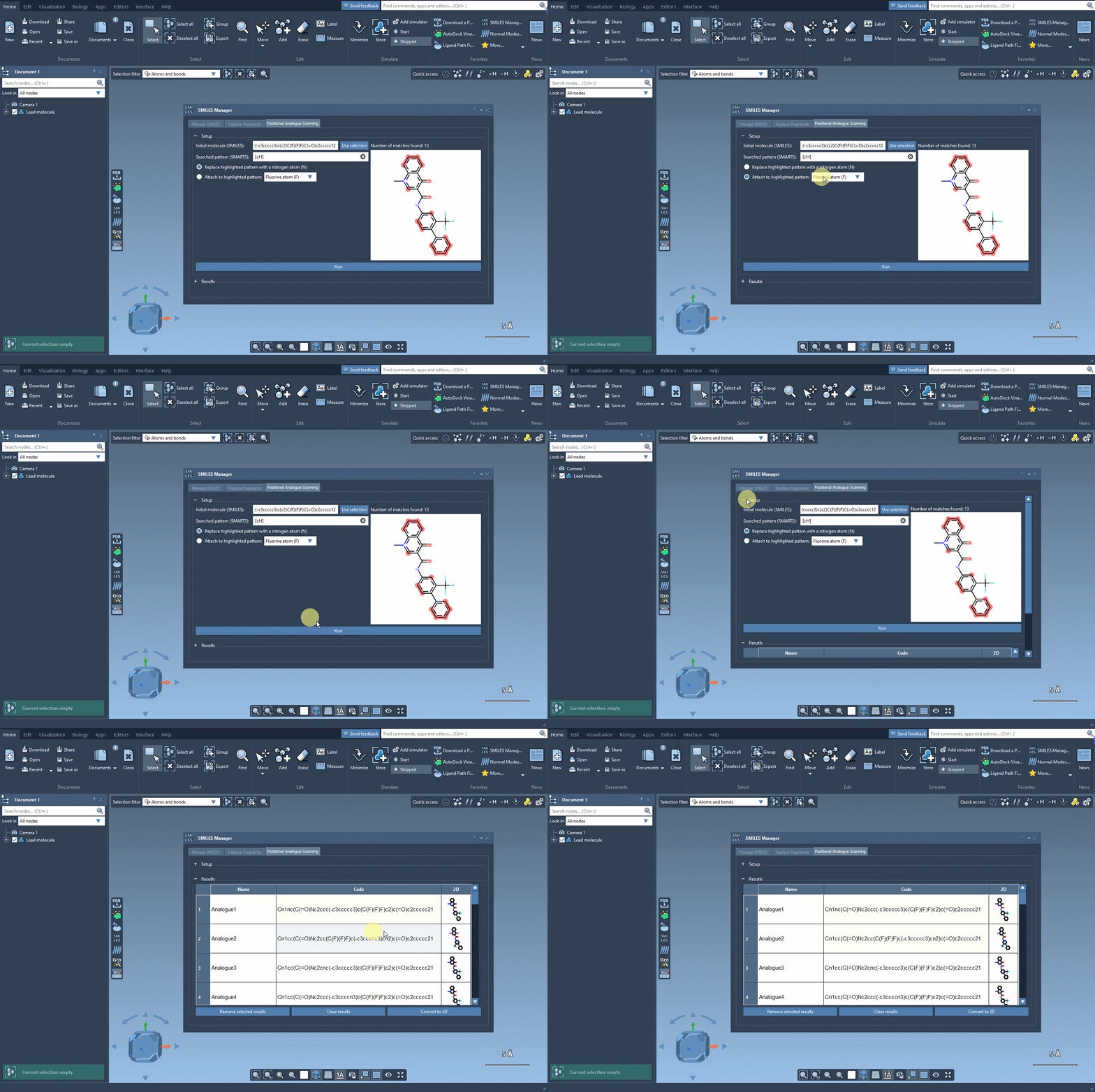
Customizing and Working with the Results
SAMSON doesn’t stop at generation! Once the analogues appear in your results table, you have several options to examine and modify them:
- Edit your analogues: Rename or modify the SMILES code directly within the table by double-clicking on the relevant cell.
- Inspect 2D images: Open larger views of the 2D depictions by right-clicking images or double-clicking on them.
- Generate 3D structures: Translate your 2D analogues into 3D models for further study—ideal for docking and interaction analysis.
- Refine results: Easily remove selected analogues or clear the entire table to begin afresh.
These capabilities make SAMSON’s SMILES Manager a useful tool for iterating through potential analogues before diving deeper into more computationally expensive steps like docking.
Integrating Your Results into Advanced Analysis
The benefits of this workflow extend beyond analogue generation. For example, you can take your newly created analogues directly into docking studies using extensions like AutoDock Vina Extended. This allows you to assess how substitutions impact interactions with your target protein, helping you uncover changes that improve binding or create new, beneficial interactions.
Learn more details about the workflow in the official documentation here: https://documentation.samson-connect.net/tutorials/smiles-manager/perform-positional-analogue-scanning-using-the-smiles-manager-element/
SAMSON and all SAMSON Extensions are free for non-commercial use. Access SAMSON today at https://www.samson-connect.net.