



Have you ever wanted to extract ligand motion data for free energy profiling, visualize exit pathways, or selectively track atoms through molecular pathways? Exporting atom trajectories along paths is a frequent but often tedious task for molecular modelers—especially when customizing which atoms to monitor.
The Export Along Paths extension in SAMSON offers a helpful solution for researchers who need fine control over atomic coordinate export along computed paths, such as those produced by ligand unbinding simulations. This post walks you through how to export just a subset of atoms—like a ligand—along one or more paths.
Selective Export: Why It Matters
When analyzing molecular dynamics or simulating ligand unbinding, it’s often unnecessary to export the trajectories of all atoms. Doing so can result in unnecessarily large datasets and increased complexity in downstream analysis or visualization.
Instead, if you’re focusing on specific atoms—say, a ligand like TDG or just residues along a binding pocket—you can streamline your data by exporting only what’s relevant. Let’s see how this is handled in SAMSON.
Step-by-Step: Exporting a Subset of Atoms
Once you have already set up your system with computed paths (e.g., via the Ligand Path Finder extension), here’s how to isolate and export just a subset of atoms along a path:
- Open the Export Along Paths app:
Home > Apps > All > Export Along Paths. - Expand the Advanced section of the interface.
- In the Document view, select the structure of interest—for example, the ligand
TDG.
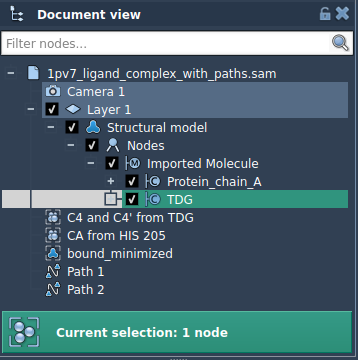
- Click Add to define the selected atoms as the subset (or “model”) to be exported.
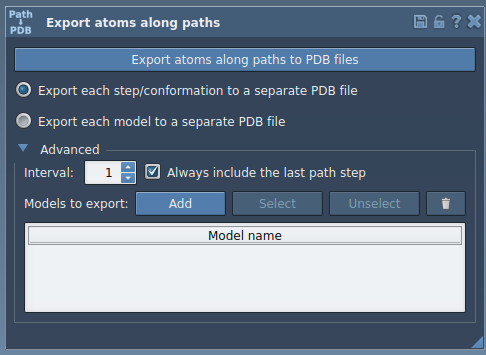
Managing Multiple Atom Sets
You can repeat the above selection and addition process for multiple groups of atoms—say, the ligand and several key residues. Each group will be listed as a separate model in the export list, and you can rename them for easy identification by double-clicking their entries.
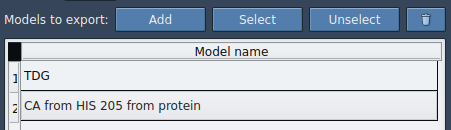
You can also use the context menu to:
- Select/Unselect atoms visually in the 3D view
Final Export
Once your atom subsets are defined:
- Choose your export format: either a single multi-frame PDB file or one file per frame
- Select the desired path(s) in the Document view
- Click Export atoms along paths to PDB files
You’ll be prompted to choose a destination directory and file prefix. That’s it—you now have streamlined trajectory data suitable for whatever downstream analysis you need, whether it’s for free energy calculations, machine learning features, or straightforward visualization.
More Efficient, Less Cluttered
This selective approach saves time and disk space while simplifying your workflow. It’s especially useful for creating input datasets for enhanced sampling methods or for monitoring structural changes in specific parts of a biomolecular system.
To learn more about exporting atom trajectories along paths in SAMSON, visit the full tutorial documentation here: https://documentation.samson-connect.net/tutorials/export-along-path/export-atoms-trajectories-along-paths/.
SAMSON and all SAMSON Extensions are free for non-commercial use. You can download SAMSON at https://www.samson-connect.net.