



When investigating molecular recognition, drug binding, or unbinding mechanisms, tracking how a ligand moves through a protein is crucial. However, manually extracting these trajectories into formats suitable for downstream analysis or visualization can be both tedious and time-consuming. If you’ve ever struggled with generating PDB snapshots of your ligand’s journey through a protein, the Export Along Paths extension in SAMSON might be just what you need.
This extension provides a straightforward way to export atomic coordinates—either for all atoms or just a selected subset (like a ligand)—along a pre-defined pathway. In this blog post, we focus on one of the most frequent use cases: exporting the trajectory of a ligand along a path. This is useful for preparing input files for free energy calculations, visualizing transition states, or generating movies.
What does this solve?
Let’s say you’ve used a tool like Ligand Path Finder in SAMSON to compute an unbinding path from the active site of a protein. You now want to extract coordinate snapshots of just the ligand along this path, ideally in a PDB format. Prior to this tool, that meant writing scripts, setting manual selections, and often switching between multiple programs. With this workflow, you can do this in a few simple clicks—without leaving the SAMSON interface.
Step-by-step: Exporting a Ligand’s Trajectory
We’ll use the sample system provided in the documentation, featuring the lactose permease protein (1PV7) and the ligand Thiodigalactosid (TDG). To follow along, make sure you’ve installed the Export Along Paths extension and loaded the example document from SAMSON Connect.
1. Open the Export Along Paths App
In SAMSON, navigate to Home > Apps > All > Export Along Paths or search it via Shift + E.
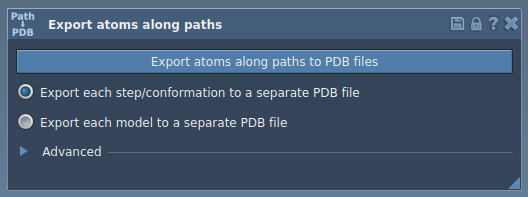
2. Select the Path
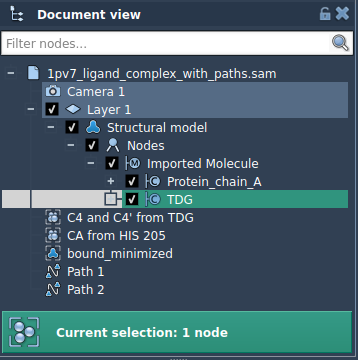
In the Document view, identify and select the path that corresponds to the ligand’s motion (often labeled based on how it was generated via Ligand Path Finder).
3. Define the Ligand as a Model
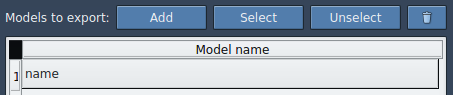
- Expand the Advanced panel.
- Click on the ligand (
TDG) in the Document view to select it. - Click Add to include it as a model to export.
4. Export the Trajectory
Select your desired export mode:
- All frames in a single PDB file
- Each snapshot exported as a separate PDB file
Click Export atoms along paths to PDB files, choose your destination folder and filename prefix, and the tool does the rest. You can optionally adjust the frame interval for sparser exports.
Why This Matters
This workflow is particularly helpful if you are:
- Running free energy calculations that require ligand movement snapshots
- Creating movies to visualize ligand motion through the protein
- Studying alternative exit/entry paths
And since the export works even when you select just a subset of atoms, such as the ligand, binding site residues, or a backbone fragment, it’s flexible enough for many use cases.
Want to test it out?
You can try it immediately using the demo pathway in the sample document by downloading the system here: https://www.samson-connect.net/documents/046f1acd-c799-40f6-8185-cb4847eff795
To learn more, visit the detailed tutorial at: https://documentation.samson-connect.net/tutorials/export-along-path/export-atoms-trajectories-along-paths/
SAMSON and all SAMSON Extensions are free for non-commercial use. You can get SAMSON at https://www.samson-connect.net.