



A structure can look reasonable and still need a lot of refinement. But when you are exploring a molecule or material, a slow calculation can interrupt the very process that helps you spot a problem: adjusting the geometry, checking the response, and deciding what to try next.
The UMA Force Field interaction model in SAMSON provides machine-learning-based energy and force evaluation for interactive exploration. The useful question is not simply “Which model should I pick?” It is “How do I get quick feedback without losing sight of the assumptions that affect the result?”
Start by matching the task to the system
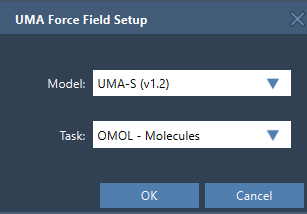
When you set up UMA, choose a task that corresponds to the system you are evaluating:
- OMOL for molecules
- OMAT for bulk inorganic materials
- ODAC for MOFs and direct-air-capture-style adsorption workflows
- OC20 for catalytic surfaces and adsorbates
- OMC for molecular crystals
This choice matters because the task defines the application domain. For molecular systems using OMOL, total charge and spin multiplicity are also part of the request to UMA. If those values do not represent the system you intend to model, the resulting evaluation may not answer the question you meant to ask.
Choose a model for the first pass
The extension offers UMA-S in two versions—2.3 GB, v1.2, and a lighter 1.1 GB, v1.1—as well as UMA-M (11.7 GB, v1.1). For a rapid first pass, the recommended starting point is UMA-S. The larger UMA-M model is an option when you already know you need more capacity; a larger model is not automatically the better starting choice for every exploratory task.
Before setting up a simulation, confirm that the UMA Force Field and Python Scripting extensions are installed and up to date. On first use, SAMSON prepares a dedicated Python environment and may request access to the models. Setup can take time, and you may need to create the interaction model again after setup finishes.
Use interactive feedback as exploration
Once the environment and model are ready, start the simulation and wait for the first UMA evaluation. The properties window may initially report that energy is unavailable; the total energy appears after the first evaluation succeeds. You can then move atoms or refine the structure while UMA updates energies and forces.
This makes the workflow useful for asking practical, local questions: Does a small geometry adjustment produce a more favorable energy? Which parts of the structure appear to be under strain? What happens when I explore a nearby arrangement? Treat these as prompts for investigation, not as proof that a structure is experimentally correct or that a final result is settled.
Check the settings that change interpretation
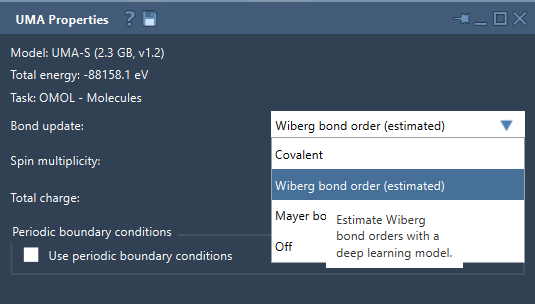
For OMOL, verify total charge and spin multiplicity. For periodic calculations, inspect the periodic-boundary-condition setting and the 3 × 3 cell matrix, specified in angstroms. A cell that does not represent the intended system can make the result difficult to interpret, even if the calculation runs successfully.
You can also choose how the bond graph is handled. Covalent recomputes covalent bonds from the current structure; Off leaves the existing bond graph unchanged. Wiberg and Mayer bond-order modes estimate bond orders with a deep-learning model. They are useful for interactive visualization, but important conclusions should be checked with an appropriate reference method.
A practical sequence
- Choose the UMA task that matches the system.
- Start with UMA-S to get rapid feedback.
- For OMOL, set charge and spin multiplicity consistently.
- For periodic systems, verify the cell before interpreting results.
- Use UMA to screen, refine, and explore; confirm final results with a higher-accuracy reference method when needed.
The benefit of a fast interactive model is not that it removes scientific judgment. It gives you a quicker way to explore while keeping the key checks visible. For setup details and the full list of controls, see the UMA Force Field tutorial.
Note: SAMSON and all SAMSON Extensions are free for non-commercial use. Get SAMSON.