



For molecular modelers and designers, the challenge of visualizing and editing molecular interaction diagrams with precision can often be daunting. Whether you are exploring protein-ligand interactions or refining molecule structures, achieving clear and customized diagrams can be critical. This is where SAMSON’s Interaction Designer comes in. Its features not only allow for the automatic generation of diagrams but also empower users to edit 2D molecular interactions for clarity and better insights. Let’s explore how you can fine-tune your interaction diagrams for enhanced usability and precision.
Editable 2D Diagrams — Why It Matters
When working with complex molecular systems, having the ability to tweak molecular interaction diagrams adds immense value. SAMSON’s Interaction Designer provides editable 2D diagrams synchronized with the 3D viewport, ensuring clear communication of structural and interaction insights. Whether you’re presenting your findings to your team or preparing a publication, you can control your diagram layout entirely.
Here’s what you can do with editable interaction diagrams:
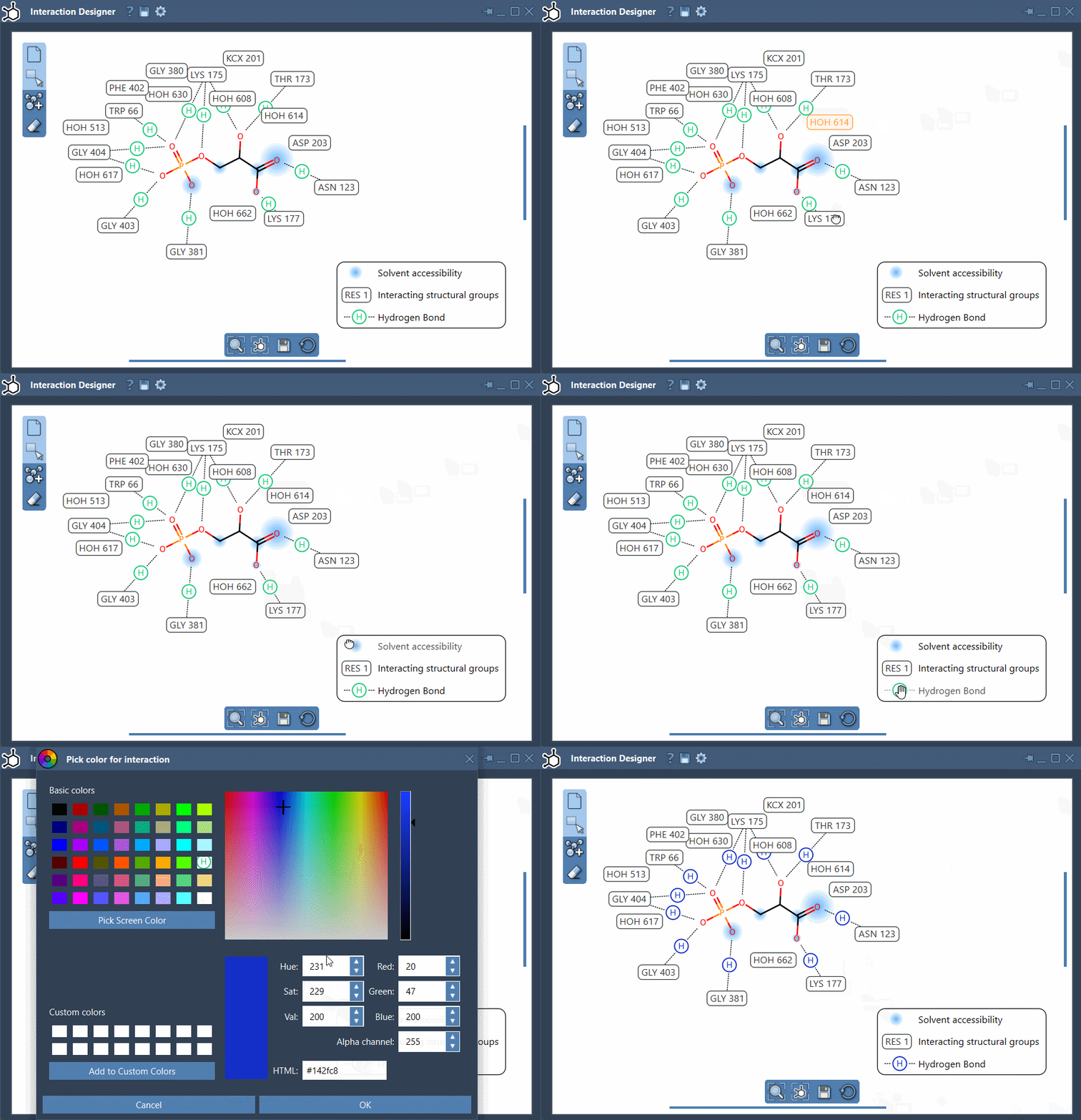
- Move, rearrange, or hide labels and interaction symbols to customize the layout as per your needs.
- Change interaction colors for better visualization or according to publication requirements.
- Modify captions and legends to enhance clarity and convey vital details effectively.
The synchronized nature of the 2D and 3D views allows these edits to reflect seamlessly across interfaces. This makes designing and visualizing interactions a smoother process.
A Closer Look: Interaction Layout and Color Customization
Reorganizing interaction labels is straightforward. You can simply drag and reposition labels and symbols to ensure no important information overlaps or gets obscured. For even finer control, you can hide specific interactions by clicking on their name in the legend, keeping your diagram minimal and focused.
Further, to emphasize particular interactions or maintain a clean look, you can double-click on an interaction name or icon to change its color. For example, you may want to highlight hydrogen bonds in vivid blue while maintaining muted tones for other interaction types. If you wish to reset colors, it’s as easy as restoring the defaults in the Interaction Designer settings.
Pro Tips for Effortless Diagram Adjustments
Here are a few tips to make the most of this feature:
- Keep synchronization in mind: The 2D diagrams and 3D views remain tightly linked, so structural changes in either view reflect automatically in the other.
- Zoom and navigate efficiently: You can use Ctrl/Cmd plus your mouse scroll button to zoom in and out on diagrams. To translate diagrams, hold the middle and right mouse buttons together and move the mouse.
- Bottom menu alignment: Use the bottom menu of the Interaction Designer to realign and update views when working with both 2D and 3D visualizations simultaneously.
Why Choose Editable Interaction Diagrams?
The ability to fine-tune diagrams aligns with the practical needs of molecular modelers, helping enhance presentations, streamline analysis, and effectively communicate interaction studies. Coupled with SAMSON’s integration of detection features like solvent accessibility or binding pocket visualizations, your molecular diagrams can now appear both aesthetic and highly informative.
For a detailed walkthrough of the editable diagram features, visit the official Interaction Designer documentation page.
SAMSON and all SAMSON Extensions are free for non-commercial use. Download SAMSON at https://www.samson-connect.net.