



When working with molecular modeling, one of the critical tasks is fine-tuning how molecular structures behave under force fields. Enter the Universal Force Field (UFF) in SAMSON, which provides tools for automatic molecular typization. But what if the default typization does not meet your requirements? SAMSON enables advanced users to customize typization, ensuring precise control over molecular interactions based on your specific modeling needs. In this post, we’ll delve into how to customize atom and bond properties under UFF, helping you achieve expert levels of control over your simulations.
Why Customize Typization?
While UFF automatically assigns parameters like atom types and bond orders based on molecular structure, there are scenarios where manual intervention is needed. For example, when dealing with non-standard molecular systems or when optimizing structures for specific behavior, the default settings might not align with your objectives. Customizing typization allows you to tweak parameters manually, ensuring the accuracy and reliability of your simulations.
Steps to Customize UFF Typization
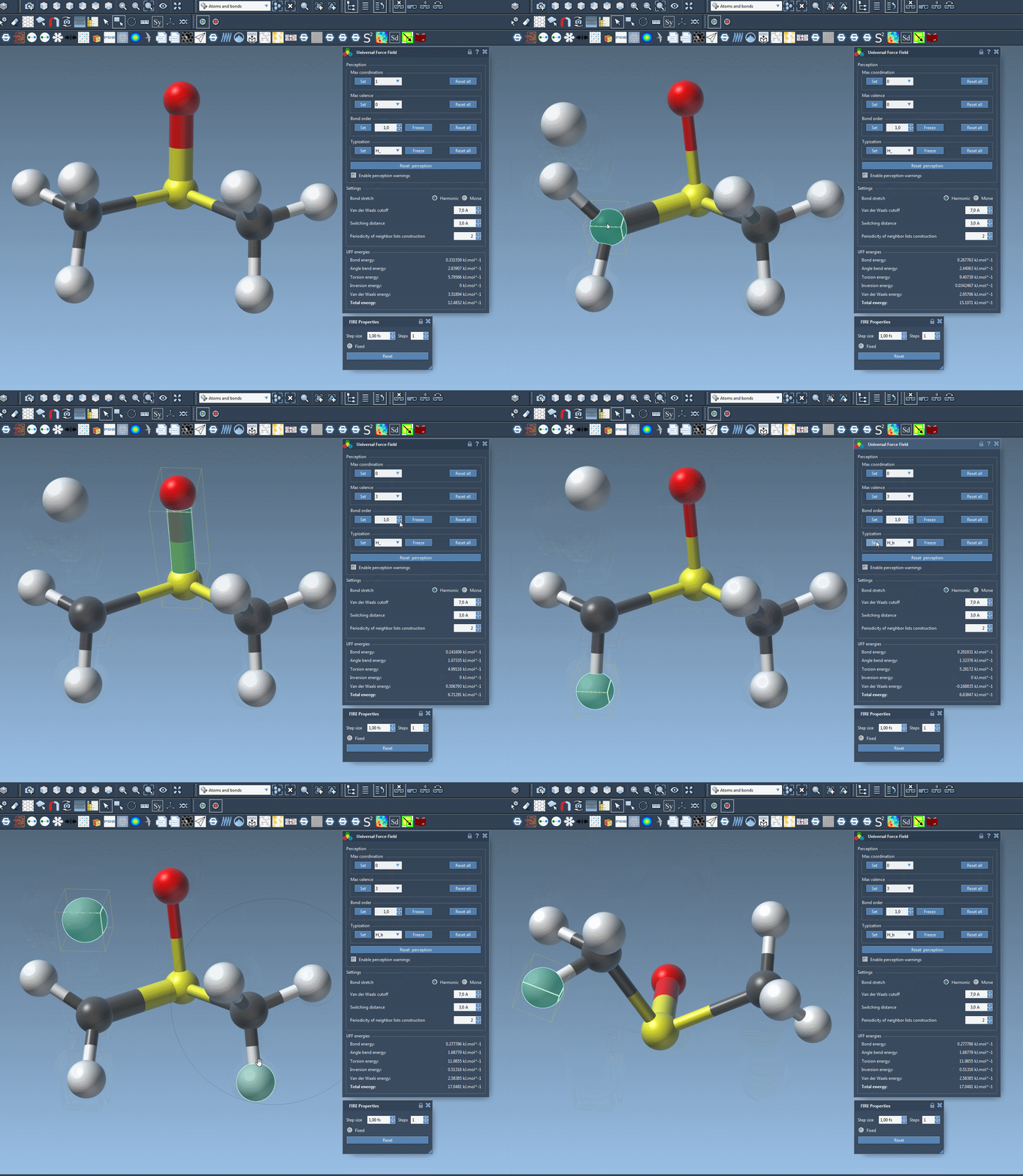
The UFF customization feature in SAMSON is an advanced tool allowing you to modify maximum coordination numbers, set bond orders, and assign specific atom types. Here’s how you can use these features:
1. Adjusting Coordination and Valence
- Each atom in your model has a default maximum coordination (number of neighbors) and valence (weighted sum of bonded neighbors).
- To modify these values, simply select an atom in the UFF parameter window, input a new value in the combo box, and press the Set button.
- Keep in mind that the new values only take effect if the modified coordination or valence is lower than the default values.
2. Setting Bond Orders
- Select one or more bonds in your molecular system.
- Specify the desired bond order (a value between 0.1 and 3.9) in the UFF parameter window and press the Set button.
- You can also freeze bond orders to ensure they remain unchanged during further molecular structure perception rounds by selecting the bonds and pressing the Freeze button.
- Non-integer bond orders can be assigned, enabling unique molecular configurations to be modeled effectively.
3. Forcing Atom Types
- Select the atom(s) you wish to assign a specific UFF type.
- Choose the desired type from the dropdown menu in the UFF parameter window and click the Set button.
- As with bond orders, atom types can also be frozen to prevent automatic updates during perception recalculations.
4. Reset and Recompute
If you need to revert all custom changes, SAMSON allows you to reset typization via dedicated Reset all buttons for bonds and atoms. Additionally, you can recompute molecular perception based on the latest customized settings and atom positions by clicking Reset perception.
Visualizing Changes
As you make modifications, SAMSON’s interactive interface provides immediate feedback, enabling you to see typization changes in real-time. This feature is particularly valuable for iterative modeling and refining molecular systems.
Important Note for Advanced Users
Customization options are powerful but come with pitfalls if misused. Modifying settings without understanding the molecular context can yield inconsistent or unreliable results. These features are recommended for advanced users who are confident in their molecular modeling skills and have a clear understanding of the implications of their changes.
To learn more about using and customizing typization in the Universal Force Field, visit the original documentation page: Universal Force Field in SAMSON.
Note: SAMSON and all SAMSON Extensions are free for non-commercial use. Get SAMSON at https://www.samson-connect.net.