



For molecular modelers striving to achieve precision in molecular simulations, customizing the Universal Force Field (UFF) in SAMSON provides powerful flexibility. But it's not without its challenges. If misused, customization can lead to inconsistencies and errors, making it essential for users to have thorough guidance. In this blog post, we'll take an in-depth look at how to modify UFF parameters and typization within SAMSON, along with practical suggestions to ensure proper usage in the modeling process.
Why Customize UFF Typization?
By default, UFF automates the perception of molecular structures, categorizing bonds, bond orders, and atomic types. However, this automatic process might not always suit complex requirements or unique systems. In such cases, customization allows users to:
- Modify maximum coordination or valence (number of neighbors and weighted bond orders).
- Manually set or constrain bond orders between atoms.
- Assign specific atom types that remain fixed during simulations.
This level of control empowers advanced users to align the force field to their research goals while ensuring physical accuracy.
Customizing UFF Typization: A Practical Guide
Here is a step-by-step guide to implementing the customizations for UFF within SAMSON:
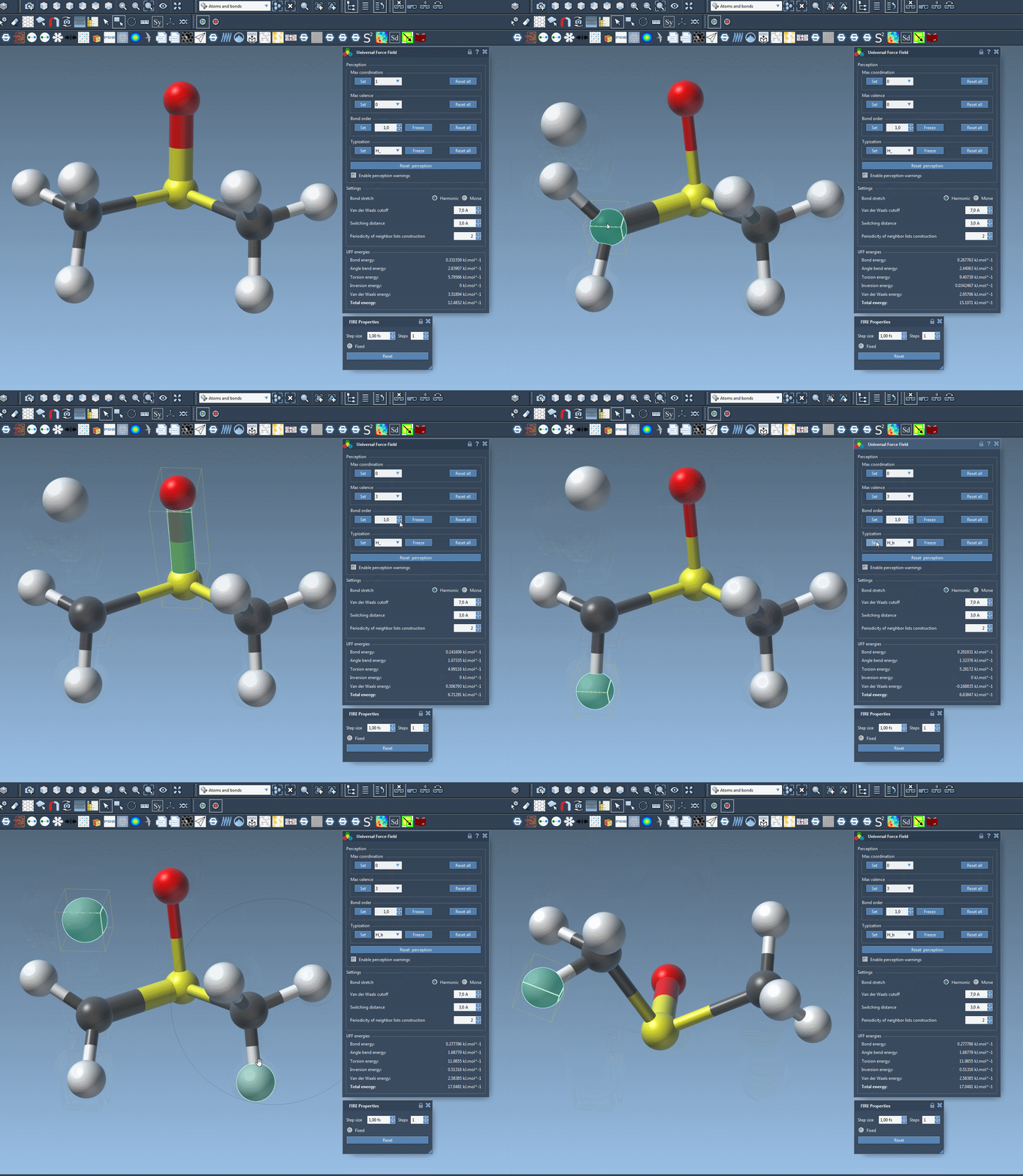
1. Adjusting Maximum Coordination and Valence
Every atom in the molecular system has a default maximum coordination and valence. You can update these values:
- Select an atom for which you wish to modify these parameters.
- Choose new limits in the corresponding combo boxes under the UFF parameter window.
- Press the Set button to confirm your changes.
Note that new values will only take effect if they are lower than the default ones to avoid inconsistencies.
2. Forcing Bond Orders
Bond orders can play a critical role in customizing molecular perception. Here's how to force or freeze them:
- Select the specific bond (or group of bonds) you want to modify.
- Specify the bond order value (ranges between 0.1 and 3.9) in the parameter window.
- Press Set to apply the changes.
- If you want to prevent a bond order from changing during future perceptions, click the Freeze button.
This feature also supports non-integer bond orders, offering finer control.
3. Assigning and Freezing Atom Types
To modify or lock atom types manually:
- Select the atom(s) you want to edit.
- Choose the desired UFF type from the dropdown menu in the parameter window.
- Click Set to apply the new type.
- To fix the type against automatic updates, use the Freeze button.
These settings ensure that specific parts of the molecular system retain their typization throughout the simulation.
Advanced Tools and Reverting Changes
Customization in UFF would be incomplete without options to fine-tune and revert decisions:
- Reset All: Clears all forced bond orders, atom typizations, and maximum coordination or valence settings.
- Reset Perception: Recomputes atomic properties based on the current customized settings and atom positions. This ensures accurate updates when bond perception depends on distances.
Guidelines for Safe Customization
While these features are powerful, here are a few tips to use them safely:
- Ensure you thoroughly understand the molecular system before making changes.
- Use customizations sparingly and test their effects incrementally.
- Run validations by comparing results with known experimental or theoretical data.
Conclusion
Advanced UFF customization in SAMSON can transform molecular modeling workflows, offering unmatched flexibility for fine-tuning simulations. By following the guidelines and best practices mentioned above, users can achieve precise control over their models.
To explore UFF customization in detail, visit the official documentation page: https://documentation.samson-connect.net/tutorials/uff/uff/.
SAMSON and all SAMSON Extensions are free for non-commercial use. Download SAMSON at https://www.samson-connect.net.