



When exploring a molecular series, a small structural change can mean a lot of repetitive work: edit each SMILES string, check whether the edit is valid, keep names attached to the right compounds, and then prepare structures for inspection. A fragment-replacement workflow can make that exploration more organized. In SAMSON, the RDKit-based SMILES Manager lets you define an initial molecule, specify the part to replace, and generate a set of alternatives in one run.
This is useful when you want to compare possible replacements around a shared molecular scaffold. It does not decide which molecule is best; it helps you create and inspect a consistent set of candidates.
Define the transformation before generating candidates
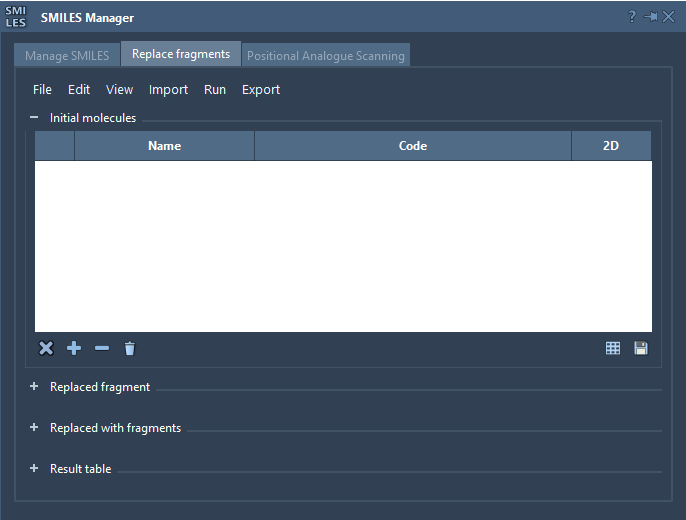
The key is to describe the replacement site and the replacement fragments with matching attachment points. In the tutorial example, the initial molecule is COc1cc(CNC(=O)CCCC/C=C/C(C)C)ccc1O, and the fragment selected for replacement is [*:1]C(=O)NC[*:2]. The mapped atoms [*:1] and [*:2] mark the two ends where the replacement connects to the rest of the molecule.
Each replacement fragment needs the same two endpoint labels. For example, the set includes [*:1]S(=O)(=O)NC[*:2] and [*:1]C1CC1NC[*:2]. These labels make the intended connection points explicit. RDKit expects the attachment markers at the two extremities of the fragment pattern, so check this syntax before running the replacement.
A practical workflow
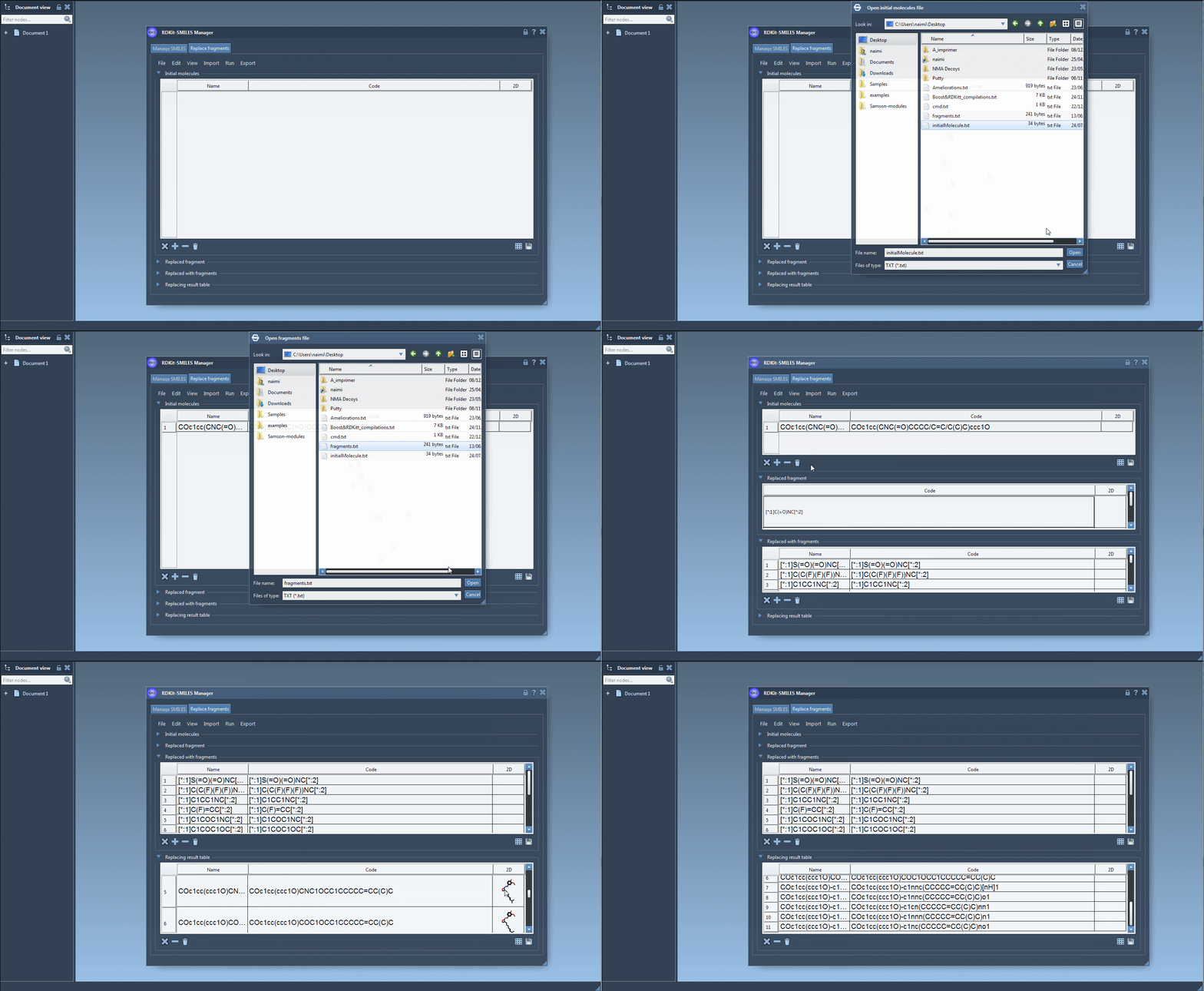
- Load the starting molecule. Open an initial-molecules file, enter a molecule manually, or import a molecule from the active SAMSON Document. The tutorial uses one initial structure, but the interface supports specifying one or several.
- Specify the fragment to remove. Enter the target pattern directly, or import it from a selection in the active document. Include the two mapped attachment points.
- Provide alternatives. Add one or more replacement fragments, either manually or from a file. Keeping the alternatives together makes the planned comparison easier to review.
- Run the replacement. Choose Replace fragments from the Run menu. The generated molecules appear in the Results table.
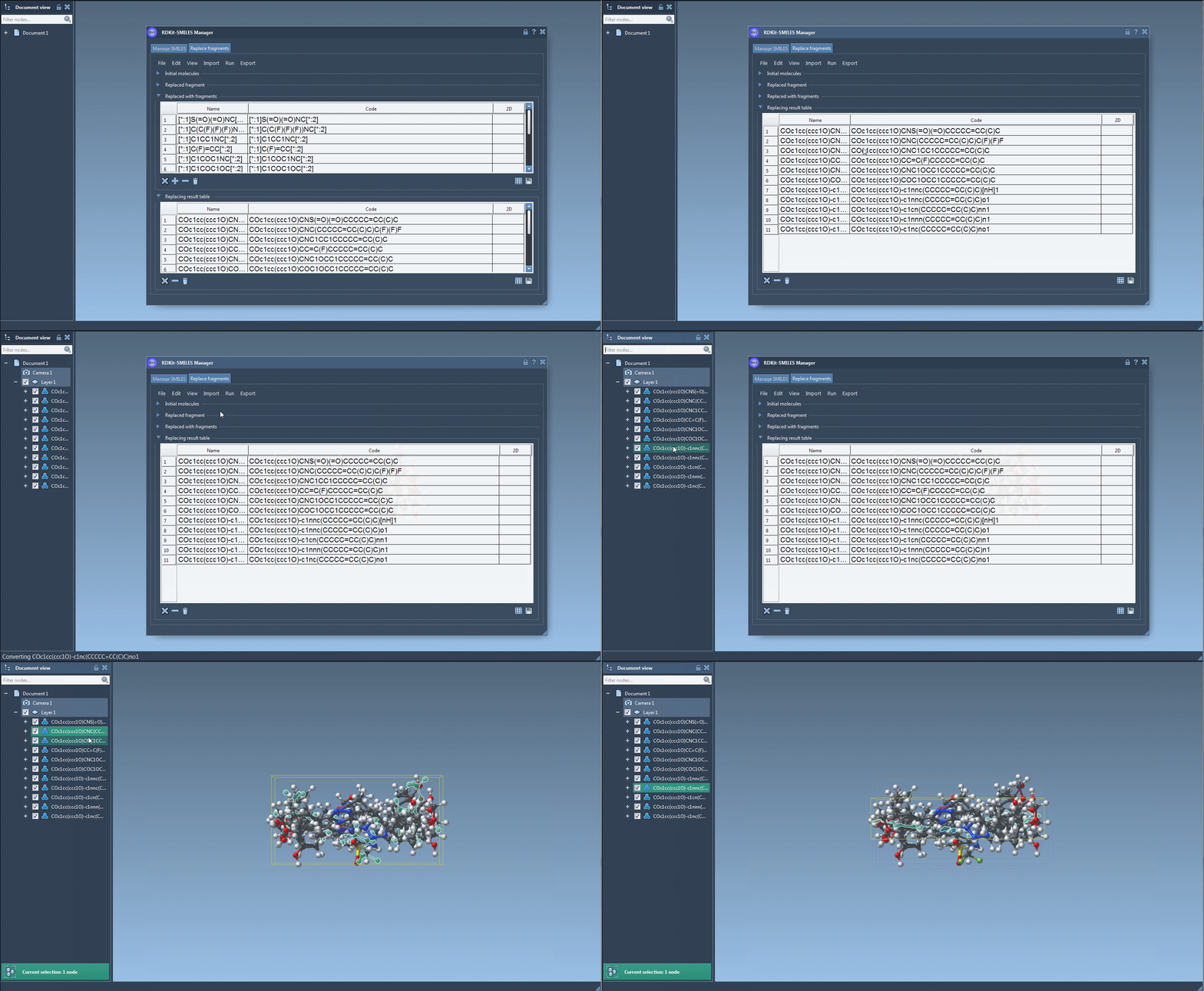
- Review and use the results. Inspect the SMILES and 2D depictions, then use the Export menu to view results in the active document. The resulting molecules can also be converted into 3D structures or saved in a file or grid image.
Make the result set easier to trust
A generated list is only useful if you can tell what each entry represents. Give molecules meaningful names when you prepare a SMILES collection; if no name is assigned in the Manage SMILES workflow, the name defaults to the SMILES code. In the table, 2D depictions are generated on the fly. An invalid SMILES is highlighted and shown with an error image instead of a molecular depiction, which gives you a visible cue to investigate before moving on.
For a focused review, select candidates and export them to the active document to generate 3D structures. This is a step toward downstream inspection, not a substitute for evaluating whether a proposed analogue is chemically or biologically useful. The replacement operation generates structures; interpretation and validation remain part of the modeling workflow.
One helpful habit is to keep the starting molecule, target fragment, and replacement list together as a record of the design question. That makes it easier to revisit why a candidate was generated and to repeat or adjust the transformation later.
For the complete interface walkthrough and additional SMILES management features, see the SMILES Manager documentation.
Note: SAMSON and all SAMSON Extensions are free for non-commercial use. Get SAMSON.