



A common modeling frustration is having the right structure but the wrong outline. A graphene sheet, crystal, or other large atomic model may contain thousands of atoms; selecting a clean shape by clicking them one at a time is slow and difficult to reproduce. Coordinate-based expressions offer a more systematic alternative: describe the region you want mathematically, then apply that condition to the atoms.
SAMSON’s Simple Script Extension can evaluate expressions for atoms in the active document and change properties such as their selection state, visibility, and position. The Atoms Selector Extension is a more focused option when the goal is simply to select atoms. Both can use atom coordinates and mathematical operators, so geometric rules can replace a long sequence of manual selections.
Start with a simple geometric rule
For example, suppose you want to identify atoms inside a sphere of radius 10, centered at (0, 0, 2). The squared distance from an atom to that center is a.x^2 + a.y^2 + (a.z - 2)^2. Comparing it with the squared radius, 100, gives a condition for membership in the sphere.
|
1 2 |
if ((a.x^2 + a.y^2 + (a.z - 2)^2) < 100) n.sf:=1; else n.sf:=0; |
Here, n.sf is the short name for the selection flag. The condition selects atoms inside the sphere and clears the selection flag for atoms outside it. If you want to change visibility instead of selection, use a.vf:
|
1 2 |
if ((a.x^2 + a.y^2 + (a.z - 2)^2) < 100) a.vf:=1; else a.vf:=0; |
That distinction matters: hiding atoms is not the same as deleting them. A visibility-based cut can make a shape easier to inspect while leaving the underlying atoms in the document.
Think in terms of regions, not clicks
The same idea works for other shapes. A cylinder centered at (15, 15) in the x-y plane, with radius 10, can be described by:
|
1 |
(a.x - 15)^2 + (a.y - 15)^2 < 100 |
Because this condition does not include a.z, it selects a cylindrical region extending along the z direction, rather than a finite-height cylinder. Add a z-coordinate condition if you also need to limit the region’s height. The documentation gives this type of expression as an example for cutting a cylinder from a quartz crystal.
Before applying a geometric expression, check where the structure sits and which length units it uses. A correct formula can still select the wrong region if its center or radius does not match the model’s coordinates. The tutorial’s batarang script, for instance, scales the x and y coordinates before applying its outline because the sheet is expected to be positioned at an appropriate scale. For a new structure, first inspect its coordinate range and adjust the expression’s center, dimensions, and scaling accordingly.
Build complex outlines from simpler conditions
More distinctive shapes can be assembled from several mathematical regions. The graphene batarang example combines conditions for the wings, central section, sides, and pointed ears. It uses abs() to make parts symmetric about the y-axis, and comparisons to decide whether an atom falls within each part of the outline. A Boolean variable records whether an atom belongs to the shape; the final step sets both its selection and visibility flags.
This pattern is useful beyond making a memorable nanoscale object. It provides a way to express a selection rule once, apply it consistently across many atoms, and revise the geometry by changing a few thresholds. For a basic region, the Atoms Selector can take an expression directly. For workflows that also change visibility, coordinates, or other supported properties, Simple Script provides additional control.
The examples below show the idea in action: from graphene tiles to a batarang-shaped outline.

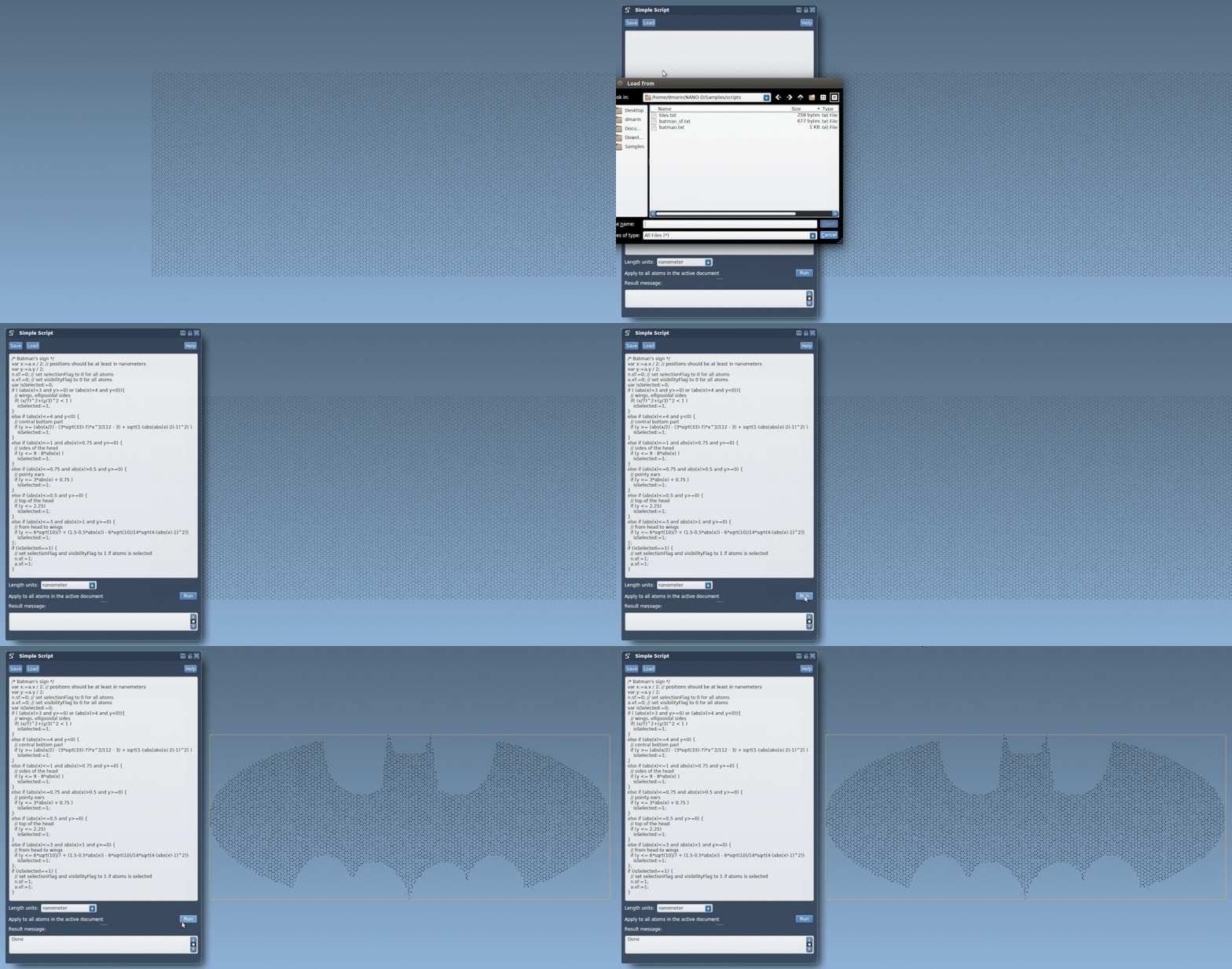
For the complete examples, including the full batarang script and the available atom attributes, see the original SAMSON tutorial.
Note: SAMSON and all SAMSON Extensions are free for non-commercial use. Get SAMSON.