



A structure can look reasonable and still need attention: atoms may be poorly positioned, a bond graph may not reflect the geometry, or the system’s charge and periodic cell may be wrong for the calculation. The challenge is getting useful feedback quickly without mistaking an interactive model evaluation for a final, validated result.
SAMSON’s UMA Force Field provides an interactive way to evaluate energies and forces while exploring or refining a molecular or materials structure. The key is to choose settings that match the system, then treat the results as a guide for exploration—not as a substitute for checking your assumptions.
Start by matching the task to the system
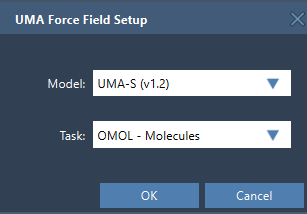
When you add a simulator in SAMSON, select UMA Force Field, choose a state updater such as FIRE, and then select a UMA model and task in the setup window. The task is not just a label: it identifies the application domain for the system you want to evaluate.
- OMOL – Molecules: molecular systems. This is the task for which the interface uses total charge and spin multiplicity.
- OMAT – Inorganic materials: bulk inorganic materials workflows.
- ODAC – MOFs: MOF and direct-air-capture-style adsorption workflows.
- OC20 – Catalysis: catalytic surfaces and adsorbates.
- OMC – Molecular crystals: molecular-crystal systems.
Choosing the closest matching domain is a practical first check before interpreting any output. If you are unsure which model size to begin with, the documented default is UMA-S (2.3 GB, v1.2). The extension also offers a lighter legacy UMA-S (1.1 GB, v1.1) and a larger UMA-M (11.7 GB, v1.1). Starting with UMA-S is a straightforward way to try the workflow; the larger option is available when you specifically want more model capacity.
Expect a setup step the first time
Before starting, install the UMA Force Field and Python Scripting extensions, and make sure the computer can install Python packages on first use. On its first run, UMA prepares a dedicated Python environment and may request access to the models. This can take time. Follow the prompts in SAMSON, and be prepared to create the interaction model again after setup finishes.
Once the environment is ready, start the simulation from Edit > Simulate > Start. The properties window may initially report that energy is not available. Wait for the first evaluation to complete; the total energy should then appear. That brief initial wait is different from a failed evaluation, so allow the first calculation to finish before changing settings or drawing conclusions.
Use the controls to make the exploration interpretable
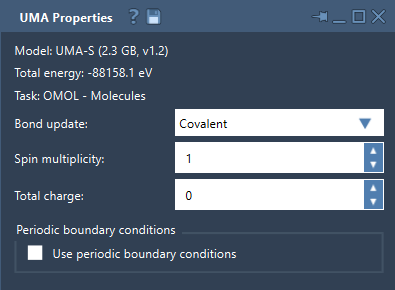
For OMOL molecular systems, check Total charge and Spin multiplicity against the system you intend to model. These values are part of the request sent to UMA, so a mismatch can make the calculation describe a different system than the one you had in mind.
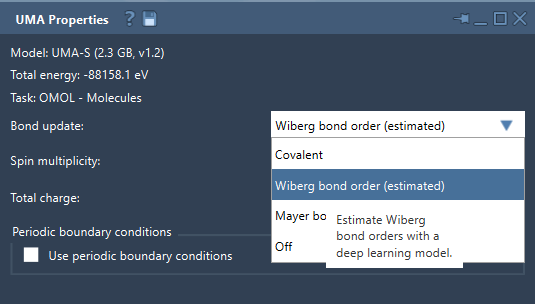
The Bond update control changes how the bond graph is handled as the structure changes. Covalent recomputes covalent bonds from the current structure; Off keeps the existing graph unchanged. The Wiberg and Mayer options estimate bond orders with a deep-learning model. They can help visualize changes during interactive exploration, but the documentation explicitly recommends confirming important conclusions with a reference method. Treat these estimated bond orders as useful indicators, not decisive evidence.
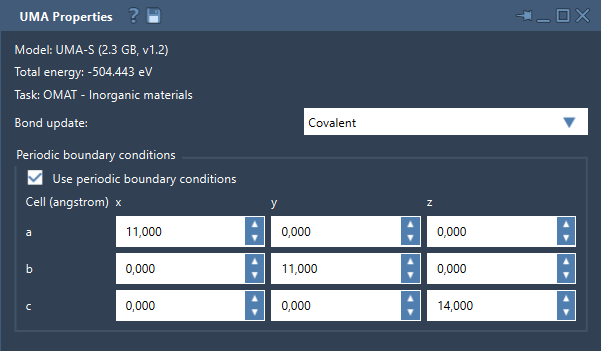
For periodic workflows, check whether periodic boundary conditions are enabled and verify the full 3 × 3 cell matrix in angstroms. The cell is part of the setup you are interpreting; do not assume it is correct simply because the structure appears in the viewer.
A practical sequence for less guesswork
- Begin with a small, representative system so you can check the setup and observe the first evaluation.
- Select the task that corresponds to the system type, then start with UMA-S.
- For OMOL, verify charge and spin multiplicity; for periodic systems, verify the cell and boundary-condition setting.
- Use the interactive forces and energy to explore or refine the geometry, while remembering that estimated bond-order modes are exploratory.
- Before relying on a final scientific conclusion, confirm it with an appropriate higher-accuracy reference method when needed.
This workflow helps separate two questions that are easy to conflate: “Can I use UMA to explore this structure?” and “Is this result sufficient to support my final conclusion?” UMA is suited to fast geometry refinement, exploratory relaxation, and qualitative force analysis. The second question still depends on the purpose of the study and the reference methods appropriate to it.
For setup details and the complete tutorial, learn more about the UMA Force Field in SAMSON.
Note: SAMSON and all SAMSON Extensions are free for non-commercial use. Get SAMSON.