



A molecular transition path can look convincing and still contain awkward intermediate structures. Atoms may move unevenly from one frame to the next, or the route may need relaxation under an interaction model before it is useful for further inspection. This is a common modeling bottleneck: generating a candidate path is one task; refining it is another.
The Parallel Nudged Elastic Band (P-NEB) app in SAMSON is designed for that second task. It optimizes the intermediate images along a path while spring forces help keep neighboring images distributed along the route. It can refine a path you already have, or a set of conformations representing a sequence of structures. It is not a tool for inventing the initial pathway from scratch.
Start with a candidate route
NEB is useful when you have two relaxed states and a plausible sequence connecting them. The endpoint structures should represent the states you want to connect; the intermediate structures provide an initial guess for how the system might move between them. That guess can come from interpolation or another path-generating tool, such as Ligand Path Finder.
For example, the sample document featuring lactose permease and thiodigalactoside includes ligand unbinding paths that can be refined. P-NEB improves the supplied route according to the selected interaction model; it does not establish that the route is the unique or experimentally verified mechanism.
Set up a path refinement
- Install the P-NEB extension and the FIRE state updater, then load a document containing a path or conformations.
- Open P-NEB from Home > Apps > All > P-NEB, or find it with the Find everything… search box.
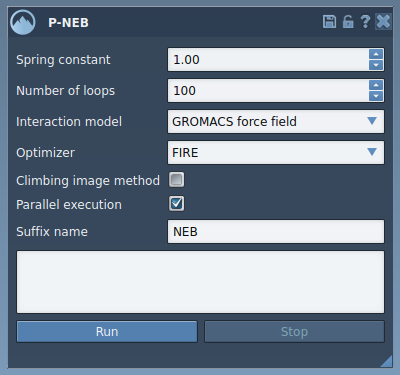
- For the documented example, set the spring constant to
1.00, the number of loops to100, choose Universal Force Field as the interaction model, and choose FIRE as the optimizer. - Leave the climbing image option unchecked for the first run, and enable parallel execution. Enter
NEBas the suffix so the output is easy to identify. - Select the input path in the Document view and click Run. When the force-field setup asks whether to use existing bonds, choose that option and confirm.

When the calculation finishes, SAMSON adds a new path to the document. You can select it and inspect it with the Inspector, or double-click it to play and pause its animation. The result is a refined candidate path, not by itself a free-energy profile, a transition rate, or proof that a particular mechanism occurs. Treat it as a computational result to inspect in the context of your system and modeling choices.

Path or conformations?
P-NEB can also take a set of conformations as input. Conformations store the positions of a selected group of atoms; paths store trajectories for a selected group. For the same system and number of steps, processing conformations takes longer than applying P-NEB directly to a path. If your input is already a sequence of conformations, select them and use Conformation > Create path from conformations to combine them before running the refinement.
One useful distinction is between creating and relaxing a route. If you have only endpoint structures, first generate intermediate structures with an appropriate method. Then use P-NEB to relax that starting route. This separation makes it easier to diagnose whether a problem comes from the initial guess or from the refinement settings.
Once you have inspected the output, you can export the path or continue to a simulation or free-energy workflow, depending on your research question. For the complete walkthrough and related tutorials, read the P-NEB documentation.
Note: SAMSON and all SAMSON Extensions are free for non-commercial use. Get SAMSON.