



A molecular transition path can look plausible and still contain awkward jumps, unevenly spaced structures, or a route that needs refinement before you inspect it further. The Parallel Nudged Elastic Band method (P-NEB) in SAMSON addresses a specific part of this problem: it takes an existing path—or a sequence of conformations—and optimizes the intermediate structures so the route becomes more physically meaningful under a chosen interaction model.
The important distinction is that P-NEB refines a candidate path; it does not create the initial route for you. You need a path or a set of conformations first. These may come from interpolation, another path-finding tool, or structures you have already prepared. Starting with a reasonable candidate matters: optimization can improve a route, but it should not be treated as proof that the pathway is biologically correct or that it captures every possible mechanism.
Prepare the input before you run
For a first test, use a sample document or a path from your own project. The tutorial includes a smaller Zinc ligand unbinding example for testing, as well as a protein–ligand example involving lactose permease (1PV7) and thiodigalactoside (TDG). If your two endpoint structures are relaxed states but you do not yet have structures between them, generate an initial sequence first—for example, by linear interpolation or with a path-generation extension such as Ligand Path Finder.
In SAMSON, a path stores a trajectory for selected atoms. A conformation stores the positions of selected atoms at one point. P-NEB can work with either. If you have several conformations, select them in the Document view. For repeated use or a longer series, consider combining them into a path using the context-menu command Conformation > Create path from conformations. The documentation notes that processing a set of conformations takes longer than applying P-NEB directly to a path with the same steps, so a path is generally the more efficient input.
Choose settings with a clear purpose
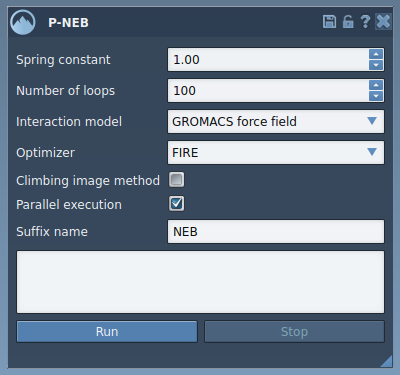
Open the P-NEB app and set the spring constant to 1.00, the number of loops to 100, the interaction model to Universal Force Field, and the optimizer to FIRE. Enable parallel execution to run one thread per conformation. Give the output a suffix such as NEB so you can distinguish the optimized result from the source path.
For an initial refinement, leave the climbing image method unchecked. Once you have inspected the result, you can run the calculation again with climbing image enabled if your goal includes locating the saddle point along the path. This separates two useful tasks: first improving the overall route, then testing the climbing-image option for saddle-point refinement.
Run, then inspect the result
Select the path or conformations in the Document view and click Run. When the Universal Force Field setup asks whether to use existing bonds, choose to use them and confirm. You can monitor progress in the status bar. When computation finishes, SAMSON adds a new path or a new set of conformations to the document, leaving you with an output to inspect separately from your input.

Do not stop at the fact that the calculation completed. Select the resulting path and examine it with the Inspector; double-clicking the path starts or stops its animation. Compare the optimized route with the original and check whether the intermediate structures and motion are useful for your next step. Treat the calculation as a refinement under the selected force field and settings, not as an independent validation of the mechanism.
If your real bottleneck is creating a route between endpoint structures, generate the candidate path first. If you already have a candidate and want its intermediate states relaxed, P-NEB is the relevant next step. For setup details and the complete walkthrough, see the P-NEB tutorial.
Note: SAMSON and all SAMSON Extensions are free for non-commercial use. Get SAMSON.