



A molecular transition path can look plausible and still contain awkward jumps, unevenly spaced structures, or intermediate conformations that need refinement. That is a common problem when you have generated a candidate route between two states and now need to improve it—without confusing path refinement with path generation.
SAMSON’s Parallel Nudged Elastic Band (P-NEB) app is designed for this next step. It optimizes the intermediate images along an existing path, while spring forces help keep neighboring states distributed along the route. In other words, P-NEB refines a candidate pathway; it does not create the initial pathway for you.
Start with a candidate path
You can use P-NEB with either a path or a set of conformations. A path stores a trajectory for selected atoms, while conformations store their positions in individual states. If you have two relaxed structures but no route between them, first generate intermediate conformations—for example, by linear interpolation or with a path-generation extension such as Ligand Path Finder. Then use P-NEB to refine the resulting route.
When you have the choice, use a path. For the same system and number of steps, the documentation notes that applying P-NEB to a set of conformations takes longer than applying it directly to a path. If your candidate is currently stored as separate conformations, you can select them and use Conformation > Create path from conformations in the context menu.
A practical first-run setup
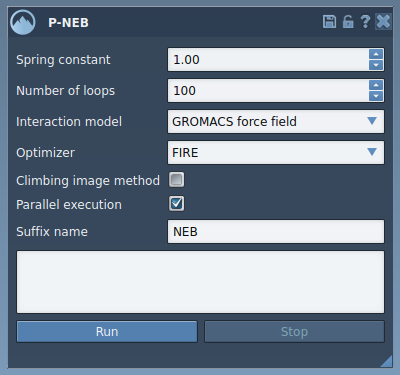
Before starting, add the P-NEB extension and the FIRE state updater, then load a sample path or your own candidate route. In the P-NEB app, begin with the tutorial’s straightforward settings:
- Spring constant: 1.00
- Number of loops: 100
- Interaction model: Universal Force Field (UFF)
- Optimizer: FIRE
- Parallel execution: enabled
- Climbing image method: leave unchecked for the first run
- Suffix name: NEB
The climbing image option is intended to help find the saddle point. Starting with it unchecked follows the tutorial’s initial workflow; you can run again with it enabled afterward. The parallel option runs one thread per conformation.
Run the refinement and check the result
Select the path in SAMSON’s Document view, then click Run in the P-NEB app. When the UFF setup asks whether to use existing bonds, choose to use them and confirm. Initialization and computation then begin; the status bar shows progress.
Once the run finishes, SAMSON adds a new path to the Document view. The app also displays a computation summary. Select the resulting path and inspect it with the Inspector; double-clicking the path starts or stops its animation. This gives you a convenient way to review how the atoms move along the refined sequence. Keep the original candidate available for comparison, and treat the optimized route as a result to inspect—not as a substitute for checking whether it suits your scientific question.

What this workflow does—and does not do
P-NEB is useful when you already have a reasonable starting route and want to relax its intermediate states into a more physically meaningful transition. It can be used for paths between structures associated with local energy minima, including routes produced by other tools. It is not the step to use when you have only endpoints and still need to generate a candidate pathway.
After inspecting the optimized conformations, you can export the path or continue into a simulation or free-energy workflow. For the detailed interface steps and sample documents, see the P-NEB tutorial.
Note: SAMSON and all SAMSON Extensions are free for non-commercial use. Get SAMSON.