



A molecular modeling task can begin with a deceptively simple problem: a list of SMILES strings that needs to become a useful, reviewable set of structures. Names may be missing, one malformed string can interrupt visual checking, and manually creating many close analogues is tedious. A practical workflow is to keep the strings, their 2D depictions, and the generated structures connected while you inspect and transform the collection.
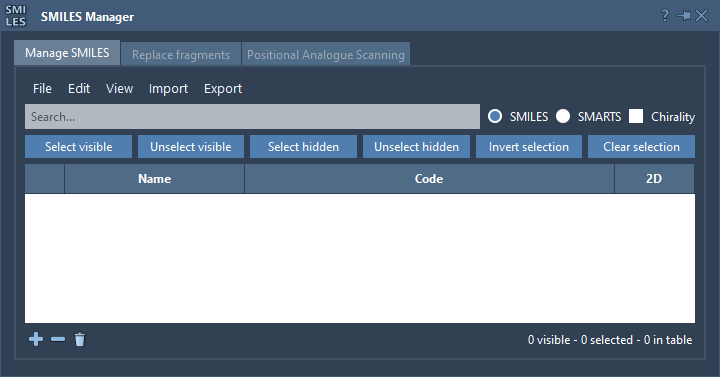
SAMSON’s SMILES Manager, based on RDKit, brings these steps into one place. Its Manage SMILES tab is useful for organizing and checking input; Replace fragments can then generate candidates by substituting a chosen part of an initial molecule.
Start with readable, checkable input
You can import a plain-text file containing one SMILES string per line, or an RDKit-style .smi file with a SMILES string and molecule name in the first two columns. Additional attributes in an RDKit-style file are ignored; the SMILES code and molecule identifier are used. If you are assembling a small set by hand, add rows in the table and edit the Code cells directly. You can also assign names, which makes it easier to tell entries apart during review.
Each valid string gets a generated 2D depiction. That gives you a visual check alongside the notation, rather than asking you to compare long character sequences alone. An invalid SMILES is highlighted and shown with an error image instead of a normal depiction. Treat that as a prompt to inspect the corresponding row before using it in later steps. You can open a larger depiction, hide the table’s 2D images when you need more room, or save individual depictions as PNG or SVG. For a collection, the manager can also export a grid of depictions as SVG, including only the selected entries if that is what you need to review or share.

Generate analogues by changing a defined fragment
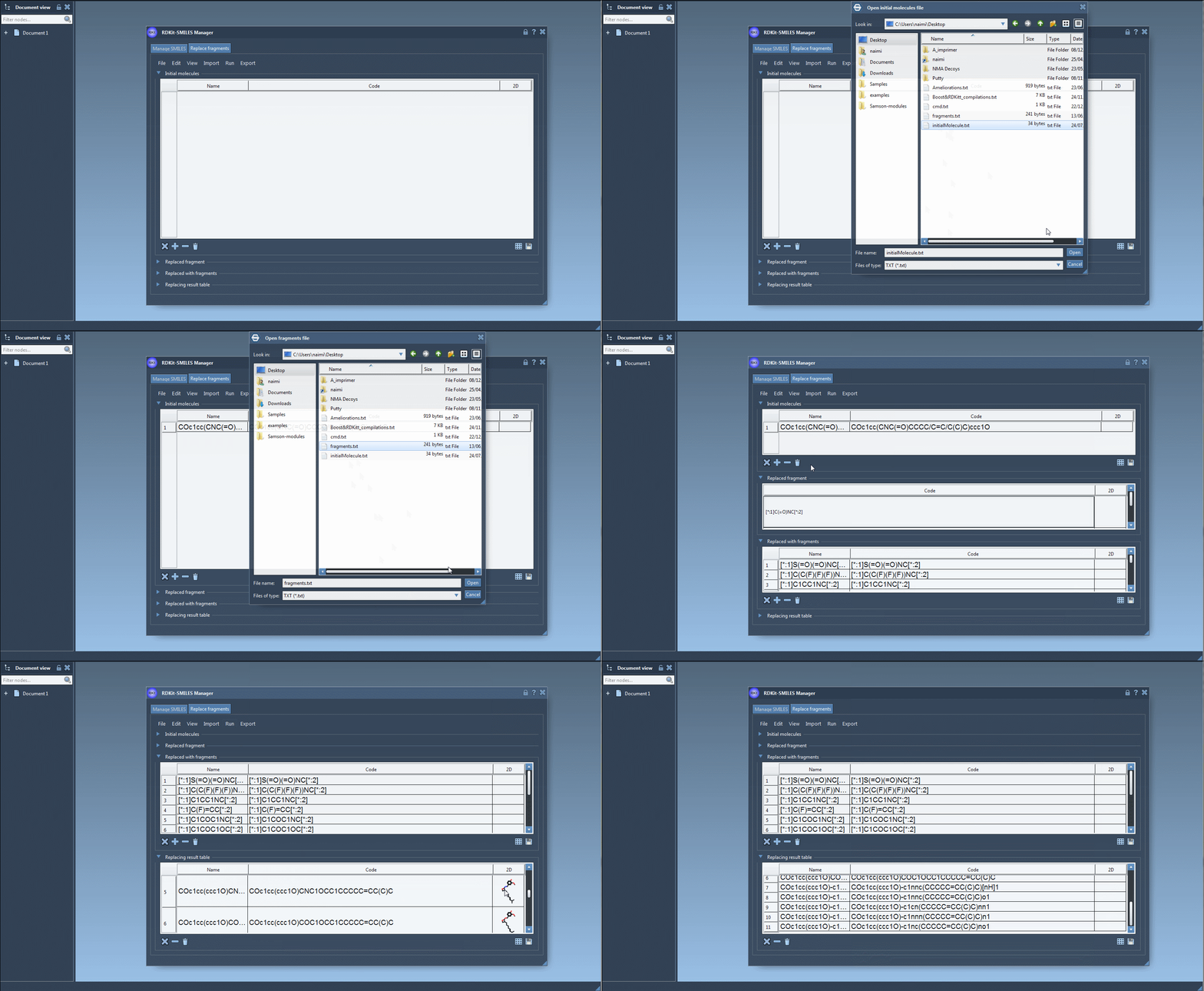
When the question is not simply how to organize a list, but how a molecule might look with a particular region replaced, use the Replace fragments tab. The idea is to specify three ingredients: one or more initial molecules, the fragment to replace, and one or more replacement fragments. The manager combines these inputs to create a results table of candidate molecules.
For example, the tutorial uses COc1cc(CNC(=O)CCCC/C=C/C(C)C)ccc1O as an initial molecule and [*:1]C(=O)NC[*:2] as the target fragment. It then tests several replacement patterns, such as [*:1]S(=O)(=O)NC[*:2] and [*:1]C1CC1NC[*:2]. In this notation, the attachment points are marked with [*:1] and [*:2] at the two ends of the fragment. RDKit expects this syntax for the fragments used in replacement, so checking the attachment markers is an important part of preparing the inputs.
Initial molecules and replacement fragments can be entered manually or imported from files. You can also use a selection in the active SAMSON document as the initial molecule or as the fragment to replace. Once the inputs are ready, choose Replace fragments from the Run menu. The resulting molecules appear in the Results table, where you can inspect their SMILES and depictions before deciding what to do next.
Review before moving to 3D
Fragment replacement is a way to generate a set of structural alternatives, not a conclusion about which molecule is preferable. Review the resulting strings and 2D depictions, and keep track of which initial molecule and replacement pattern produced each candidate. When you are ready to explore the structures in three dimensions, select entries and use Selected SMILES string to Document from the Export menu. A single molecule can also be generated from its context menu or large depiction window. The 3D structures are added to the active SAMSON document, where you can continue your modeling workflow.
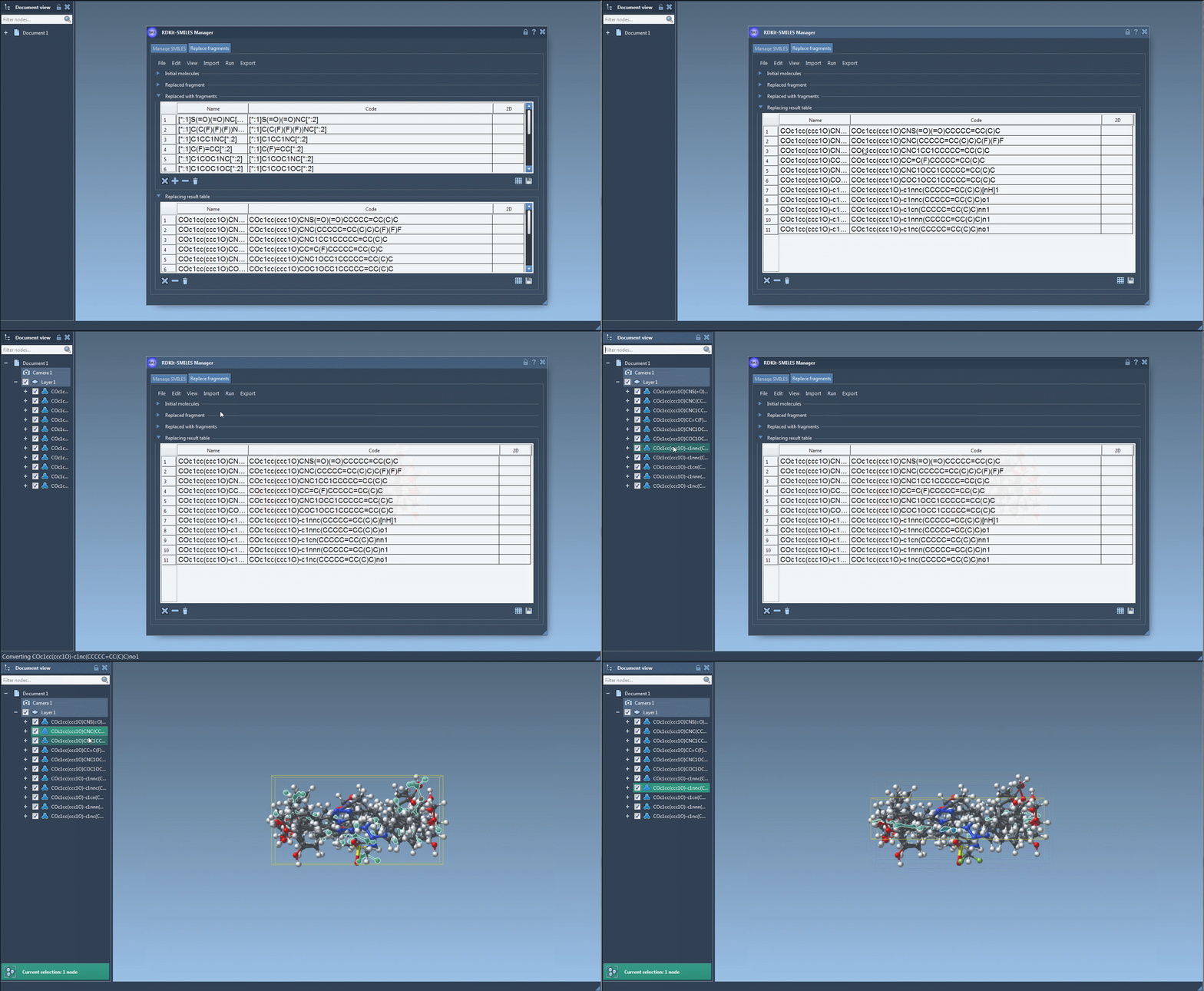
This workflow helps make a common modeling task more manageable: import a collection, catch obvious input problems through depictions, generate a focused set of fragment substitutions, and carry selected candidates into a 3D document. For the full instructions and additional SMILES Manager features, see the SMILES Manager tutorial.
Note: SAMSON and all SAMSON Extensions are free for non-commercial use. Get SAMSON.