



When a molecular structure contains thousands of atoms, selecting a useful region by clicking can be slow and imprecise. The challenge gets harder when the region is defined by a shape—a sphere, cylinder, or custom outline—rather than by a residue or element. In SAMSON, coordinate-based expressions let you describe the region mathematically and apply it consistently across the active document.
This is useful for isolating part of a structure for inspection, hiding atoms outside a region, or shaping a sheet of atoms into a recognizable pattern. The key is to turn the visual boundary you have in mind into a test that each atom either passes or fails.
Start with a simple geometric rule
For a sphere centered at (0, 0, 2) with radius 10, an atom is inside when its squared distance from the center is less than 100. In the Simple Script Extension, the rule can control atom visibility:
|
1 2 3 4 |
if ((a.x^2 + a.y^2 + (a.z - 2)^2) < 100) a.visibilityFlag:=1; else a.visibilityFlag:=0; |
Here, a.x, a.y, and a.z are an atom’s coordinates, and a.visibilityFlag determines whether that atom is visible. This changes visibility; it does not delete atoms. That distinction matters when you want to reveal the full structure again later.
If you only need to select atoms, the Atoms Selector Extension offers a more direct route: enter an expression that evaluates to true for the atoms you want. For example, the following condition selects atoms within a circular footprint of radius 10 around (15, 15) in the x-y plane:
|
1 |
((a.x-15)^2 + (a.y-15)^2) < 100 |
Because the expression does not constrain the z-coordinate, this region extends along the z direction—a cylinder through the structure. Add a z-coordinate condition if you need to limit the selection to a finite section. For example, combine the radial test with a range for a.z.
Build a custom outline from smaller rules
Not every useful region is a standard geometric primitive. A custom outline can be described by combining conditions with and, or, and not, plus functions such as abs and sqrt. Simple Script also supports variables and control structures, which can make a longer shape definition easier to read.
A useful way to approach a complicated outline is to divide it into recognizable parts. For each part, ask: what coordinate range contains it, and what equation describes its boundary? Then test the condition on a small example before applying it to the whole structure. For a shape that is symmetric around the y-axis, using abs(a.x) lets one rule describe both sides.
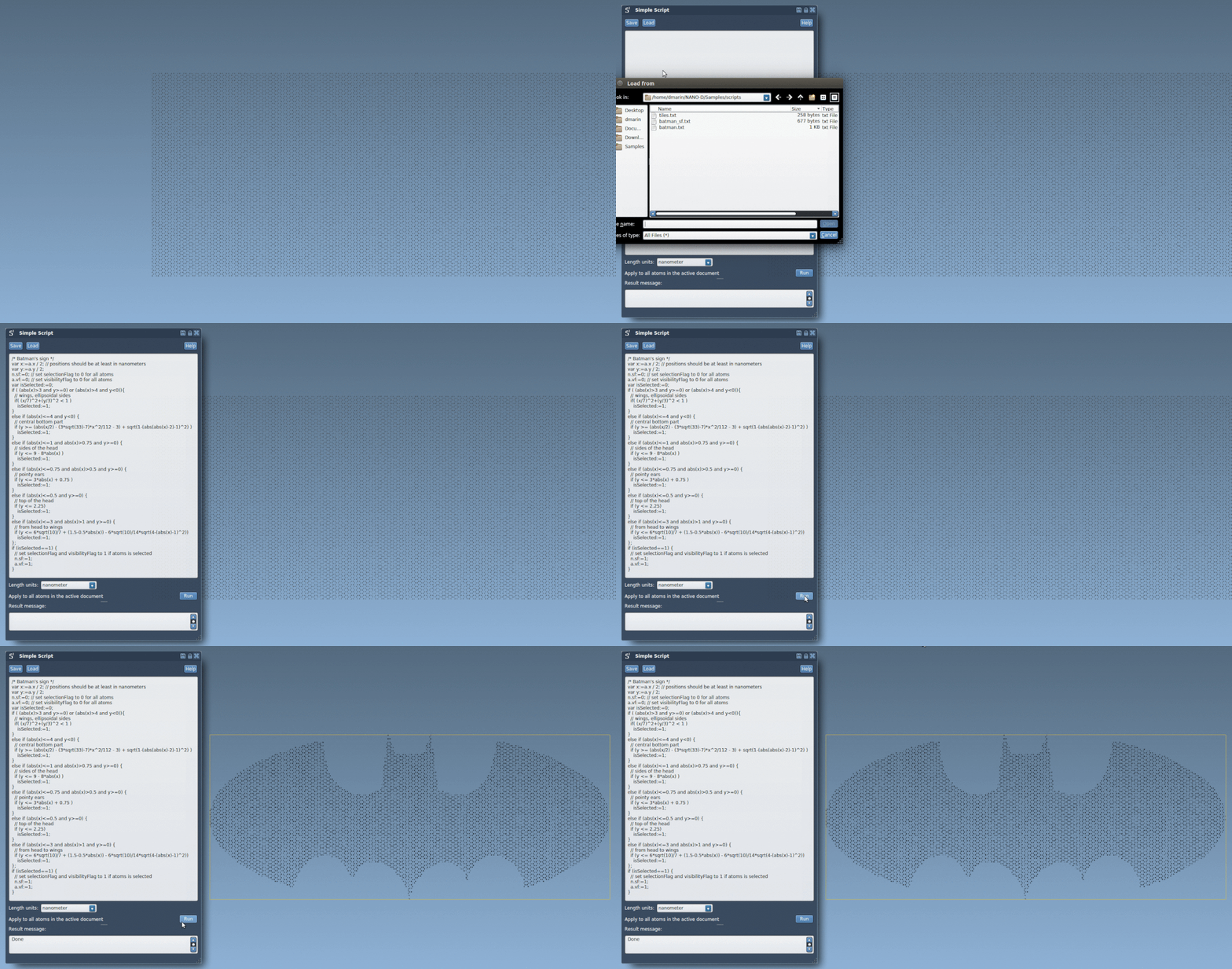
The tutorial demonstrates this approach by selecting atoms from a graphene sheet to form a Batman-inspired batarang. Its script first scales the coordinates into working variables, then checks a series of conditions for the wings, head, and ears. At the end, it sets both the selection flag and visibility flag for atoms inside the outline, and clears them for atoms outside it.
A few practical checks
- Check the coordinate scale. The batarang example divides coordinates by two and notes that positions should be at least in nanometers. Make sure the expression’s numbers match the units and scale of your structure.
- Use the right tool for the job. Choose Atoms Selector for a selection expression. Use Simple Script when the operation also needs to modify visibility, coordinates, or another supported atom property.
- Keep a reversible workflow. Since hiding atoms is not the same as removing them, visibility rules can help you focus on a region while retaining the original model.
- Inspect the result. Coordinate rules apply to atom positions, so a small change in the center, radius, or boundary can alter which atoms are included. Review the selection before continuing with downstream modeling.
These methods turn a tedious picking task into a repeatable rule. Once the geometry is expressed as conditions, you can adjust the numbers to explore nearby regions or reuse the logic on another structure with compatible coordinates.
For the full set of examples—including graphene nano-tiles, the batarang scripts, and more details on the available variables—visit the original SAMSON tutorial.
Note: SAMSON and all SAMSON Extensions are free for non-commercial use. Get SAMSON.