



Building a polymer from molecular fragments can become tedious quickly. You may need to connect several different monomers, repeat sections, control selected bond types, and keep track of which fragment connects to which. Typing a long chain by hand makes it easy to lose the pattern—or accidentally change it while revising the design.
SAMSON’s Polymer Builder offers a more structured approach: register fragments once, define reusable sequences, then describe the chain with a compact expression. The result is a generated molecular structure that you can inspect, adjust, and save.
Start with connection-ready fragments
Open Polymer Builder from Home > Apps > Assembly > Polymer Builder, or find it using Find everything… (Shift + E). Select a monomer fragment in the document or viewport, then choose Register monomer from selection.
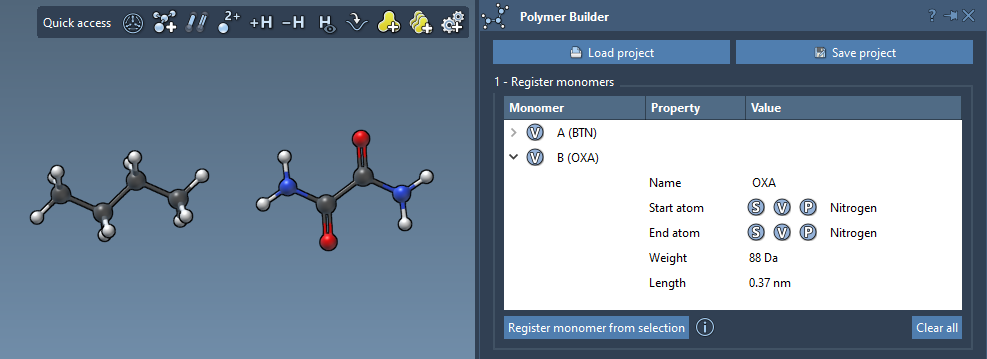
The app assigns each registered monomer a unique letter, such as A or B, and automatically identifies start and end atoms at opposite ends of the fragment. Those atoms determine how the fragments connect and influence the generated chain’s shape. If the automatic choices do not match your intended connection sites, you can override them: select a single atom and use S, or choose an atom from the structure’s atom list with P. The V button can highlight the structure or atoms to help you inspect the selection.
Before moving on, check the monomer table. It shows molecular weight and the distance between the selected start and end atoms. These values help you catch an unexpected fragment or connection span early. If you edit a registered monomer’s structure in SAMSON—for example, by adding or removing an atom—it is deregistered, so you may need to register it again.
Turn repeating patterns into reusable sequences
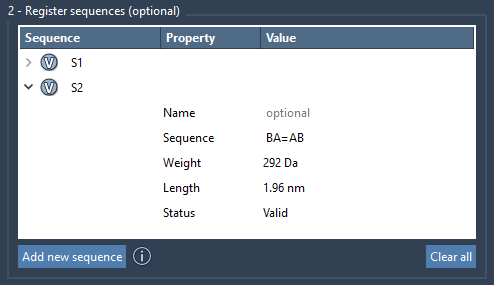
When a design contains a recurring block, register it as a sequence instead of repeatedly entering every monomer. Click Add new sequence and type the monomer IDs, such as ABBA. Sequences receive IDs like S1 and S2, which you can use later in the polymer expression. Check the sequence’s Status: an incorrect sequence displays an error, while a valid one is marked Valid. Use the associated V button to highlight the monomers it contains.
You can also specify the bond between monomers in a sequence. Connections are single by default; use = for a double bond and # for a triple bond. For example, A=B joins A and B with a double bond, while A#B specifies a triple bond. The sequence table also reports approximate molecular weights and lengths, which can help compare candidate building blocks.
Describe the chain without repeating yourself
The polymer expression combines monomer IDs, sequence IDs, and repeat counts. For example, 2*AB means two repeats of AB, producing ABAB. If S1 and S2 are registered sequences, 2*S1 + 2*S2 asks for two repeats of each. You can also specify a bond between components: AB=BA connects the AB block to BA with a double bond, and AB#BA uses a triple bond.
This compact notation is useful when comparing designs: change a repeat count or swap a sequence rather than rebuilding the entire chain description. Polymer Builder displays predicted molecular weight and length before generation. Treat these as useful estimates for comparing expressions, then inspect the generated structure and its connection sites.

Generate, inspect, and refine
Click Generate polymer to create the structure. Its shape is based on the directions between each monomer’s start and end atoms, and excess hydrogens at connection sites are removed. The optional Adjust Hydrogens on connection atoms setting adjusts hydrogen counts and positions according to valence. Adjust for clashes attempts to avoid steric overlaps while connecting monomers; the resulting chain may have some curvature.
After generation, inspect the structure rather than relying on the expression alone. If you want to refine it, use Edit > Minimize; SAMSON’s built-in minimizer uses the Universal Force Field. You can also use a generated polymer as a monomer for building a longer chain or block copolymer.
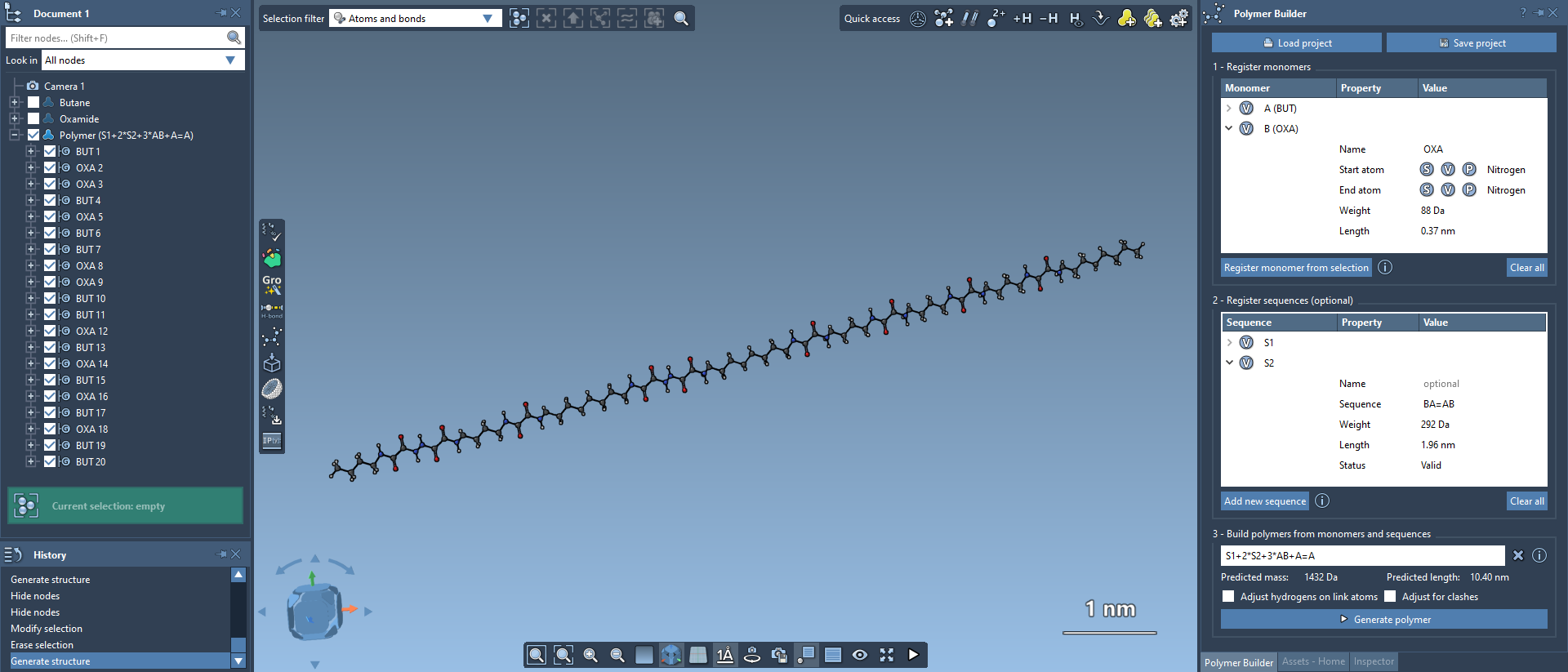
To export the result, select the polymer and choose Home > File > Save selection as…. Save the full project instead if you want to preserve the monomer and sequence tables for later work. For the complete walkthrough, see the Polymer Builder documentation.
Note: SAMSON and all SAMSON Extensions are free for non-commercial use. Get SAMSON at samson-connect.net.