



A molecular path can be easy to inspect and surprisingly awkward to reuse. You may see a ligand move through a protein, but for a reaction-coordinate analysis or another downstream workflow, you need the actual coordinates at each point—not just an animation. Exporting the entire system can also leave you sorting through atoms you do not need.
SAMSON’s Export Along Paths extension addresses both problems: it can write coordinates along a selected path to PDB files, either for all atoms or for a defined subset. The key is to decide what your analysis needs before exporting.
Start with a path, not a static structure
In SAMSON, a path is a node that stores atomic trajectories for a group of atoms. Double-clicking a path in the Document view starts or stops movement along it. To prepare coordinate files, first select the path or paths you want to export.
The tutorial’s example contains lactose permease (1PV7), the ligand thiodigalactoside (TDG), and two ligand-unbinding paths. This illustrates a common analysis need: the protein provides structural context, but the ligand’s changing coordinates may be the data you want to examine or use in a simulation workflow.
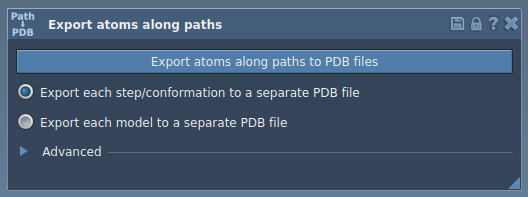
Choose the export scope deliberately
For a quick export of everything represented by the selected path, choose either all frames in one PDB file or each frame as a separate PDB file, then click Export atoms along paths to PDB files. You will be asked for a destination folder and file prefix. The Advanced section also provides an option to change the frame export interval.
If you only need a ligand, binding-site atoms, or another smaller group, use the Advanced panel to define a model for export. Select the desired atoms in the Document view—for example, TDG—and click Add. The selected group is added to the export list as a named model.
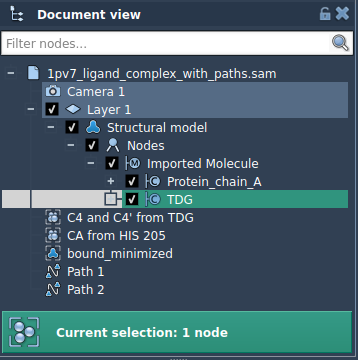
This extra step can make downstream work more focused: instead of exporting coordinates for every atom and filtering them later, you can specify the group you want to track at export time. You can add multiple atom sets, rename a model by double-clicking its name, and use the list’s Select or Unselect controls to highlight the atoms included in a model. If you need to redefine a set, use Reset or the corresponding context-menu command.
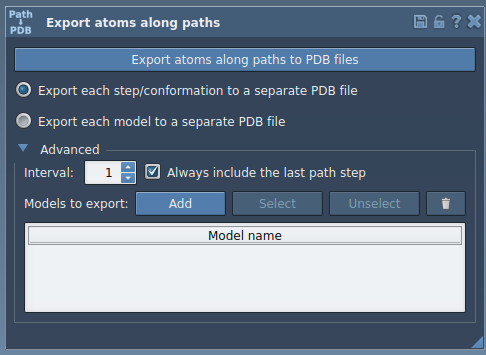
A practical checklist before exporting
- Select the intended path or paths in the Document view; the path determines which trajectory is being exported.
- Decide whether you need all atoms or a subset. For a ligand-only analysis, add the ligand as a model rather than exporting the full system by default.
- Choose the PDB output arrangement. Use a single file for all frames or separate files for individual frames, depending on how your next tool expects to read them.
- Check the frame interval in Advanced if you want to adjust how frequently frames are exported.
- Choose a clear destination and prefix so that exported files can be associated with the relevant path and model later.
These choices help keep trajectory files aligned with the question you are asking. For example, exporting ligand coordinates along an extraction path can provide input for reaction-coordinate or free-energy workflows; exporting intermediate states can also make it easier to inspect structural changes frame by frame. The export itself creates coordinate files—it does not perform the subsequent analysis.
For the complete step-by-step procedure, including the sample system, see the Export atom trajectories along paths tutorial.
Note: SAMSON and all SAMSON Extensions are free for non-commercial use. Get SAMSON at samson-connect.net.