



A molecular path can be easy to inspect on screen and still awkward to use in another workflow. If you need coordinates for a reaction-coordinate analysis, a free-energy calculation, or simply a closer look at a ligand’s movement, the practical question is: how do you turn the path into files—and avoid exporting atoms you do not need?
SAMSON’s Export Along Paths extension provides a direct way to export atomic coordinates from selected paths as PDB files. You can export all atoms associated with a path, or define one or more specific atom groups as models. That distinction matters: a protein-wide trajectory may be unnecessary if your next step concerns only a ligand, binding-site residues, or a backbone subset.
First, understand what is being exported
In SAMSON, a path is a node that stores atomic trajectories for a group of atoms. Selecting a path tells the exporter which trajectory to use. Selecting atoms in the Document view, by contrast, defines a subset to include when you use the advanced export options. These are separate choices: the path supplies the changing coordinates, while the model list determines which atoms are written.
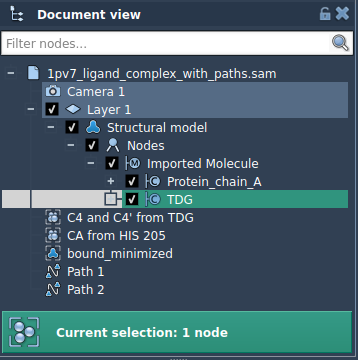
The sample system in the tutorial illustrates the distinction. It contains lactose permease (1PV7), the ligand thiodigalactosid (TDG), and two ligand unbinding paths. You can inspect the system in the Document view before deciding whether the full trajectory or just the ligand is relevant.

Choose the output structure before exporting
The extension offers two export modes:
- All frames in a single PDB file keeps the frames together in one file.
- Each frame as a separate PDB file writes the frames individually.
Choose the format that fits the next step in your workflow. If you are unsure, consider whether the downstream tool or analysis expects a multi-frame file or a sequence of individual structures. The documentation does not prescribe one mode for every use case; the choice depends on how you plan to use the exported coordinates.
Export the full path or only a subset
For a full export, select one or more paths in the Document view, choose the desired frame format, and click Export atoms along paths to PDB files. You will then choose a destination folder and file prefix. The Advanced section also lets you change the frame export interval, which can be useful when you want to control how frequently frames are included.
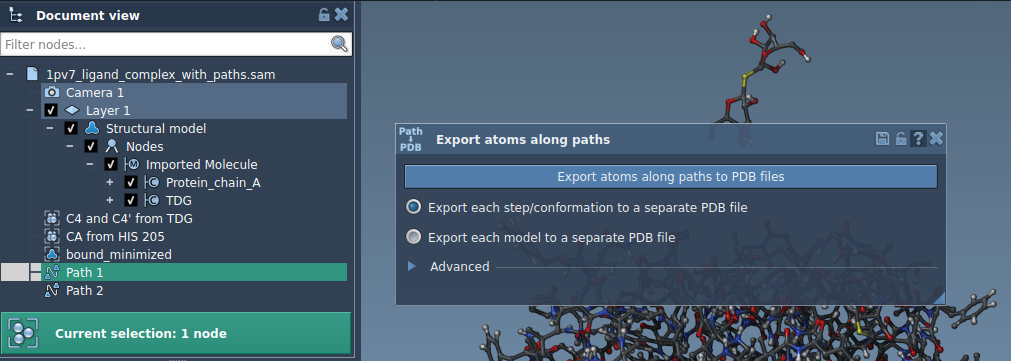
To focus on a subset, open the Advanced panel and select the atoms in the Document view—for example, the ligand TDG. Click Add to register the selection as a named model in the export list. You can add several atom sets, rename a model by double-clicking its name, and use Select or Unselect to highlight the atoms included in a model. If you need to redefine a set, use its Reset control or the corresponding context-menu command.
Once the model list is ready, choose the file mode, select the relevant path or paths, and start the export. You will again be prompted for a destination folder and file prefix. Before proceeding, it is worth checking that the path selection and the atom models match your intended analysis: a correct path with the wrong atom set can produce files that are technically valid but not useful for the question you are asking.
A small workflow check
- Is the correct path selected?
- Do you need all atoms, or only a defined subset?
- Should frames be stored together or separately?
- Is the frame export interval appropriate for your intended use?
- Have you chosen a destination folder and a clear file prefix?
With these decisions made before export, the resulting PDB files are easier to organize and pass into downstream visualization, analysis, or simulation workflows. For step-by-step instructions and the full interface details, learn more in the original tutorial.
Note: SAMSON and all SAMSON Extensions are free for non-commercial use. Get SAMSON.