



Building a carbon nanotube by eye can be quick, but it can also leave you unsure whether you created the structure you intended. A small change in a mouse gesture may change the tube’s length, orientation, or radius. When you need to compare models or assemble several tubes, that uncertainty becomes a practical modeling problem.
SAMSON’s Nanotube Creator offers two ways to build a carbon nanotube (CNT): interactively in the viewport, or through its graphical interface. The useful choice depends on what you need. Use the viewport for a quick, visual construction; use the interface when you want to enter the geometry deliberately or create a multi-walled example by building several tubes.
Choose the workflow for the task
To get started, add the Nanotube Creator Extension from its SAMSON Connect page, restart SAMSON, and activate the editor from … > Materials > Nanotube Creator in the viewport menu. You can also use Find everything… with Shift+E and search for “Nanotube Creator.” SAMSON has one active editor at a time, so activating another editor will replace the current one.
Interactive building: fast, with live feedback
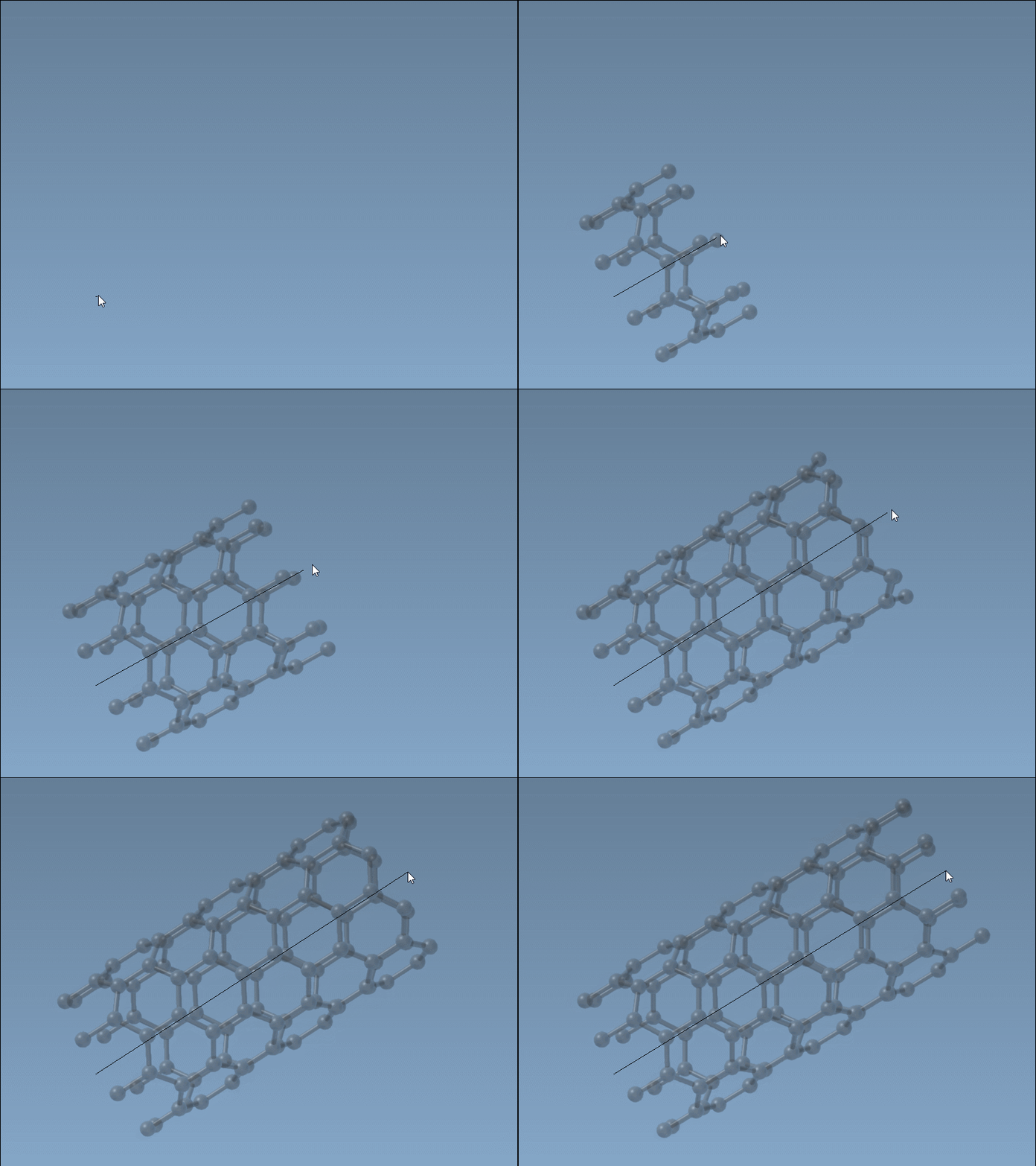
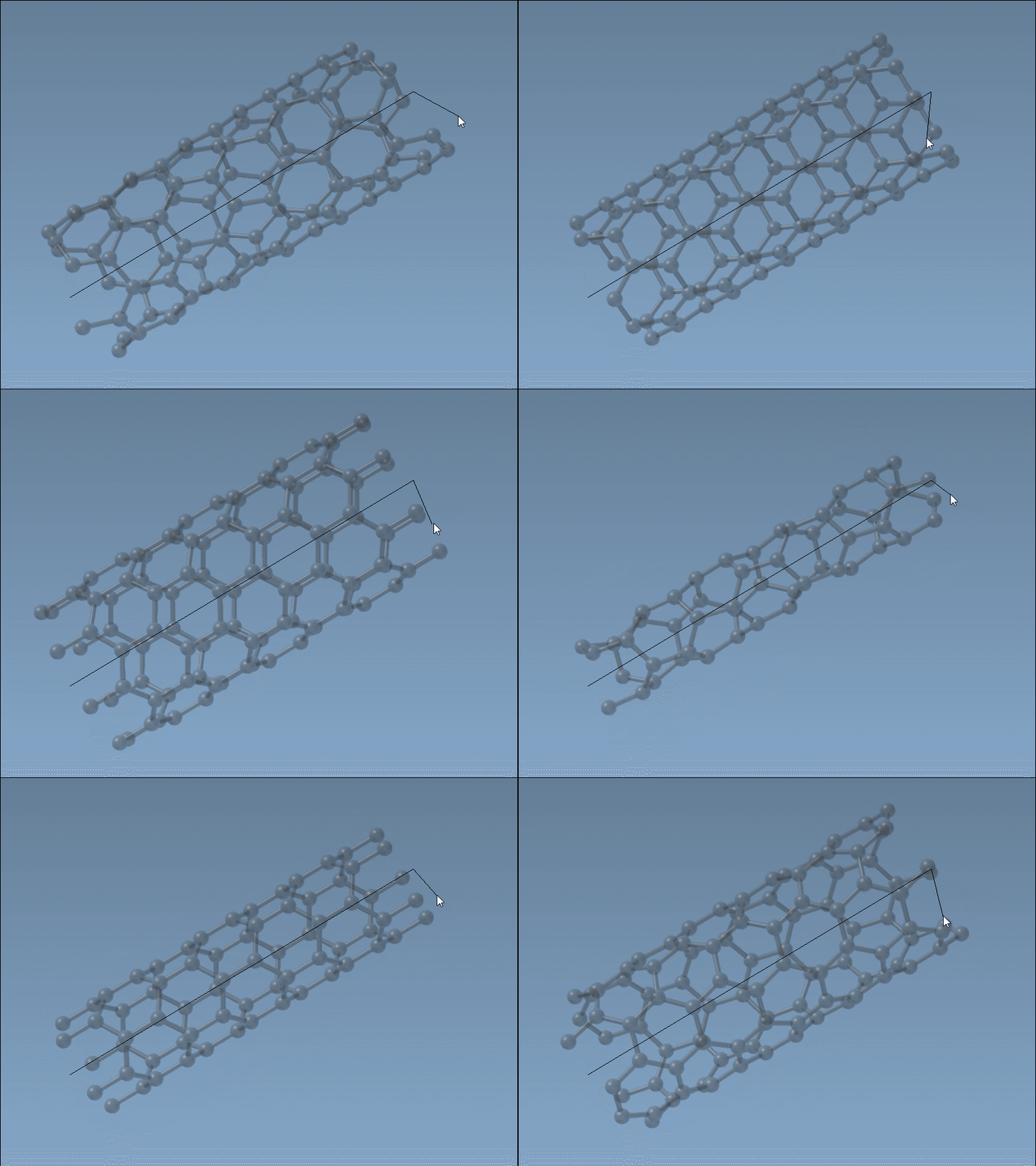
In the viewport, the construction happens in two stages. First, press and drag the left mouse button to set the tube’s axis and length. Watch the status bar as you drag: it reports feedback on the orientation and length. Release the button, move the mouse to adjust the radius, then click again to confirm. The status bar also helps you see the n and m values while you work.
This approach is convenient when you are exploring a shape or want to place a tube visually. Its trade-off is that you are steering dimensions with the mouse. If you need to recreate a particular setup, record the displayed parameters rather than relying on the gesture alone.
Graphical interface: specify the geometry
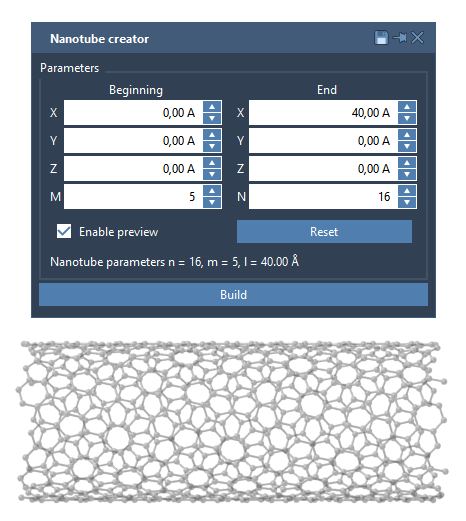
For a more controlled setup, open the editor’s graphical interface. If it is hidden, reselect the editor to toggle its visibility. The interface lets you set the start and end positions, which define the nanotube’s axis in three-dimensional space, as well as the n and m values, which define the chiral vector and therefore the tube’s structure and radius. Click Build to generate the model using the current settings.
Separating these choices is useful when troubleshooting: the endpoint coordinates describe where the tube runs and how long it is, while n and m describe its structure and radius. If a result looks wrong, check those two groups of settings independently before rebuilding.
A repeatable multi-walled example
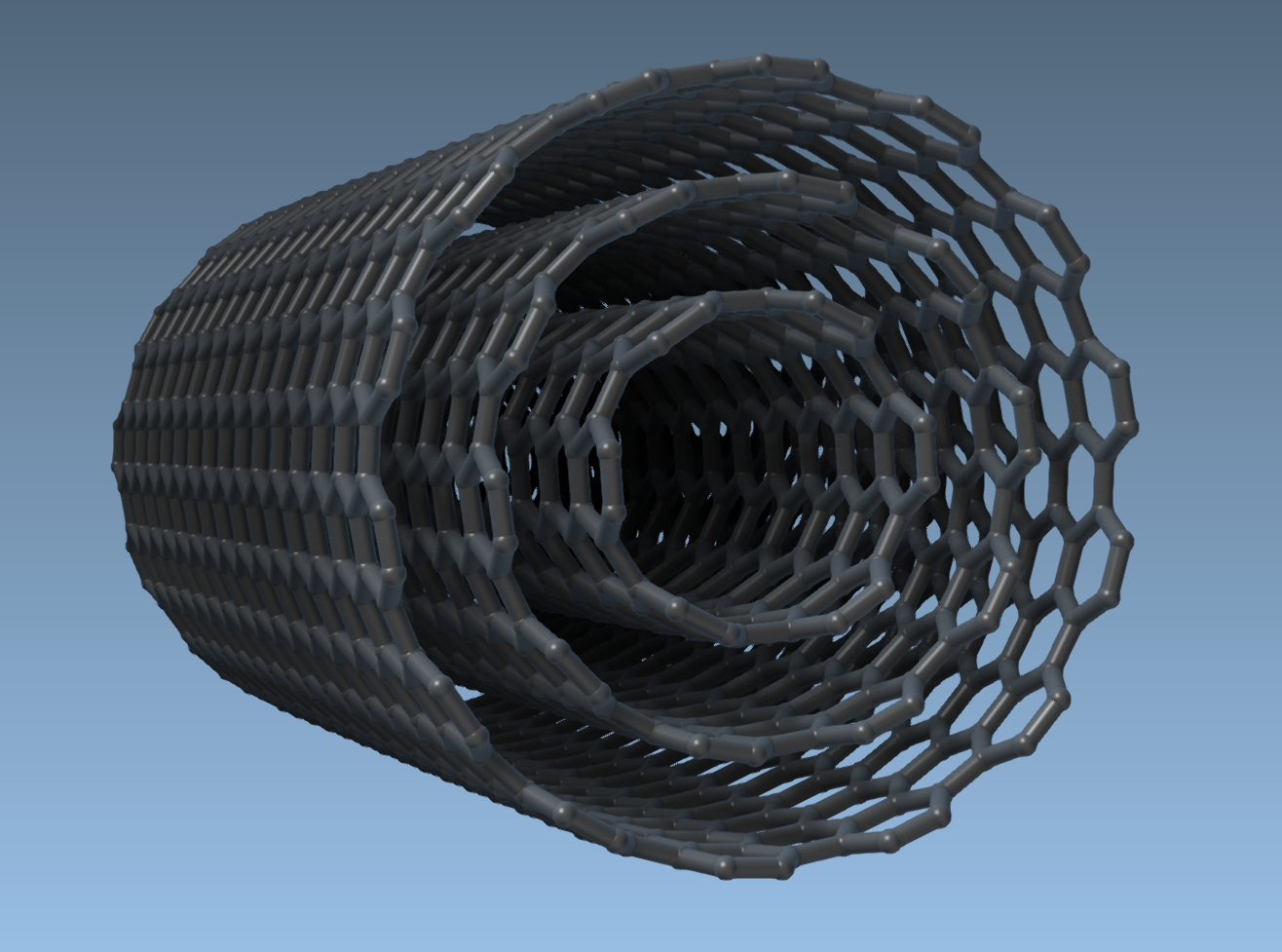
To make three concentric CNTs, use the same endpoints for each build: (0, 0, 0) and (40, 0, 0). This sets a 40 Å tube along the x-axis. Build the first tube with n = 6 and m = 6, then build additional tubes with n = 10, m = 10, and n = 14, m = 14. Keeping the endpoints fixed makes the tubes share an axis and length; changing the index values gives the successive tubes different radii.
This example is also a practical template: decide the shared axis and endpoints first, then vary the chiral indices for each tube. Building the tubes one at a time makes it easier to check each set of parameters as you go.
Creating a CNT model is the geometry-building step; it does not by itself evaluate mechanical or electronic properties. For simulation, the model can be used in a subsequent workflow, such as the documented example of building and modeling a carbon nanopore. For more details on both creation methods, see the original Nanotube Creator tutorial.
Note: SAMSON and all SAMSON Extensions are free for non-commercial use. Get SAMSON.