



When a ligand has several positions that might tolerate a change, making variants one at a time can quickly become tedious. It is also easy to lose track of which structure represents which substitution. Positional analogue scanning offers a more systematic first step: start with one molecule, identify a recurring atom pattern, and generate a series of structures by changing that pattern at its different matching positions.
In SAMSON, this workflow is available in the SMILES Manager extension. It is useful when you want to explore a set of possible substitutions before deciding which candidates deserve more detailed preparation and analysis. The scan generates analogue structures; it does not, by itself, tell you which analogue will bind better.
Start with a structure you can recognize
Provide the starting molecule either by entering its SMILES string or by selecting a molecule already present in your SAMSON document and choosing Use selection. Beginning with a known structure makes it easier to interpret the results: each generated analogue can be compared with the same parent molecule.
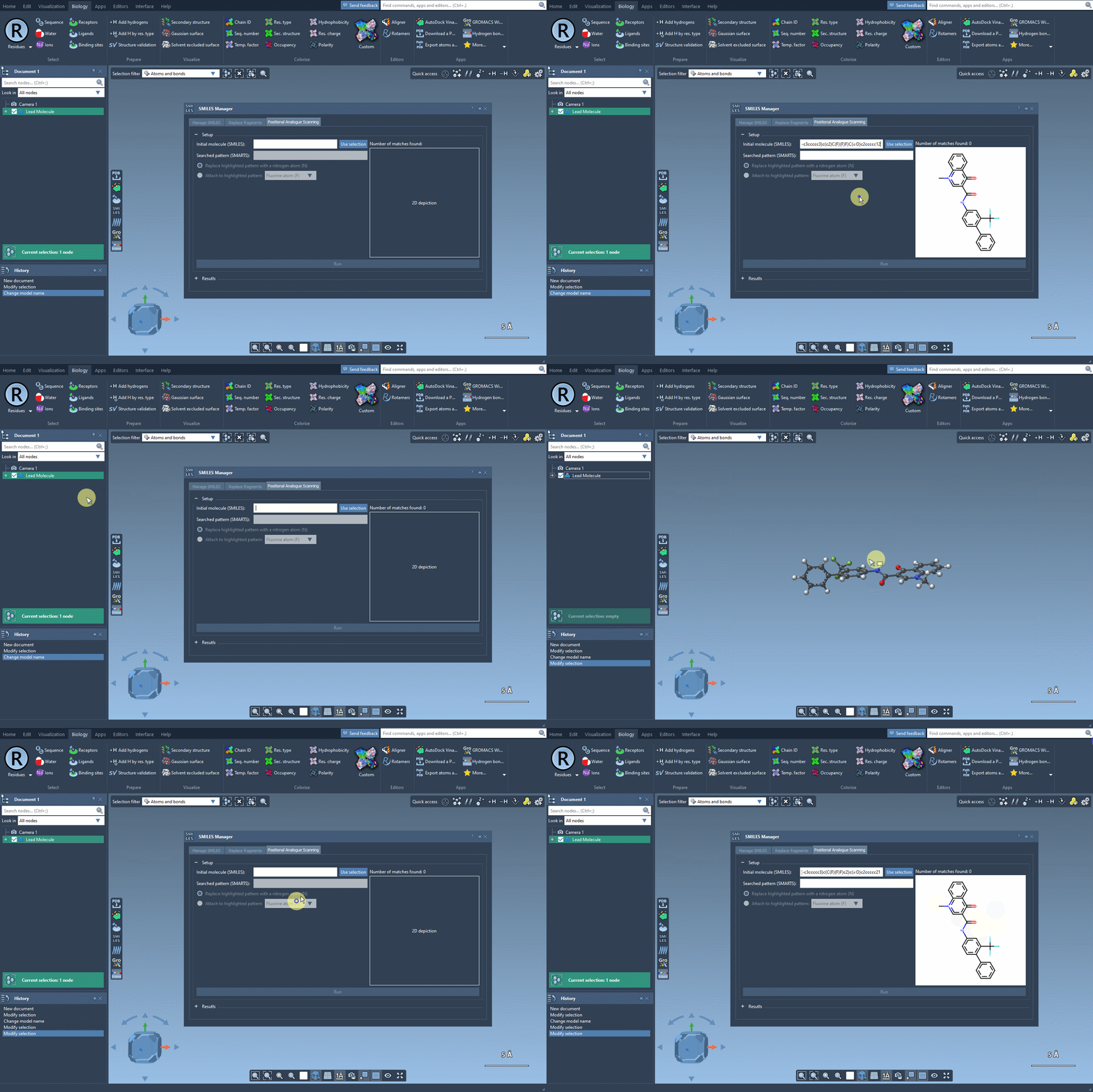
For the tutorial example, the starting SMILES is CN1C=C(C(=O)Nc2ccc(-c3ccccc3)c(c2)C(F)(F)F)C(=O)c2ccccc12. You do not need to use this particular molecule. The key is to begin with the structure whose positions you want to explore.
Use a pattern to define the scan
Positional scanning depends on the SMARTS pattern you enter. The pattern tells the tool what to find in the starting structure. In the example, [cH] matches an aromatic carbon that has a hydrogen. The interface highlights matching positions, giving you a chance to check that the selected pattern corresponds to the sites you intend to modify.
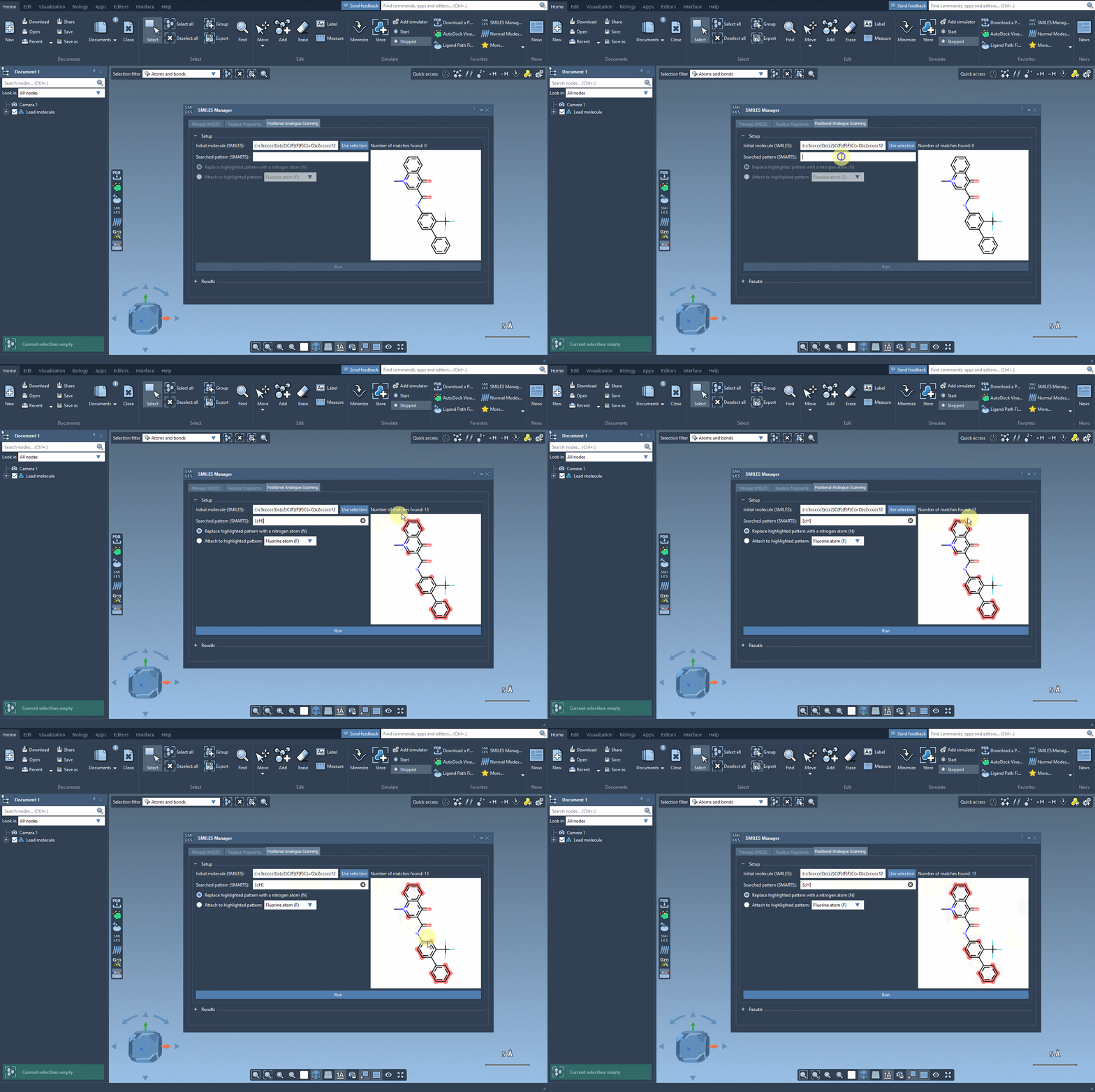
This check is an important part of the workflow. Before generating a series, ask whether the highlighted matches are chemically and conceptually the positions you want to investigate. A pattern that is too broad may include sites you did not intend to change; a narrower pattern can help focus the scan. In other words, the quality of the series begins with the question you encode in the pattern.
Choose a change, then generate the series
Once the matches look right, choose whether to replace the matched pattern or attach a new atom or group to it. In the documented example, the matched aromatic carbon is replaced with nitrogen. The tutorial also demonstrates attachment options such as fluorine or a methyl group. These are different design questions: replacement changes the matched site itself, while attachment adds a substituent at the selected site.
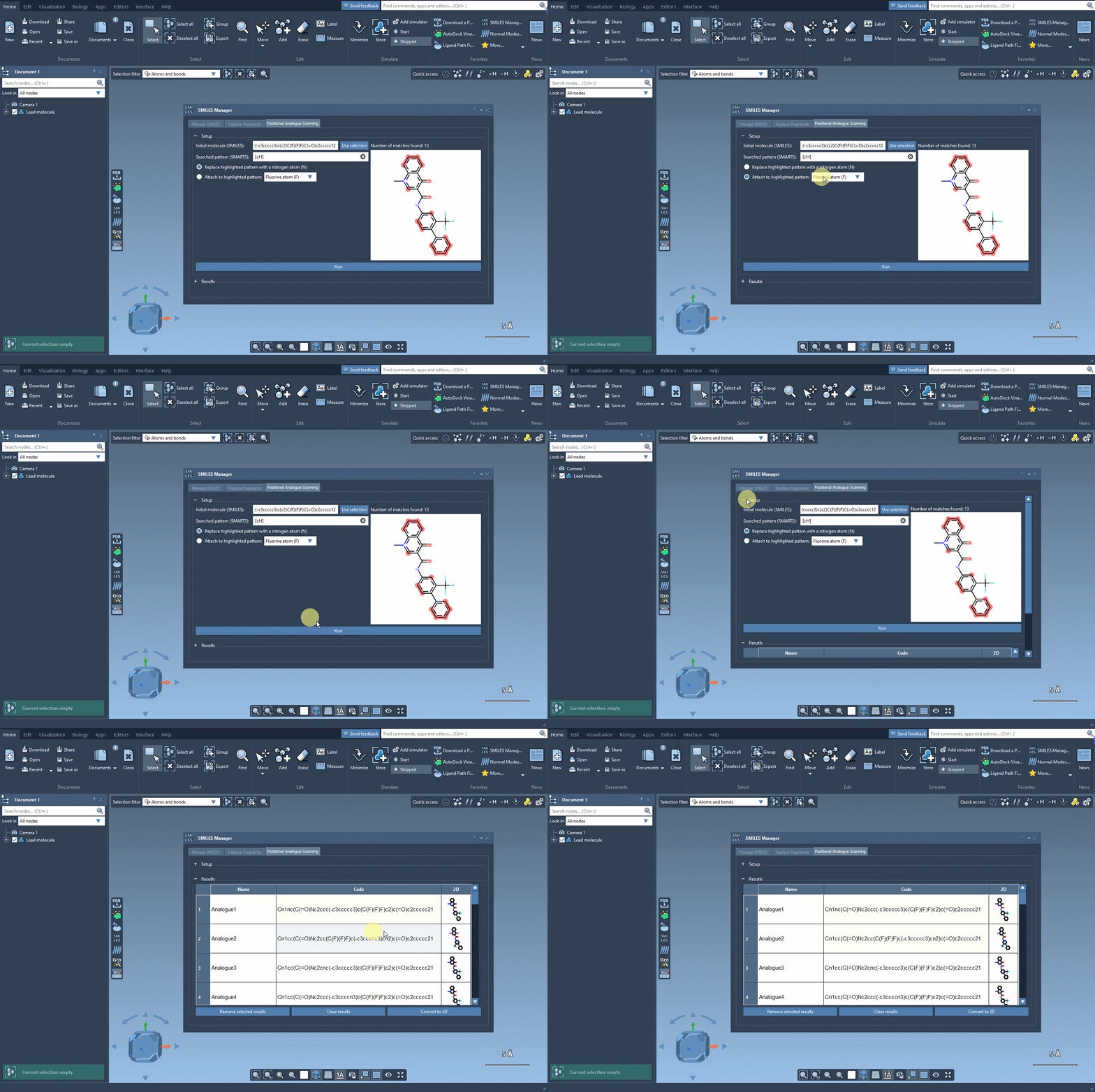
Click Run to create the analogues and display them in the results table. The table includes SMILES and 2D depictions, so you can review the generated structures rather than relying only on a list of strings. You can edit an analogue’s name or SMILES by double-clicking its cell, open a larger depiction, hide or show the images, and remove selected rows or clear the results.
Turn generated structures into useful next steps
A generated series is a set of candidates to inspect, not a ranking of their properties or binding performance. Review the structures first: confirm that the substitutions match your intended scan and remove results that are not relevant to your question. Then generate 3D structures for the analogues you want to study, either for an individual result through its context menu or with Convert to 3D.
From there, you can continue with an analysis suited to your project. For example, the AutoDock Vina Extended extension can be used to dock generated analogues, after which you can examine whether changes preserve or alter interactions with a target protein. Docking and interaction analysis provide further evidence to assess; they do not replace careful interpretation of the structures and results.
The practical benefit is a more organized way to ask a focused design question: which positions can I vary, and what structures do those variations produce? A pattern-driven scan can help create that first comparison set without manually rebuilding each candidate. For setup details and the complete walkthrough, learn more in the positional analogue scanning tutorial.
Note: SAMSON and all SAMSON Extensions are free for non-commercial use. Get SAMSON.