



When a ligand has several positions that might tolerate a change, testing them one at a time by manually editing structures can become tedious—and it is easy to lose track of which modification belongs to which result. Positional analogue scanning offers a more organized starting point: define a substructure to search for, then generate variants by replacing or attaching a group at the matching positions.
In SAMSON, the SMILES Manager can perform this workflow from a starting molecule and a SMARTS pattern. The generated analogues appear together in a results table, giving you a practical way to inspect a set of proposed changes before deciding which structures deserve further study.
Start with a molecule and a clear question
You can provide the starting structure by entering its SMILES code, or select a molecule already present in the SAMSON document and click Use selection. The example in the tutorial uses a molecule from a published positional analogue scanning study. The important choice for your own work is what chemical feature you want to vary: a specific atom environment, a substitutable position, or a site where you want to test an added group.
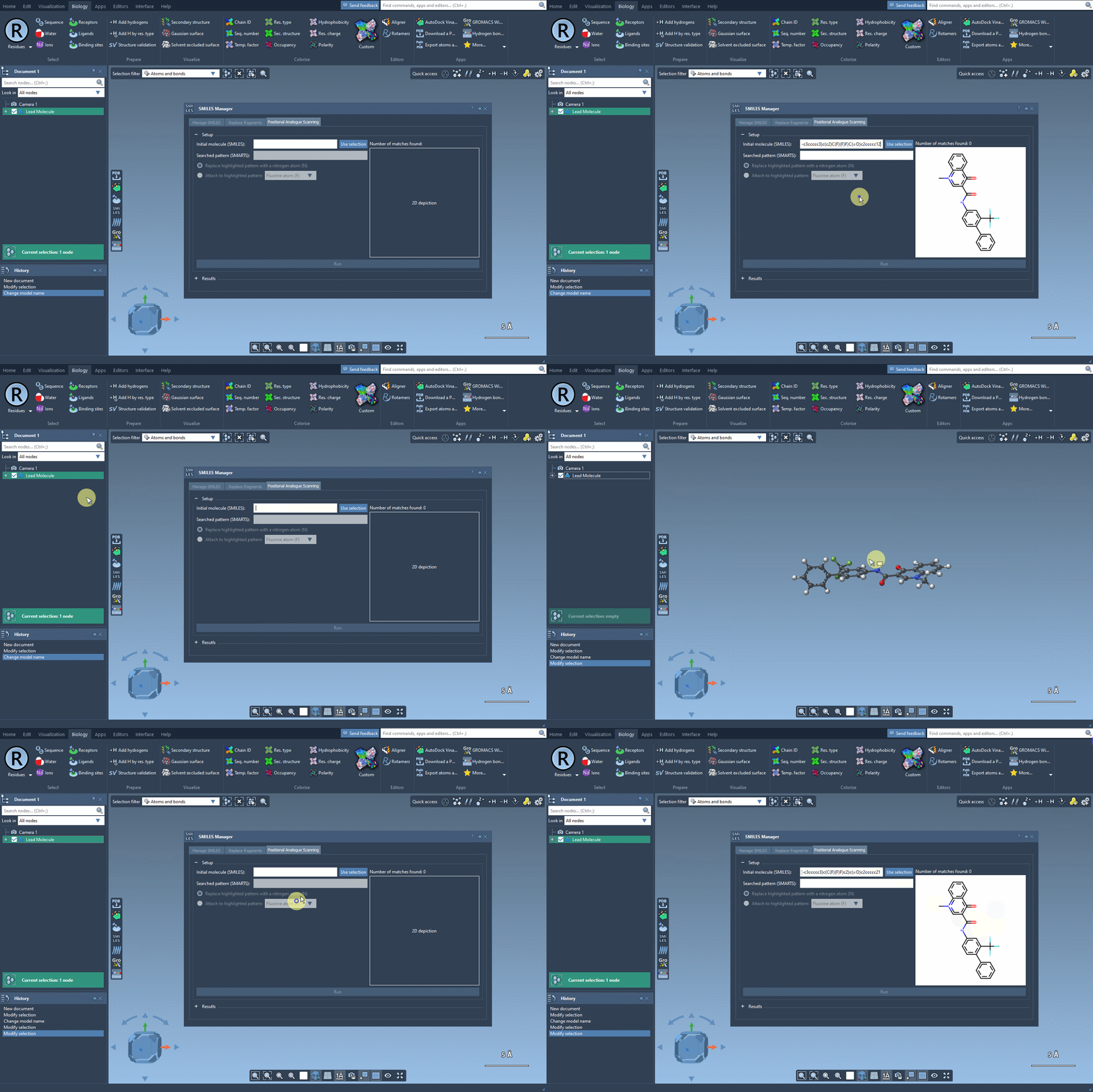
Make the SMARTS pattern match the intended sites
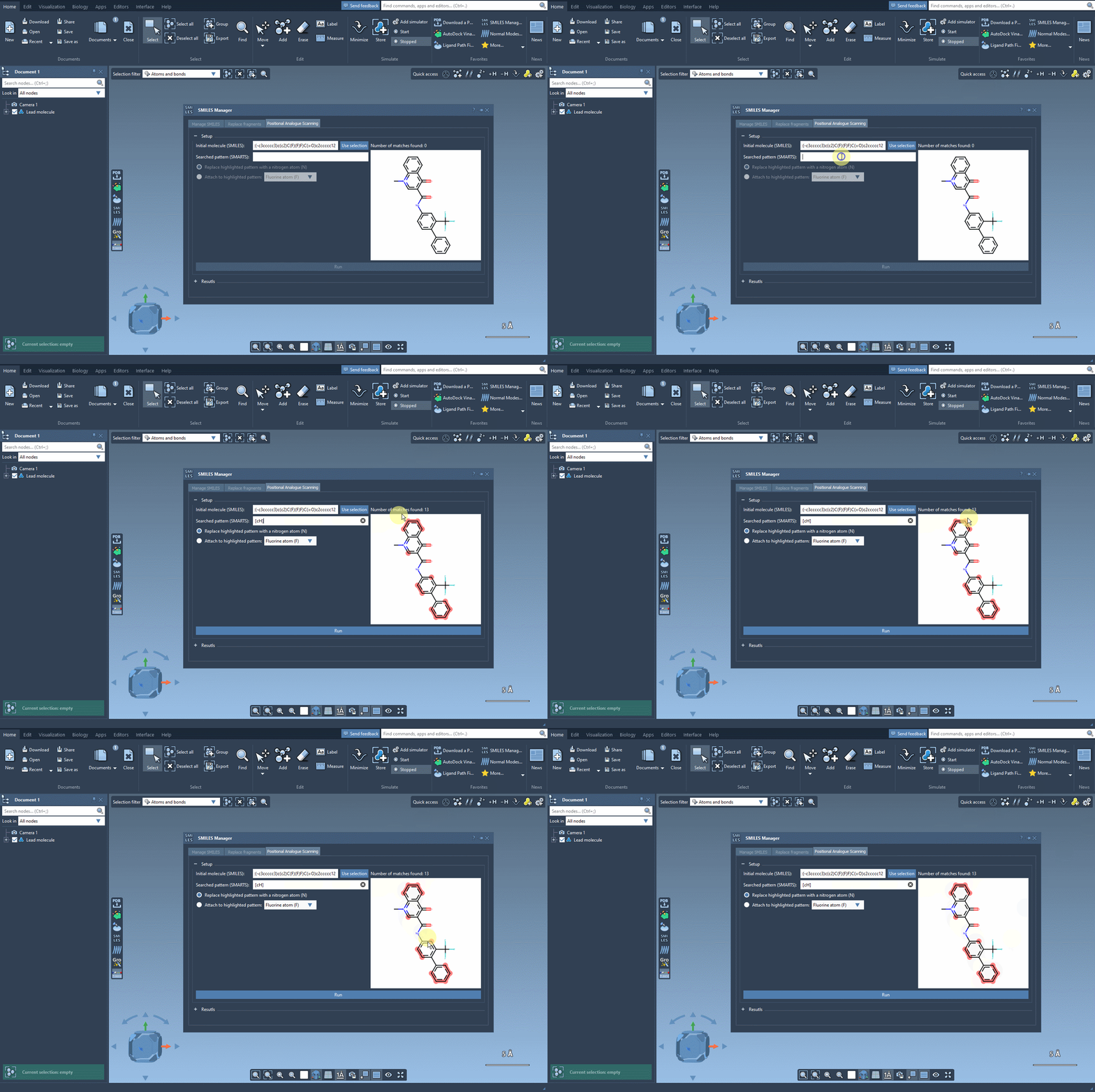
A SMARTS pattern determines which parts of the starting structure are considered for modification. In the tutorial, the pattern is [cH], which identifies aromatic carbon atoms bearing a hydrogen. The matches are highlighted in the molecule, letting you check whether the pattern finds the positions you had in mind before generating anything.
This check is worth taking seriously. A pattern that is too broad may select more sites than intended; one that is too narrow may miss relevant positions. In particular, [cH] does not mean “every aromatic carbon”: it specifies aromatic carbons with a hydrogen. Inspect the highlighted matches and adjust your pattern if they do not correspond to the chemical question you want to explore.
Choose a modification, then review the series
Once the matches look right, choose whether to replace the pattern or attach a group to it. The example replaces the selected pattern with nitrogen; the tutorial also demonstrates attaching fluorine or a methyl group. Click Run to generate the analogues and display their SMILES codes and 2D depictions.
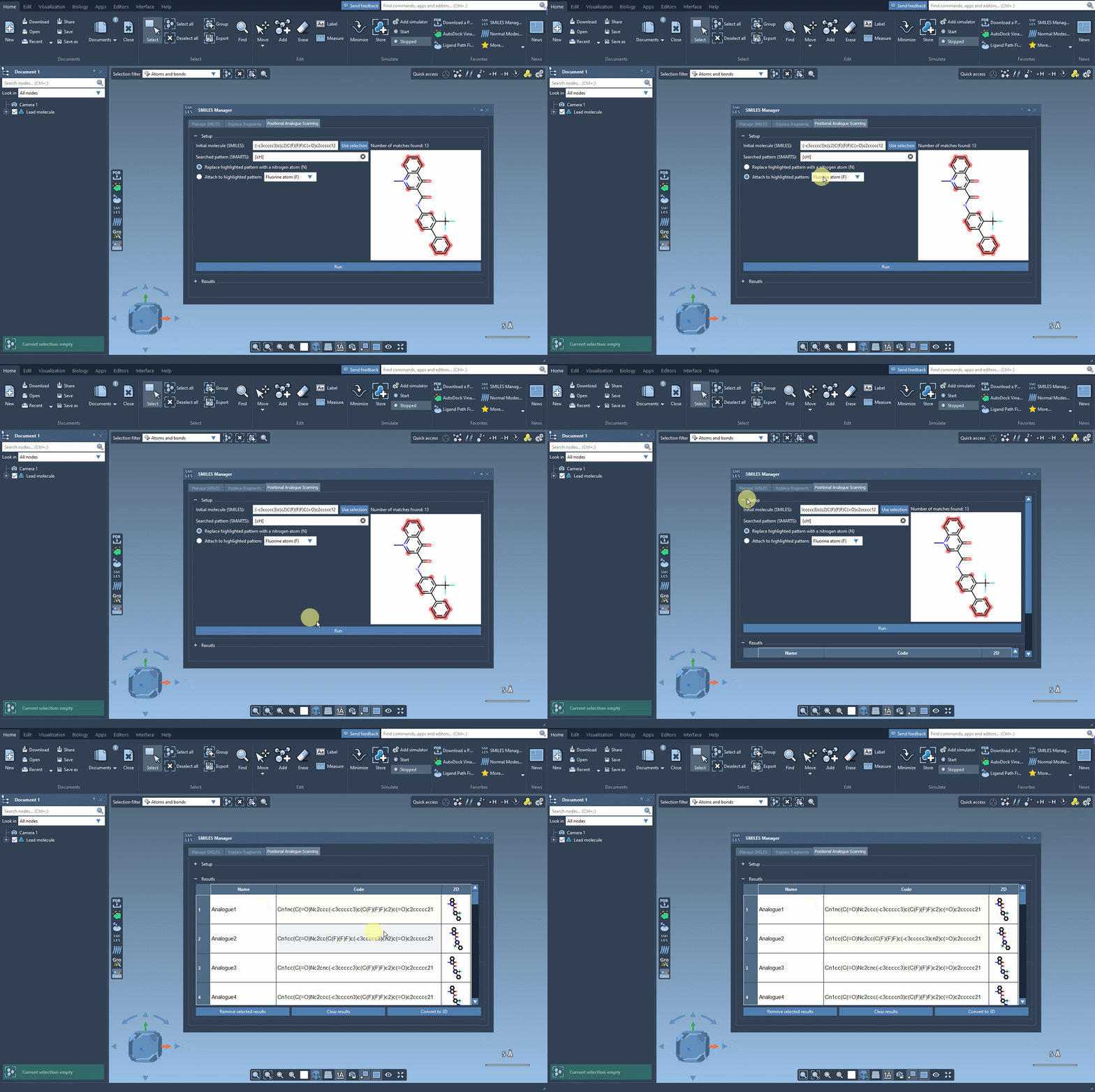
The results table is useful as a working set, not just a preview. You can double-click a name or SMILES cell to edit it, open a depiction in a larger window, and hide or show the 2D images using the 2D header cell. You can also remove selected rows or clear the results when you want to start over. These options make it easier to keep the candidates you want to compare without carrying along unwanted results.
Use generated structures as hypotheses
A generated analogue is a candidate for evaluation, not evidence that a substitution will improve binding or preserve activity. First inspect the structures and confirm that the modifications make sense for your design question. When you are ready to continue, use Convert to 3D or generate a 3D structure for an individual analogue from its context menu. The resulting structures can then be studied with an appropriate workflow—for example, docking with AutoDock Vina Extended—and compared for retained or new interactions with the target. Other analyses, such as ligand strain assessment, may also help inform which candidates merit attention.
The useful habit is to treat scanning as a way to create a manageable, clearly defined set of structural ideas: choose the match carefully, review the resulting 2D structures, and apply downstream analysis before drawing conclusions.
For the complete step-by-step workflow, see the positional analogue scanning tutorial.
Note: SAMSON and all SAMSON Extensions are free for non-commercial use. Get SAMSON.