



When exploring a ligand, a common bottleneck is turning a promising structure into a useful set of close analogues. Editing atoms one at a time can be repetitive, and it is easy to lose track of which positions were changed. Positional analogue scanning offers a more systematic starting point: define a molecular pattern, choose a modification, and generate a series of structures for inspection.
In SAMSON, the SMILES Manager can perform this workflow from a starting molecule and a SMARTS pattern. The generated analogues can then be reviewed, converted to 3D, and prepared for further study. The important idea is that the pattern defines where to explore; it does not decide which analogue is biologically best.
Start with a structure you can recognize
Open the SMILES Manager and select its Positional Analogue Scanning tab. Provide the starting molecule either by entering its SMILES string or by selecting a molecule already present in the SAMSON document and choosing Use selection.
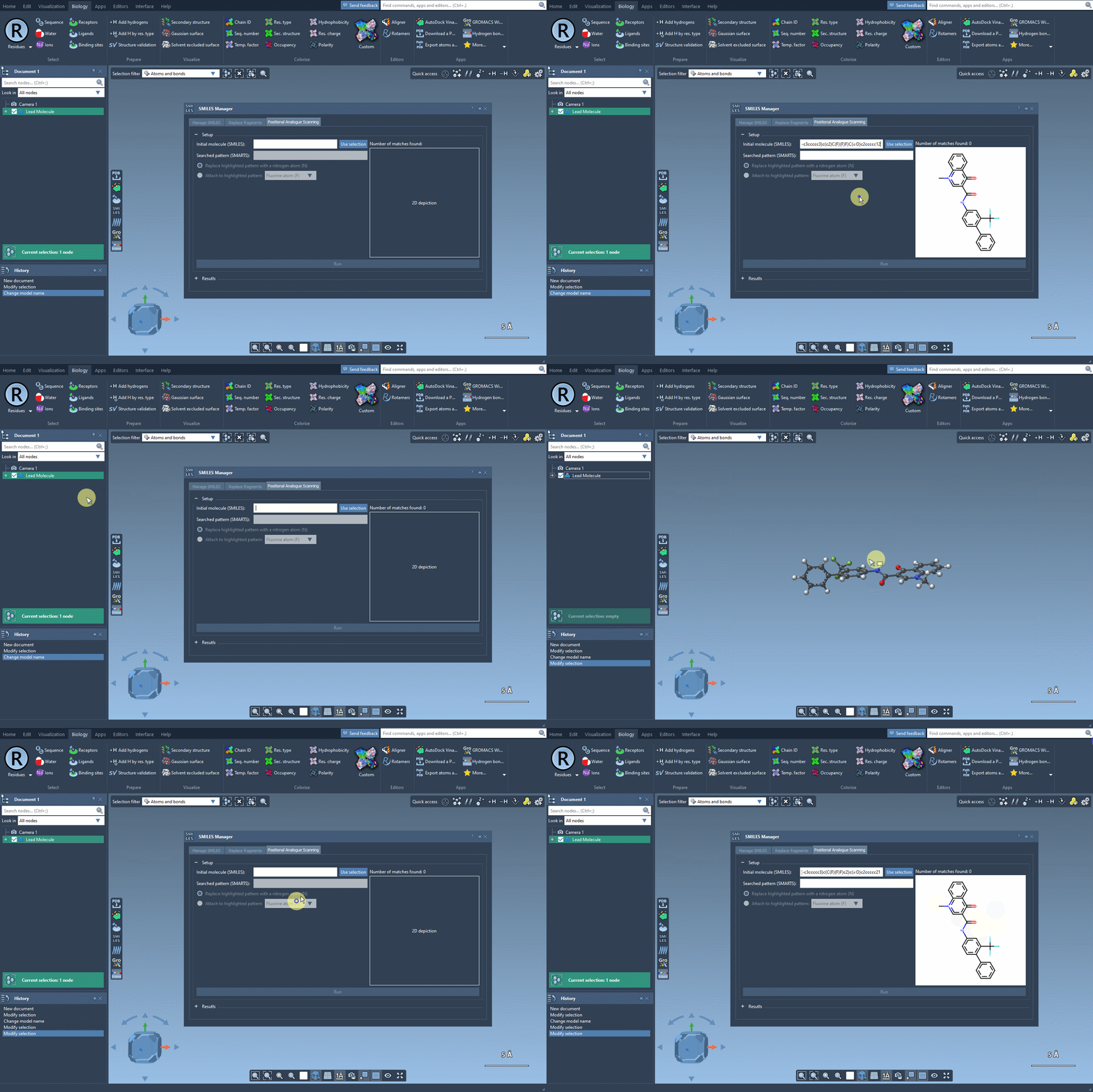
Using a familiar ligand makes it easier to interpret the results: each generated structure can be considered in relation to the original rather than as an unrelated candidate. The documentation’s example starts with CN1C=C(C(=O)Nc2ccc(-c3ccccc3)c(c2)C(F)(F)F)C(=O)c2ccccc12.
Define the sites to explore
Enter a SMARTS pattern that identifies the feature you want to modify. In the tutorial example, [cH] identifies aromatic carbon atoms bearing hydrogen. The interface highlights matches in the starting molecule, letting you check whether the pattern is locating the intended positions before generating anything.
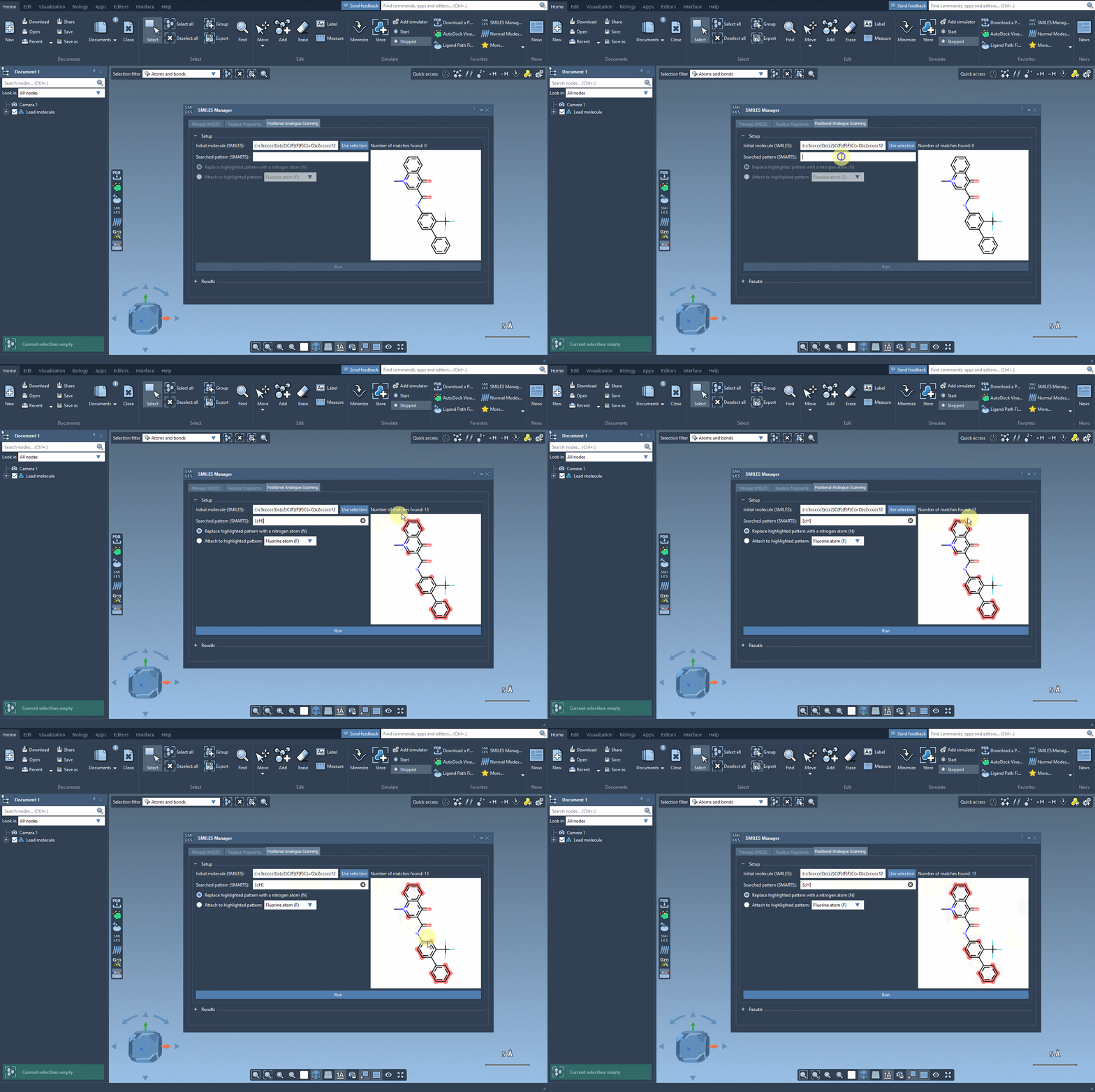
This matching step is worth taking seriously. A broad pattern may identify more sites than you intend to explore; a narrow one may miss positions you wanted to include. Check the highlighted atoms against the molecule and your design question. For example, are you exploring changes on an aromatic ring, or did you intend to focus on a different part of the ligand?
Choose replacement or attachment
Once the matches look right, choose how to modify them. The tutorial demonstrates replacing the matched pattern with nitrogen, or attaching a fluorine atom or a methyl group. These are different kinds of edits: replacement changes the matched feature, while attachment adds a substituent at it. Select the operation that corresponds to the chemical question you want to investigate, then click Run.
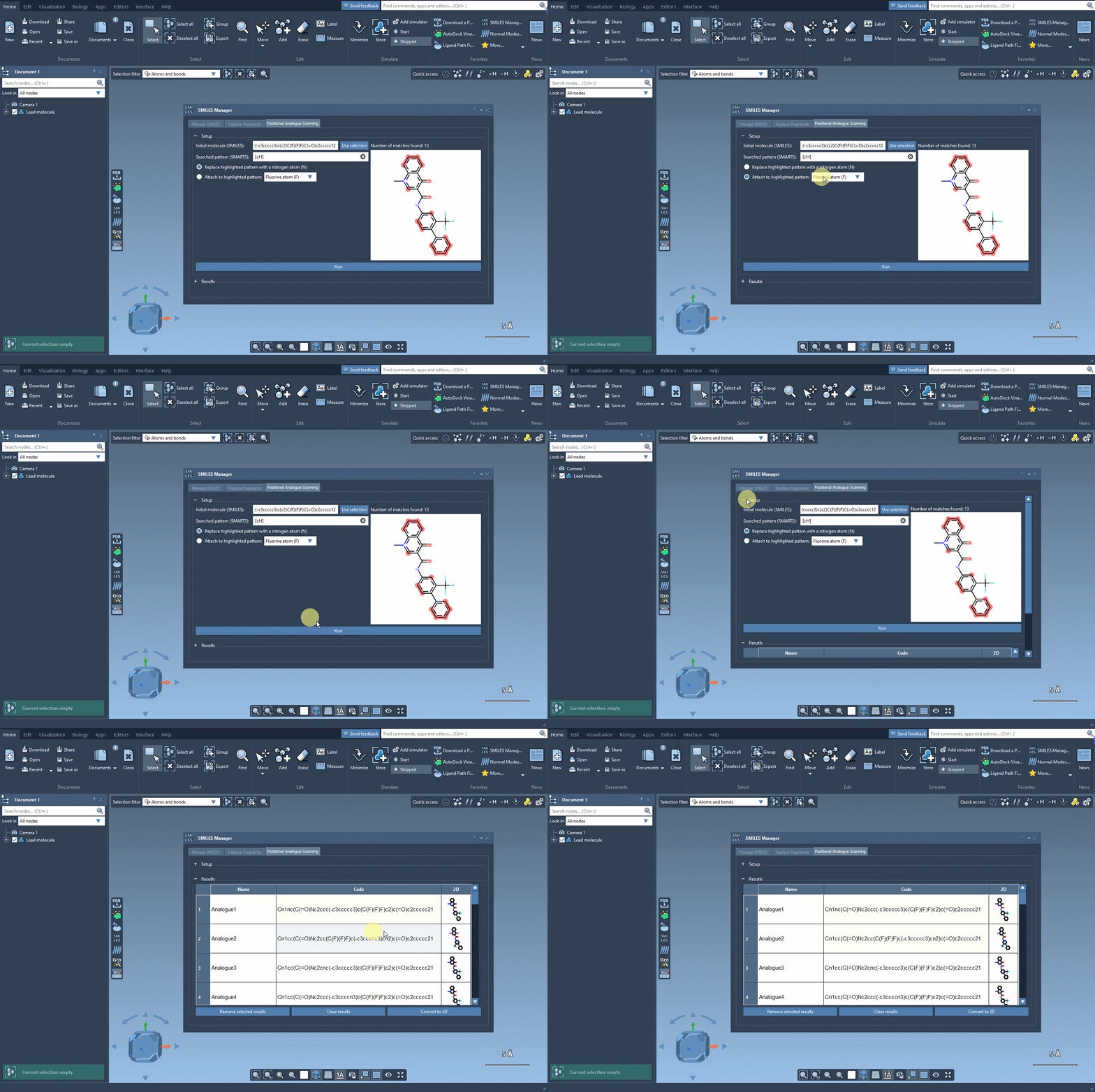
The resulting table contains generated analogues and 2D depictions. You can edit an analogue’s name or SMILES by double-clicking its cell, open a larger depiction by double-clicking or right-clicking the image, and hide or show the depictions using the 2D table header. Remove individual rows with Remove selected results, or clear the table when you want to start over.
Use the series as a starting point—not a verdict
When you have selected structures to examine further, generate 3D structures with Convert to 3D, or use the context menu to generate a 3D structure for a specific analogue. You can then continue with a workflow such as docking using AutoDock Vina Extended and inspect whether changes preserve or create interactions with the target.
Generated structures help organize a design exploration, but they do not establish that a compound will bind, be active, or be experimentally useful. Treat the series as candidates for the next stage of analysis, and interpret docking and interaction results in context.
For the complete step-by-step workflow, see the Positional Analogue Scanning tutorial.
Note: SAMSON and all SAMSON Extensions are free for non-commercial use. Get SAMSON.