



Exploring a ligand modification can quickly turn into repetitive work: identify a position, edit the structure, check that the result is valid, and repeat for every site you want to compare. Positional analogue scanning offers a more systematic starting point. In SAMSON, you can define a molecular pattern and generate analogues by replacing or attaching a group at its occurrences.
The key benefit is not that the generated molecules are automatically better candidates. It is that you can create a set of clear structural alternatives from one starting molecule, then inspect and evaluate those alternatives using the rest of your workflow.
Start with a structure you can recognize
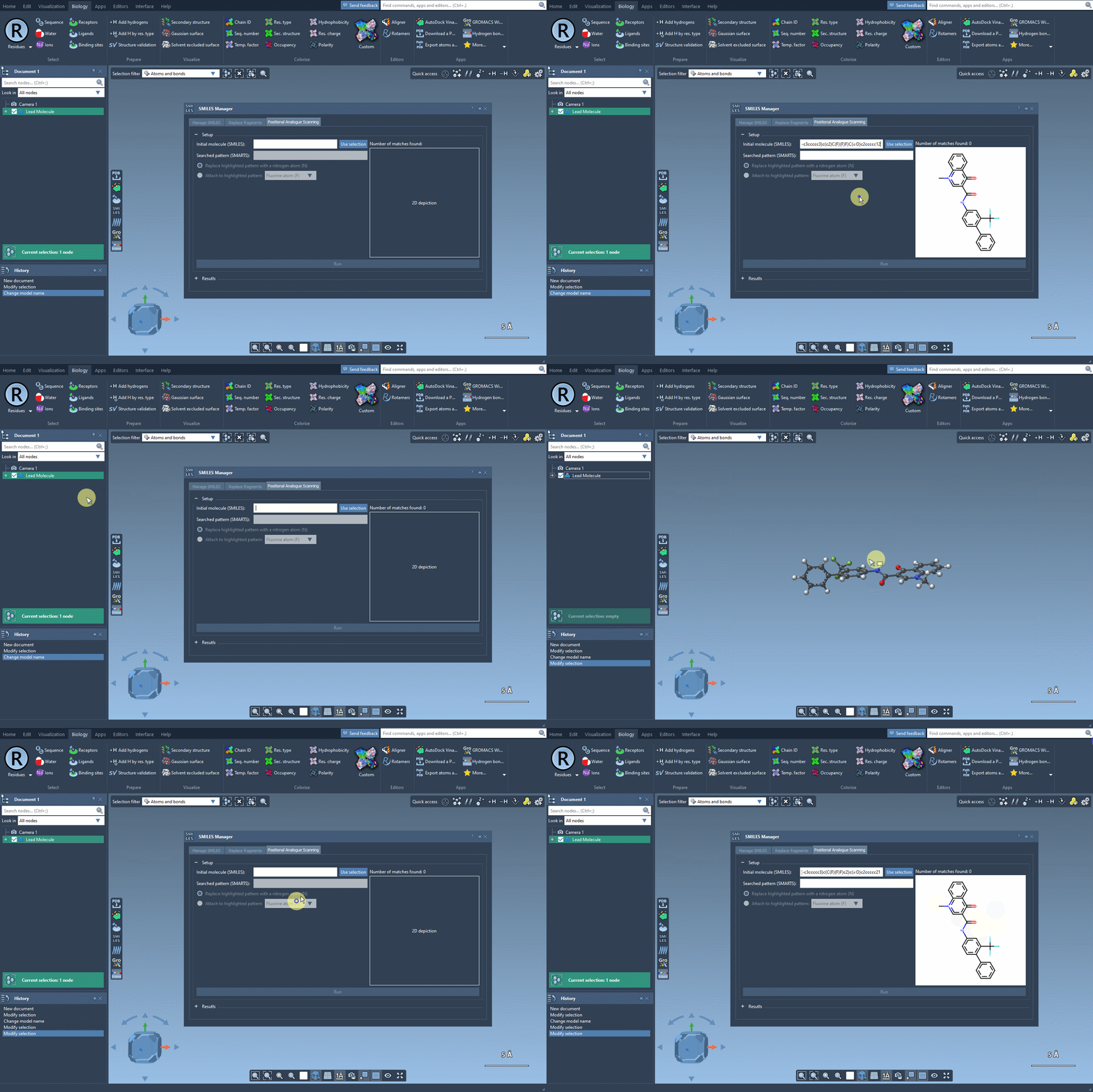
In the SMILES Manager, open the Positional Analogue Scanning tab. Provide the starting molecule either by entering its SMILES string or by selecting the molecule in your SAMSON document and choosing Use selection.
For the tutorial example, the starting molecule is CN1C=C(C(=O)Nc2ccc(-c3ccccc3)c(c2)C(F)(F)F)C(=O)c2ccccc12. You do not need to use this molecule to apply the workflow; the important point is to begin with the structure whose positions you want to explore.
Make the pattern match your design question
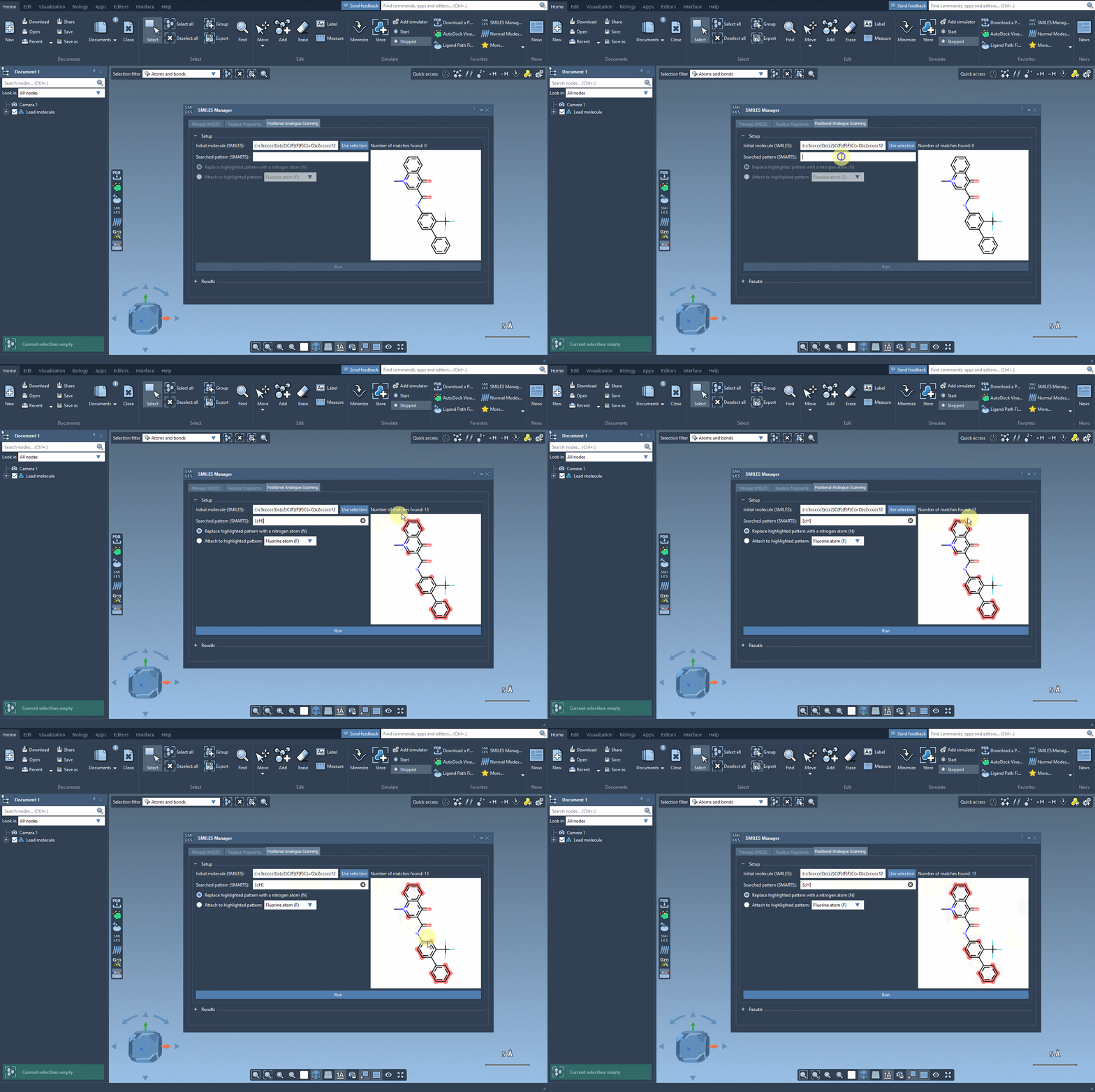
Next, enter a SMARTS pattern that describes the part of the molecule you want to scan. In the example, [cH] identifies aromatic carbon atoms bearing hydrogen. The interface highlights the matching positions, giving you a chance to check whether the pattern is targeting the region you had in mind before generating anything.
This check is worth doing carefully. A broad pattern may match more positions than you intended, while a narrow one may leave out sites you wanted to compare. Think of the SMARTS pattern as the definition of your experiment: it determines where the proposed changes will be made.
Choose a change, then review the series
Once the matches look appropriate, choose whether to replace the matched pattern or attach a new atom or group to it. The tutorial demonstrates replacing the pattern with nitrogen, and also mentions attaching fluorine or a methyl group. Click Run to create the analogues and display their SMILES strings and 2D depictions in the results table.
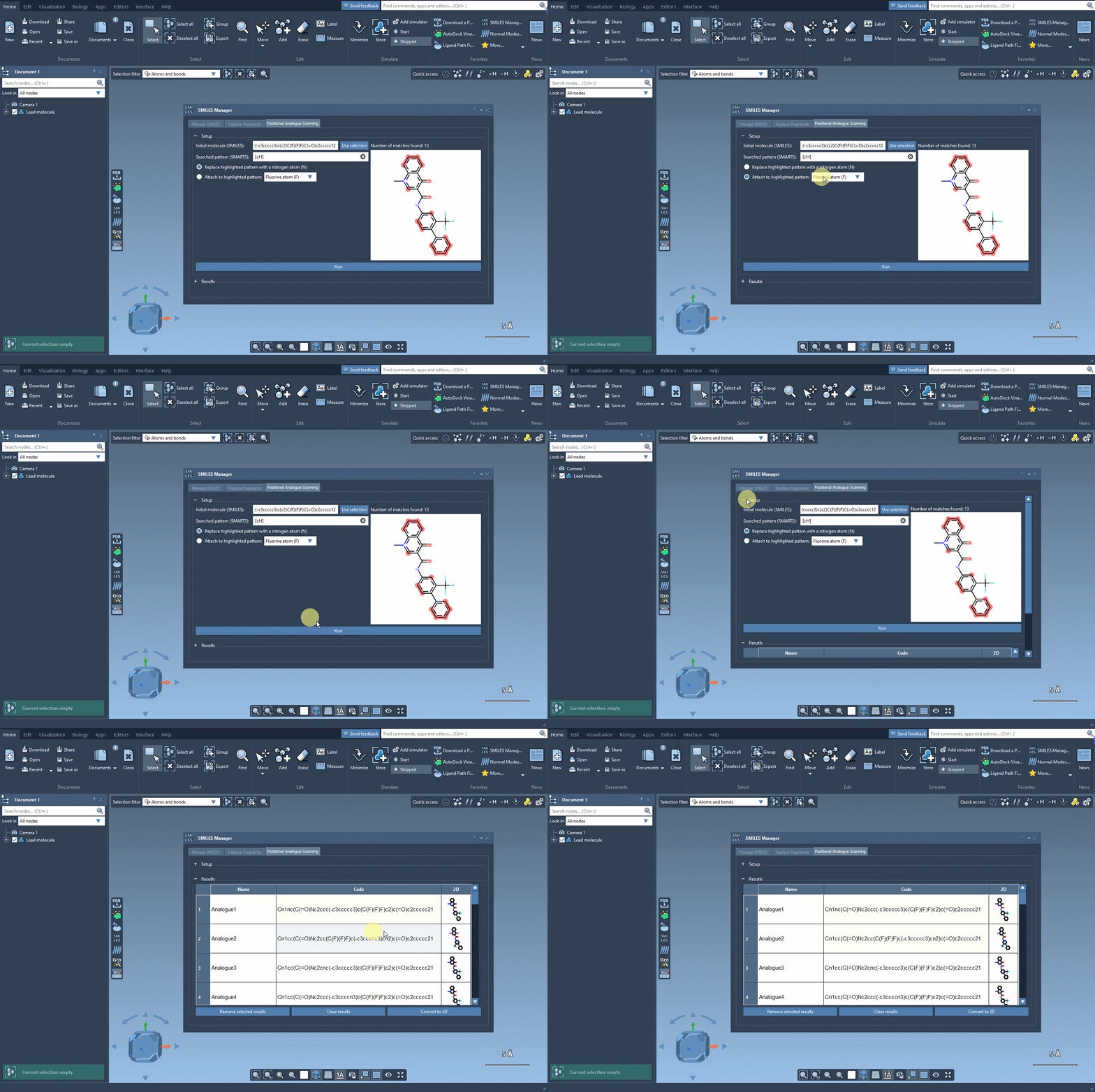
Treat the output as a set of structures to inspect, not as a ranked list of biological predictions. Check the generated SMILES and depictions against your design intent. The table lets you edit an analogue’s name or SMILES by double-clicking its cell, open a larger depiction, and remove individual results or clear the table. These options are useful when you want to keep a manageable, curated set rather than carry every generated structure forward.
Move from 2D ideas to 3D evaluation
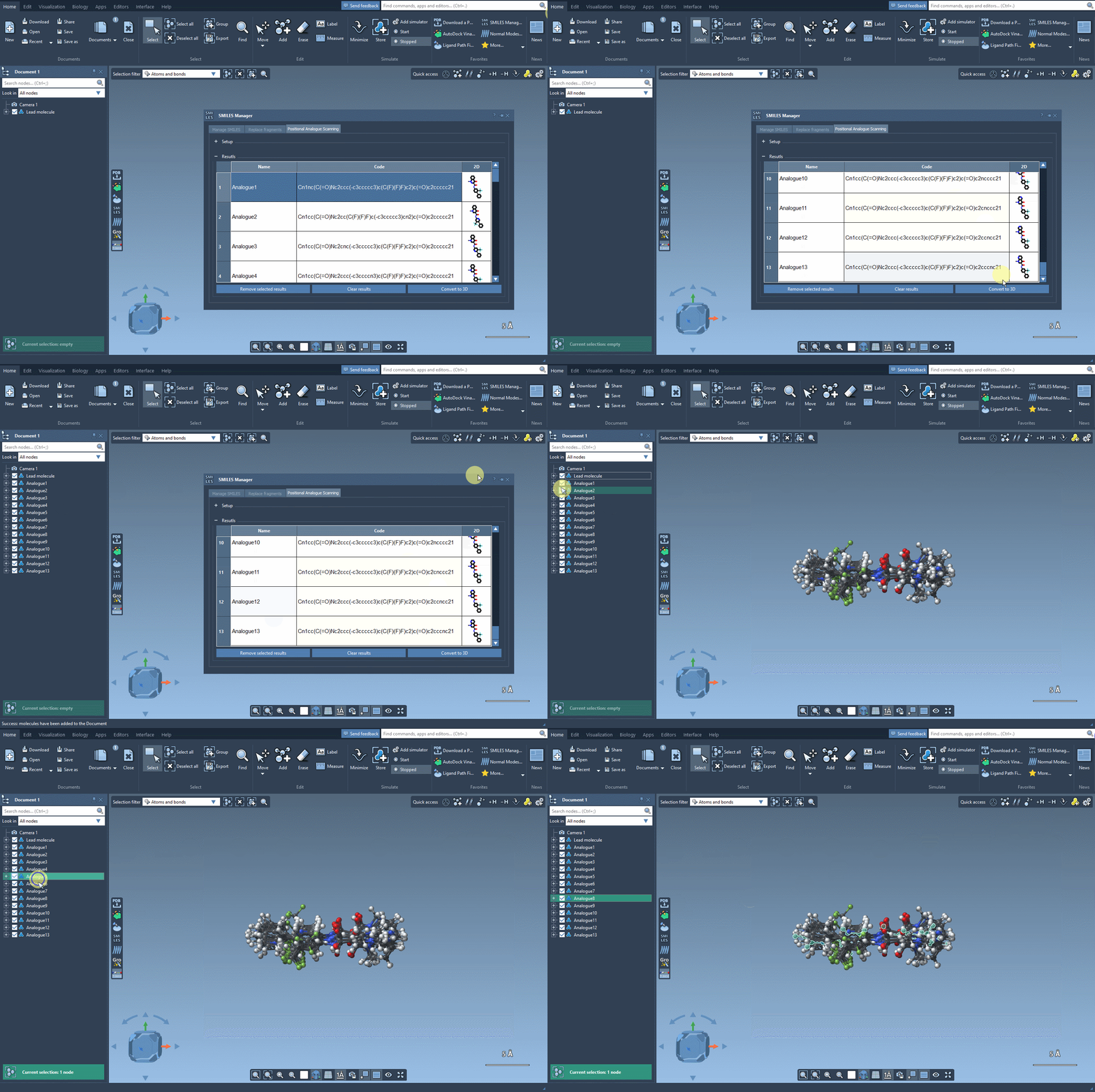
When you are ready to examine a candidate in three dimensions, generate a 3D structure for an individual analogue from its context menu, or use Convert to 3D for the generated analogues. Then continue with an analysis suited to your question. For example, the AutoDock Vina Extended extension can be used to dock generated analogues. Docking and interaction analysis can help you examine whether a structural change preserves or alters contacts with a target; they do not, by themselves, establish that a compound will be active.
A practical way to use the workflow is to keep the design question narrow: choose a starting molecule, define one meaningful pattern, generate a set of alternatives, inspect the structures, and take the most relevant ones into 3D analysis. That makes it easier to connect each proposed change to the question you are trying to answer.
For the full walkthrough, see the positional analogue scanning tutorial.
Note: SAMSON and all SAMSON Extensions are free for non-commercial use. Get SAMSON.