



When a promising molecule has several positions that might tolerate a change, exploring them one by one by hand can become tedious—and it is easy to lose track of which structure corresponds to which substitution. Positional analogue scanning offers a practical way to generate a set of related structures from a starting molecule, so you can focus your time on reviewing and comparing candidates.
In SAMSON, the SMILES Manager extension can find a specified substructure in a starting molecule and generate analogues by replacing or attaching a group at the matching locations. The result is a useful first step in a design workflow: create a structured set of possibilities, inspect the structures, then decide which ones merit further analysis.
Start with a molecule and a clear question
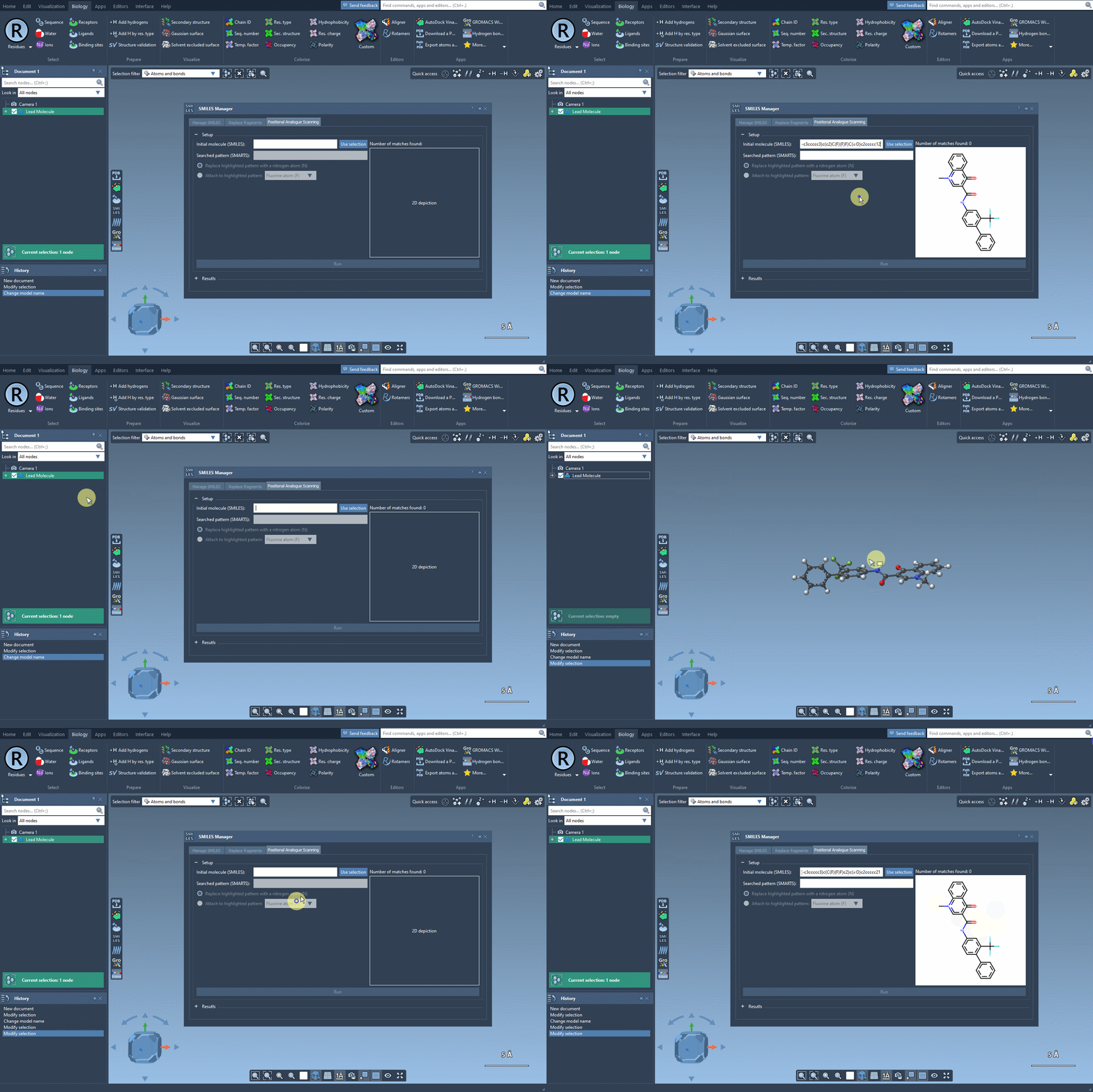
You can provide the starting structure as a SMILES string or select a molecule already present in your SAMSON document and choose Use selection. The example in the tutorial uses this molecule:
CN1C=C(C(=O)Nc2ccc(-c3ccccc3)c(c2)C(F)(F)F)C(=O)c2ccccc12
Before running a scan, decide what you want to explore. Are you interested in changing particular atoms, or attaching a small group at sites that match a pattern? That decision determines the SMARTS query and the operation you choose. A careful query matters: it defines the locations the tool will act on.
Use a SMARTS pattern to identify scan sites
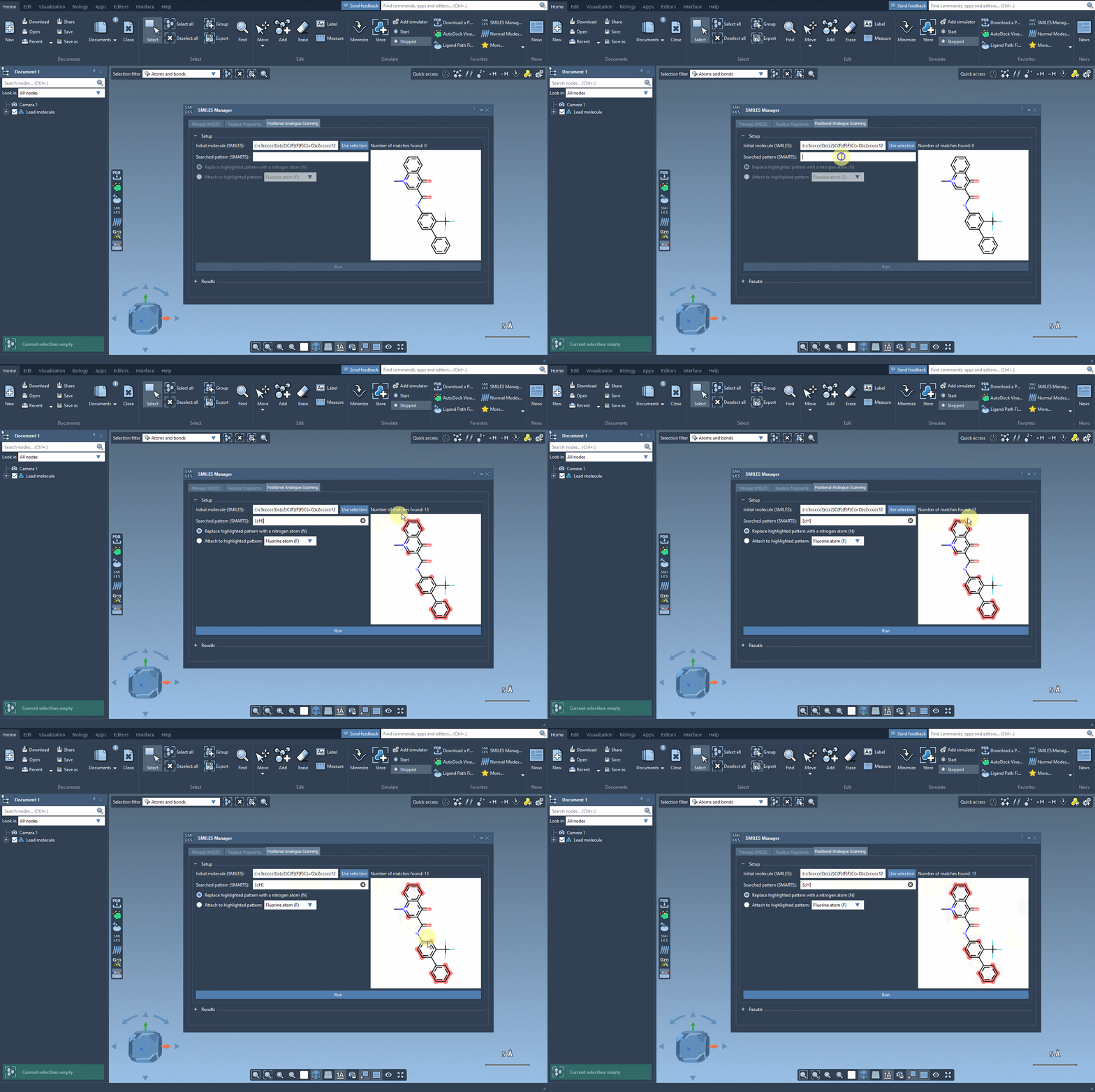
For the tutorial’s example, the pattern is [cH], which matches an aromatic carbon bearing a hydrogen. Enter the pattern in the SMARTS field and check the highlighted matches on the starting structure. This visual check is a useful pause point: make sure the highlighted atoms are the positions you actually intend to modify before generating analogues.
A pattern can match multiple locations, so think of the query as a design instruction, not just a search term. If the highlights include sites you did not intend to scan, reconsider the pattern before proceeding.
Choose replacement or attachment
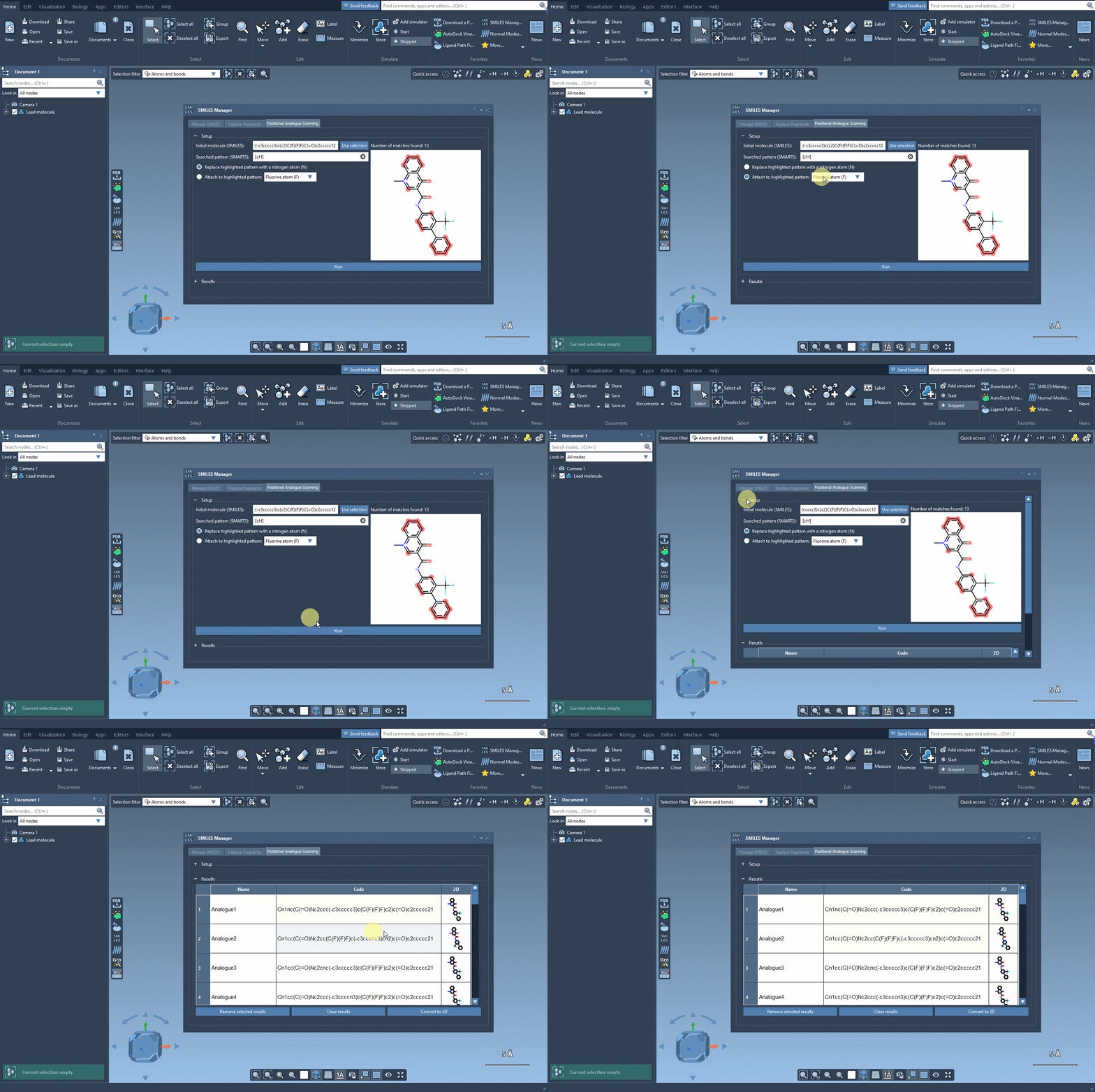
Once the match locations look right, choose whether to replace the matched pattern or attach a new atom or group to it. In the example workflow, the replacement option is used to substitute a nitrogen atom (N). The tutorial also demonstrates attachment options such as fluorine (F) or a methyl group (CH3). Click Run to generate the analogue SMILES and their 2D depictions.
This makes it easier to review a set of related structural edits without manually rebuilding every molecule. The generated structures are candidates for consideration—not evidence that a change improves binding, potency, or any other property. Those questions require appropriate downstream evaluation.
Review first, then move to 3D
The results table lets you edit an analogue’s name or SMILES by double-clicking its cell. You can open a larger version of a 2D depiction, hide or show the images, and remove selected rows or clear the table. These simple controls help when you want to keep a working shortlist rather than treating every generated structure as equally relevant.
When you are ready to inspect structures in three dimensions, use Convert to 3D, or generate a 3D structure for an individual analogue from its image’s context menu. From there, you can continue with a workflow suited to your question. For example, the tutorial points to docking with the AutoDock Vina Extended extension, followed by examining whether changes preserve key interactions or introduce new ones. A docking result is one input to interpretation, not a substitute for reviewing the structures and evidence.
The central benefit of the scan is organization: a defined starting molecule, an explicit pattern, and a set of related edits that you can inspect and carry forward. For a step-by-step walkthrough and the full set of controls, see the original positional analogue scanning tutorial.
Note: SAMSON and all SAMSON Extensions are free for non-commercial use. Get SAMSON.