



A familiar bottleneck in molecular design is deciding what to change—and then preparing enough related structures to compare those changes. Editing molecules one at a time can make a simple substitution study feel like repetitive work. Positional analogue scanning offers a more systematic starting point: define a pattern in a molecule, choose a replacement or an attachment, and generate a set of analogues for review.
In SAMSON, the SMILES Manager can run this workflow from a starting molecule and a SMARTS pattern. The result is a set of candidate structures that you can inspect in 2D before choosing which ones to prepare for further analysis. It is a way to organize an early exploration, not a substitute for evaluating whether a change is suitable for your design objective.
Start with a molecule and a specific question
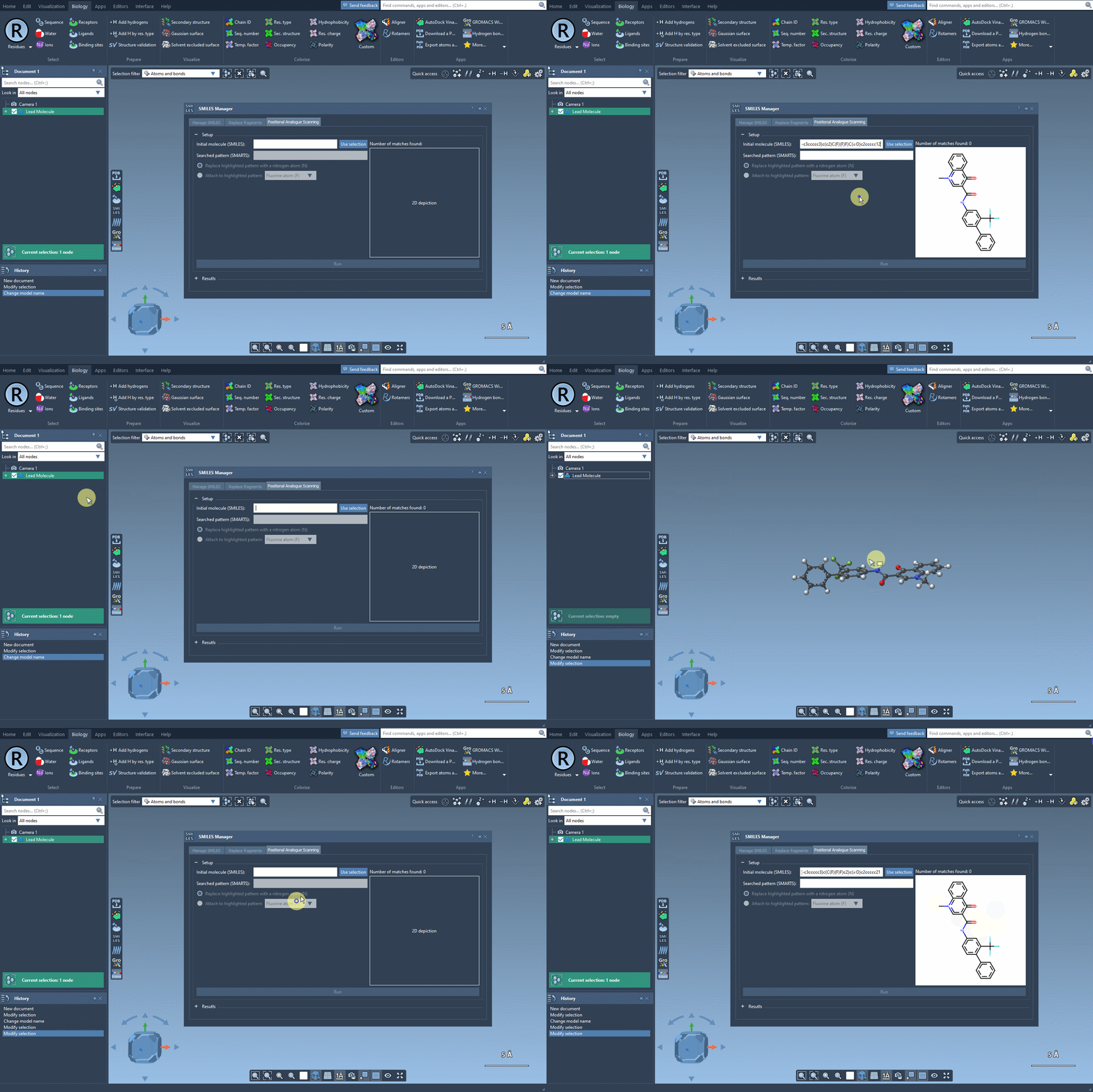
Begin with a molecule in one of two ways: enter its SMILES, or select it in the SAMSON document and use the Use selection button. The tutorial’s example molecule is CN1C=C(C(=O)Nc2ccc(-c3ccccc3)c(c2)C(F)(F)F)C(=O)c2ccccc12. Using a known starting structure makes the scan easier to interpret: each generated analogue can be considered in relation to the same parent molecule.
Before running the scan, decide what structural feature you want to explore. A useful pattern should describe the part of the molecule you intend to modify. In the example, the SMARTS pattern [cH] is used to find aromatic carbons bearing hydrogen. Entering the pattern highlights its matches in the starting structure, making it possible to see where the scan will act.
Choose a change, then inspect the matches
Once the pattern is defined, choose whether to replace it or attach a group to it. The tutorial demonstrates replacing the matched pattern with nitrogen, or attaching fluorine or a methyl group. These options let you explore different kinds of structural changes while keeping the starting molecule and search pattern explicit.
That distinction matters when you compare results. Replacement changes the matched feature itself, while attachment adds a substituent at the selected pattern. The highlighted matches help connect the operation to positions in the structure; checking them before running the scan is a useful way to catch an unintended pattern definition early.
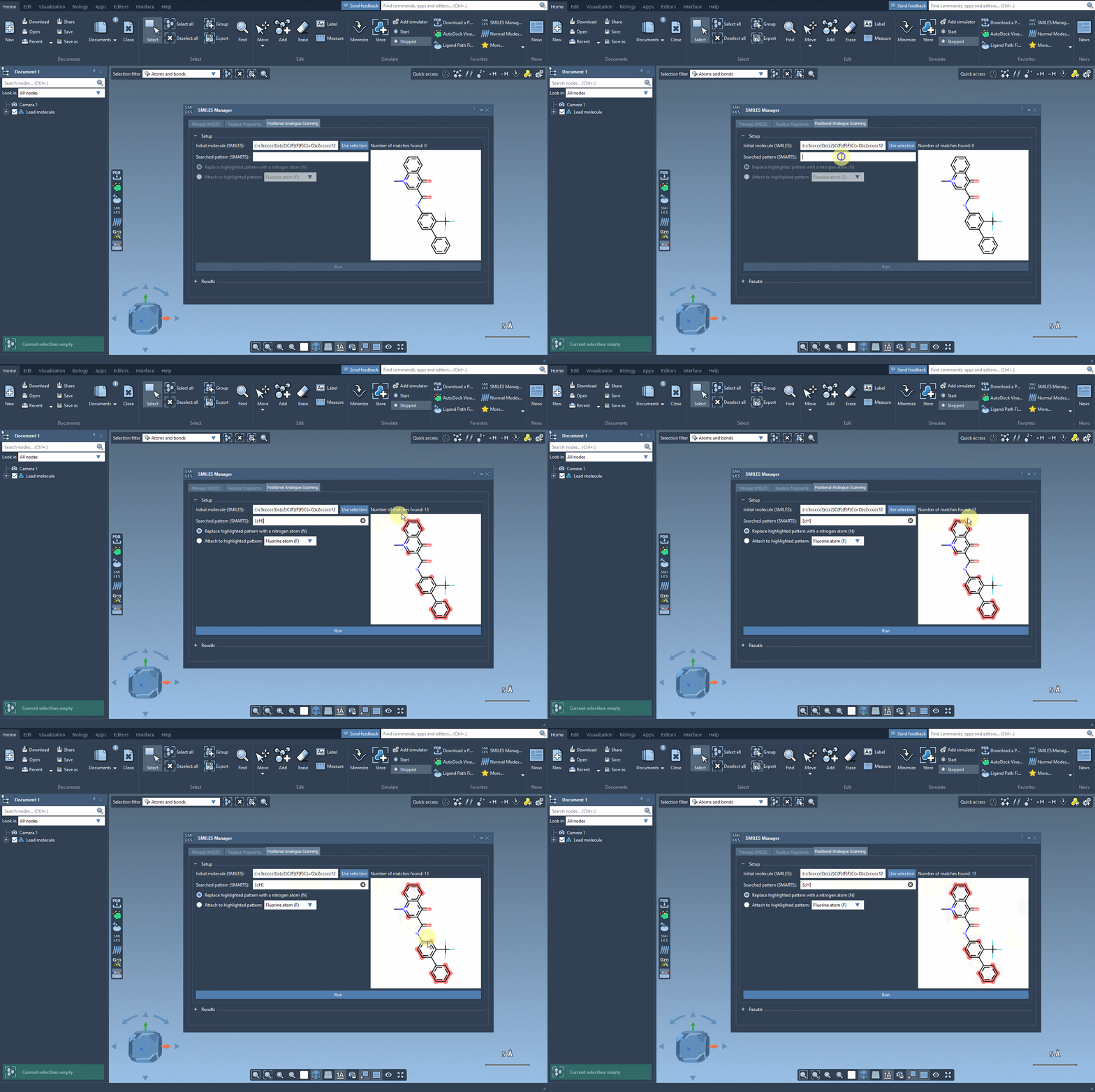
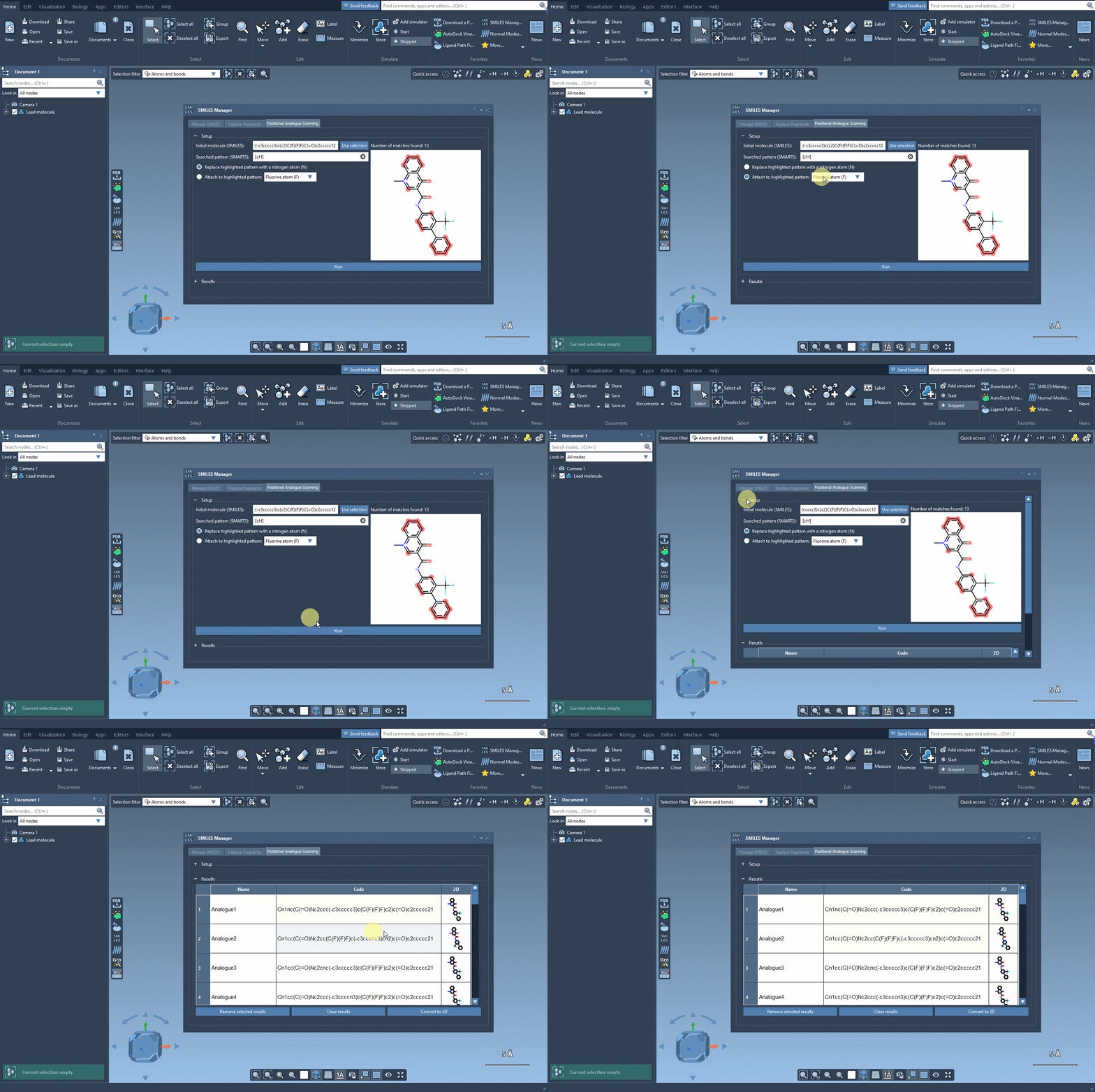
Click Run to generate the analogues. The SMILES Manager displays generated SMILES and 2D depictions in its results table. This gives you a compact first pass: you can review the structures before deciding which ones deserve more time.
Keep the results useful
The results table supports small but practical review tasks. Double-click a name or SMILES cell to edit it. Open a larger 2D depiction by double-clicking the image, or right-click it and choose Open. If the images make the table harder to navigate, click the 2D header cell to hide or show them.
You can also remove selected rows or clear all results when you want to reset the working set. These options help keep the table focused as you compare the generated structures. If one analogue is worth pursuing, the context menu on its image can generate a 3D structure; alternatively, use Convert to 3D to generate 3D structures for the analogues.
Move from structure generation to evaluation
Generated analogues are candidates for further study, not evidence that a particular substitution improves a molecule. Once you have 3D structures, you can continue with an analysis suited to your goal—for example, docking with the AutoDock Vina Extended extension. Docking and interaction analysis can help you examine which changes appear to preserve key interactions with a target protein and which may introduce different ones.
The practical benefit of the workflow is a clearer path from a single structure to a set of related compounds: define the location of interest, generate consistent alternatives, review them, and select structures for the next stage. For the full walkthrough, see the positional analogue scanning tutorial.
Note: SAMSON and all SAMSON Extensions are free for non-commercial use. Get SAMSON.