



A protein structure can look incomplete when you open it: one chain appears in the viewer, while the biological complex or crystal packing requires many copies arranged around it. The missing pieces may not be missing at all. A PDB file can contain transformation information describing where symmetry-related copies belong, but that information must be turned into visible replicas before you can inspect the full arrangement.
SAMSON’s Symmetry Mate Editor helps with this step. It reads symmetry data in a PDB structure and lets you preview and generate the corresponding protein replicas. That can make it easier to inspect a protein assembly, explore interfaces, or prepare a structure for further analysis—without manually copying and positioning chains.
First, know which symmetry you are building
Two types of records are especially useful to distinguish:
- CRYST1 describes symmetry from the crystal lattice. These transformations help reconstruct neighboring copies in the crystal structure.
- BIOMT contains symmetry transformations associated with biological assembly annotations. These can be used to build the annotated biological assembly.
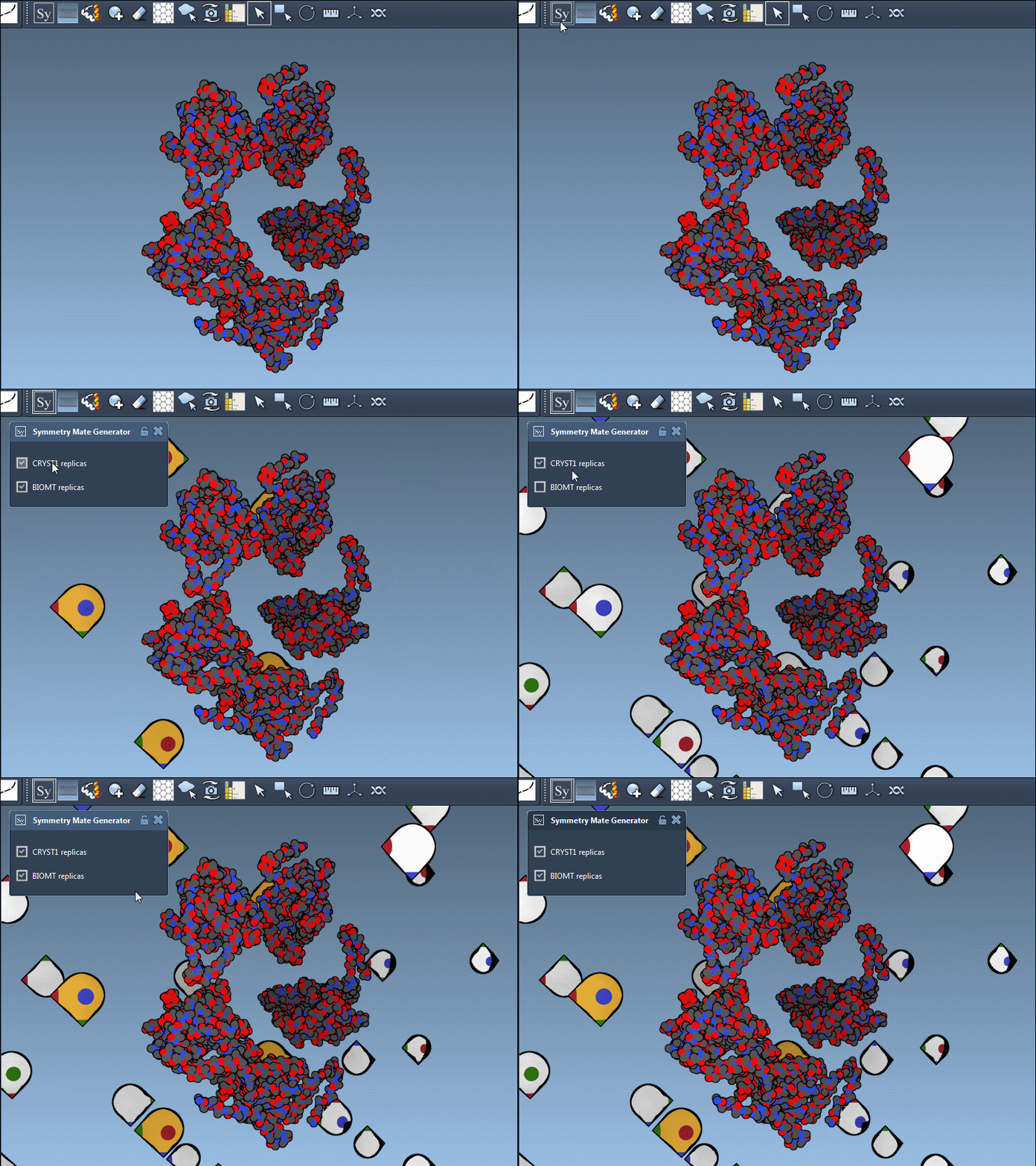
The editor displays CRYST1 controls in white and BIOMT controls in yellow, and its interface lets you switch between them. The distinction matters: crystal neighbors and the biological assembly answer different structural questions. Before generating copies, decide whether you want to inspect crystal packing or reconstruct the annotated biological complex.
A practical workflow
- Open a PDB structure with symmetry information. The editor can only use transformations available in the structure file, so start with a PDB that contains the records relevant to your goal.
- Open the Symmetry Mate Editor. Press Shift + E and search for Symmetry Mate Editor, or use the viewport menu: … > General > Symmetry Mate Editor.
- Choose the symmetry type. Use the editor interface to view CRYST1 or BIOMT transformations, keeping crystal packing and biological assembly separate in your interpretation.
- Adjust the controls shown. Hold Ctrl or Cmd and use the mouse wheel to scale the number of visible control nodes. This helps when you want to focus on a smaller set of transformations or inspect more of the available arrangement.
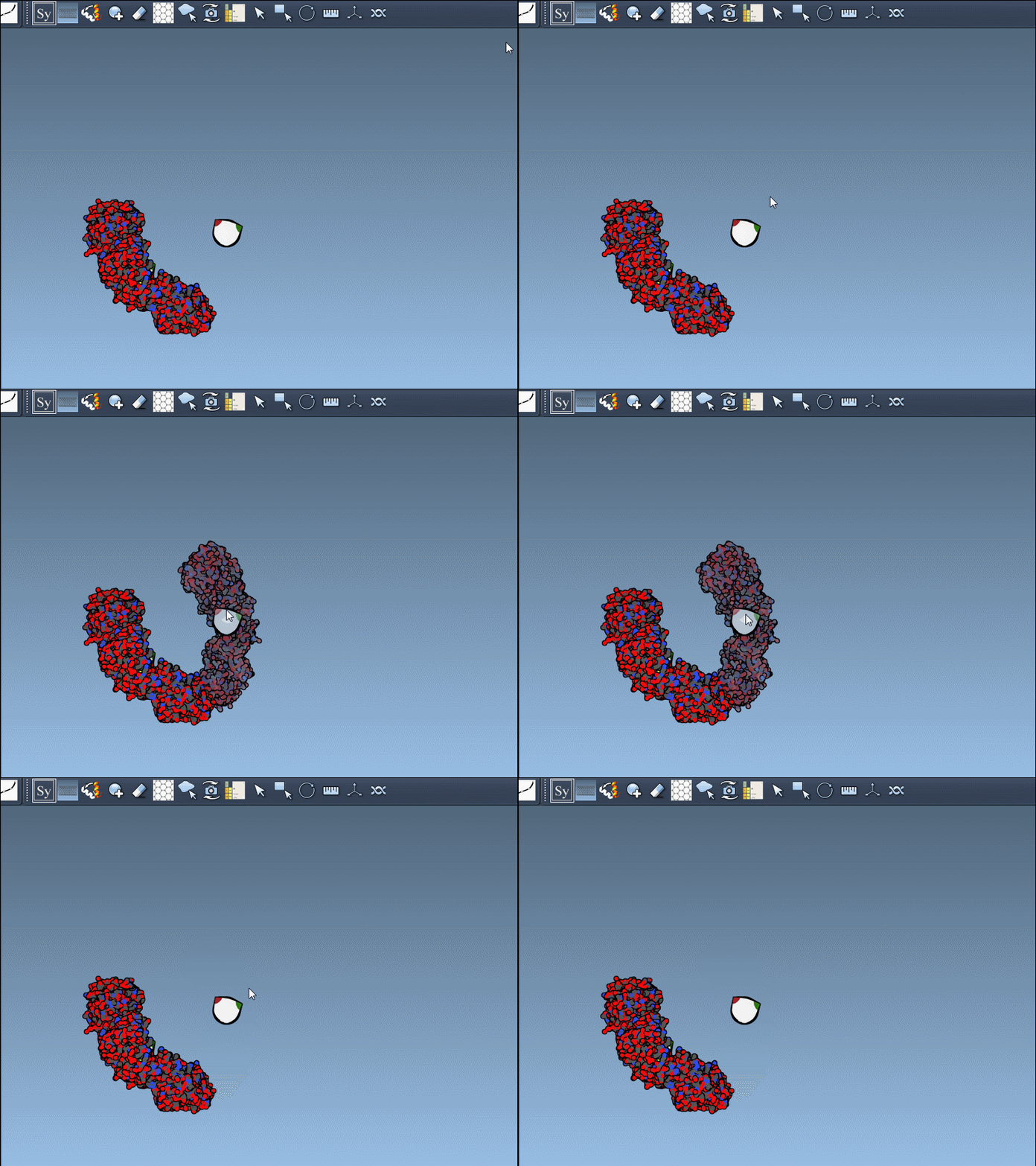
- Preview before committing. Hover over a control node to see its replica in real time. When the placement is useful, left-click the node to generate it. Previewing first is a simple way to avoid adding copies you do not need.
When you need the full set
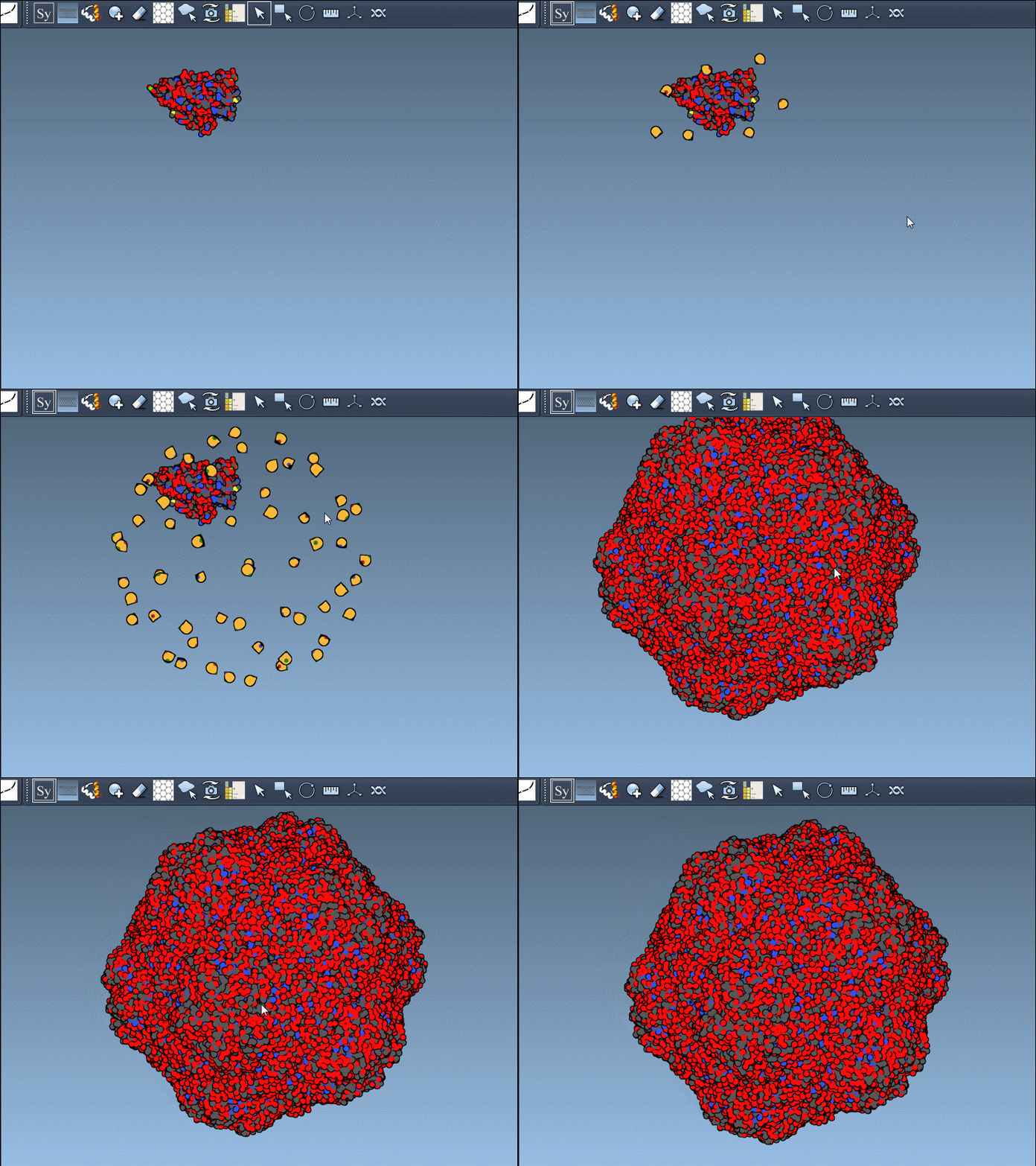
For an assembly that requires many symmetry mates, you do not have to create each one individually. Hold Ctrl or Cmd before hovering over and left-clicking a control node to preview and generate all symmetry mates in one action. This is useful when the aim is to build the complete arrangement rather than inspect a few neighboring copies.
Make the resulting structure easier to inspect
Once replicas are generated, use the Ribbons visual model and colorize by chain to distinguish the copies. This makes it easier to follow how chains are arranged and to examine repeated interfaces. If you add an unwanted replica, use Undo with Ctrl or Cmd + Z.
After building the assembly, you can continue with symmetry analysis, visualization, or simulation preparation. For example, the related symmetry detection tutorial covers analyzing axes and RMSD, while the GROMACS Wizard tutorials cover simulation preparation.
For the complete walkthrough, see the SAMSON tutorial on generating symmetry mates.
Note: SAMSON and all SAMSON Extensions are free for non-commercial use. Get SAMSON.