



A protein structure file may show only part of the arrangement you need to study. The coordinates in front of you could represent an asymmetric unit, while symmetry information in the PDB file describes how related copies are positioned around it. Reconstructing those neighbors by hand is tedious—and it is easy to confuse crystal packing with the biological assembly you actually want to inspect.
SAMSON’s Symmetry Mate Editor helps you turn the transformation data already present in a PDB structure into visible protein replicas. That gives you a practical way to inspect interfaces, explore assembly geometry, and decide which structure to carry into later modeling or simulation steps.
Start with the right symmetry data
PDB files can contain two kinds of symmetry information that matter here. CRYST1 records describe symmetry associated with the crystal lattice. BIOMT records encode transformations annotated for a biological assembly. These are not interchangeable: a crystal neighbor is not automatically a biological partner. Consider which question you are trying to answer before generating copies.
The editor distinguishes the two types visually: CRYST1 control nodes are white, while BIOMT nodes are yellow. You can switch between them in the editor. This simple visual cue makes it easier to keep the source of a proposed replica in mind as you explore.
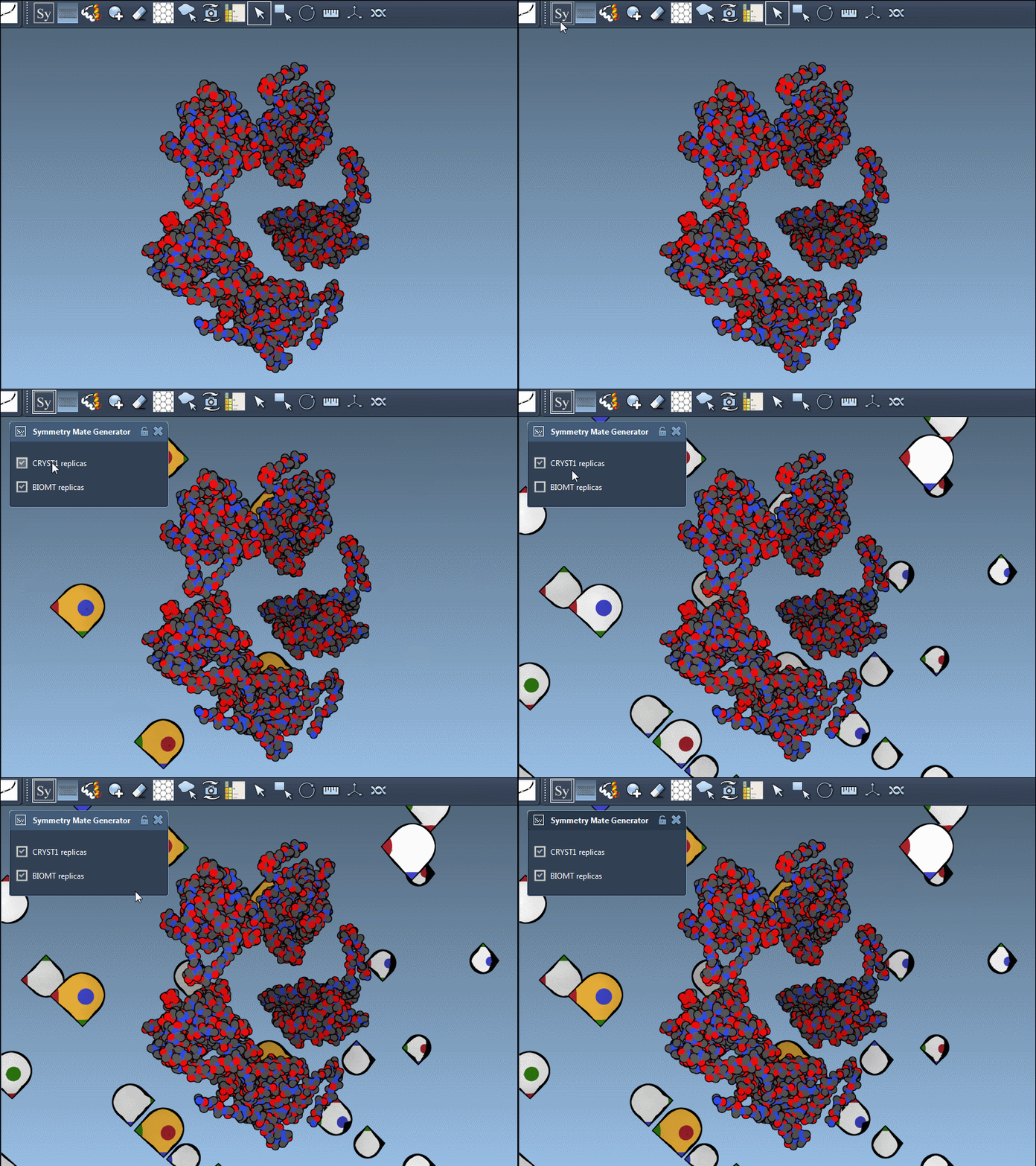
Preview before you build
Open a PDB structure that contains symmetry information, then launch the Symmetry Mate Editor. You can find it by pressing Shift + E and searching for “Symmetry Mate Editor,” or through the viewport menu: … > General > Symmetry Mate Editor. Once active, the editor displays control nodes for available transformations.
Use Ctrl or Cmd with the mouse wheel to change how many control nodes are visible. Hover over a node to preview the corresponding replica before committing it. This is a useful checkpoint: inspect where the copy sits relative to the original and whether the arrangement is relevant to your modeling question. If it is, left-click the node to generate that replica.
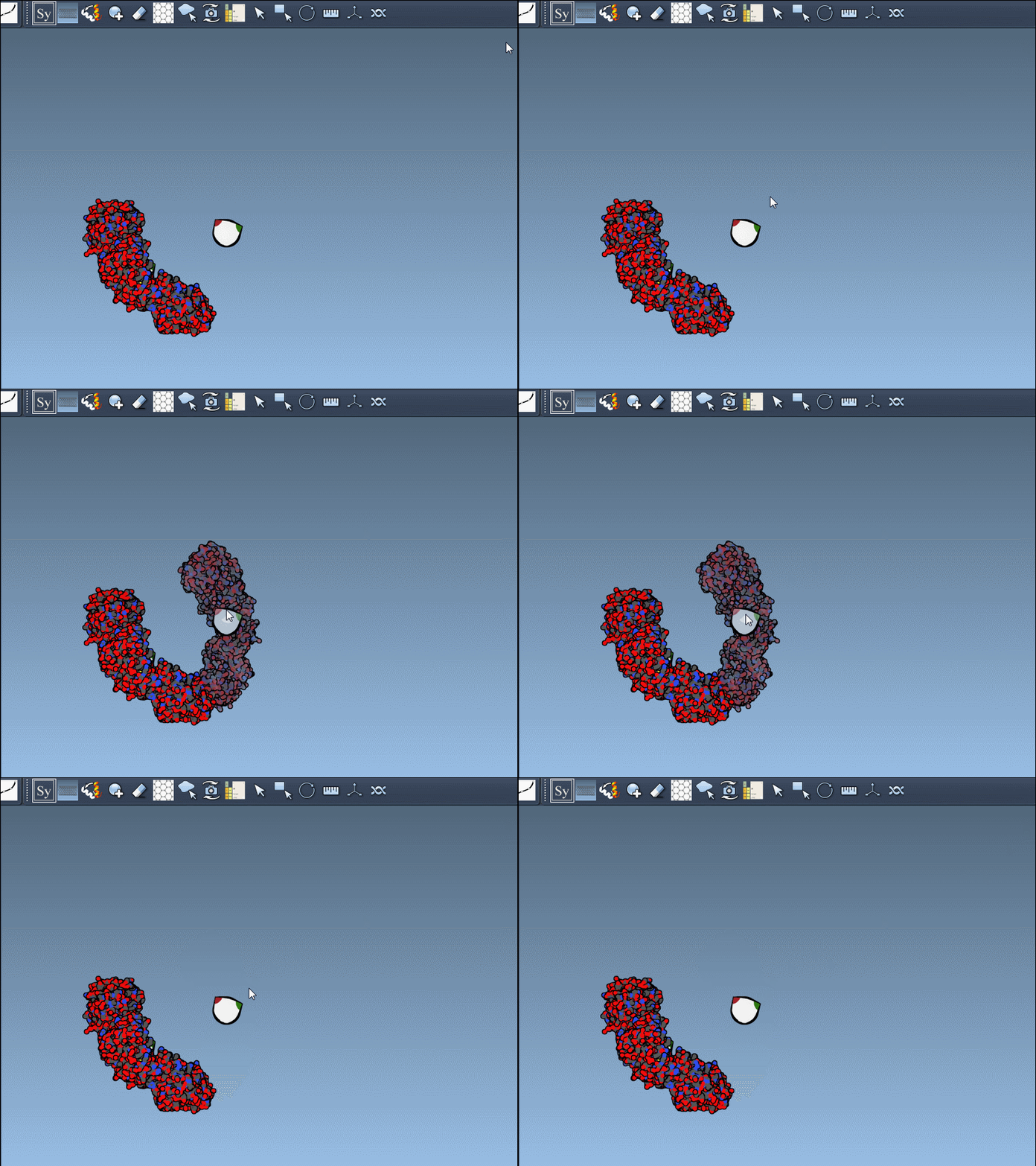
For larger assemblies, holding Ctrl or Cmd before hovering and clicking a node lets you preview and generate all symmetry mates in one action. This can save repetitive clicks, but preview first so you understand the full set of copies you are about to add.
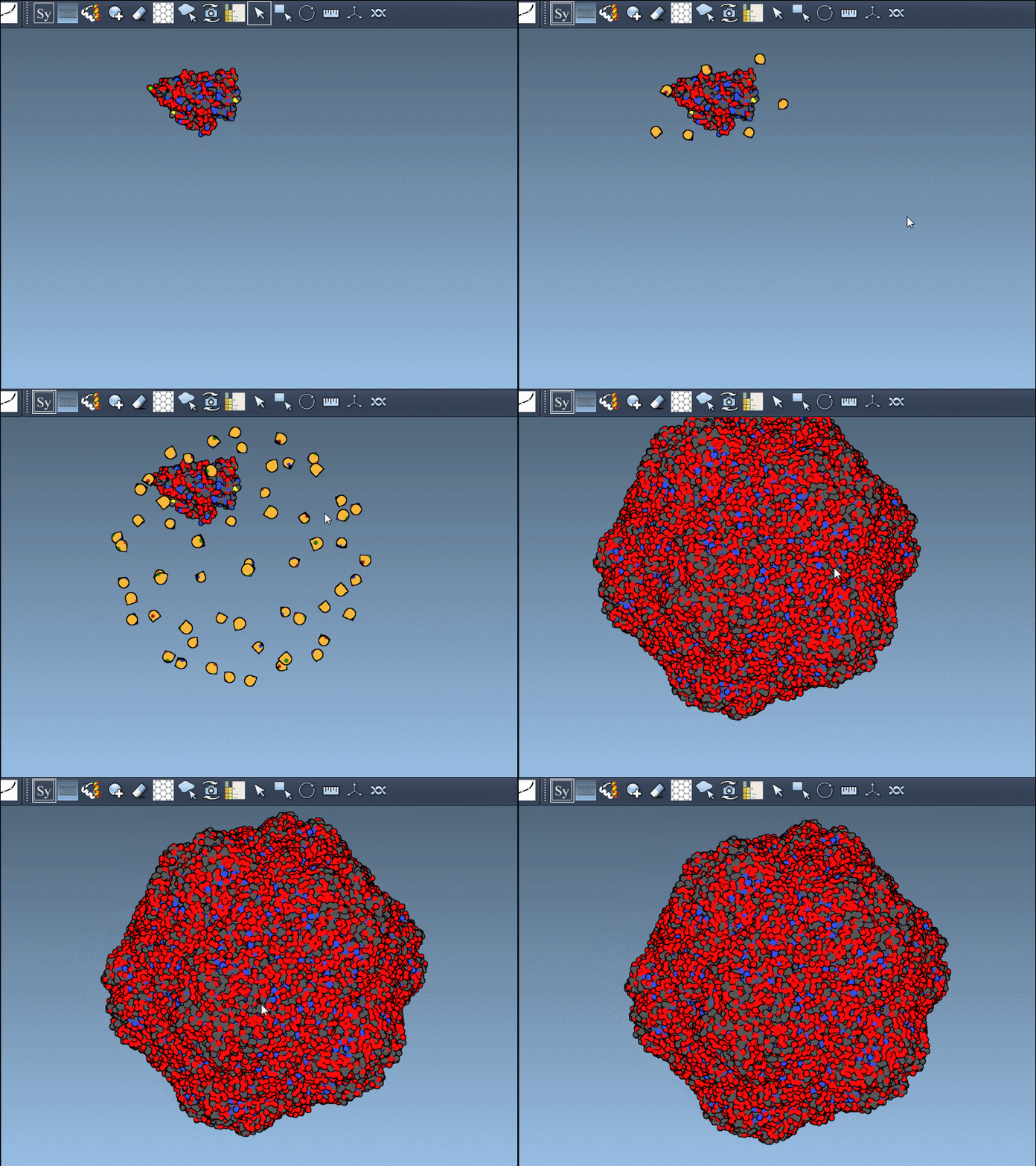
Make the generated assembly easier to evaluate
Once replicas are added, give yourself a clear view of how the chains relate. The Ribbons visual model can help distinguish protein chains, and coloring by chain can make repeated subunits easier to follow. Look for interfaces or binding-site patterns that recur across copies, and consider whether the structure represents a biological assembly or crystal packing before drawing conclusions.
You do not have to keep every replica. If a generated copy is unwanted, use Undo (Ctrl/Cmd + Z) to remove it and continue exploring. After building an assembly, you can use symmetry analysis to examine axes and RMSD, or prepare a selected assembly for simulation. These steps help turn symmetry metadata into a structure you can inspect and work with, rather than treating every displayed neighbor as biologically meaningful.
For the complete workflow and additional examples, see the Generate symmetry mates for proteins tutorial.
Note: SAMSON and all SAMSON Extensions are free for non-commercial use. Get SAMSON.