



A protein structure file may show only part of the arrangement you want to study. You open the structure, see a single chain or a small group of chains, and wonder: where are the other copies that make up the assembly? Those copies may be described by symmetry transformations in the PDB file rather than included as atoms in the structure you first see.
That gap can make it harder to inspect protein–protein interfaces, understand a quaternary structure, or prepare an assembly for further modeling. SAMSON’s Symmetry Mate Editor can use the transformation information in a PDB structure to preview and generate symmetry-related replicas. The key is to know which kind of symmetry you are viewing and to add only the copies that serve your goal.
First, distinguish crystal symmetry from assembly symmetry
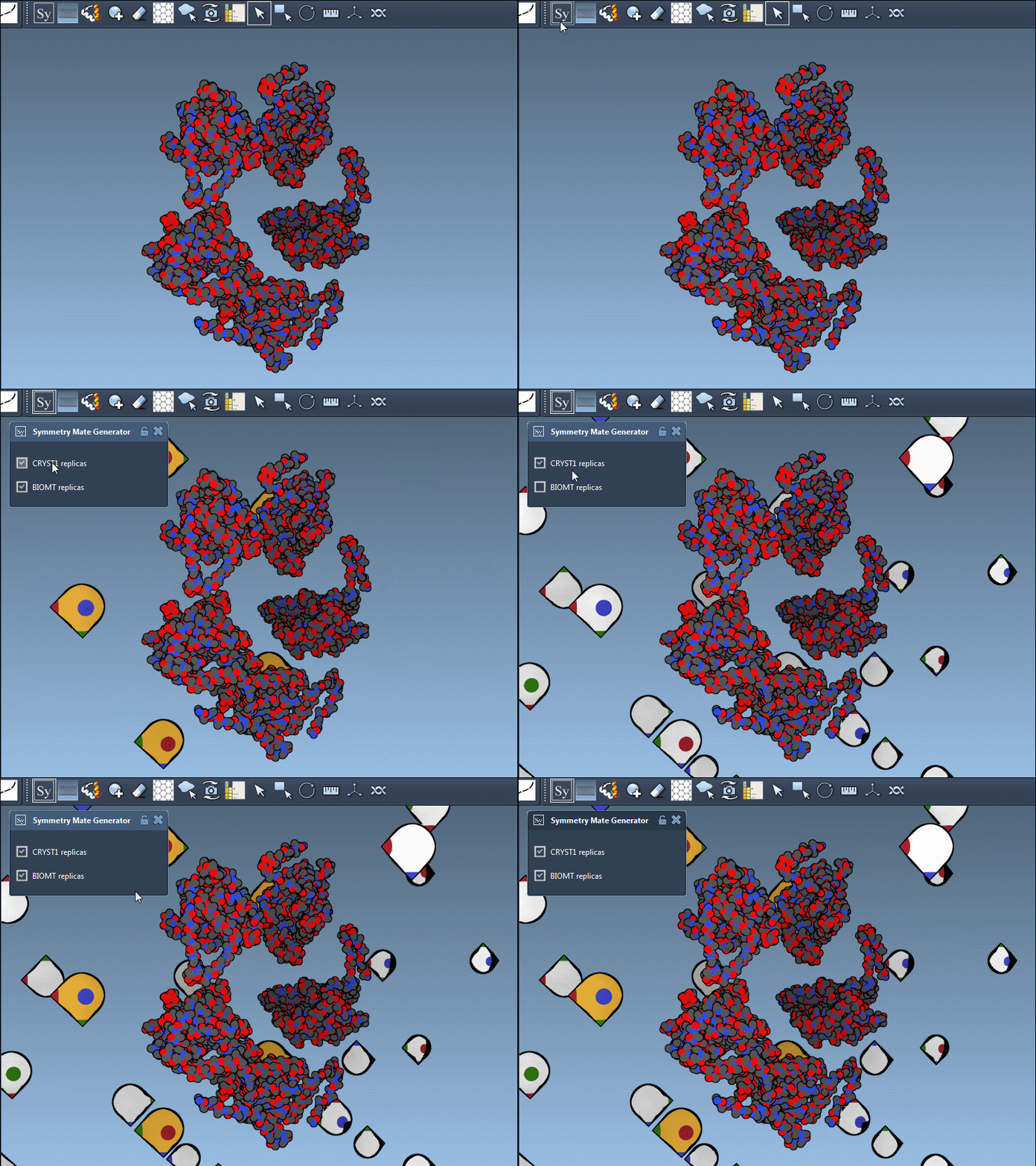
The editor supports two PDB record types. CRYST1 describes symmetry from the crystal lattice, while BIOMT records describe transformations associated with biological assembly annotations. In the editor, CRYST1 controls are white and BIOMT controls are yellow.
This distinction matters: crystal-lattice neighbors can help you inspect packing in a crystal, while biological assembly annotations are relevant when reconstructing the annotated biological assembly. They are different views of symmetry, so choose the record type that matches the question you are asking. A visible symmetry-related copy is not, by itself, a reason to conclude that it belongs to the biological assembly.
A practical workflow: preview before you commit
- Open a PDB structure with symmetry information. The editor needs transformation data in the structure file to show symmetry controls.
- Open the Symmetry Mate Editor. Use Shift + E and search for “Symmetry Mate Editor,” or find it under … > General > Symmetry Mate Editor in the viewport menu.
- Choose the symmetry record type. Use the editor interface to switch between CRYST1 and BIOMT, and check the control color as a quick visual cue.
- Adjust the visible controls. Hold Ctrl or Cmd while using the mouse wheel to scale the number of control nodes shown. This can make a dense set of transformations easier to explore.
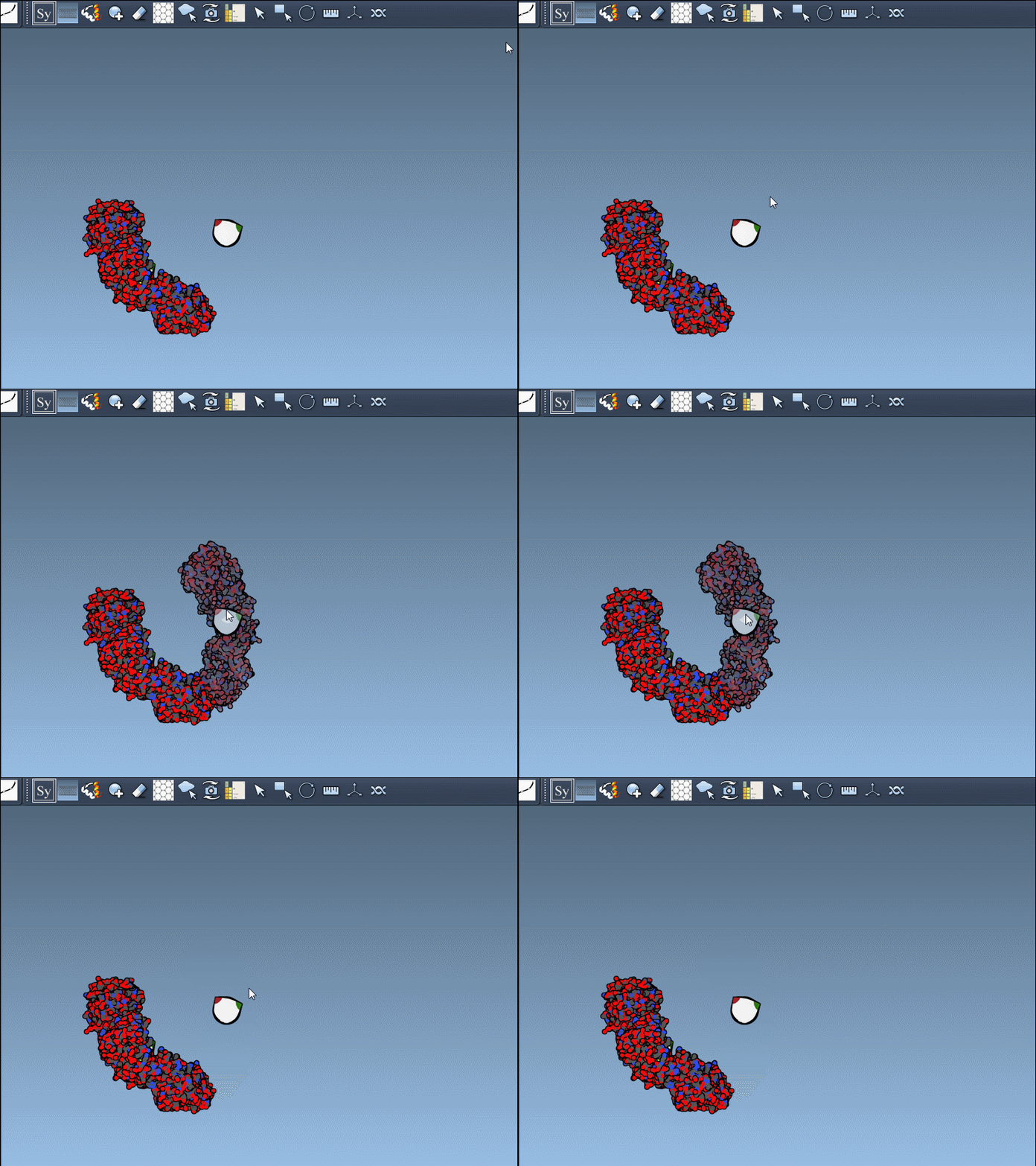
- Hover to preview. Move over a control node to see the corresponding replica before adding it. Use the preview to judge whether the copy is relevant to the assembly or region you are examining.
- Click to generate. Left-click a node to create that replica. If you want to preview and generate all symmetry mates in one action, hold Ctrl or Cmd before hovering and left-clicking a node.
Build only what you need
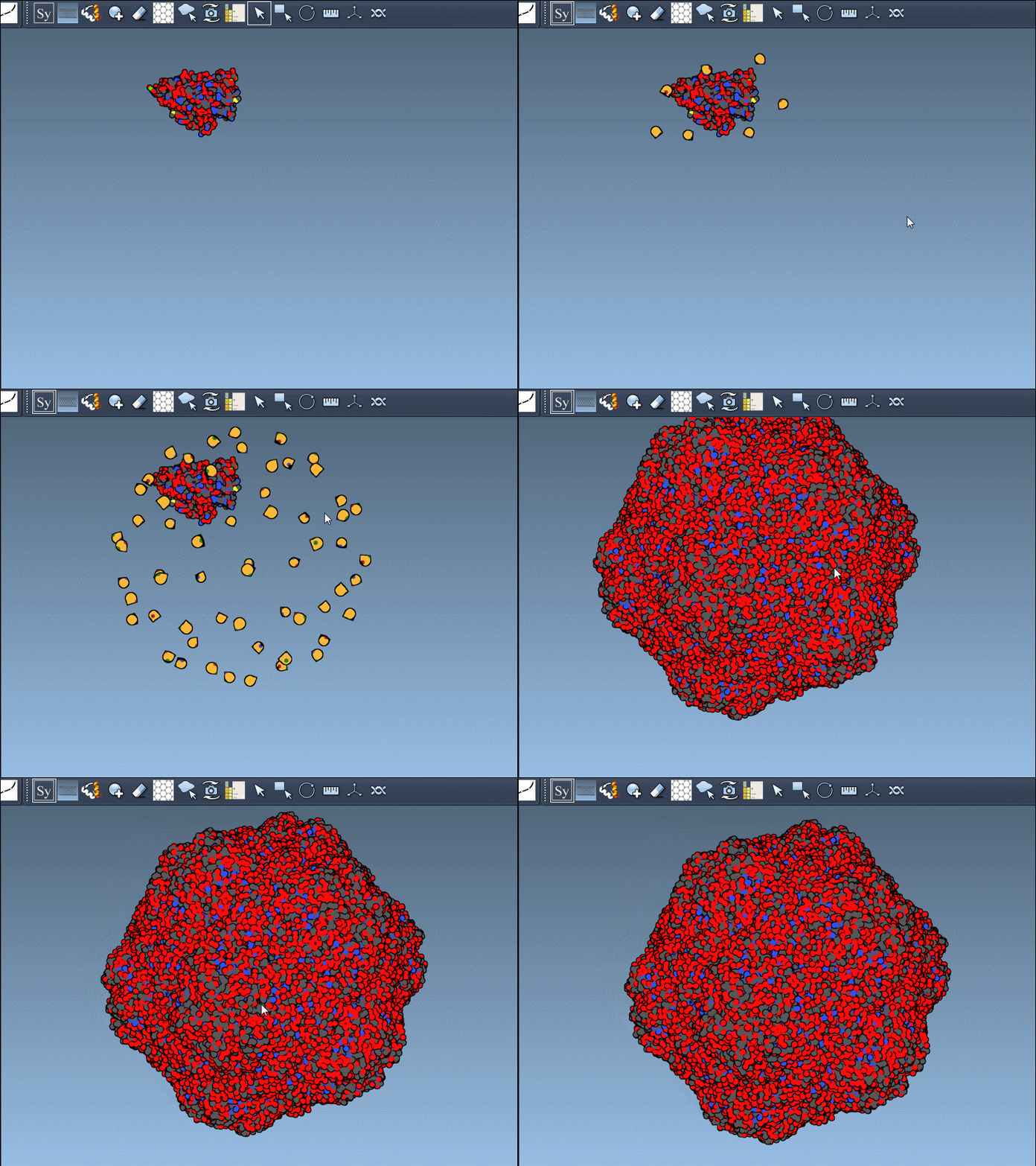
Generating every mate can be useful when you need to inspect a complete symmetric arrangement, but it is not always the best first step. For a focused interface check, add the relevant copies one at a time. For an overview of a larger assembly, use the all-mates action and then inspect the result. If you add an unwanted replica, use Ctrl/Cmd + Z to undo.
Once copies are generated, chain coloring and the Ribbons visual model can help distinguish the original structure from its replicas. This is especially useful when an assembly becomes crowded. After reconstruction, you can continue with symmetry analysis, inspect repeating binding sites, or prepare a selected assembly for simulation.
The useful habit is simple: identify whether you need crystal or biological assembly symmetry, preview transformations before adding them, and check the generated structure against your modeling question. For the full walkthrough, see the Symmetry Mate Editor tutorial.
Note: SAMSON and all SAMSON Extensions are free for non-commercial use. Get SAMSON.