



A protein structure in a PDB file can look incomplete: one chain sits in the viewer, while the biological complex or crystal arrangement involves many copies. That can make it difficult to inspect interfaces, understand how subunits fit together, or prepare the structure for further modeling. The missing copies may not be absent by mistake—the file can store symmetry transformations as metadata rather than listing every replica as a separate chain.
SAMSON’s Symmetry Mate Editor uses those transformations to let you preview and generate symmetry-related copies. The key benefit is that you can explore the arrangement encoded in the structure file without manually calculating and applying each transformation.
First, know which symmetry you are viewing
PDB files may contain two relevant kinds of symmetry information, and they answer different questions:
- CRYST1 describes symmetry from the crystal lattice. These transformations can help reconstruct neighboring copies in the crystal structure.
- BIOMT describes transformations associated with biological assembly annotations. These can help rebuild the annotated biological assembly.
They are not interchangeable views of the same thing. Before generating copies, decide whether you want to inspect crystal packing or reconstruct the biological assembly. The editor supports both record types and distinguishes their control nodes by color: CRYST1 nodes are white, and BIOMT nodes are yellow. You can toggle between them in the editor.
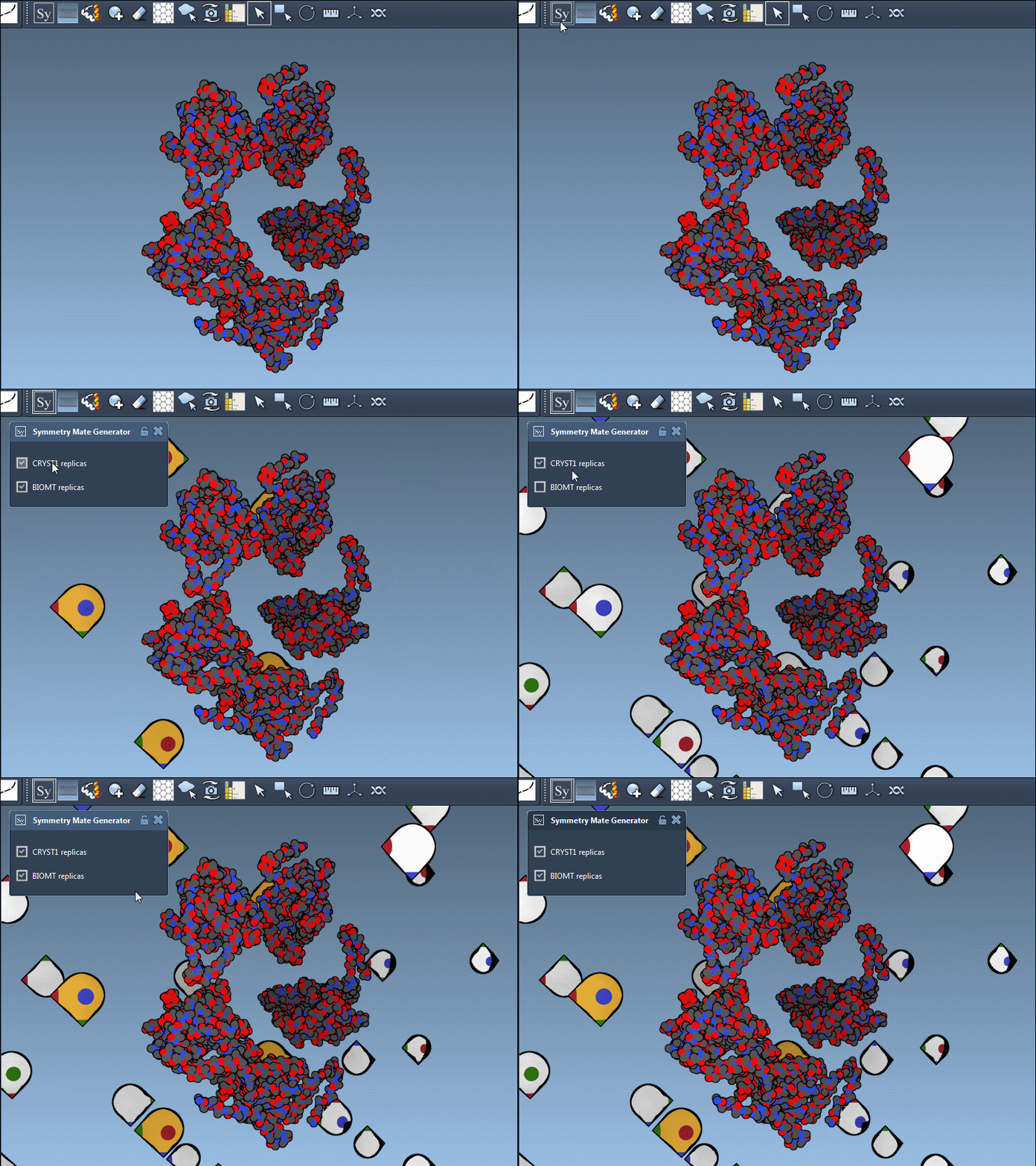
A practical workflow for exploring copies
- Open a structure containing symmetry information. The transformations come from the PDB file, so choose a structure that includes the metadata needed for the symmetry you want to inspect.
- Activate the editor. Press Shift + E and search for “Symmetry Mate Editor,” or open it from the viewport menu: … > General > Symmetry Mate Editor. Transformation control nodes then appear in the viewport.
- Adjust how many controls are visible. Hold Ctrl on Windows or Linux, or Cmd on macOS, and use the mouse wheel. This helps when the viewport contains many possible transformations.
- Preview before adding. Hover over a control node to see a replica in real time. Use the preview to inspect where a copy will appear before committing it.
- Generate the copies you need. Left-click a node to create that replica. If you want to preview and generate all symmetry mates together, hold Ctrl or Cmd before hovering and left-clicking a node.
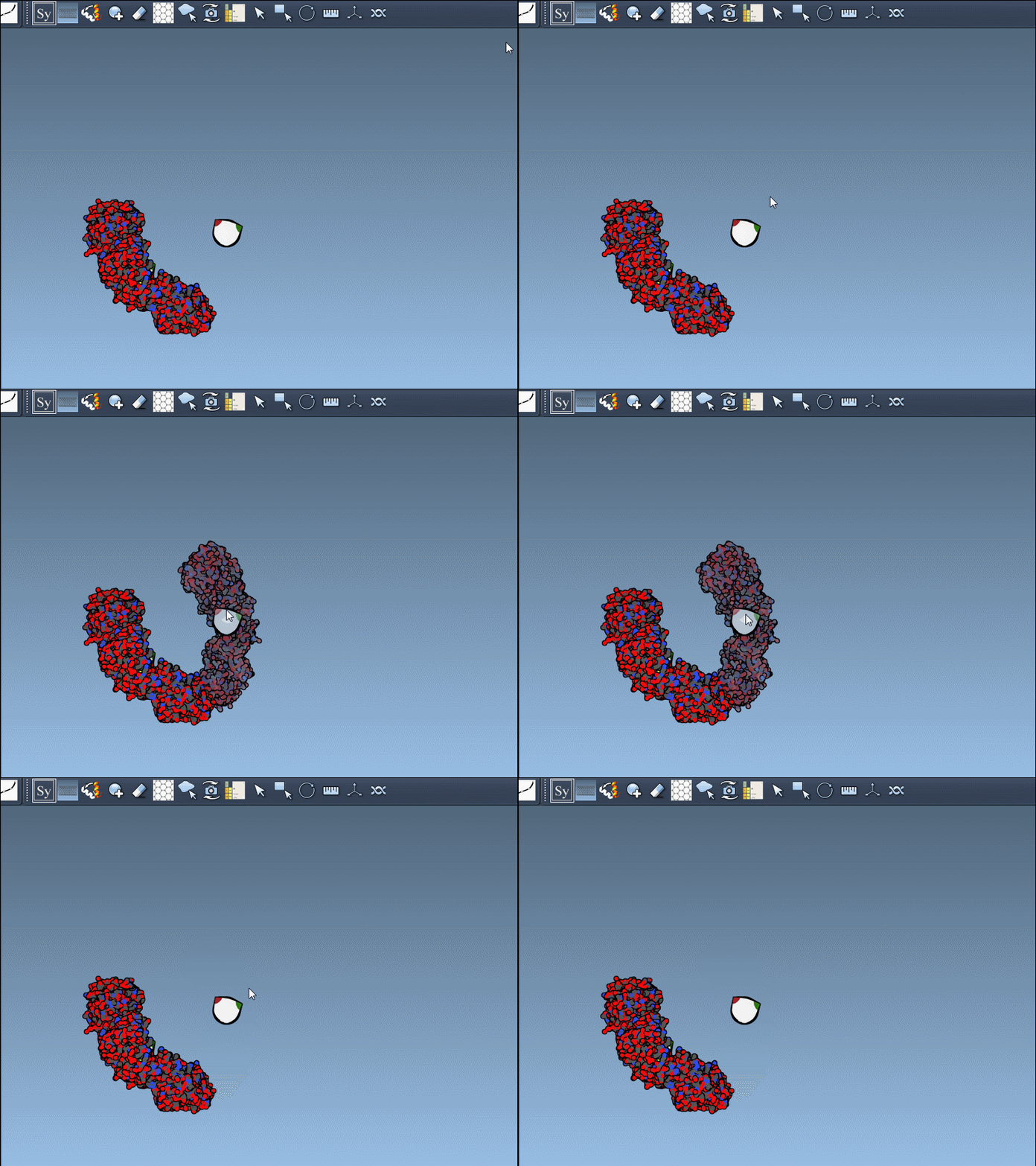
Why previewing matters
Generating every possible copy immediately can make a structure harder to inspect. Previewing first gives you a chance to see how a particular transformation changes the scene, then add only the replicas that help answer your question. For example, you might be tracing a suspected protein-protein interface, checking how chains repeat across an assembly, or simply trying to understand the spatial arrangement before moving on to simulation preparation.
For a complete assembly, generating all mates at once can be useful. For a focused inspection, creating copies one at a time offers more control. If you add an unwanted replica, use Undo (Ctrl/Cmd + Z) to remove it. Ribbons and per-chain coloring can also make it easier to distinguish the generated chains as the scene becomes more populated.
What to do next
Once the copies are in place, inspect the resulting arrangement and remove replicas you do not need. You can continue by analyzing symmetry axes and RMSD, preparing the protein structure, or selecting an assembly for simulation workflows. Keep the distinction between crystal-lattice neighbors and the annotated biological assembly in mind when interpreting what you see.
For the full workflow and additional examples, see the SAMSON tutorial on generating symmetry mates.
Note: SAMSON and all SAMSON Extensions are free for non-commercial use. Get SAMSON.