



When exploring a molecular design idea, a small structural change can be hard to manage at scale. Editing each SMILES string by hand is slow—and it is easy to lose track of which part of the molecule changed. Fragment replacement offers a more organized approach: define the portion to swap, provide candidate replacements, and let the SMILES Manager generate the resulting molecules.
This can be useful for exploring alternatives around a shared scaffold. It does not predict which molecule will perform best; it helps you prepare a set of structures that you can inspect and evaluate in later steps.
Define the starting point and the edit
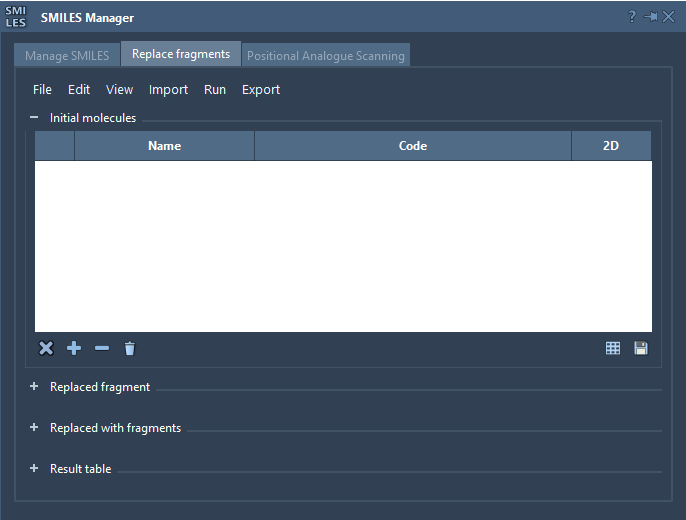
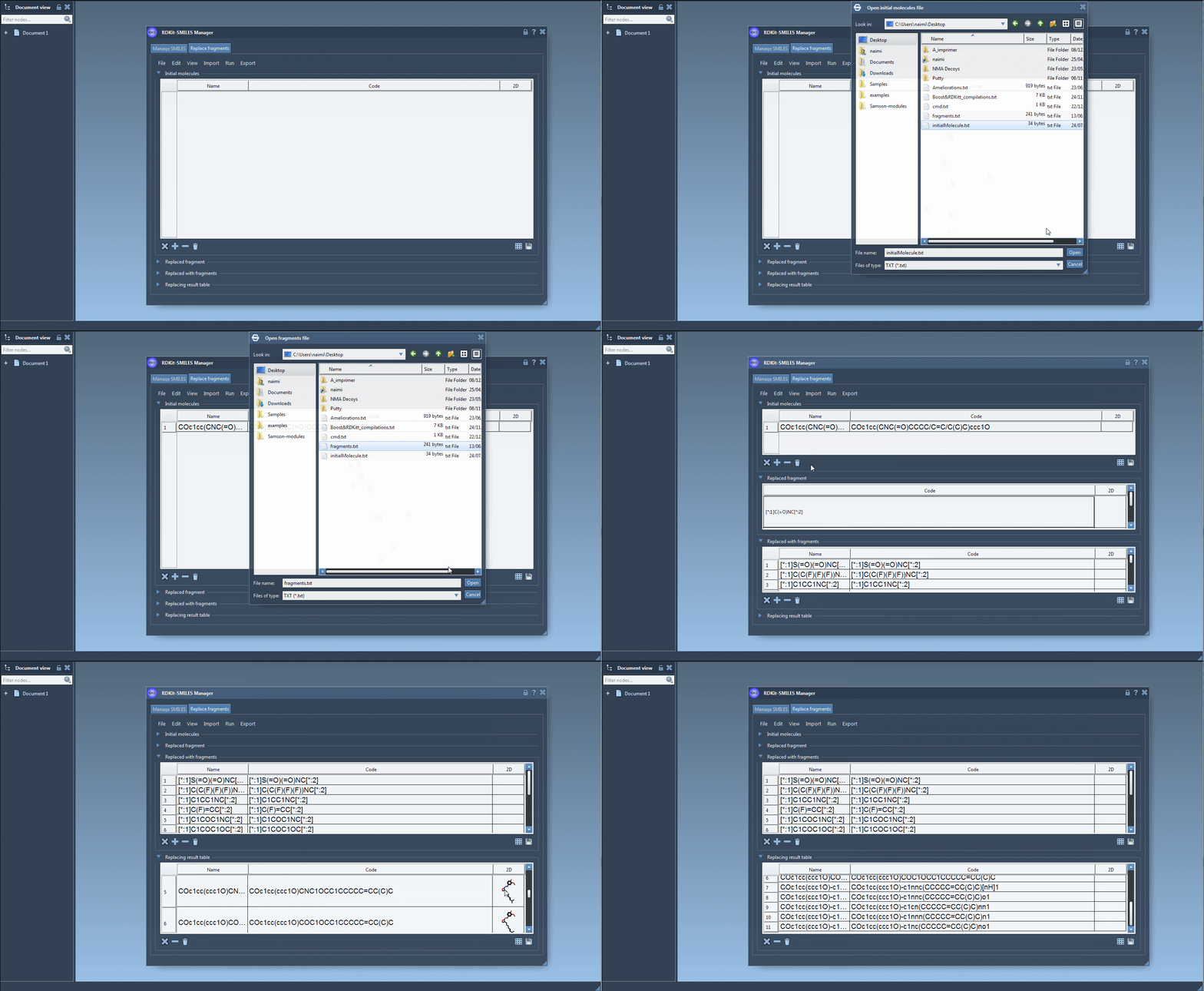
In SAMSON’s RDKit-based SMILES Manager, open the Replace fragments tab. Start by adding one or more initial molecules. You can load them from a file, add them manually, or use the selection in the active SAMSON Document.
Next, specify the fragment to replace. The key is to describe not only the atoms being changed, but also how the replacement connects to the rest of the molecule. For example, the tutorial uses this target pattern:
[*:1]C(=O)NC[*:2]
The [*:1] and [*:2] labels mark the two ends of the fragment pattern. In this example, the carbonyl-containing section between those connection points is the part being swapped. Keeping the attachment points clear is essential: they tell the software how to join each new fragment to the unchanged parts of the starting molecule.
Supply alternatives, then run the replacement
Add the candidate fragments in the same attachment-point format. The tutorial’s examples include different chemical motifs, such as a sulfonamide-containing replacement, a fluorinated option, and several ring systems. You can import a set from a file or enter fragments individually.
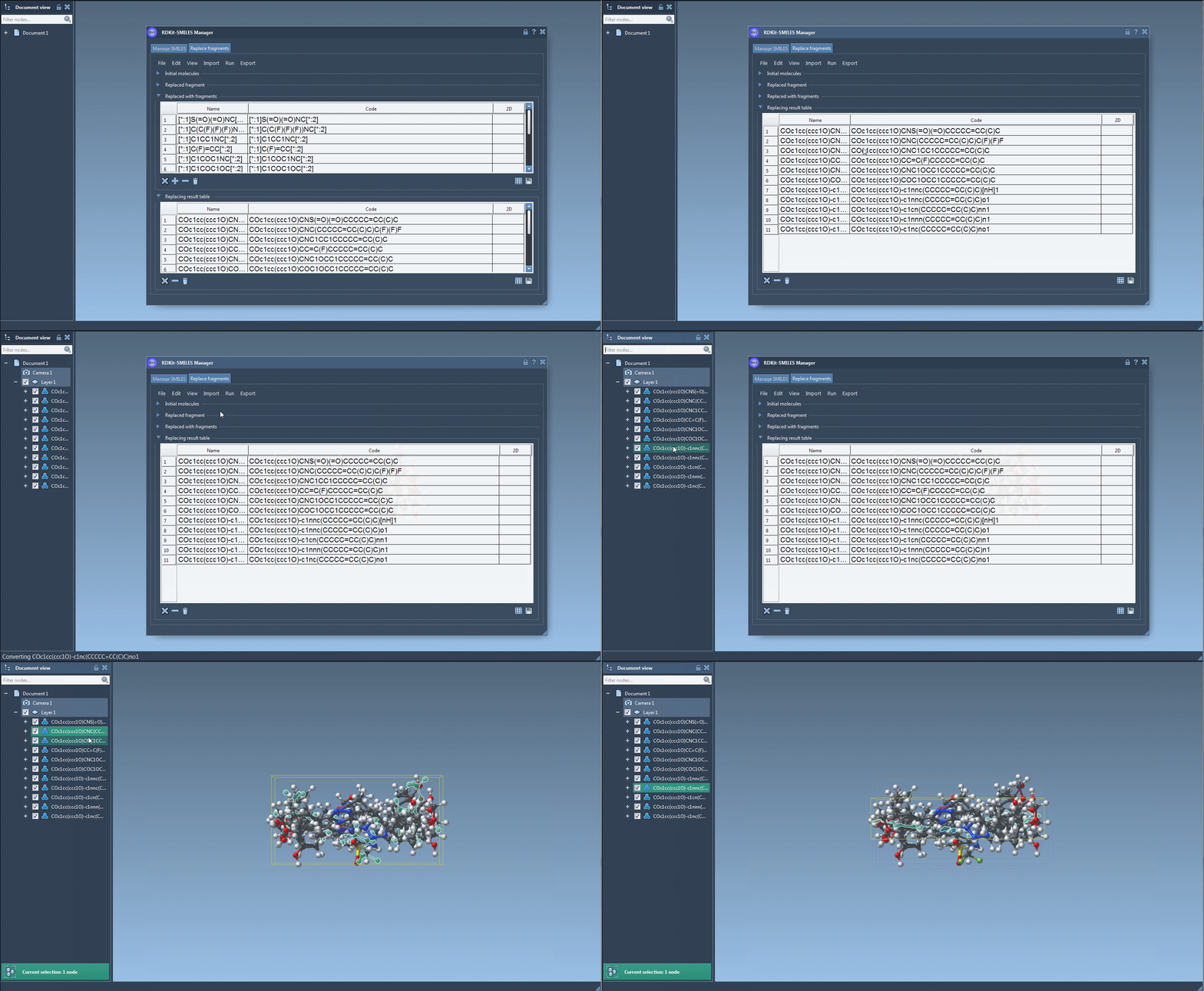
Once the initial molecule, target pattern, and replacement fragments are in place, choose Run → Replace fragments. The generated molecules appear in the Results table. From there, you can review their SMILES strings and 2D depictions, and use the Export menu to add results to the active document.
Make the results useful, not just numerous
A generated list is a starting point for comparison, not a conclusion. Review the resulting structures to confirm that the intended region changed and the rest of the molecule remains as expected. The SMILES Manager displays 2D depictions alongside the codes, which makes it easier to spot unexpected structures. Invalid SMILES are highlighted with an error image rather than a normal depiction.
When a result is worth exploring further, you can generate a 3D structure from the SMILES Manager and continue working with it in the active SAMSON Document. The resulting molecules can also be saved in a file or as a grid image, which is useful for sharing a compact visual comparison with collaborators.
The practical benefit is a repeatable workflow: keep the starting structure fixed, state the edit explicitly, and compare a defined set of alternatives. That makes it easier to discuss what changed and to pass a consistent set of molecules into subsequent modeling or analysis.
For the complete workflow and additional SMILES Manager features, see the original documentation tutorial.
Note: SAMSON and all SAMSON Extensions are free for non-commercial use. Get SAMSON.