



A common molecular-modeling bottleneck is turning a promising structure into a small, organized set of alternatives. Editing SMILES one at a time is tedious, and manual changes can make it difficult to keep track of which part of the molecule was changed. The SMILES Manager’s Replace fragments workflow offers a more systematic approach: define the fragment to swap, provide replacement fragments, and generate the resulting molecules in a table.
This is useful when you want to explore alternatives around a particular connection in a molecule—for example, to prepare a series for later inspection, 3D generation, or other analysis. The workflow creates structures; it does not, by itself, tell you which replacement will have better properties. That distinction helps keep the generated library useful without mistaking it for a ranking or prediction.
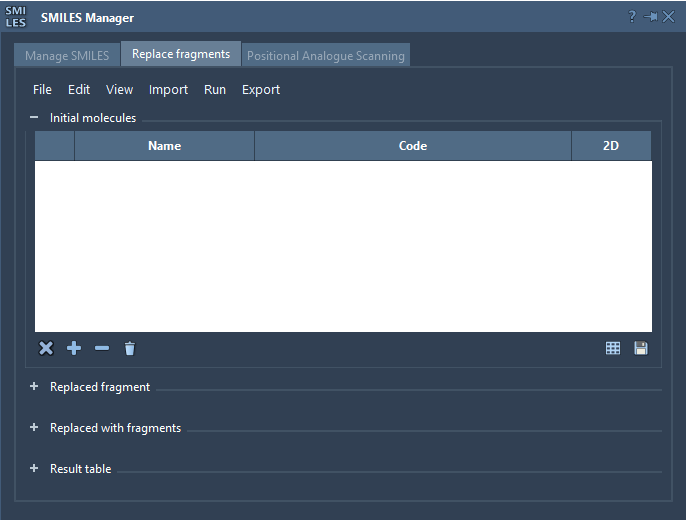
Define the swap before generating the library
Fragment replacement needs three ingredients:
- An initial molecule containing the region you want to modify.
- A target fragment that identifies the portion to replace.
- Replacement fragments that will be tried in its place.
For example, the tutorial uses COc1cc(CNC(=O)CCCC/C=C/C(C)C)ccc1O as the initial molecule and [*:1]C(=O)NC[*:2] as the target. The replacement set includes alternatives such as [*:1]S(=O)(=O)NC[*:2], [*:1]C1CC1NC[*:2], and [*:1]C1COC1NC[*:2].
The labels [*:1] and [*:2] mark the two ends of the fragment pattern. In RDKit’s syntax, these attachment points are required at the ends of the target and replacement fragments. Keeping them in the intended positions is essential: they tell the replacement operation how each new fragment connects back to the surrounding molecule.
A practical workflow
- Load the starting structure. Open an initial-molecules file, add a molecule manually, or import a selected structure from the active SAMSON Document.
- Specify the region to change. Enter the target fragment or import it from the document selection. Check that its two attachment points correspond to the connections you intend to preserve.
- Build a replacement set. Import fragments from a file or add them manually. A set of alternatives makes it easier to compare different changes against the same starting scaffold.
- Run the replacement. Choose Replace fragments from the Run menu. The generated molecules appear in the Results table.
- Inspect and export. Review the results, then use the export options to view them in the active document. The resulting molecules can also be converted into 3D structures, modified, or saved as a file or grid image.
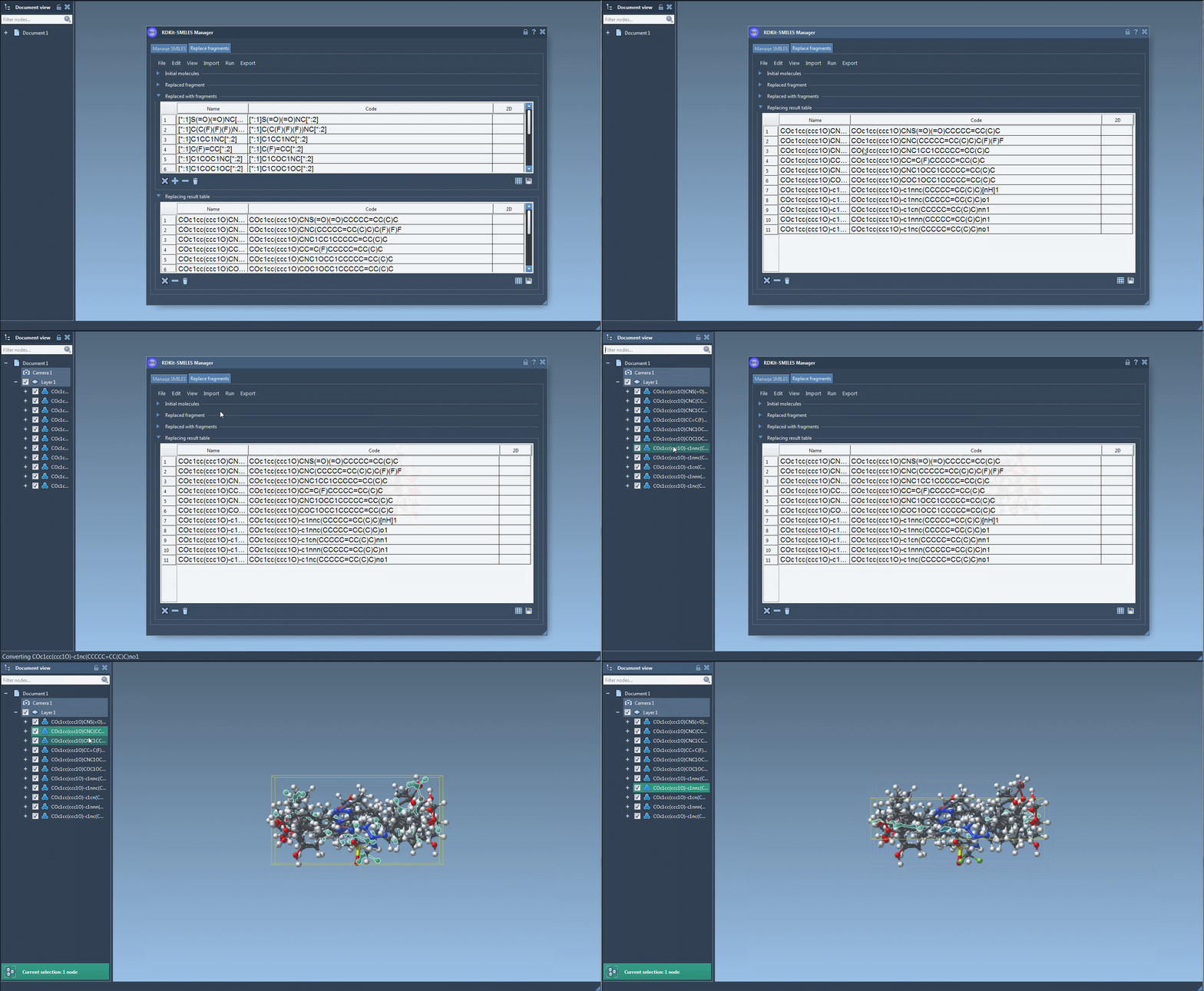
Make the results easier to use
Before running a large set, it helps to make the experiment easy to interpret: use a clear name for the starting molecule, keep replacement fragments organized, and change one defined region at a time when you want to compare a focused series. The SMILES Manager displays codes alongside names and 2D depictions, making it possible to spot invalid entries and visually review the generated structures. You can save depictions individually or create a grid image to share or compare a selected set.
Finally, treat the output as a collection for further evaluation, not as a guarantee that every structure is chemically appropriate for your intended study. Review the structures and use the modeling or analysis steps relevant to your project before drawing conclusions.
For the full workflow and details on managing SMILES, see the SMILES Manager documentation.
Note: SAMSON and all SAMSON Extensions are free for non-commercial use. Get SAMSON.