



A familiar bottleneck in molecular modeling is exploring alternatives to one part of a molecule. Editing each SMILES string by hand can be slow, and small syntax mistakes can make a candidate unusable. A more systematic approach is to define the part to replace, supply a set of alternatives, and generate the resulting molecules together.
SAMSON’s RDKit-based SMILES Manager includes a Replace fragments workflow for this task. It can help you create a collection of replacement structures from one or more starting molecules—useful when you want to compare possible isosteric replacements or prepare candidates for further review.
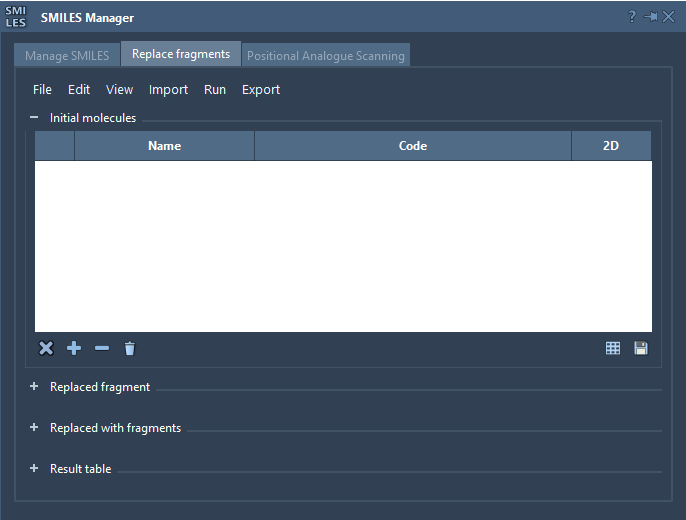
Think in three inputs
Before running a replacement, organize the task around three pieces of information:
- Starting molecule: the molecule or molecules that contain the region you want to change.
- Target fragment: the portion of the starting molecule that should be replaced.
- Replacement fragments: the alternatives you want to insert in its place.
Keeping these inputs distinct makes it easier to check the setup before generating a library. In the tutorial’s example, the starting molecule is COc1cc(CNC(=O)CCCC/C=C/C(C)C)ccc1O, and the target is [*:1]C(=O)NC[*:2]. The replacement list includes several different motifs, such as a sulfonamide, a cyclopropyl-containing fragment, and ring-containing fragments.
The attachment points matter
For RDKit fragment replacement, the target and replacement patterns use the attachment labels [*:1] and [*:2] at their two extremities. These labels indicate how the fragment connects to the rest of the molecule. Make sure the target and alternatives use the intended attachment points; a fragment that looks plausible as a string may still describe a different connection pattern if its ends are not specified correctly.
This is also why it helps to start with a small, understandable set of alternatives. Review the target pattern and each replacement before running the operation, rather than treating a long list as interchangeable text.
A practical workflow
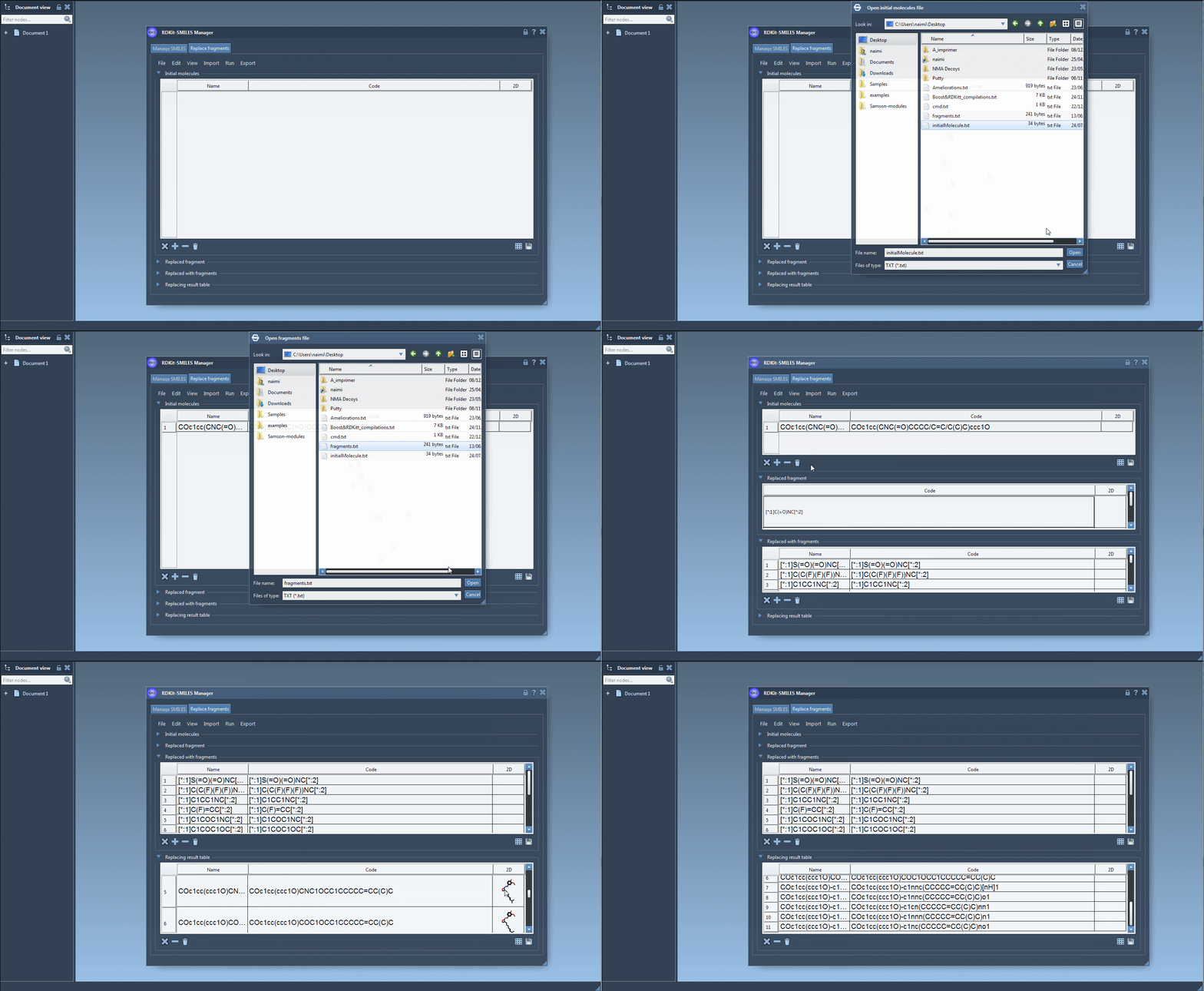
- Open the Replace fragments tab and add the starting molecule. You can load initial molecules from a file, enter them manually, or import a selection from the active SAMSON document.
- Enter the fragment to replace, or import it from a selection in the active document.
- Add the replacement fragments manually or load them from a file. The tutorial provides example patterns that can be used to follow along.
- Choose Run > Replace fragments. The generated molecules appear in the Results table.
- Review the results, then use the export options to view them in the active document or save the table or depictions. The resulting molecules can also be converted into 3D structures.
Make the output useful, not just large
Generating many candidates is only the beginning. A table makes it easier to inspect the SMILES codes, names, and 2D depictions together. Use that view to compare the structures and catch unexpected changes before moving on to 3D modeling or analysis. If you are testing a particular design idea, keep the replacement set focused enough that you can relate each result to the fragment that produced it.
Once you have reviewed the generated structures, you can move them into the active document for further work, or save depictions as a grid image to make a compact visual comparison. This turns fragment replacement into a repeatable exploration step: define the edit, generate alternatives, inspect them, and decide which candidates deserve the next round of modeling.
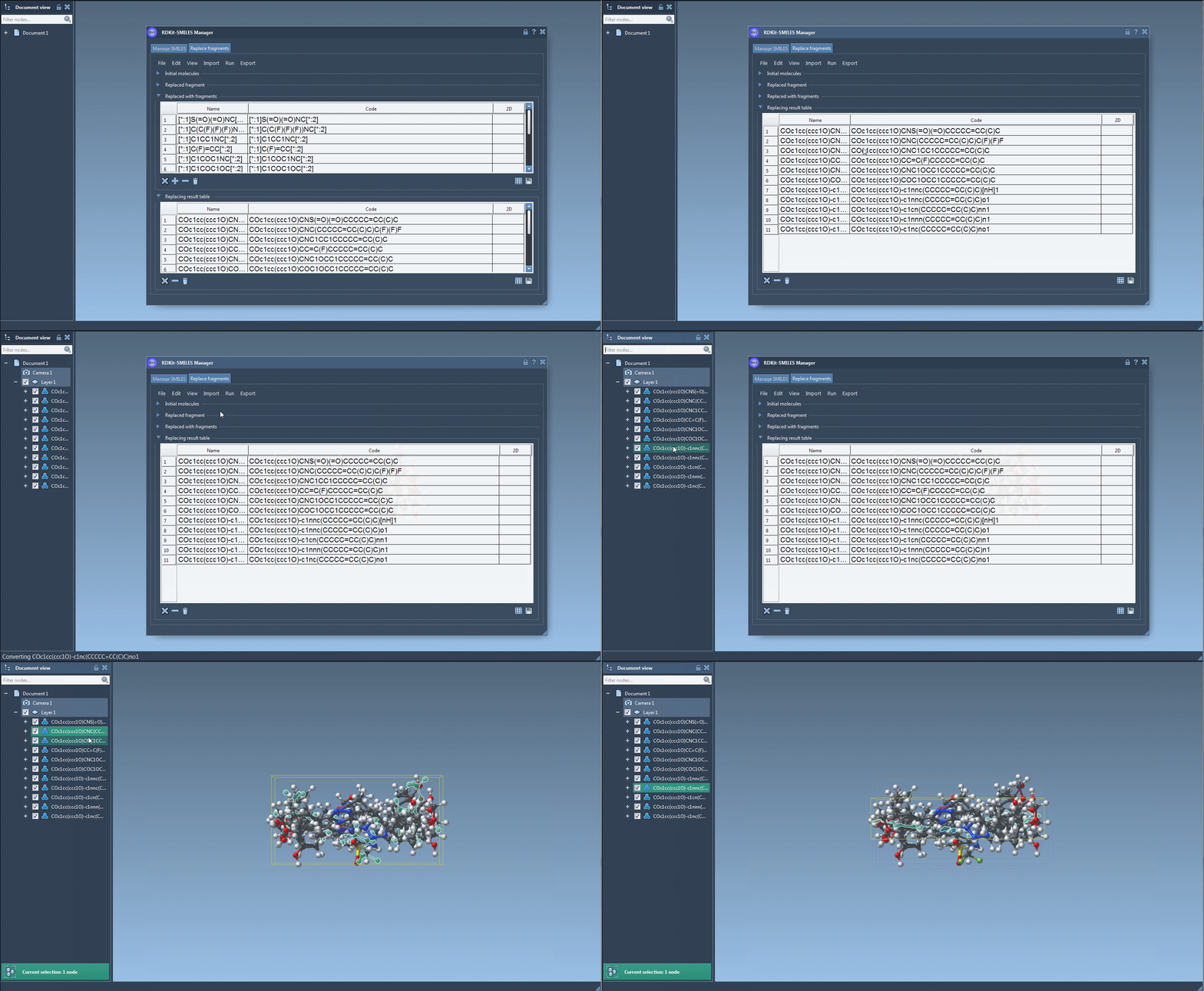
For the complete interface walkthrough and example fragment list, see the SMILES Manager documentation.
Note: SAMSON and all SAMSON Extensions are free for non-commercial use. Get SAMSON.