



A common bottleneck in molecular modeling is not finding a way to draw one molecule—it is preparing a consistent set of related molecules to compare. Editing SMILES by hand can be error-prone: a misplaced ring closure or attachment point may change the structure in an unintended way, and a long list of strings is difficult to review visually.
SAMSON’s RDKit-based SMILES Manager offers a workflow for organizing SMILES, inspecting 2D depictions, and generating molecules by replacing a specified fragment. The key is to treat the replacement as a controlled transformation: define the starting molecule, mark the part to change, provide candidate replacements, and inspect the resulting structures before using them elsewhere.
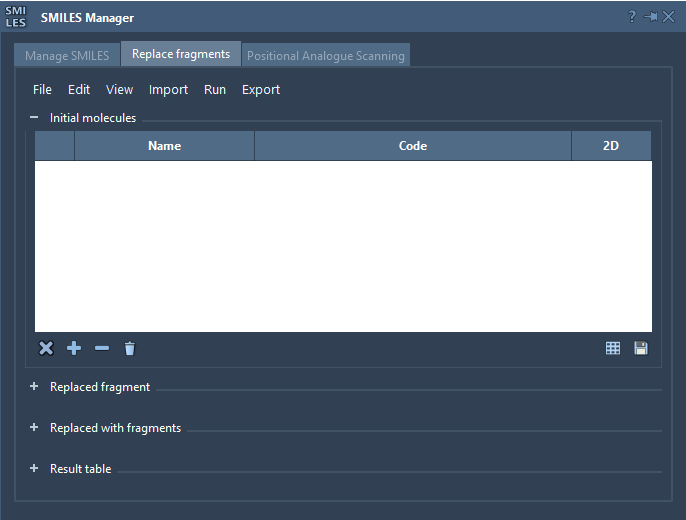
Start with a clean, reviewable input set
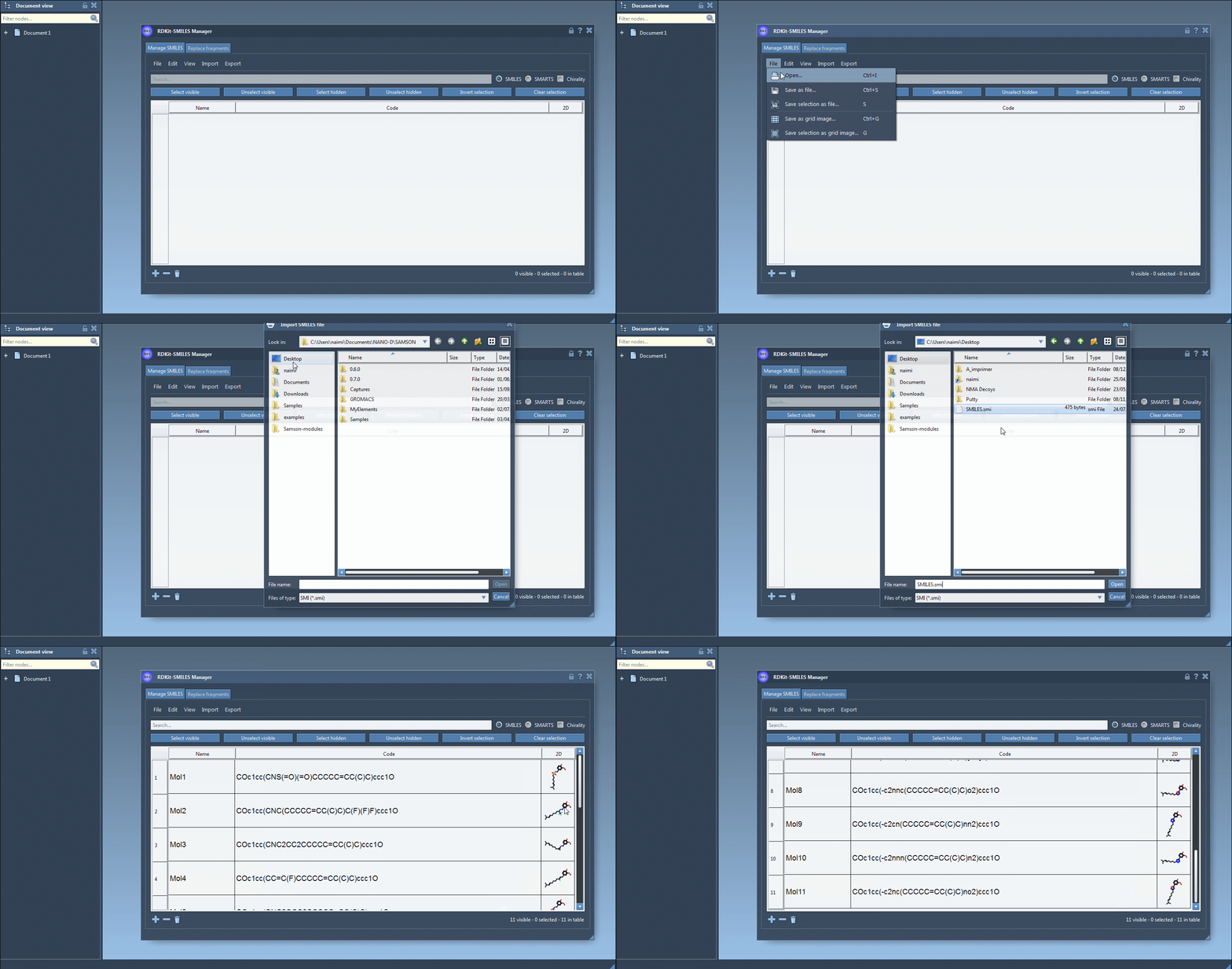
SMILES Manager can import RDKit-style .smi files, including files with a SMILES string in the first column and a molecule name in the second. It can also import plain-text .txt files containing one SMILES string per line. Extra attributes in an RDKit SMILES file are ignored, so keep names in the expected column if you want them associated with the imported molecules.
Once imported, entries appear in a table with names and generated 2D depictions. That visual check is useful before any transformation: an invalid SMILES is highlighted and receives an error image instead of a molecular depiction. You can edit a Code cell directly, add or remove entries, and assign names so that results are easier to track than a collection of anonymous strings.
Define the transformation with attachment points
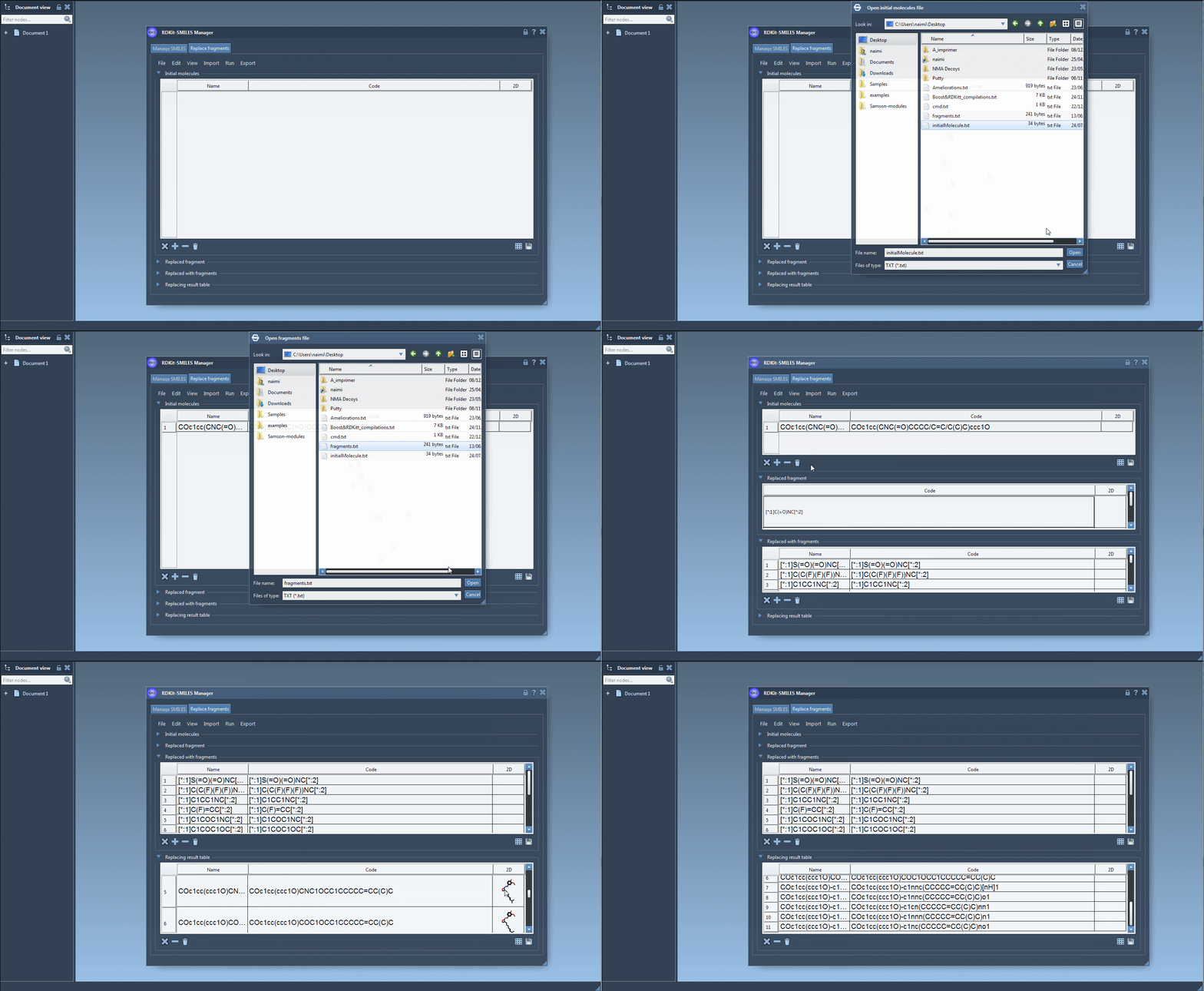
In the Replace fragments tab, provide one or more initial molecules, the fragment to remove, and the fragments to insert. You can load initial molecules from a file, add them manually, or use a selection from the active SAMSON Document. Replacement fragments can also be imported or entered manually.
For example, the tutorial uses this initial molecule:
COc1cc(CNC(=O)CCCC/C=C/C(C)C)ccc1O
The target fragment is specified with two labeled attachment points:
[*:1]C(=O)NC[*:2]
The labels [*:1] and [*:2] mark the two ends of the pattern that connect to the rest of the molecule. The replacement fragments need compatible attachment-point syntax too. For instance, one candidate in the tutorial is [*:1]S(=O)(=O)NC[*:2]. In RDKit’s fragment syntax, the attachment labels belong at the two extremities of the pattern. Checking these labels before running the replacement helps avoid a preventable formatting problem.
After entering the inputs, choose Replace fragments from the Run menu. The resulting molecules appear in the Results table. The tutorial’s example includes a range of replacements, from sulfonamide and fluorinated motifs to small rings and nitrogen-containing rings:
Review before moving to 3D
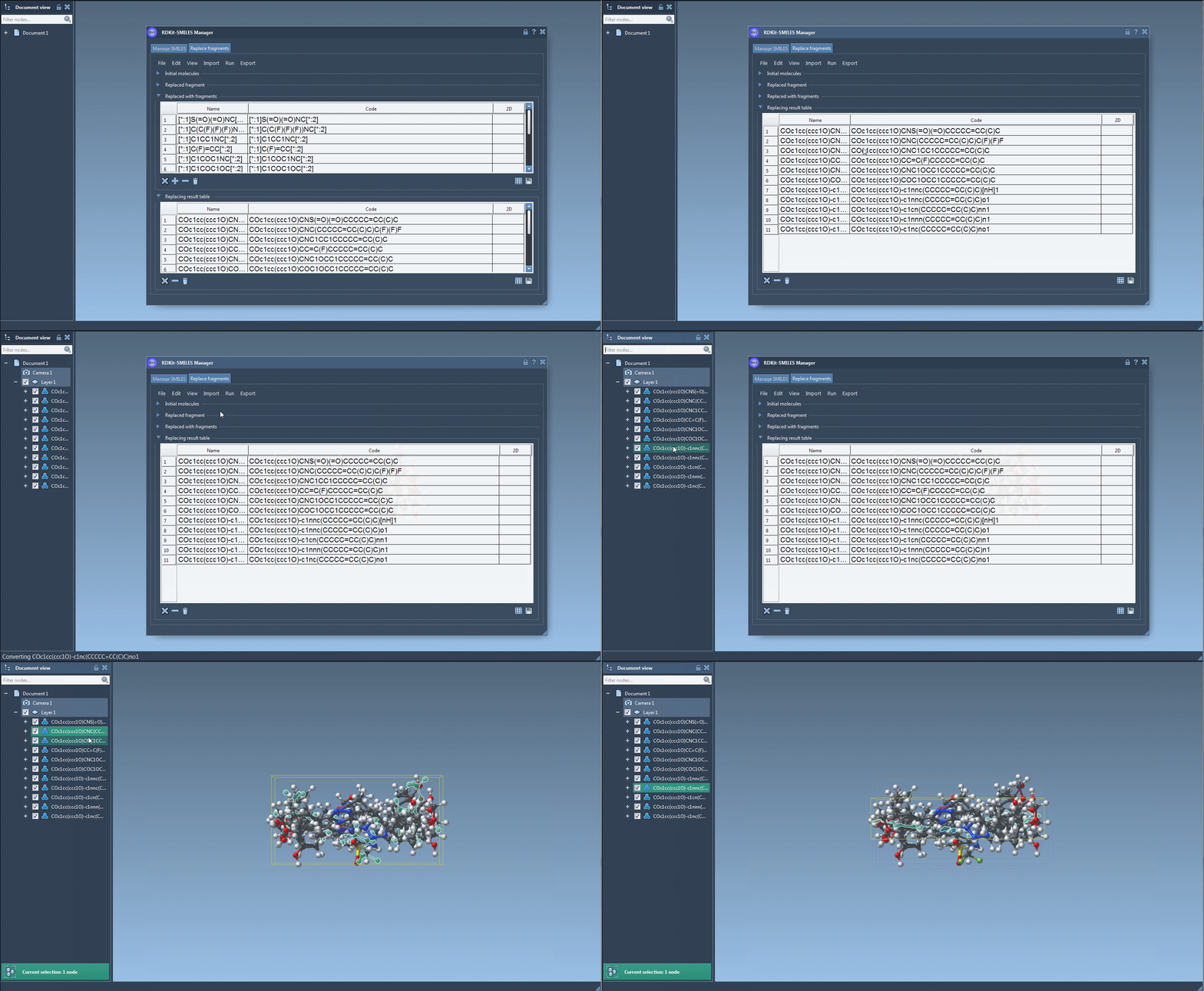
Generated entries are candidates for further work, not a substitute for review. Inspect their SMILES and 2D depictions to confirm that the intended part changed and that the rest of the scaffold looks as expected. A 2D depiction makes it easier to compare a set at a glance; double-clicking an image opens a larger view, and individual depictions can be saved as PNG or SVG. You can also save a grid of depictions as an SVG, which is handy for sharing or discussing a set without asking collaborators to interpret a long list of strings.
When the structures look right for your purpose, selected SMILES can be exported to the active SAMSON Document as 3D structures. A single molecule can also be generated from its context menu or its large-view window. Generating a 3D structure is a useful next step for modeling, but it does not by itself establish that a candidate is chemically suitable or that its properties have improved. Keep the transformation, visual review, and later analysis as distinct steps.
This workflow helps turn a repetitive, error-prone editing task into a collection that is easier to inspect and carry forward. For the full walkthrough of importing, editing, depicting, and replacing SMILES fragments, see the SMILES Manager documentation.
Note: SAMSON and all SAMSON Extensions are free for non-commercial use. Get SAMSON.