



A protein model can look convincing in 3D and still contain awkward backbone conformations. Those local geometry issues are easy to miss when you are viewing the whole structure, but they can matter when preparing a model for refinement, simulation, or further design. A Ramachandran plot offers a focused way to inspect backbone dihedral angles and connect unusual points to the residues they represent.
The plot compares each residue’s φ (phi) and ψ (psi) angles. Its favored and unfavorable regions reflect energetic and steric constraints: points in a disallowed region can flag conformations worth investigating. The plot is a guide to structural inspection, not a complete verdict on whether a protein model is correct. Treat an unusual point as a prompt to look more closely at the residue and its surroundings.
Make the plot useful, not just colorful
In SAMSON, open a protein structure and launch the Ramachandran plot app from Home > Apps > Biology. Click Update to generate the plot. Yellow areas indicate energetically favorable regions, while white areas indicate unfavorable conformations. The category tabs let you view all residues or focus on General, Glycine, Proline, and Pre-proline residues. That separation is useful because residue categories can have different conformational preferences; an apparent outlier is easier to interpret when you are looking at the relevant category.
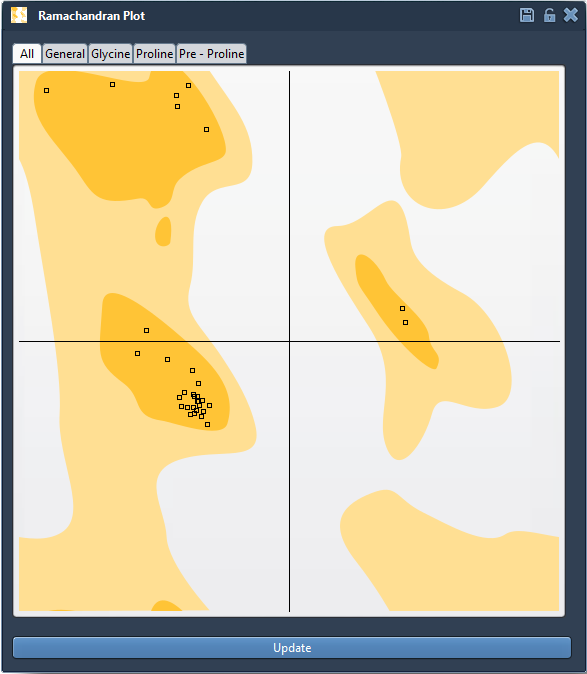
For a concrete starting point, the documentation uses protein structure 1YRF, which you can load through Home > Fetch using the PDB or PDB (mmCIF) option. Once the plot is updated, click a point to select its residue in the 3D viewport. The status bar displays the corresponding φ and ψ values. This link between plot and structure helps answer the practical question behind an outlier: which residue am I looking at, and where is it in the protein?
Inspect before you edit
Start by selecting a point that lies outside a favored region, then locate the selected residue in the viewport. Consider its position in the chain and its structural context before changing anything. The plot helps you find and manipulate backbone conformations, but it does not by itself explain why a residue is there or establish that moving it will improve the whole model. Keep the original structure or use undo so you can compare changes rather than treating every move toward a yellow area as automatically beneficial.
Two ways to adjust a conformation
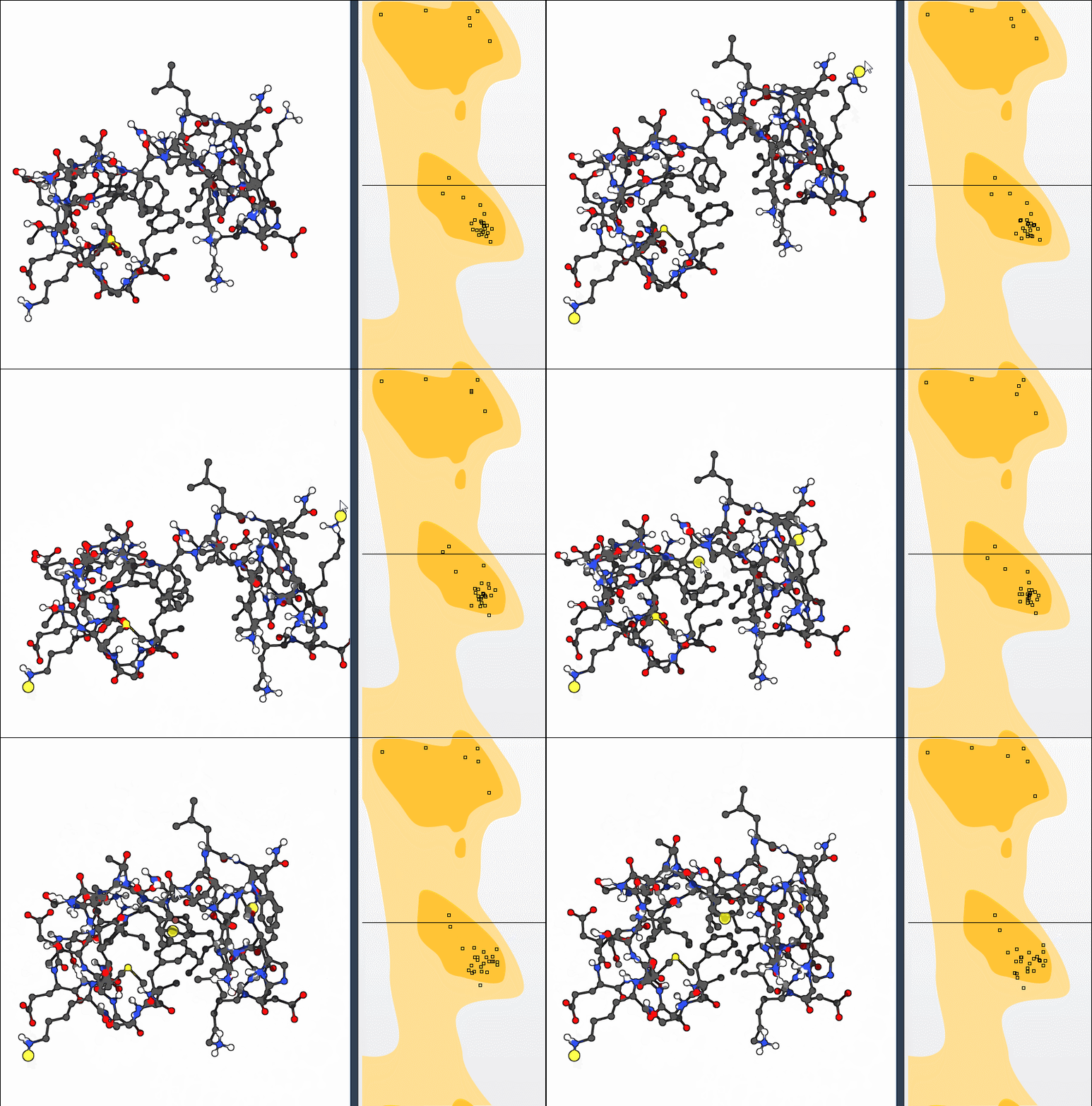
You can drag a point directly on the plot. The associated dihedral angles change in real time, and the 3D structure updates as you move the point. This makes it straightforward to see how a local change on the plot corresponds to a structural change. If the result is not useful, use Ctrl+Z on Windows/Linux or Cmd+Z on macOS to undo.
Alternatively, select the Twister editor from the left-hand menu in the viewport and twist the protein in 3D. The plot updates live, so you can observe how the resulting motion affects backbone angles. This route can feel more natural when you want to manipulate the structure visually and monitor the corresponding plot at the same time.
A simple review loop
- Update the plot for the structure you want to inspect.
- Use the category tabs to narrow the view when helpful.
- Select a point and identify its residue in the viewport.
- Check the displayed φ and ψ values and inspect the local structure.
- If an edit is appropriate, make a small change with plot dragging or Twister, then review the updated structure and plot.
- Undo changes that do not serve your modeling goal.
This workflow makes backbone validation more concrete: the plot identifies conformations to examine, selection connects them to the 3D structure, and interactive editing lets you test adjustments while observing their effect. For the complete walkthrough, see the Interactive Ramachandran Plot tutorial.
Note: SAMSON and all SAMSON Extensions are free for non-commercial use. Get SAMSON.