



Finding a particular region in a molecular model by clicking atom after atom is slow—and easy to get wrong. When the shape you want is defined by position, a coordinate-based expression can turn that tedious task into a repeatable selection rule. It is especially useful for cutting a region from a larger structure, hiding atoms outside a volume, or making a custom shape from a sheet of graphene.
SAMSON’s Atoms Selector Extension is the focused option when the goal is simply to select atoms using a mathematical expression. For more than selection—such as changing visibility or atom positions—use the Simple Script Extension. Both work with atom coordinates such as a.x, a.y, and a.z, along with mathematical operators and functions.
Start with a familiar shape
A sphere is a useful first test because its boundary is easy to describe. To show only atoms within a radius of 10 units around the point (0, 0, 2), Simple Script can check each atom’s squared distance from that center:
|
1 2 |
if ((a.x^2 + a.y^2 + (a.z - 2)^2) < 100) a.visibilityFlag:=1; else a.visibilityFlag:=0; |
The number 100 is the radius squared: 10^2. Squared distance avoids needing a square root, and comparing it with the squared radius gives the same inside-or-outside test. The expression also makes the center explicit, so it is straightforward to adapt: change the coordinate offsets to move the sphere, or change 100 to adjust its size. Coordinates use the selected length units.
For a selection-only version, put the mathematical condition in Atoms Selector. That distinction matters: Simple Script can modify visibility, while Atoms Selector is intended to select atoms. If you are exploring a new expression, choose the tool that matches the intended change.
Cut a cylinder from a crystal
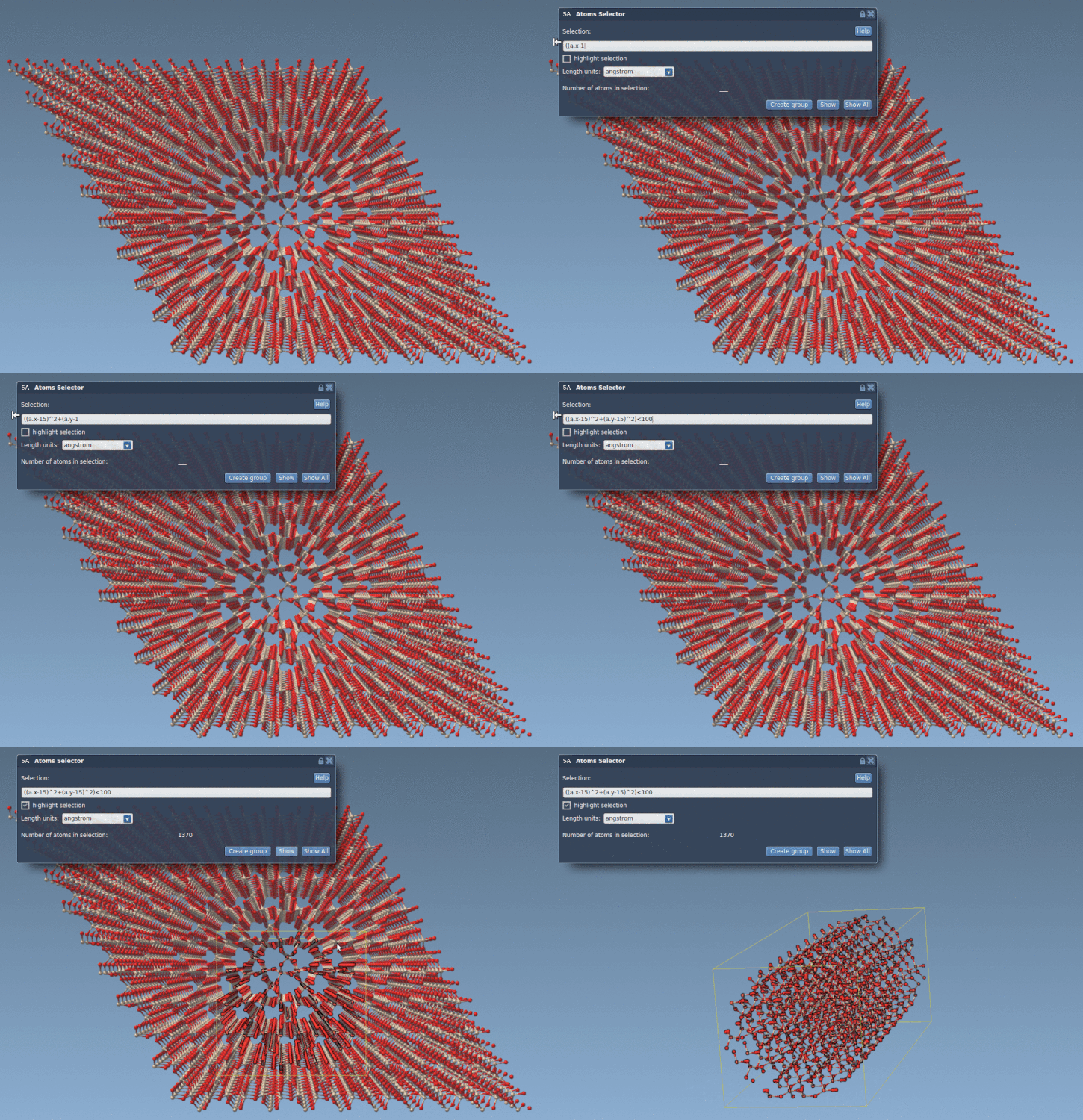
For a cylindrical region of radius 10 around the z-axis, the selection condition can be written as:
|
1 |
((a.x-15)^2 + (a.y-15)^2) < 100 |
This describes distance in the x-y plane from the center (15, 15). Because the expression does not include a.z, it does not limit the selection’s extent along z. That is useful when the desired region is a column through a crystal; if you also need a finite-height cylinder, add a separate z-coordinate condition. The example is shown cutting a cylinder from quartz:
Build a more intricate outline
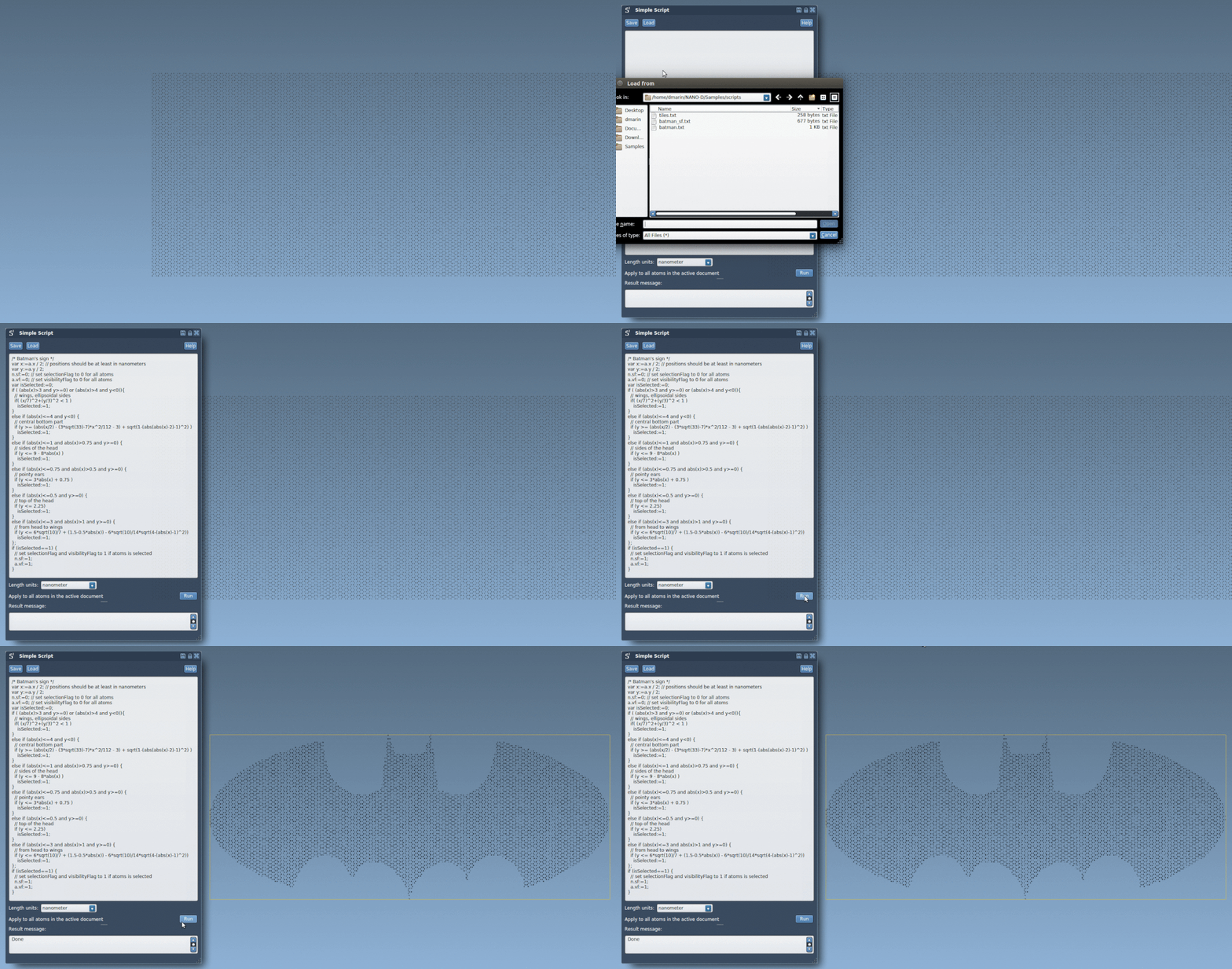
The same idea scales beyond simple volumes. The tutorial’s graphene batarang example divides the outline into regions—wings, head, and ears—and describes each with conditions on x and y. For example, the wing region uses an ellipse-like test, while narrower coordinate ranges define the head and ears. Combining these conditions lets the script decide, atom by atom, whether each position falls inside the desired two-dimensional outline.
In that example, the graphene sheet lies in the z-plane, and the script uses x:=a.x/2 and y:=a.y/2; the documentation notes that positions should be at least in nanometers. At the end, atoms inside the outline are selected and made visible, while atoms outside it are deselected and hidden. The result is a memorable demonstration of a practical technique: express a boundary mathematically, then apply it consistently to every atom.
A reliable way to approach your own shape
- Check the structure’s coordinate range and the length units before choosing dimensions.
- Write the boundary as a simple condition first, such as a circle or sphere.
- Test selection separately from visibility or coordinate edits when that suits your workflow.
- Use coordinate ranges and additional conditions to combine simple regions into a more detailed outline.
Mathematical selection is most helpful when you need a reproducible geometric rule—not just a one-time collection of clicks. See the original tutorial for more expressions, scripting examples, and the complete batarang scripts.
Note: SAMSON and all SAMSON Extensions are free for non-commercial use. Get SAMSON.