



Two structures can show where a protein starts and where it ends—but not how to connect them. For molecular modelers, that gap can make it difficult to explore a conformational change, prepare intermediate structures, or define a candidate reaction coordinate. The ARAP Interpolator in SAMSON offers a practical way to generate and inspect a smooth geometric path between two protein conformations.
ARAP stands for As-Rigid-As-Possible. In this workflow, the method uses matched atoms and a selected set of structural connections to construct intermediate conformations. The result is useful for visualizing a transition and preparing further analyses. It should not, by itself, be treated as proof of the physical mechanism or as a molecular-dynamics trajectory.
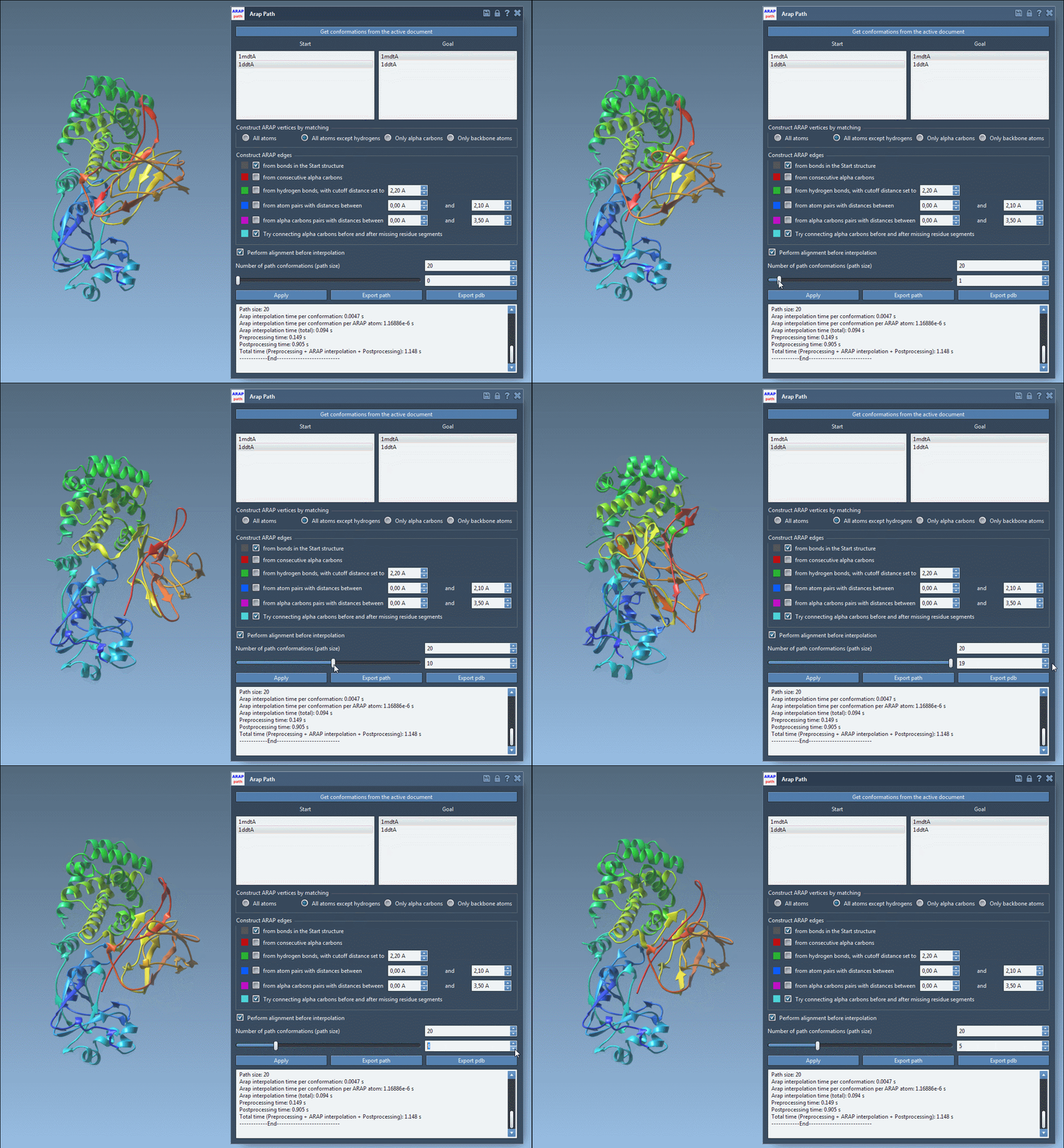
Start with a clean, comparable pair
The tutorial’s example uses two diphtheria toxin structures, PDB entries 1DDT and 1MDT. Both contain chains A and B, but the example focuses on chain A. After fetching the structures in SAMSON, remove chain B from 1MDT, then prepare both structures using Home > Prepare. Preparation removes alternate locations, water, ligands, and ions.
This cleanup is more than housekeeping. Extra components can leave a structure disconnected, which may prevent the interpolation from running. If the app reports that the structure does not make one connected component, check for water, ions, ligands, or other non-connected components and prepare the structures again.
Once cleaned, create a conformation for each structure through Edit > Conformation. Name them clearly—for example, 1DDT A and 1MDT A—so it is easy to identify the start and goal in the app.
Choose what the path should preserve
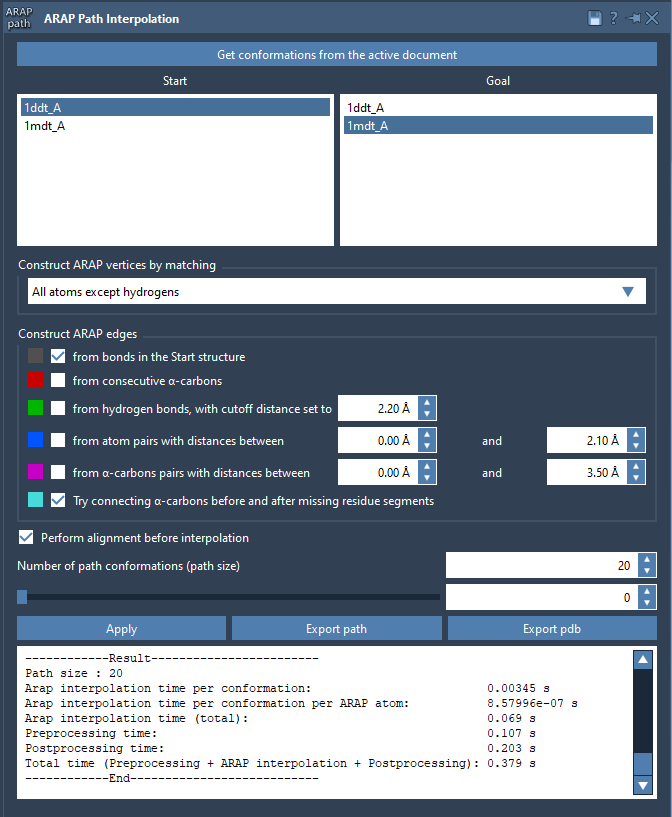
Open Home > Apps > Biology > ARAP Path Interpolation, retrieve the conformations from the active document, and assign 1DDT A as the start and 1MDT A as the goal.
For matching atoms, the tutorial recommends All except hydrogens. This matches non-hydrogen atoms between the conformations and uses the matched atoms in the start structure as ARAP vertices. The app also offers all atoms, alpha carbons only, or backbone atoms only; the choice determines which atoms participate in matching.
Next, define the connections used to build the ARAP edges. For this example, enable from bonds in the Start structure and Try connecting α-carbons before and after missing residue segments. The first uses covalent bonds in the start structure. The second adds a connection across each missing-residue segment where alpha carbons are present on either side. These choices matter because they determine how local structure and continuity are represented during interpolation.
Generate and examine the intermediate conformations
Enable Perform alignment before interpolation to align the start conformation with the goal before computing the path. Set Number of path conformations to 20; this count includes both the start and goal. Click Run to calculate the interpolation.
Afterward, use the app’s slider to move through the conformations. Scrubbing the path is a useful first check: look for whether the overall movement is continuous and whether any regions behave unexpectedly. SAMSON also creates a visual model of the ARAP edges. Toggle it in the Document view to inspect the connections used to construct the path; edge colors indicate their construction types.
You can export the result as a path object in the current document or export the whole path and its individual conformations as PDB files. That makes the output available for visualization, sharing, or follow-up work. The documentation describes using an ARAP-generated path with techniques such as umbrella sampling, steered molecular dynamics, or P-NEB refinement. Treat the interpolated structures as a starting point for those workflows, not as a substitute for validating a simulation setup.
For the complete walkthrough and app options, see the ARAP protein-structure interpolation tutorial.
Note: SAMSON and all SAMSON Extensions are free for non-commercial use. Get SAMSON.