



A Potential of Mean Force (PMF) can turn umbrella-sampling results into a profile that is easier to interpret. But a smooth-looking curve is not the whole story: if parts of the reaction coordinate are poorly sampled, the result deserves closer inspection. The histogram shown alongside the PMF is a practical first check for finding those regions.
GROMACS Wizard computes the PMF using the Weighted Histogram Analysis Method (WHAM). This workflow takes the windowed simulation data produced by umbrella sampling and combines it into a profile. The steps are straightforward, but the quality of the input organization and the coverage of the coordinate space matter.
Start with compatible windows
Before opening WHAM Analysis, finish an umbrella-sampling workflow and check that the input folder contains numbered subfolders for the same molecular system and the same reaction-coordinate definition. The windows are intended to contribute to one analysis; mixing projects that use different systems or coordinate setups can make the input inconsistent.
In GROMACS Wizard, switch to the WHAM Analysis tab. Choose the project path yourself, or use auto-fill when the previous project you ran was the umbrella-sampling simulation. Then inspect the folder organization rather than assuming that a selected path contains the intended set of windows.
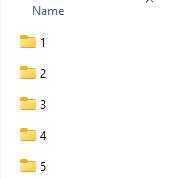
The wizard loads reaction-coordinate information, the time range, and the temperature from the project. Choose the reaction coordinate you want to analyze. Optional settings let you adjust bounds, the time range, or energy units when needed. These settings affect what data is considered and how the result is presented, so it is useful to review them before computing rather than changing them casually between comparisons.
Read the curve together with its histogram
After you click Compute, GROMACS Wizard generates two plots: the PMF profile and a histogram showing how well the coordinate space is covered. Treat these as a pair. The PMF is the result you came to inspect; the histogram helps you judge whether the windows collectively provide coverage across the coordinate range.
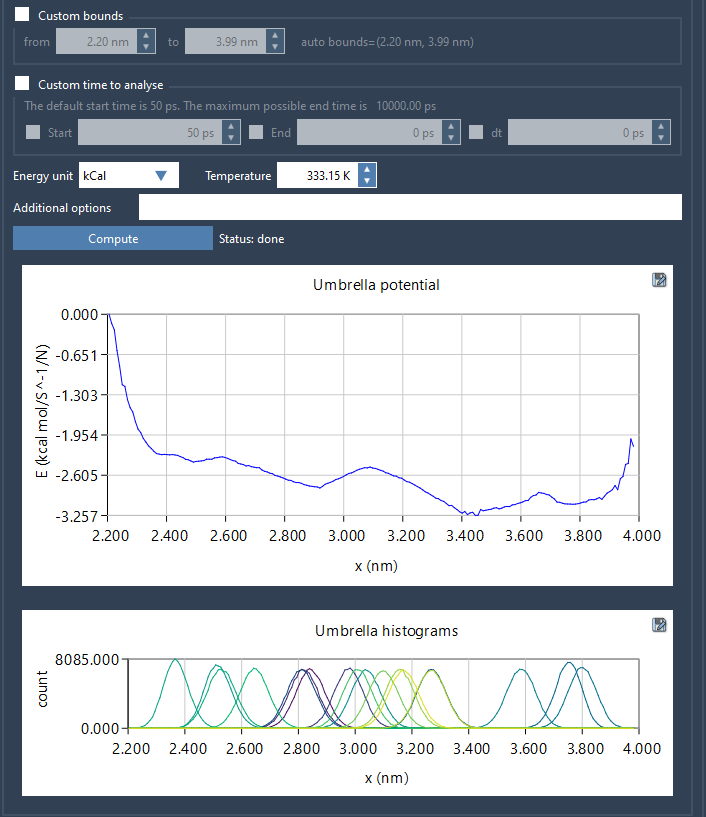
When you review the histogram, look for regions with visibly weak or missing coverage. Those areas can indicate that additional sampling may be needed. The histogram is a diagnostic, not a guarantee that the simulation is converged: good-looking coverage alone does not establish that every aspect of the result is reliable. Use it to identify where to investigate, and interpret the PMF in the context of the simulations that generated it.
A practical review checklist
- Project: Does the selected folder contain the intended numbered subprojects?
- Consistency: Do the windows correspond to the same system and reaction-coordinate definition?
- Analysis choices: Is the selected coordinate correct, and are any custom bounds, time range, or energy units appropriate for your analysis?
- Coverage: Does the histogram suggest that some parts of the coordinate need more sampling?
- Follow-up: If coverage is insufficient in a region, return to umbrella sampling and add or extend simulations for the relevant windows before drawing conclusions from that region.
For large trajectories, computation may take several seconds or minutes. When it finishes, the profiles, histograms, and plots are saved in the project’s wham_results subfolder. If you later switch reaction coordinates, GROMACS Wizard reuses data already computed for the same parameters, which can avoid repeating that work.
The key habit is simple: do not assess a PMF curve in isolation. Check that the windows belong together, review the analysis settings, and use the histogram to spot places where the sampling story may be incomplete.
Learn more in the PMF Analysis documentation.
Note: SAMSON and all SAMSON Extensions are free for non-commercial use. Get SAMSON.