



Umbrella sampling turns a difficult molecular-motion problem into a set of windows along a reaction coordinate. But after those simulations finish, a practical question remains: do the results combine into a profile you can interpret, and has the coordinate been sampled well enough to trust the picture?
Potential of Mean Force (PMF) analysis addresses the first part by combining windowed simulation data into a profile. In GROMACS Wizard, this step uses the Weighted Histogram Analysis Method (WHAM). The accompanying histogram is important too: it shows how well the reaction-coordinate space is covered and can help reveal where more sampling may be needed.
Start with a consistent set of windows
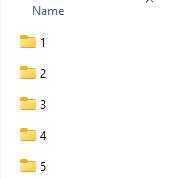
Before opening WHAM Analysis, finish the umbrella-sampling workflow. The input folder should contain numbered subfolders that belong to the same molecular system and use the same reaction-coordinate definition. This consistency is central to making the collection of windows a meaningful input rather than a mixture of unrelated runs.
In GROMACS Wizard, open the WHAM Analysis tab. Select the project path, or use auto-fill if your most recently run project was the umbrella-sampling project. Then check the folder organization and confirm that the windows correspond to the same system and coordinate setup.
The wizard loads reaction-coordinate information, the time range, and temperature from the project. Choose the coordinate you want to analyze. If needed, adjust optional settings such as custom bounds, a custom time range, or energy units, then click Compute. For large trajectories, allow several seconds or minutes for the calculation.
Read the two outputs together
The result includes a PMF profile and a histogram. It is tempting to focus only on the profile, but the histogram supplies useful context: it indicates how well the coordinate space is covered. A feature in the profile is easier to assess when you also know whether the relevant region has sampling coverage. The histogram is not a substitute for scientific judgment; it is a practical way to spot regions that may deserve more sampling.
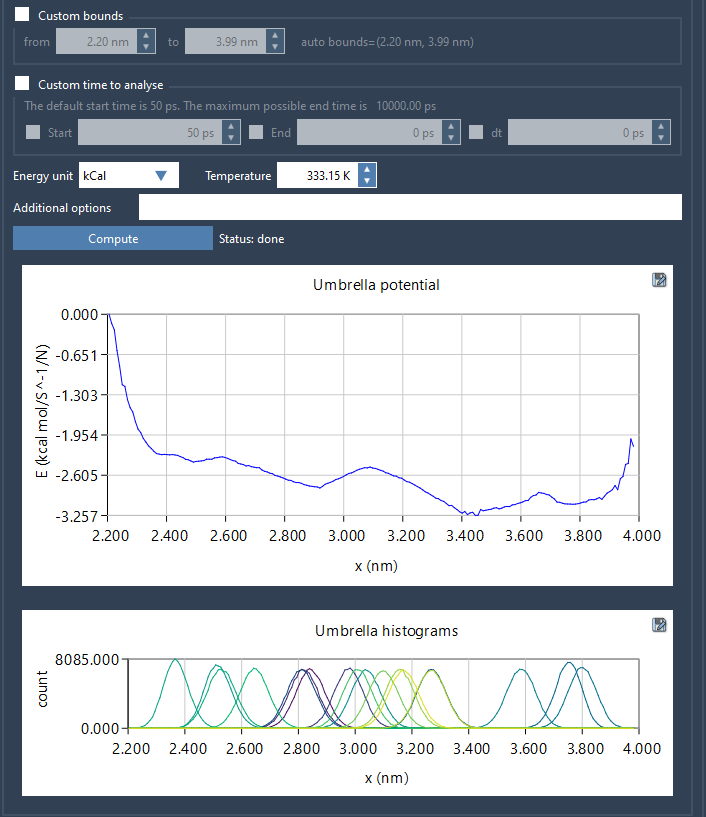
A useful review sequence is:
- Check the input first. Confirm that the project contains the expected numbered windows and that they share the same system and reaction-coordinate definition.
- Inspect the profile. Identify the parts of the coordinate range you need to understand for your analysis.
- Compare with the histogram. Look for regions where coverage appears limited. Those are candidates for additional sampling, not automatic proof that a particular result is wrong.
- Decide whether to revisit the windows. If coverage is insufficient in some regions, return to umbrella sampling and add or extend simulations for those windows, then perform the analysis again.
Keep the analysis reproducible
GROMACS Wizard saves profiles, histograms, and plots in the project’s wham_results subfolder. If you later switch reaction coordinates, the tool can reuse data that has already been computed for the same parameters. Keeping the results with the project makes it easier to revisit what was analyzed and inspect the outputs alongside the input workflow.
The key takeaway is simple: treat PMF analysis as both a calculation and a coverage check. Confirm that the windows form a consistent input, compute the profile, and use the histogram to guide your decision about whether further sampling is needed.
For the full workflow and interface details, see the GROMACS Wizard PMF Analysis tutorial. For the preceding step, see Umbrella Sampling.
Note: SAMSON and all SAMSON Extensions are free for non-commercial use. Get SAMSON.