



A molecular model can look ready for refinement, yet the first simulation may show no energy—or produce results that are difficult to interpret. With a machine-learning interaction model, the setup matters: you need the task that matches your system, a model that fits your workflow, and the right molecular or periodic settings. This guide walks through a careful first run with UMA Force Field in SAMSON, with an emphasis on avoiding common setup confusion.
Start with the system, not the biggest model
Before adding a simulator, identify what you are modeling. UMA offers tasks for molecules (OMOL), inorganic materials (OMAT), MOFs (ODAC), catalytic surfaces and adsorbates (OC20), and molecular crystals (OMC). Choosing the task that corresponds to the system is a more useful first decision than automatically selecting the largest model.
For a first pass, UMA-S v1.2 is the default fast-workflow option. A lighter UMA-S v1.1 is available as a legacy option, while UMA-M v1.1 is larger and may suit workflows where additional model capacity is desired. These models require different amounts of storage: 2.3 GB, 1.1 GB, and 11.7 GB, respectively. Unless you already have a reason to use UMA-M, begin with UMA-S and see whether it meets the needs of your exploration.
Prepare for the first-use pause
Install the UMA Force Field and Python Scripting extensions, and make sure Python Scripting is up to date. The first time you use UMA, SAMSON may need to prepare a dedicated Python environment and access the selected model. That setup can take time. If prompted, follow the instructions in SAMSON; after setup finishes, you may need to create the interaction model again.
This matters when interpreting the first run: a temporarily unavailable energy at startup does not necessarily mean the structure or setup has failed. Wait for the first UMA evaluation to complete before treating the displayed energy as ready.
Create the interaction model
- Open a document containing the molecular or materials system.
- Choose Edit > Simulate > Add simulator.
- Select UMA Force Field, choose a state updater such as FIRE, and press OK.
- In the setup window, choose the model and the task that matches your system.
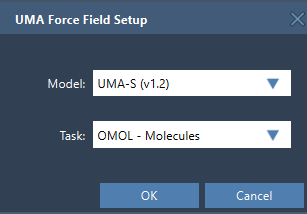
Once the environment is ready and the model loads, select Edit > Simulate > Start. Wait for the initial evaluation, then move atoms or refine the structure while UMA updates energies and forces.
Check the settings that change interpretation
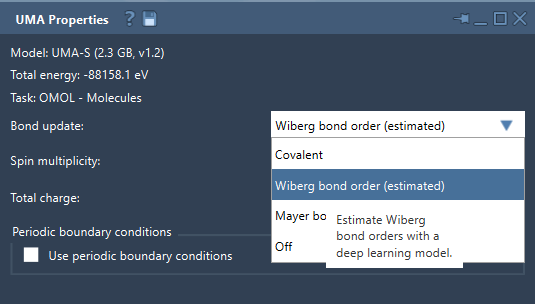
For OMOL molecular systems, set the total charge and spin multiplicity to values consistent with the system you intend to model. These settings are part of the request sent to UMA, so they are not cosmetic display options. They are specific to OMOL; do not assume the same controls apply to every task.
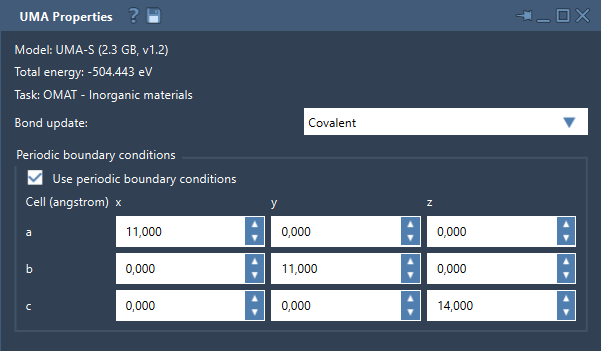
If your workflow is periodic, check whether periodic boundary conditions are enabled and verify the 3 × 3 cell matrix in angstroms. A cell that does not represent the intended system can undermine interpretation of a periodic calculation, so confirm it before drawing conclusions.
Use bond updates as exploration, not proof
The Bond update menu controls how the bond graph is treated. Covalent recomputes covalent bonds from the current structure; Off leaves the existing graph unchanged. Wiberg and Mayer bond-order modes estimate bond orders using a deep-learning model. Those estimates can help visualize changes during interactive exploration, but they should not be treated as definitive evidence. Confirm important conclusions with an appropriate reference method.
A sensible first-run checklist
- Match the UMA task to the kind of system you are studying.
- Start with UMA-S unless you have a specific reason to select UMA-M.
- Allow first-use environment and model setup to finish; recreate the interaction model if prompted.
- For OMOL, verify charge and spin multiplicity.
- For periodic systems, verify the boundary-condition setting and unit cell.
- Use UMA to screen, refine, and explore, then use a higher-accuracy reference method when needed for final conclusions.
The goal of a first run is not to treat one energy value as an answer. It is to establish a correctly configured, responsive workflow and use the resulting forces and energies for informed exploration.
For setup details and the full list of available controls, see the UMA Force Field tutorial.
Note: SAMSON and all SAMSON Extensions are free for non-commercial use. Get SAMSON.