



A crystal model can go wrong before any simulation begins. A CIF may contain symmetry, partial occupancies, or defects; a manually entered unit cell may use coordinates in the wrong convention. The result can be a structure that looks plausible but does not represent the crystal you intended. A careful workflow—import, inspect, validate, then build—helps catch these problems early.
SAMSON’s Crystal Creator supports both importing CIF files and defining a crystal from unit-cell data. The key is to treat the unit cell as the foundation of the model: check its contents and coordinate convention before generating a larger structure.
Start with a CIF when you have one
If you already have a crystallographic information file, open it in SAMSON with the Crystal Creator extension. CIF files can be found in resources such as the American Mineralogist Crystal Structure Database and the RRUFF Project Database. During import, choose how many unit cells to create, whether to import only the data without symmetries, and whether to display the mesh.
After opening the file, the crystal structure and its property model appear in the data graph. Inspect the model before moving on: CIF records can describe defects and substitutions, so the generated crystal may not be a perfectly repeated, fully occupied unit cell. Those details can be important if you are trying to reproduce a particular material rather than an idealized lattice.
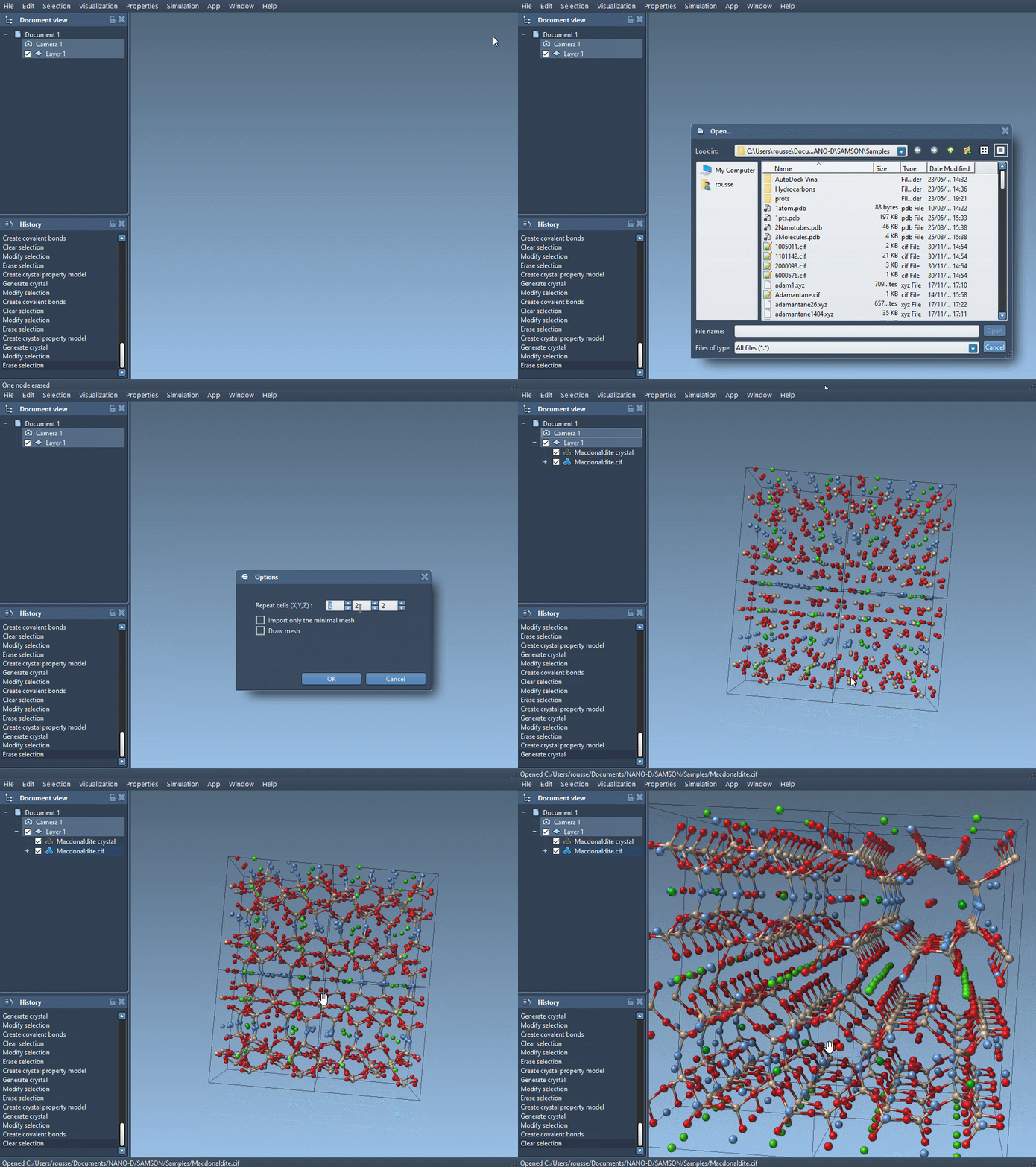
Inspect before you cut or replicate
Right-click the property model and open its properties. The first tab includes a control to locate the crystal, a mesh visibility checkbox, tools for cutting the crystal, and a tool for generating another crystal. For a cut, the first three fields specify the direction using Miller indices; the fourth sets the distance from position 0 where the cut is made.
This makes a cut a useful way to examine a crystal orientation rather than just a cosmetic operation. For example, the documentation suggests cutting diamond in the [111] direction to see its compact hexagonal structure. If you are using a crystal with defects or substitutions, the second property tab can help check whether the atom-site presence/absence ratios have been respected. Click Check atoms ratio to review the ratios for individual sites.
Build a custom unit cell without mixing coordinate systems
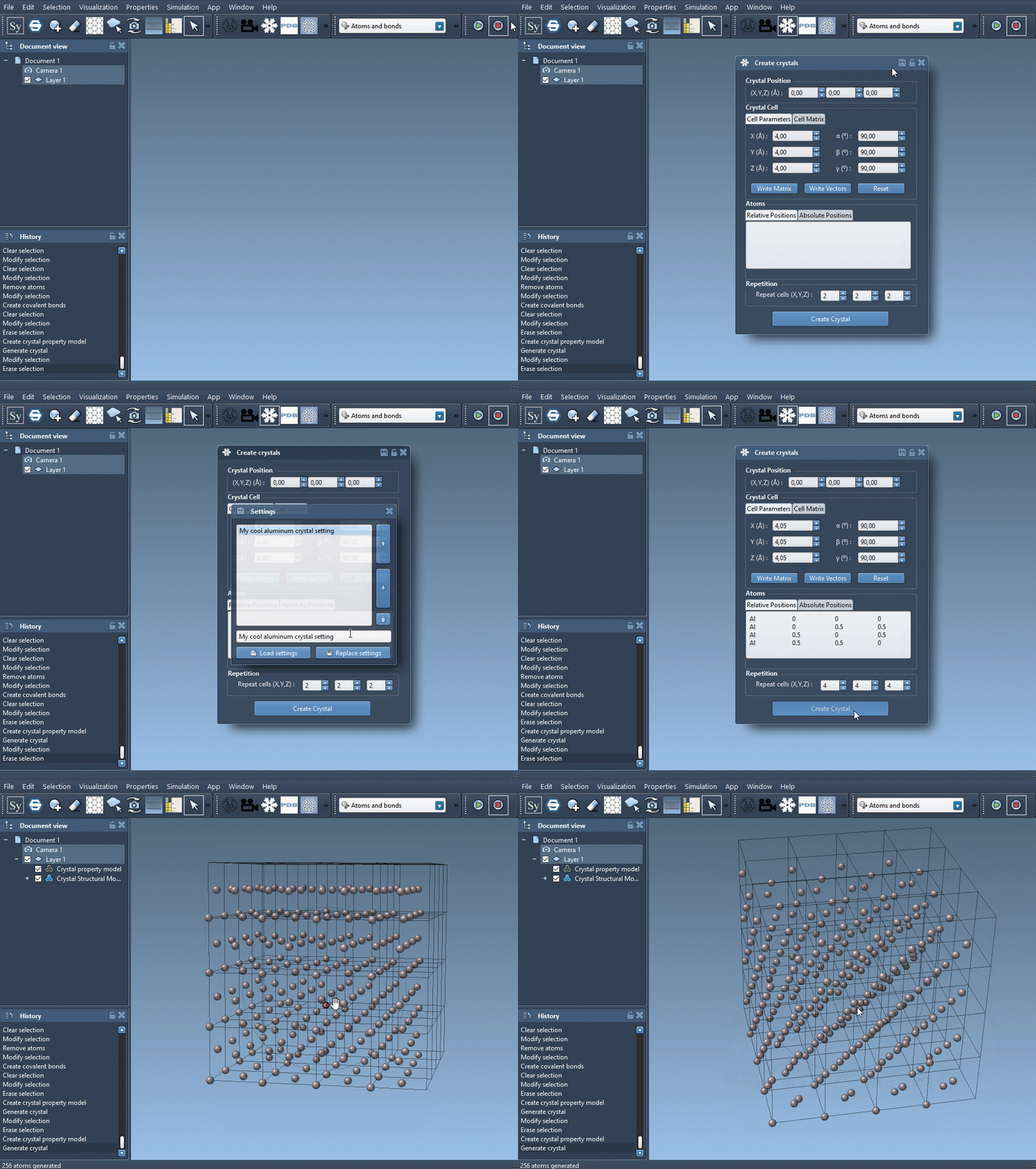
To define a crystal yourself, open Crystal Creator from Home > Apps > Materials > Crystal Creator, or search for it with Shift + E. Set position 0, choose the unit-cell shape, enter the cell parameters or the unit-cell vectors, and specify the atoms. The Write Matrix/Write Vectors button switches between the two cell notations.
One detail deserves special attention: atom coordinates may be relative positions (fractions of the unit-cell vectors X, Y, and Z) or absolute positions in angstroms, depending on the tab. Use the coordinate convention shown by the selected tab. A fractional coordinate such as 0.5 means halfway along a cell vector; it is not a distance of 0.5 Å. Each atom line starts with an element symbol, optionally followed immediately by extra characters to identify the site, then the three coordinates.
Use known structures as a sanity check
For a face-centered cubic aluminum cell, the example uses a cubic lattice parameter of 4.05 Å and these relative positions:
|
1 2 3 4 |
Al 0 0 0 Al 0 0.5 0.5 Al 0.5 0 0.5 Al 0.5 0.5 0 |
For diamond, the example uses a cubic lattice parameter of 3.60 Å and eight carbon sites:
|
1 2 3 4 5 6 7 8 |
C0 0 0 0 C1 0.25 0.25 0.25 C2 0 0.5 0.5 C3 0.5 0 0.5 C4 0.5 0.5 0 C5 0.25 0.75 0.75 C6 0.75 0.25 0.75 C7 0.75 0.75 0.25 |
These examples are useful reference points when checking that the cell parameters, atom labels, and fractional coordinates have been entered consistently. Once the unit cell is defined, choose how many unit cells to generate. You can also save and reload crystal settings from the property window, which is useful when you want to revisit or share a setup.
Representing partial occupancy
The tutorial also demonstrates how occupancy can describe a defect in a CIF. In its diamond example, adding the _atom_site_occupancy column and assigning the carbon site an occupancy of 0.95 indicates a 0.95 probability that the atom is present. Load the modified CIF, create bonds, and inspect the resulting structure. For a workflow that includes structural minimization, the tutorial specifies the Brenner interaction model for the diamond example.
The practical habit is simple: verify the source data and coordinate convention, generate the model, then use the property tools to inspect cuts and site ratios. For the full tutorial and interface details, learn more about generating crystal models in SAMSON.
Note: SAMSON and all SAMSON Extensions are free for non-commercial use. Get SAMSON.