



A crystal model can look correct at first glance and still be difficult to use: perhaps it contains only a unit cell, a cut surface is unclear, or the atomic arrangement does not match the composition described in the source file. A reliable workflow starts by checking what the crystal data contains, then building and inspecting the structure you actually need.
This guide focuses on that process in SAMSON with the Crystal Creator Extension: importing a CIF file, checking crystal properties, cutting a slab, or entering a unit cell yourself. The key idea is to treat the unit cell, the number of repeated cells, and any site occupancies as separate parts of the model—not as interchangeable settings.
Start with a CIF, then inspect what you imported
If you have a crystallographic structure already, find a CIF file from a source such as the American Mineralogist Crystal Structure Database or the RRUFF Project Database. Install Crystal Creator from SAMSON Connect if needed, then open the CIF in SAMSON.
The import window lets you choose the number of unit cells and whether to import the data without symmetries or display the mesh. These choices affect what you see and how much of the structure is generated. After opening the file, the crystal structure and its property model appear in the data graph. If the result seems unexpectedly small or incomplete, revisit those import choices before assuming the CIF itself is wrong.
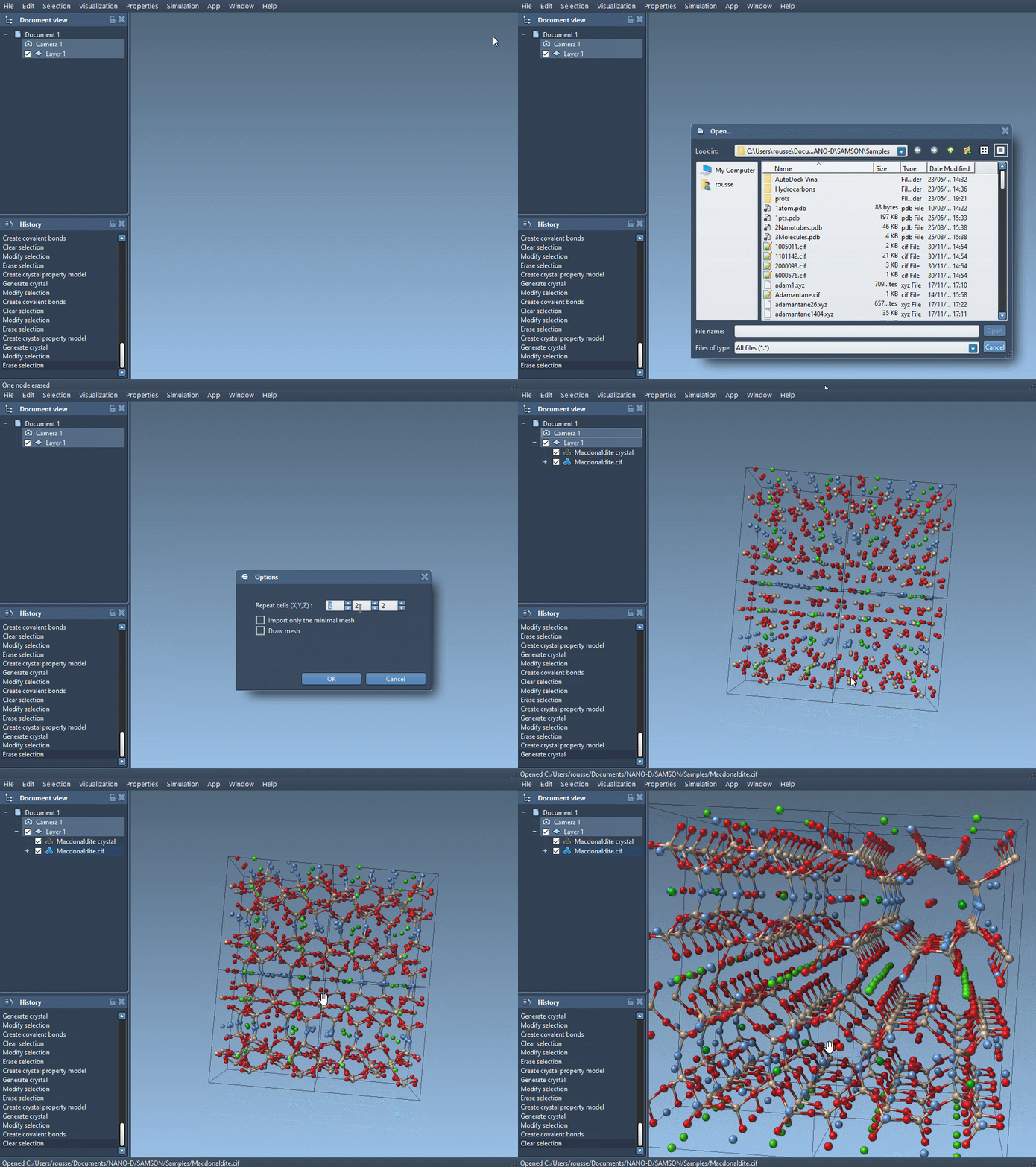
Some CIF files also describe defects or substitutions through fractional site occupancies. In other words, a site may be occupied only some of the time in the crystal description. That can lead to a generated structure with defects or substitutions rather than a perfectly repeated, identical arrangement. Use the property model’s second tab and its check atoms ratio control to check whether the generated crystal respects the specified presence or absence ratios.
Cut a crystal with a clear purpose
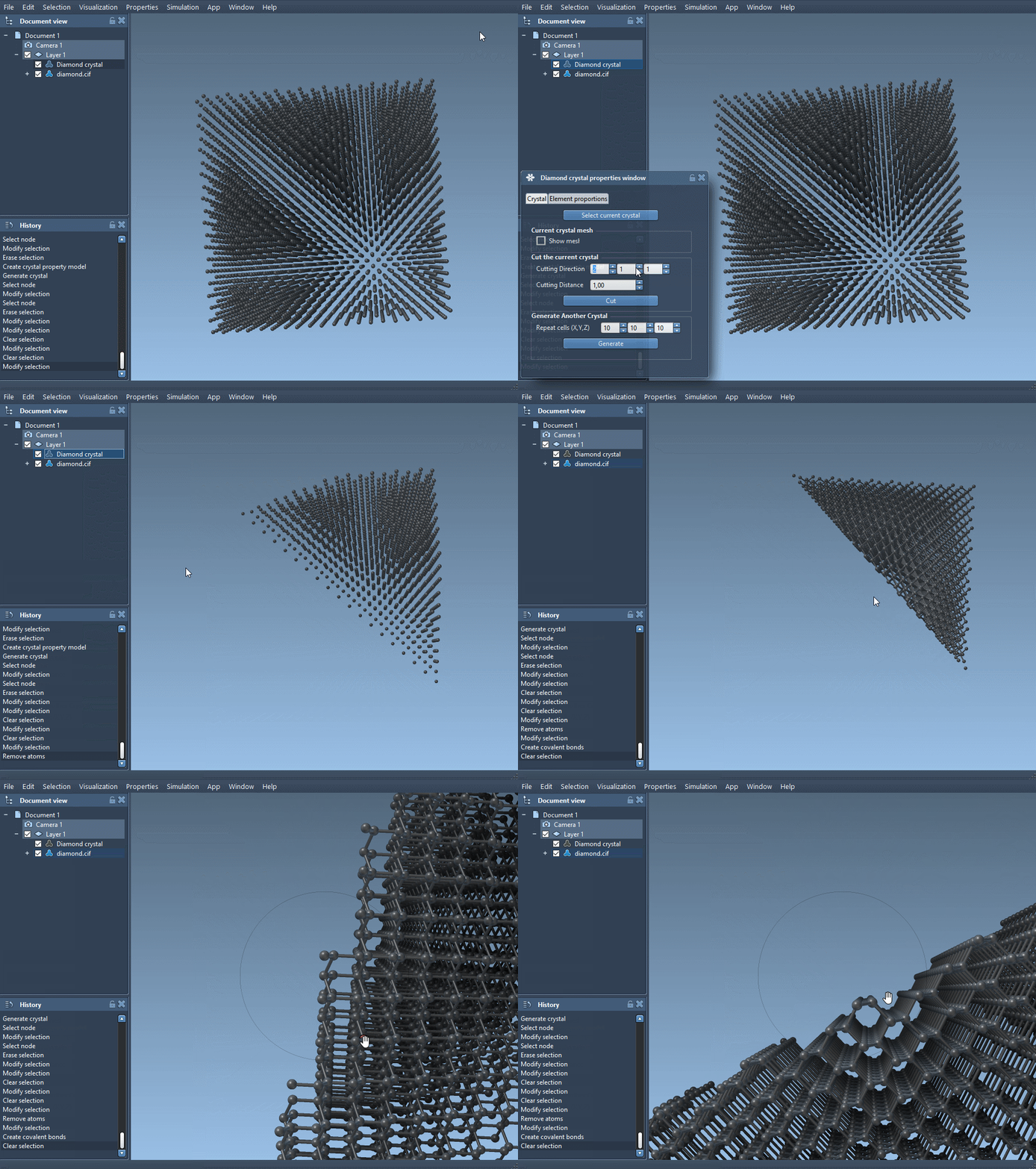
For a slab or a particular viewing direction, right-click the property model and choose properties. The first tab includes controls for finding the crystal, showing its mesh, cutting it, and generating another crystal. The cut is specified by three Miller indices, which describe the direction, and a fourth value that sets the distance from position 0 where the cut is made.
A useful way to make this operation less opaque is to change one thing at a time: choose the direction first, then adjust the cut position and inspect the resulting structure. For example, cutting a diamond crystal in the [111] direction reveals its compact hexagonal structure.
Build a unit cell from scratch
When no suitable CIF is available—or when you want direct control over a simple periodic structure—open Crystal Creator from Home > Apps > Materials > Crystal Creator, or search for it with Shift+E. Set position 0, define the unit-cell shape, enter the atoms and their coordinates, and choose how many unit cells to generate.
You can define the cell through its parameters or through its vectors. The Write Matrix/Write Vectors button switches between those notations. Pay close attention to the coordinate convention: in the relative-position tab, coordinates give proportions of the unit-cell vectors; in the absolute-position tab, they are expressed in angstroms. Mixing up these conventions is an easy way to place atoms somewhere other than intended.
Each atom entry contains a symbol and three coordinates. The symbol starts with the element symbol and may be followed immediately by extra characters to distinguish atoms. For example, this is the relative-position basis for a face-centered cubic aluminum cell:
|
1 2 3 4 |
Al 0 0 0 Al 0 0.5 0.5 Al 0.5 0 0.5 Al 0.5 0.5 0 |
The example uses a cubic lattice parameter of 4.05 Å. For a diamond cell, the documented example uses a cubic parameter of 3.60 Å and eight carbon positions:
|
1 2 3 4 5 6 7 8 |
C0 0 0 0 C1 0.25 0.25 0.25 C2 0 0.5 0.5 C3 0.5 0 0.5 C4 0.5 0.5 0 C5 0.25 0.75 0.75 C6 0.75 0.25 0.75 C7 0.75 0.75 0.25 |
Once the structure is generated, create bonds with SAMSON’s tools if your next step requires them. You can also save and reload crystal settings from the property window, which is useful when you want to revisit a custom cell or compare versions without re-entering the setup.
One practical check for defects
The tutorial’s diamond example shows how an occupancy can be represented in a CIF. A carbon site with occupancy 0.95 has a 0.95 probability of being present. To explore the effect, make a copy of the CIF, add the occupancy field and value to the atom-site data, then load the modified file and create bonds. Compare the resulting structure with the original, and use the atoms-ratio check to assess whether the generated model reflects the specified occupancy.
For the complete walkthrough and additional Crystal Creator details, see the original crystal-modeling tutorial.
Note: SAMSON and all SAMSON Extensions are free for non-commercial use. Get SAMSON.