



A crystal model can look plausible and still be difficult to use: the unit cell may be unclear, the structure may contain defects, or a surface may need to be cut in a particular direction. A reliable workflow starts by checking what the structure file actually describes, then builds or modifies the model with those details in mind.
In SAMSON, the Crystal Creator Extension works with CIF (Crystallographic Information File) data. You can find CIF structures in sources such as the American Mineralogist Crystal Structure Database and the RRUFF Project Database. When opening a CIF in SAMSON, choose how many unit cells to import and whether to include symmetry or display the mesh. The resulting structural model and its property model appear in the data graph.
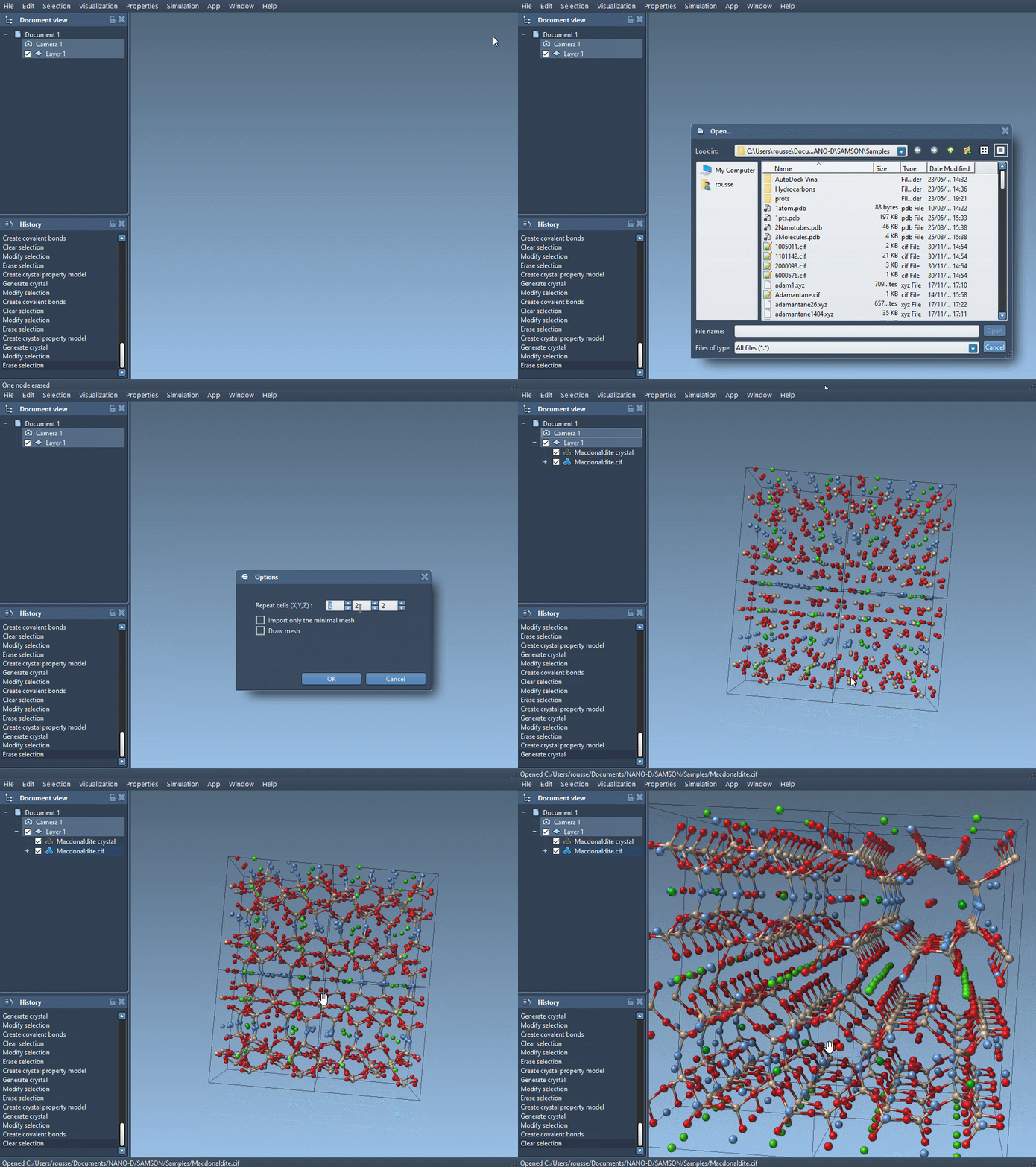
Check the structure before changing it
Unit cells are not interchangeable: the crystal data determines their shape and contents. Some CIF files also describe defects or substitutions. These details matter when interpreting the model, so inspect the property model before editing. Right-click it and choose Properties. The first tab lets you locate the crystal, show its mesh, cut it, or generate another crystal. The second tab includes Check atoms ratio, which reports whether the presence or absence ratios for atom sites are respected.
This check is useful when a crystal is not fully occupied at every site. For example, a CIF may specify an occupancy of 0.95 for a carbon atom site. That value indicates a 0.95 probability of the atom being present; it is not simply a different coordinate. The tutorial’s diamond example shows how to add an occupancy field to a CIF and compare the resulting structure with the original.
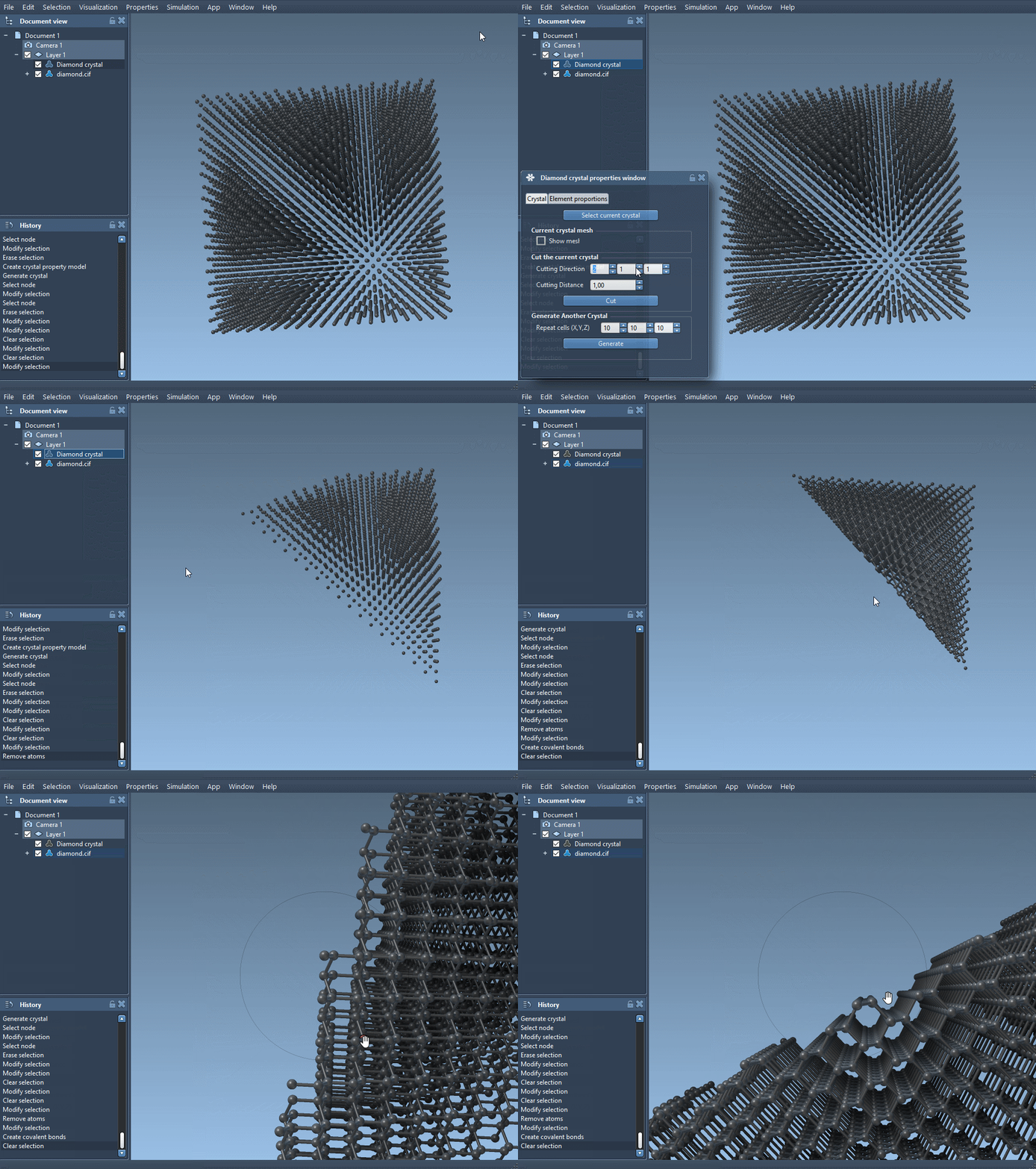
Cut a crystal with a defined direction
To create a slab, use the cutting controls in the property window. The first three fields specify the Miller indices—the cutting direction—and the fourth sets the distance of the cut from position 0. For a quick visual check, the tutorial suggests cutting a diamond crystal along [111] and inspecting the resulting compact hexagonal structure.
Build a unit cell from scratch
When you need a custom periodic model, open Crystal Creator through Home > Apps > Materials > Crystal Creator, or search for it with Shift+E. Define the unit-cell shape either with cell parameters or with unit-cell vectors; Write Matrix and Write Vectors switch between those notations. Then enter each atom’s symbol and its three coordinates, followed by the number of unit cells to generate.
One detail that prevents many setup errors is the coordinate convention. In the relative-position tab, coordinates are proportions of the unit-cell vectors X, Y, and Z. In the absolute-position tab, they are positions in angstroms. Atom labels must begin with the element symbol, such as Al or C; additional identifying characters can follow without a space.
For example, an FCC aluminum cell with a cubic lattice parameter of 4.05 Å uses these relative positions:
|
1 2 3 4 |
Al 0 0 0 Al 0 0.5 0.5 Al 0.5 0 0.5 Al 0.5 0.5 0 |
Checking the units, coordinate mode, atom labels, and cell count before generating a model makes it easier to spot input mistakes. You can also save and load crystal settings from the property window, which is helpful when revisiting a custom setup.
For the complete walkthrough and additional examples, see the Crystal Creator documentation.
Note: SAMSON and all SAMSON Extensions are free for non-commercial use. Get SAMSON.