



For molecular modelers working with complex systems, selecting exactly the right groups of atoms, residues, or molecular fragments is often a repetitive and time-consuming task. Whether you’re preparing systems for simulation, analyzing interaction networks, or visualizing specific components, it can be frustrating to manually click through long lists of nodes.
Fortunately, SAMSON’s Node Specification Language (NSL) offers a robust solution to this problem, especially when used within the Document View. With NSL, you can filter exactly what you’re looking for in just a few characters, and even let the AI Assistant help you refine your query.
Filtering nodes with NSL expressions
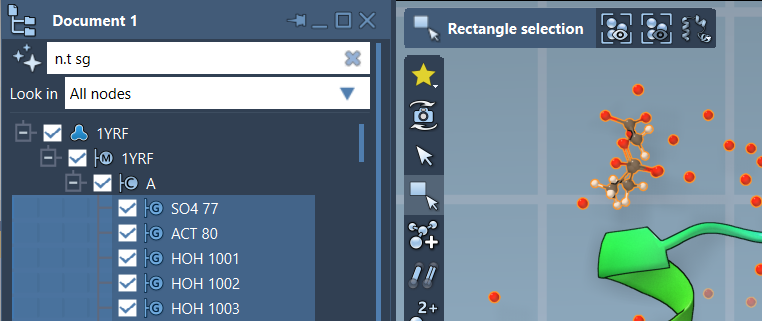
The Document View in SAMSON provides a structured, tree-like representation of all elements in your active document. Inside this view, a filter box allows users to input NSL expressions and quickly focus on specific parts of a model.
Let’s say you want to view all structural groups in your system. Simply enter the following NSL expression in the filter box:
|
1 |
n.t sg |
This is a shorthand for:
|
1 |
node.type structuralGroup |
As you type, press Enter to commit the filter and view only matching nodes. This selective visibility is especially useful when dealing with large biological systems or multi-component assemblies.
Leverage the AI Assistant 🎛️
If you’re unsure how to write the correct NSL expression, SAMSON provides an AI Assistant that can generate queries for you. Just click the  button to the left of the filter box. The assistant is aware of the current structure and context, so you can type natural language prompts like:
- “Show all residues except glycines”
- “Display atoms within 5 angstroms of ligand”
The AI then suggests and fills in the corresponding NSL expression. This is particularly handy for new users or for creating complex queries involving multiple constraints.
Example in action
Suppose you’re analyzing hydrogen bonds near a binding site and want to isolate all hydrogen atoms within side chain groups. Instead of manually navigating the hierarchy or writing long code, you can use:
|
1 |
H in n.t sc |
This selects only those hydrogen atoms that exist within side chains—a powerful way to narrow down interactions or structure components.
Why it matters
Using NSL in the Document View is especially valuable when you’re dealing with repetitive selection tasks, focusing on specific structural motifs, or debugging an input configuration for a simulation. It turns a potentially tedious interface interaction into a quick, text-based action.
Since SAMSON allows combining multiple operators and attribute types, these NSL expressions are not just convenient—they’re expressive. You can create highly specific filters using boolean logic (and, or, not), proximity operators (within 5A of), and more, all from within the familiar structure of the Document View.
You can learn more about NSL here.
SAMSON and all SAMSON Extensions are free for non-commercial use. Download SAMSON from https://www.samson-connect.net.