



Molecular modelers often navigate through complex structures, switching back and forth between ligands, receptors, solvent regions, or specific structural motifs. This back-and-forth process can slow down exploration, analysis, and design workflows.
SAMSON offers a feature called Quick Groups that addresses this exact need. It provides a simple and efficient way to save and switch between multiple selections within your molecular document—no extra overhead, no scripting, just a few keystrokes. Here’s how it works and why it might become your favorite tool.
What are Quick Groups?
Quick Groups are temporary, numbered selection groups (1–10) that allow you to memorize specific node selections—such as ligands, residues, or water molecules—and quickly jump between them using number keys. They appear in the lower section of the Document view.
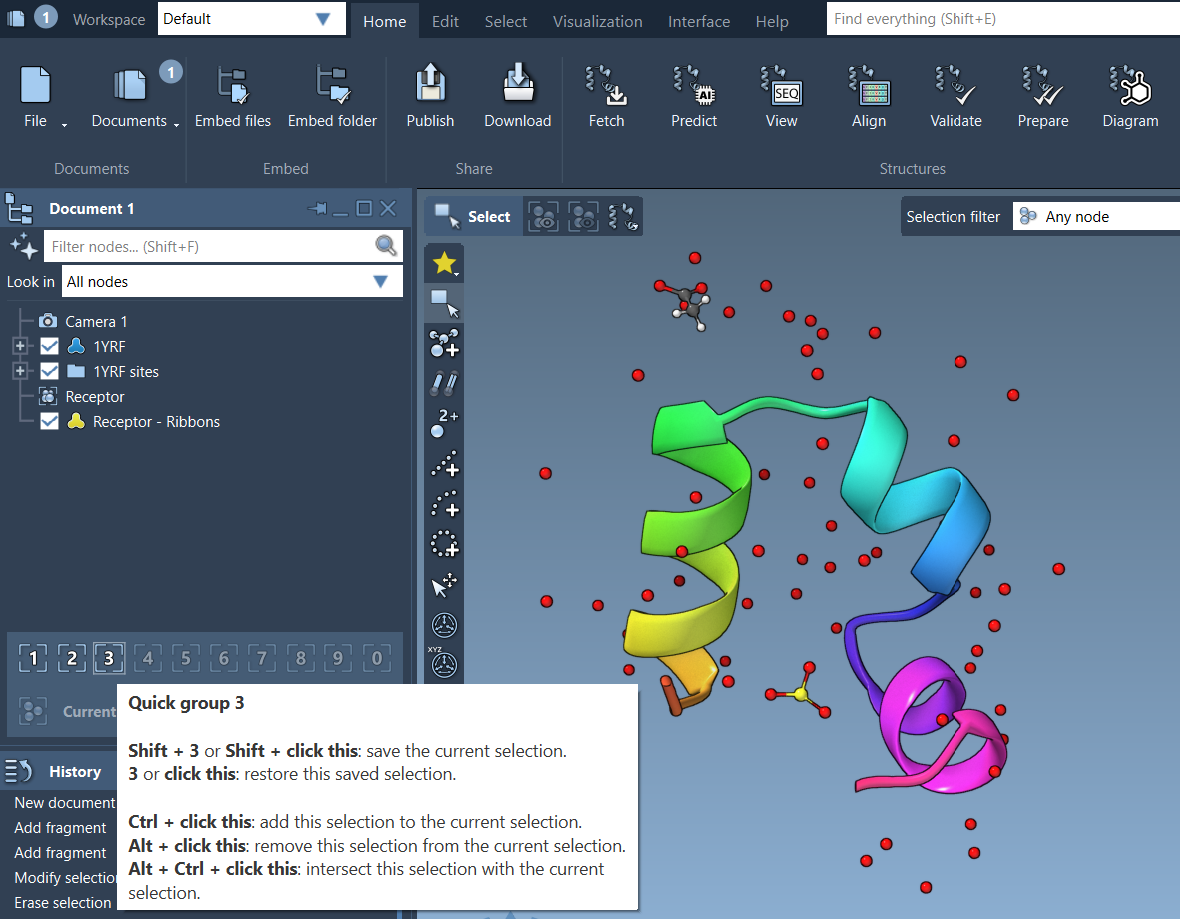
Unlike permanent groups, Quick Groups are built for speed. You don’t need to name them, organize them, or manage them manually. Just assign, select, and get going.
When Should You Use Quick Groups?
- Highlight a ligand for docking analysis while referencing receptor residues.
- Switch between catalytic residues to analyze structural shifts.
- Prepare different views for educational walkthroughs.
- Compare binding-site environments under different conditions.
Assigning Quick Groups
To assign a selection to a Quick Group:
- Mouse method: Hover over a Quick Group slot in the Document view and press Shift + click.
- Keyboard method: Press Shift + Number (e.g., Shift + 2) to assign to Quick Group 2.
You can update a Quick Group at any time using the same method—just reassign.
Switching Between Selections
Once you’ve assigned your groups, navigating them is fast:
- Press 1, 2, etc. to select that group.
- Double-press a number key (e.g., 11) to zoom to that group.
- Click on the group in the Document view to select it instantly.
Example Workflow
- Select a ligand → Shift + 1
- Select the receptor → Shift + 2
- Select surrounding water molecules → Shift + 3
This setup gives you immediate keyboard access to crucial system regions—great when preparing simulations or toggling between designs.
Things to Keep in Mind
Quick Groups are ephemeral and unnamed by design. They’re intended for fast access during your current session. If you need longer-lasting selections, consider saving them as named Selection Groups.
Quick Groups are also ideal in educational or demonstration settings, where you may want to direct attention to specific residues or molecules quickly and without interrupting your explanation.
Try It Yourself
If you’re already working in SAMSON, try assigning Quick Groups to parts of your molecule and navigate between them using the number keys. It’s a small step that can lead to noticeably faster workflows.
To learn more about selection tools in SAMSON, check the full guide here: https://documentation.samson-connect.net/users/latest/selecting/
SAMSON and all SAMSON Extensions are free for non-commercial use. You can download SAMSON at https://www.samson-connect.net.