



Molecular modelers often face the challenge of building a lipid layer around a protein to create a realistic membrane-like environment for simulations. This can be time-consuming and prone to errors if done manually. Fortunately, the Molecular Box Builder, available in the SAMSON platform, simplifies this task significantly. This blog post will guide you through the process of constructing a lipid layer around a protein using this powerful tool.
Why Build a Lipid Layer Around a Protein?
Proteins embedded in lipid membranes, such as ion channels, transporters, or membrane enzymes, require accurate modeling of their surrounding environment for credible simulations. Lipid layers provide the necessary context for studying protein-lipid interactions, stability, and functionality.
With the Molecular Box Builder, you can easily build a single lipid layer around a protein and even extend it to create a bilayer if needed, all while ensuring proper orientation and atomistic clarity. Here’s how to do it:
Step 1: Align the Protein
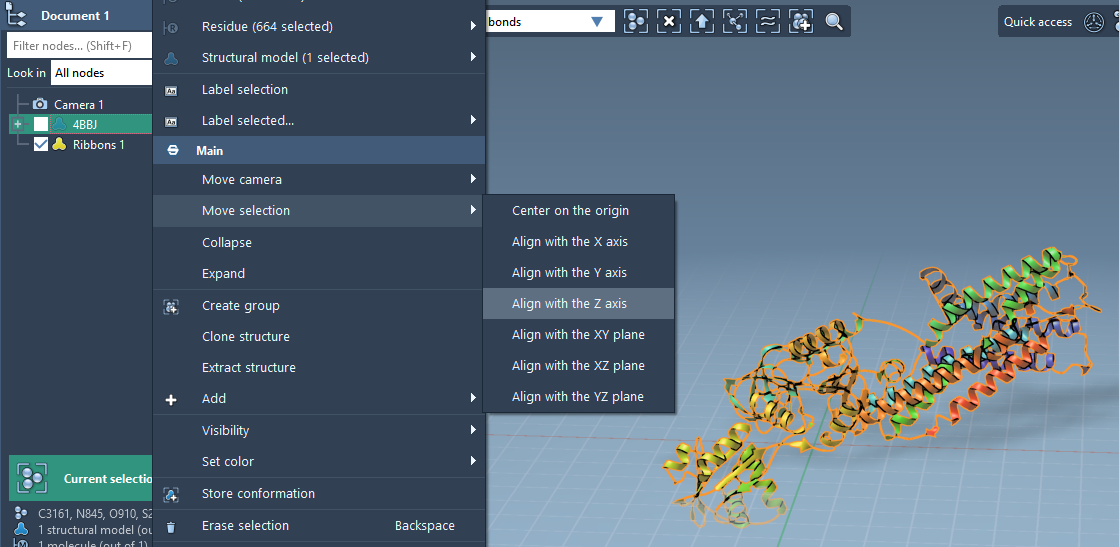
To create a lipid layer around a protein, the first step is aligning the protein for consistency in orientation:
- Right-click the protein in Document view.
- Select: Move selection > Align with Z axis.
- Then align it to the center by selecting: Move selection > Center on the origin.
This step ensures the protein orientation matches the intended membrane alignment. Here’s an example of a protein aligned with the Z-axis:
Step 2: Set the Lipid Molecule
Next, you’ll need a lipid molecule to populate the environment around the protein:
- Import a lipid molecule into SAMSON.
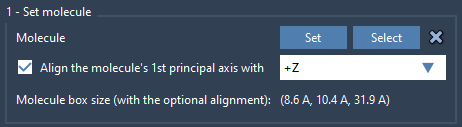
- Select it and use the Set option in the Molecular Box Builder app.
- Align its principal axis to the
+Zaxis to ensure uniform placement.
This step ensures the lipids align properly along the Z-axis, enabling neat and consistent layering. Here’s an illustration of lipid alignment:
Step 3: Define the Box
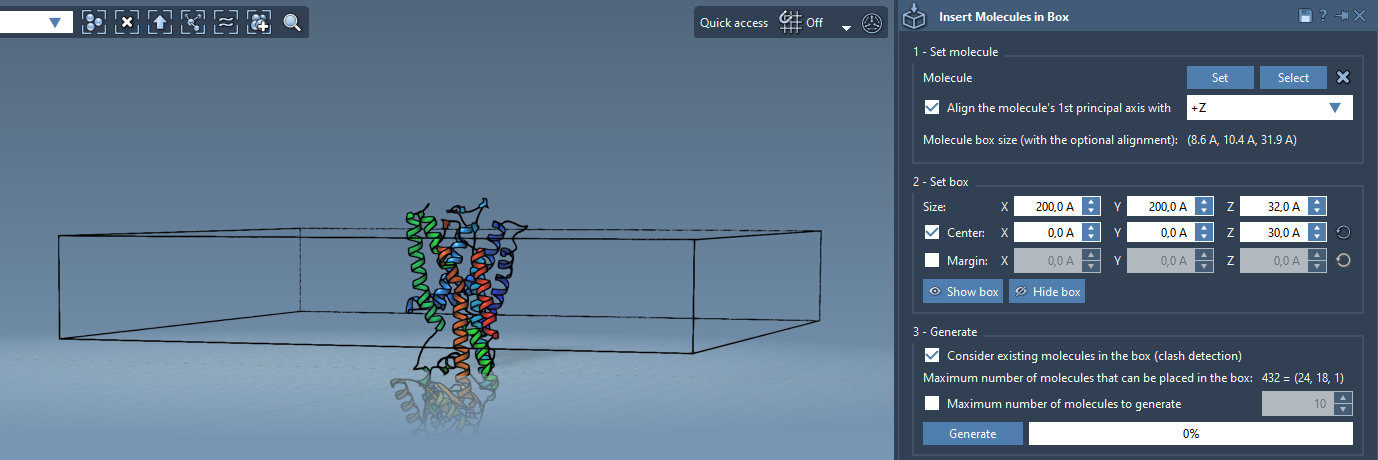
To create the lipid layer, you’ll define a box that contains both the protein and the lipid molecules in their proper arrangement:
- Center the box around the protein using the
Centeroption. - Adjust the size of the box to cover a single lipid layer.
- Optionally specify a margin between lipid molecules to modify their packing density.
An image below shows a typical setup with a protein in a box ready for lipid layering:
Step 4: Generate the Lipid Layer
The final step is generating the lipid arrangement around the protein:
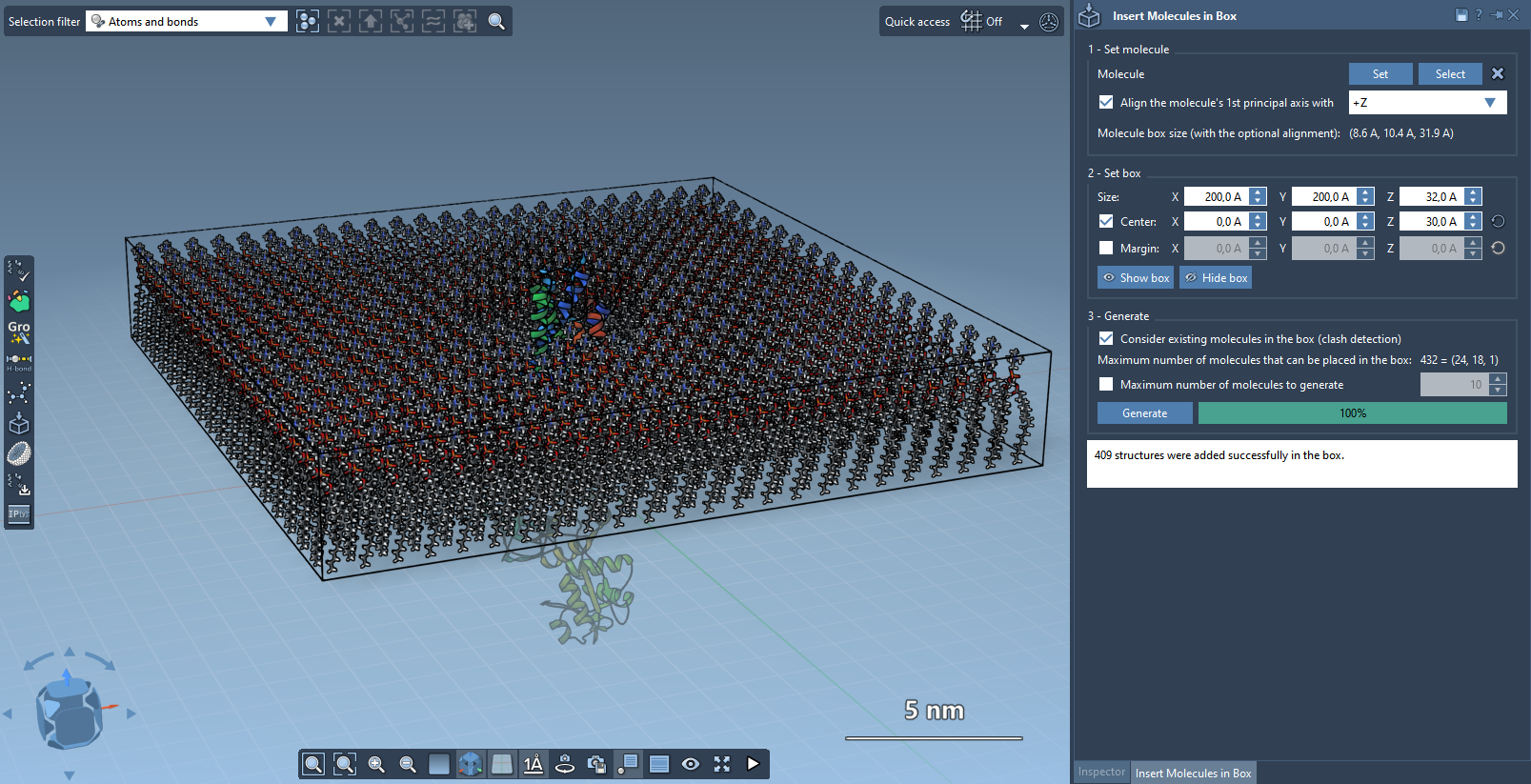
- Enable the Consider existing molecules in the box option to ensure lipids only occupy available space.
- Click Generate to finish building the lipid layer around the protein.
The result is a single layer of lipids surrounding the protein:
Optional: Creating a Lipid Bilayer
If your simulation requires a lipid bilayer, you can achieve this by repeating the process:
- Create the first layer by aligning lipids to the
+Zaxis. - Shift the center of the box along the Z-direction.
- Create the second layer by aligning lipids to the
-Zaxis.
This process generates a full lipid bilayer, ready for further modifications or simulations.
Final Touches
Once your lipid layer or bilayer is complete, you can minimize, equilibrate, and simulate the system using other tools such as the GROMACS Wizard. These additional steps help refine your system and prepare it for detailed molecular dynamics simulations.
To dive deeper into building lipid layers and other tasks using the Molecular Box Builder, visit the official documentation at this link.
Note: SAMSON and all SAMSON Extensions are free for non-commercial use. Get SAMSON here.