



Designing molecular environments, such as solvent boxes or lipid layers, is a critical step in many molecular modeling workflows. However, setting up these environments manually can be tedious and error-prone. Fortunately, the Molecular Box Builder extension in SAMSON simplifies this process, allowing you to automate molecular box creation in just a few steps. Whether you’re building a simple solvent box or assembling a lipid bilayer around a protein, this powerful tool has got you covered. Here’s a step-by-step guide to get you started:
Why Use Molecular Box Builder?
If you’ve ever had to manually calculate how many molecules you need to fill a specific volume or struggled with molecular clashes during box population, you understand how challenging this task can be. Molecular Box Builder eliminates these headaches by estimating how many molecules fit in a box, arranging them without overlaps, and offering customization options like orientation and margins between molecules. This tool is perfect for saving time while maintaining precision in setting up molecular systems for simulations.
Setting Up a Molecular Box
Step 1: Define the Molecule to Insert
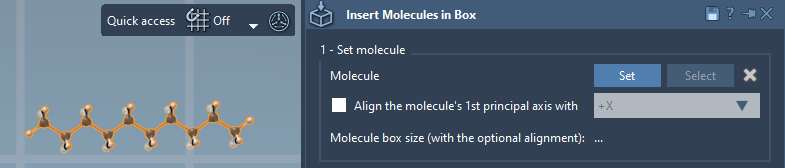
Start by selecting the molecule (or a group of molecules) you want to replicate in the box:
- Select your molecule in the Document view or Viewport within SAMSON. This can be a single molecule, a structural system, or even a specific group of atoms.
- Use the Set button in the Molecular Box Builder app to lock in your selection.
If needed, you can define a specific orientation for your molecules. For instance, you can align their principal axis to specific directions like +X, -X, etc. The app dynamically calculates the bounding box of the molecule based on the chosen alignment, ensuring accurate positioning in the box.
Step 2: Define the Box
Once your molecule is set, the next step is to define the box parameters:
- Enter box dimensions
(X, Y, Z). - You can optionally center the box around a specific point or the origin.
- Adjust the margin between molecules in the box as needed. Positive margins ensure more spacing, while negative margins create more compact arrangements.
The app predicts how many molecules will fit along each axis and calculates their total number automatically. When you modify box dimensions or margins, the predicted number updates dynamically. This intelligent feature saves you from manual calculations and trial-and-error.

Step 3: Generate the System
Now that the molecule and box are set up, it’s time to populate the box:
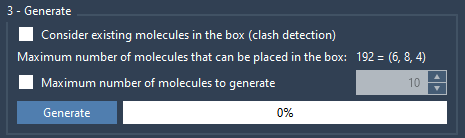
- You can specify an upper cap on the total number of molecules to insert—or simply allow the system to fill as many as possible based on the box size and margins.
- Click the Generate button to create the system.
The app places molecules efficiently within the defined space, avoiding overlaps. The process only takes a few seconds even for larger systems, enabling you to focus on the next steps of your project.
After generation, you’ll have a fully filled 3D box with your molecule precisely arranged. Whether it’s a solvent environment or a membrane system, building molecular boxes has never been easier!
Next Steps
Once you’ve populated your molecular box, you can proceed to simulation-based workflows. For instance, the GROMACS Wizard in SAMSON allows you to prepare, minimize, equilibrate, and simulate the system with ease. Check out related SAMSON tutorials for more advanced applications!
To dive deeper into the Molecular Box Builder and explore its full capabilities, visit the official documentation.
Note: SAMSON and all SAMSON Extensions are free for non-commercial use. Get SAMSON today and boost your molecular modeling efficiency!