



When working on complex molecular systems, navigating between multiple regions of interest can feel like a never-ending exercise in reselecting atoms, residues, or molecules. Whether you’re switching between a ligand, several candidate binding sites, or parts of a large biomolecular complex, it’s easy to lose time—and mental bandwidth—tracking your selections manually.
Enter Quick Groups in SAMSON: a fast way to bookmark, recall, and toggle between up to 10 different selections — all without leaving your modeling flow.
Why this matters
Let’s say you are designing a ligand and need to repeatedly alternate views between:
- The ligand itself
- The binding pocket
- Nearby water molecules
- Key catalytic residues
Each of these sets may consist of dozens of nodes (atoms, residues, etc.). Re-selecting them repeatedly eats into your productivity—and focus. With Quick Groups, you can define them once, and recall them instantly using number keys.
What are Quick Groups?
Quick Groups are temporary, numbered selection shortcuts that you can assign in any SAMSON document. Provide up to 10 Quick Groups (indexed 1–10) to save different parts of your molecular models. Think of them like control groups in a real-time strategy game, but for atoms and molecules.
They appear in the lower section of the Document view, and come with default keyboard shortcuts: press 1 to recall Quick Group 1, 2 for Quick Group 2, and so on.
How to assign selections to Quick Groups
- Make your selection (e.g., select the ligand).
- Assign it using either the mouse or the keyboard:
- Mouse method: Hover over a Quick Group slot in the Document view and press Shift + click.
- Keyboard method: Hit Shift + number. For example, Shift + 2 assigns the selection to Quick Group 2.
You can overwrite or reassign selections at any time—ideal for iterative design workflows, studies, or educational walkthroughs.
Using Quick Groups in workflows
After assigning, Quick Groups can be used to:
- Quickly reselect the group using keys 1 – 9.
- Zoom in by double-pressing the number key: for example, hit 3 twice quickly to center the view on Quick Group 3.
- Apply different visual models or properties to specific selections.
Example: streamlining docking analysis
- Select your ligand → assign to Quick Group 1
- Select residues in the active site → assign to Quick Group 2
- Select nearby solvent molecules → Quick Group 3
- Switch between them with 1, 2, 3.
No more navigating nested views or repeating string filters—just press a key.
Visual Overview
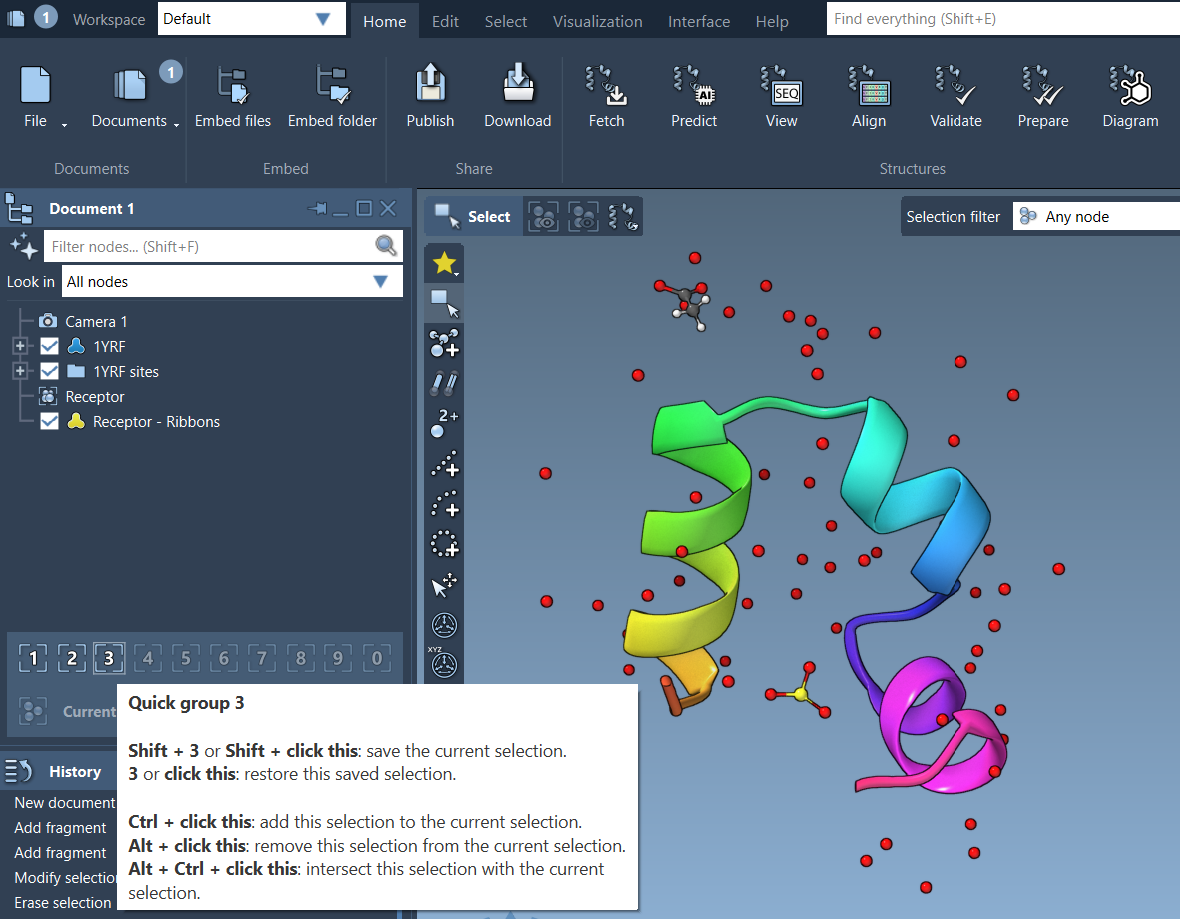
Quick Groups are a practical tool that improves molecular navigation and lets you focus more on your science and less on reselecting.
Learn more in the official SAMSON documentation.
SAMSON and all SAMSON Extensions are free for non-commercial use. You can get SAMSON at https://www.samson-connect.net.