



When starting with molecular modeling, one challenge that many researchers face is navigating complex 3D structures efficiently. Whether you’re analyzing a protein-ligand interaction or building nanostructures, getting lost in space—or worse, losing your molecule entirely—happens more often than you might think.
Fortunately, SAMSON provides a camera system and editor tools that make it much easier to rotate, zoom, and center your molecular systems. This guide aims to help you master navigation using the View, Point Selection, and Rectangle Selection Editors available in SAMSON.
Three Editors for Different Tasks
When you launch SAMSON for the first time, you’re asked to choose a default navigation editor. Here’s a quick summary to help you pick the one that suits your workflow best:
| Editor | Shortcut | Best for |
|---|---|---|
| View Editor | V | Straightforward visualization (ideal for exploring molecular systems) |
| Point Selection Editor | P | Selection and modeling (e.g., selecting atoms or residues) |
| Rectangle Selection Editor | R | Precise structure selection (e.g., nanostructure design) |
Intuitive Camera Control
The camera in SAMSON works like a virtual operator in 3D space. Your display is the camera lens, and you can control its behavior through three main modes:
- Rotation: Left or right click and drag; arrow keys also rotate the view.
- Translation (Pan): Middle mouse button or Shift + Ctrl/Cmd on trackpads.
- Zoom: Scroll wheel or pinch gesture on a trackpad.

If you’ve ever lost your molecule while rotating or zooming too far, use the shortcut Shift + Space to re-center on the selected part—or on the full structure if nothing is selected.
Why Set a Default Editor
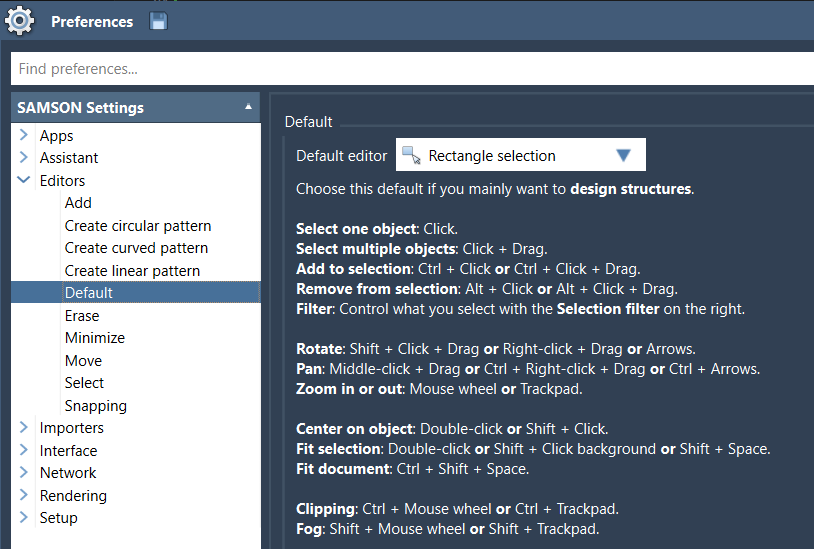
Switching between editors is easy using toolbar icons or shortcut keys. However, setting a suitable default helps you avoid confusion and streamlines your exploration. You can adjust this any time under:
Preferences > Editors > Default
A Few Tips from the Field
- Use the Compass in the bottom-left of the viewport to snap the camera to preset orientations.
- If you’re switching views often, consider using multiple cameras in your document. Each can store a different viewpoint (close-up, overview, etc.).
- Enable orthographic projection to better inspect crystal structures—especially if you’re working on volume measurements or packing.
When Navigation Matters Most
Efficient navigation isn’t just about ease of use—it’s also about focus. Whether you’re building, selecting, or communicating insights, the quicker you can center your view on the right part of the molecule, the more streamlined your workflow becomes.
To continue exploring movement and visualization in SAMSON, check out the full documentation page: https://documentation.samson-connect.net/users/latest/moving-around/
SAMSON and all SAMSON Extensions are free for non-commercial use. You can get SAMSON at https://www.samson-connect.net.