



Placing lipids around a protein is a geometry problem before it becomes a simulation problem. The protein needs a consistent orientation, the lipid molecules need a useful orientation of their own, and the box must be sized and positioned so the builder can fill available space without placing lipids through the protein. Doing these steps in order makes the setup easier to inspect and adjust.
This workflow uses SAMSON’s Molecular Box Builder to create a single lipid layer around a protein. It is especially useful when you already have a protein and a lipid molecule in your document and want to generate a simple membrane-like arrangement.
1. Orient and center the protein
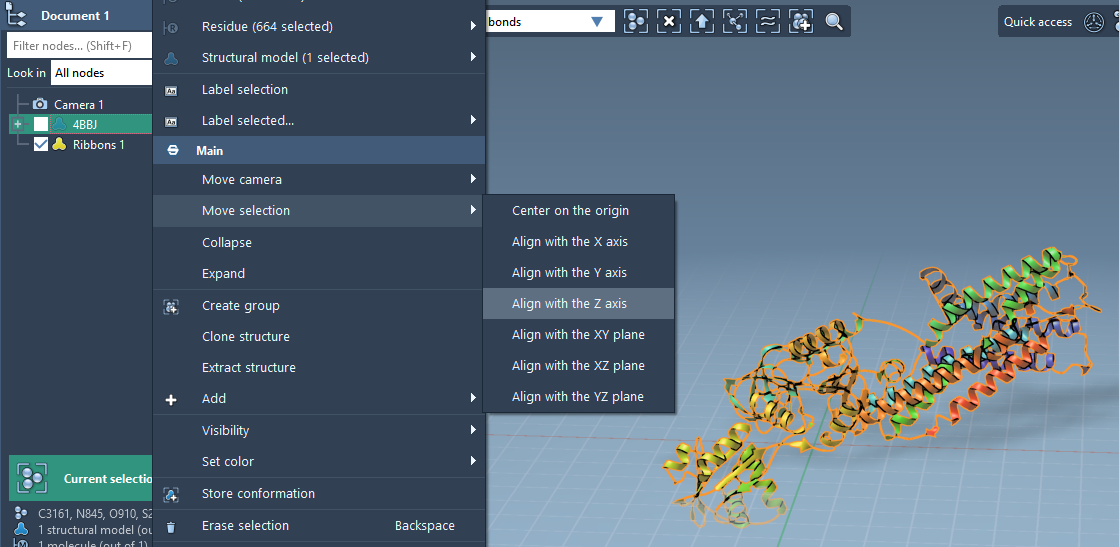
Start by aligning the protein with the Z axis. In Document view, right-click the protein and choose Move selection > Align with Z axis. Then choose Move selection > Center on the origin.
This gives you a convenient reference for the rest of the setup: the protein is centered, and its principal direction is aligned with Z. That makes it easier to reason about the box dimensions and the direction in which the lipid molecules should point. It also avoids having to compensate for an arbitrary protein position later.
2. Set the lipid and its orientation
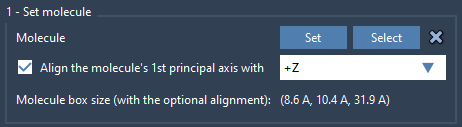
Import the lipid molecule, select it, and click Set in Molecular Box Builder. Choose alignment with the +Z axis. The app aligns the molecule’s first principal axis—the first eigenvector of its moment of inertia—with the selected direction, then calculates its bounding box based on that orientation.
That bounding box matters: it is used to estimate how many copies can fit along each axis. If you change the lipid alignment, the estimated dimensions can change too. Take a moment to check that the selected molecule is the lipid you intend to replicate before generating the system. The app’s Select button can highlight the structure it has been given, and X clears it if you need to start over.
3. Fit the box around the protein
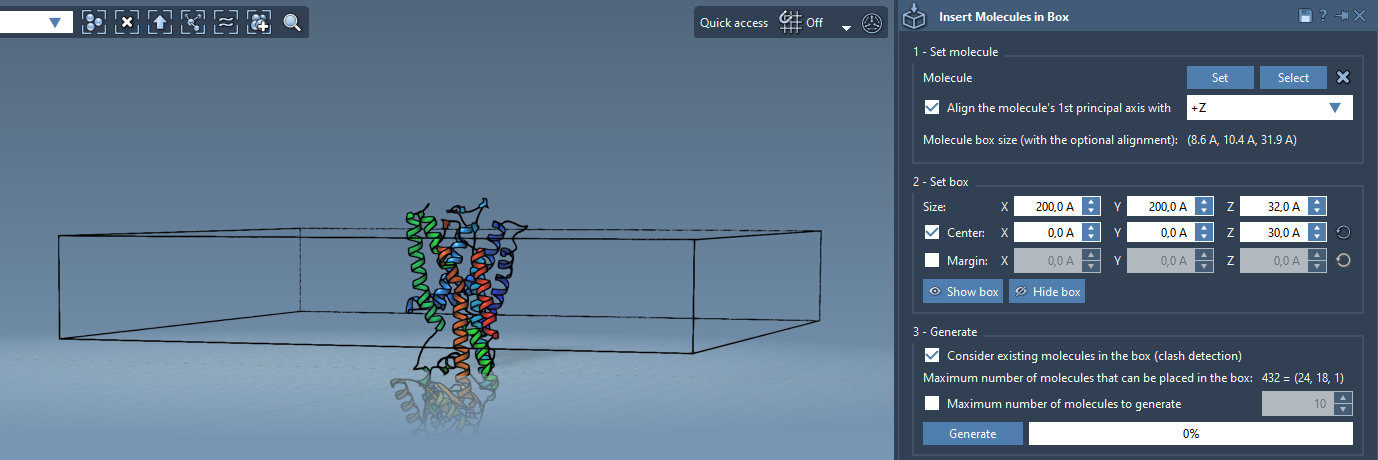
Set the box dimensions in X, Y, and Z, and enable Center so you can position it around the protein. Adjust the center coordinates and dimensions to define the region in which you want the layer to form. The box is not just a visual boundary: its size affects the predicted number of lipid copies that can be placed.
Molecular Box Builder displays an estimate of the number of molecules that fit along each axis and the total. Use this prediction as a setup check. If the estimate is not what you expect, revisit the box size, the molecule orientation, or the margin between inserted molecules before generating. The margin can be positive or negative; by default, the builder arranges inserted molecules so there are no clashes between them.
4. Generate around existing structure
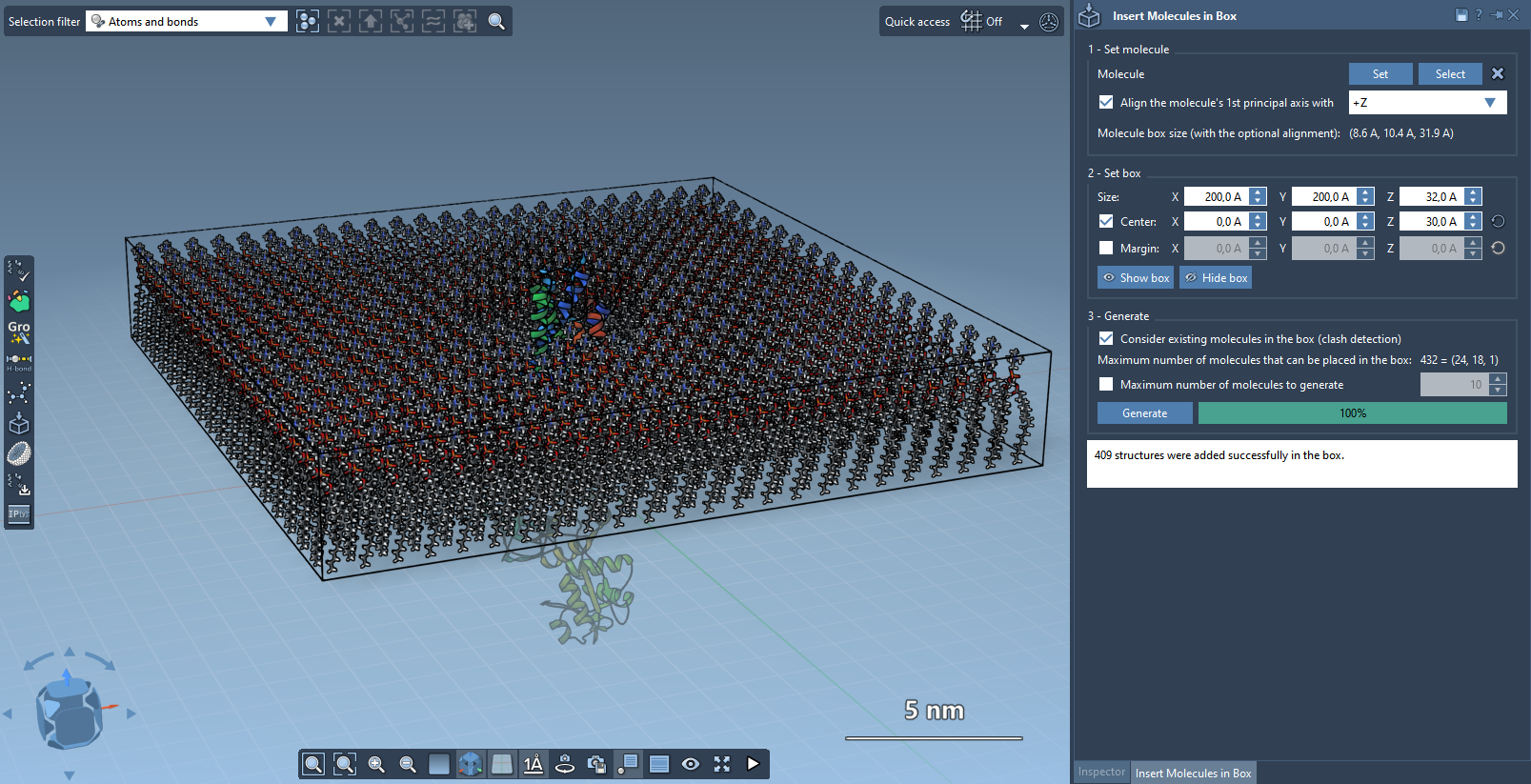
For a protein-centered layer, enable Consider existing molecules in the box. This tells the builder to place lipids only in available space, rather than treating the box as empty. Then click Generate. The result is a set of non-overlapping copies of the selected lipid arranged in the available region around the protein.
Extending the setup to a bilayer
A single layer is a useful starting point, but it is not a full bilayer. To build one with this method, first add a layer with the lipid aligned to +Z. Shift the box center in the Z direction, then generate a second layer with the lipid aligned to -Z. The opposite orientations provide a straightforward way to construct the two opposing layers.
After generating the structure, continue with preparation appropriate to your project. For example, the documentation points to GROMACS Wizard for minimizing, equilibrating, and simulating a generated system. A generated arrangement is a structural starting point; it does not replace those subsequent preparation and simulation steps.
For the complete walkthrough and related setup details, see the Molecular Box Builder documentation.
Note: SAMSON and all SAMSON Extensions are free for non-commercial use. Get SAMSON.