



If you’ve ever run umbrella sampling simulations and found yourself stuck at the next step—extracting the Potential of Mean Force (PMF)—you’re not alone. PMF profiles help interpret free energy landscapes, crucial in understanding molecular interactions, binding affinities, and conformational changes. But moving from raw simulation data to clean, interpretable PMF plots isn’t always straightforward. That’s where the WHAM tool in SAMSON’s GROMACS Wizard can make a difference.
The Weighted Histogram Analysis Method (WHAM) is used to reconstruct PMFs from umbrella sampling data. However, preparing input files, setting parameters, and plotting results can be tedious without a graphical interface. SAMSON’s GROMACS Wizard simplifies this process with a streamlined, GUI-based workflow.
Switching to WHAM Mode
Once you’ve completed your umbrella sampling simulation—likely covered in the previous step of the GROMACS Wizard tutorial—you can switch to the WHAM Analysis tab. This is where the PMF magic happens.
Auto-Fill: A Handy Shortcut
Not sure where your project results are stored? Use the auto-fill button  . It automatically retrieves the path from the last step—no need to navigate to directories manually. This only works if you’re analyzing the output from a previous umbrella sampling simulation using the same structure and reaction coordinates.
How Should Your Input Folder Look?
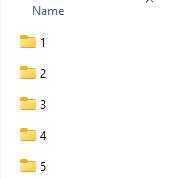
Your project folder should be structured with numbered subfolders (1, 2, 3, etc.), each containing simulation results for different sampling windows along the same reaction coordinate. This is crucial for WHAM to work correctly.
Setting Up the Analysis
Once the folder is loaded, SAMSON will read metadata: time-settings, reaction coordinates, and temperature. You can select the reaction coordinate to analyze from a dropdown list. Fine-tuning? Set custom bounds, simulation time ranges, or pick your favorite energy units before clicking Compute.
Understanding the Output
Two graphs are generated once the computation completes:
- The PMF Plot: Displays the free energy profile along the reaction coordinate.
- The Histogram Plot: Shows the sampling distribution—how well-covered each section of the reaction coordinate is.
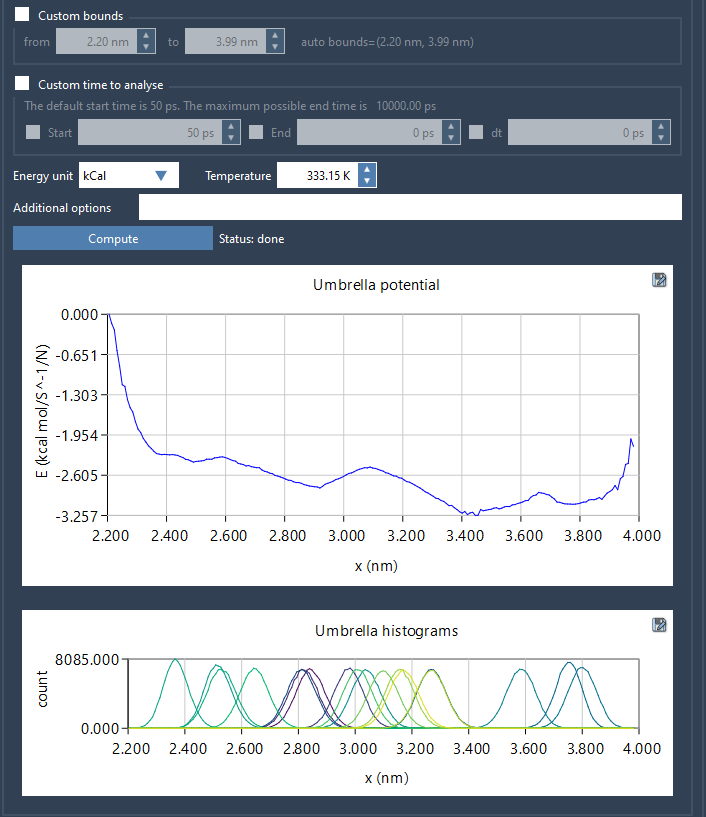
Low histogram counts? That means you may need additional simulation windows in those regions for more accurate PMFs.
Efficient Reuse of Computed Data
SAMSON saves the PMF and histogram data for each coordinate and parameter setting inside the wham_results subfolder. If you explore different reaction coordinates later, the tool reuses the computed data—no need to start over from scratch.
By offering a user-friendly, trustworthy method for WHAM-based PMF analysis, SAMSON helps you stay focused on interpreting your results rather than battling with configuration files or scripting.
To get the hands-on details, visit the original documentation page: https://documentation.samson-connect.net/tutorials/gromacs-wizard/pmf-analysis/
SAMSON and all SAMSON Extensions are free for non-commercial use. You can download SAMSON at https://www.samson-connect.net.